How to Save a PDF From a Website Without Losing Formatting
Learn how to save webpage as PDF with browser print, tools, and extensions.
Saving PDFs from webpages: what you can and cannot expect
If you want to learn how to save a pdf from a website, start with one goal: capture the page’s visible content as a PDF. For most sites, the most reliable method is using your browser’s “print to PDF” feature. It keeps the layout closer to what you see, especially for text-heavy pages.
To do this well, you need to understand the PDF format at a practical level. A PDF can store vector text, images, and layout rules, so it can look crisp and stay consistent across devices. But if a page uses heavy scripts, the browser may only capture what is currently rendered.
So expect two different outcomes. You may get selectable text in the PDF, or you may get a webpage screenshot style output. Your choice of method determines which outcome you get.
Common ways to save a PDF from a website
There are several ways to save webpage as pdf, and each one fits a different need. Some methods are fast and built-in. Others give you more control, but can change how fonts and spacing appear.
In practice, you usually pick between three capture modes. Printing to PDF uses the browser’s layout engine. Online PDF conversion tools often re-render the page on a server. Extensions may use print, capture, or enhanced rendering based on page structure.
Before you choose, ask one question. Do you need the text to be selectable, or is a faithful visual page enough?
- Print to PDF: Best for stable layouts and consistent formatting.
- Online PDF conversion: Useful for one-off pages, but quality varies.
- Browser extensions: Extra options, often better handling of long pages.
Use browser features: Chrome and Firefox options
Both Chrome and Firefox let you convert webpage to pdf using built-in print controls. This is often the closest path to “save webpage as pdf” with minimal surprises. Open the page, then use the browser’s print dialog.
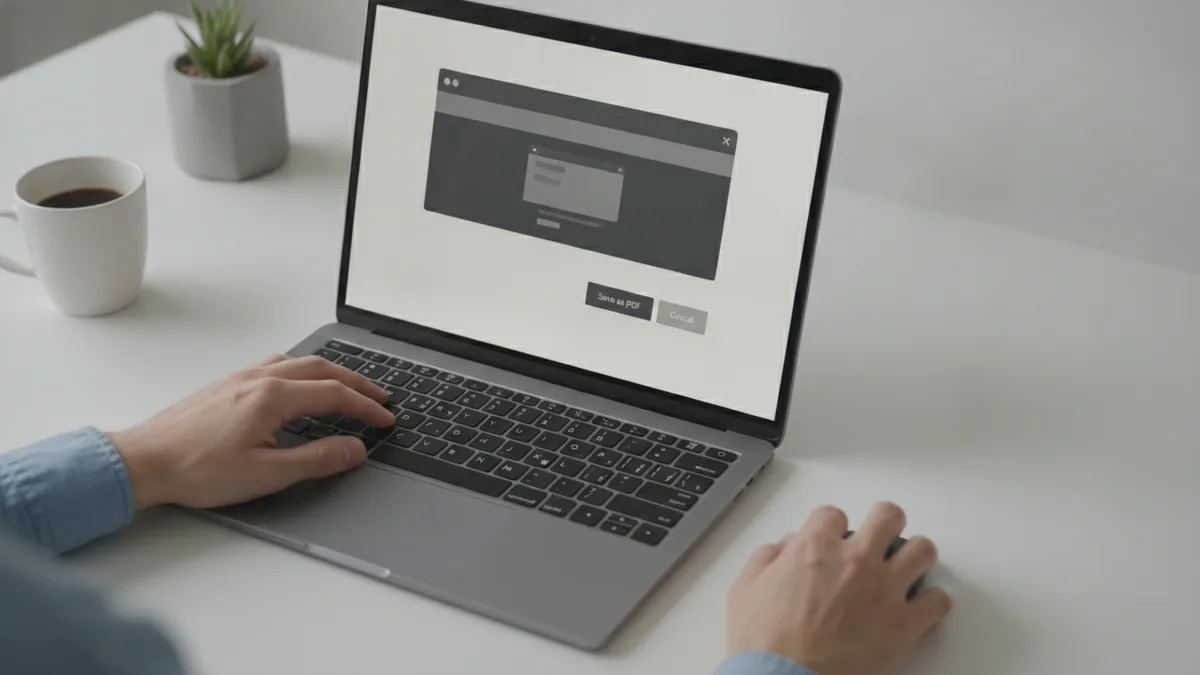
In Chrome, you can choose Print, then select Save as PDF as the destination. In Firefox, the same print workflow exists, and you can pick “Microsoft Print to PDF” or another PDF printer depending on your setup. The print dialog is also where you can adjust margins, scaling, and headers.
These options matter because they change how content fits on each page. If the default scale is too small, tables can become unreadable. If margins are too large, your content can get cut off.
- Open the webpage you want to save.
- Click Print or press Ctrl+P (Windows) / Cmd+P (Mac).
- Choose Save as PDF (Chrome) or the PDF printer (Firefox).
- Check preview for missing sections before saving.
When “print to PDF” captures the wrong view
Some sites load content only after scrolling, or they hide sections behind buttons. If you save too early, the PDF may miss those parts. Fix this by scrolling to load the content first, then open the print dialog again.
Another issue is sticky headers and sidebars. They can repeat on every page in the printout. You can often reduce that by changing print settings like “backgrounds” or by turning off headers and footers.
Use printing to PDF for best layout control
Printing to PDF is the method most people should try first. It uses the browser’s own rendering pipeline, so fonts, spacing, and tables tend to match the webpage screenshot quality you expect. It can also preserve selectable text when the page is normal HTML content.
To get the best results, focus on display settings before you print. If the page supports light and dark themes, pick the one you want. If the page has a “reader mode,” enable it when the goal is text clarity over exact styling.
Also check whether the browser is set to print backgrounds. Many designs rely on background colors for readability. Turning backgrounds on can make the PDF easier to read, but it may also increase file size.
| Print setting | What it affects | What to choose |
|---|---|---|
| Scale or “Fit to page” | How content fits on each page | Use “Fit” only if text stays readable |
| Margins | Whether content gets cut off | Try “Default” then reduce if edges clip |
| Background graphics | Colored sections and subtle shading | Turn on for complex layouts |
Full page capture versus partial capture
By default, print captures what fits the page view and print pagination. If you need a long document, scroll through the page content first. Then print, and review the preview to ensure the full length is included.
If your browser print preview still truncates, you may need an extension. Extensions often do more work to stitch together full page screenshots and convert them into a multi-page PDF.
Try online PDF conversion tools (and know the tradeoffs)
Online PDF conversion tools can be handy when the page is complex or you need a quick result. You provide a URL, and the tool converts the page to PDF on its own infrastructure. This can simplify your workflow, especially if you do not want to adjust print settings.
However, quality can vary. Some tools re-render pages with a different browser engine, so fonts may shift. Others may capture more like a webpage screenshot, which can reduce the amount of selectable text in PDFs.
If the page contains dynamic elements, the tool may not load them fully. You might see missing sections, cookie banners, or placeholders if the site blocks automated access.
- Use online conversion when you need speed over perfect fidelity.
- Prefer tools that clearly show a preview before download.
- Expect more variation on pages with heavy scripts.
Limitations to keep in mind
Interactivity usually does not survive conversion. A PDF is not a live webpage. Links can remain clickable in some cases, but JavaScript buttons and embedded widgets typically turn into static elements.
Also watch for content that relies on user gestures. Drop-down menus and expandable sections might not appear unless you expand them first and then capture the updated view.
Consider browser extensions for saving long pages
Browser extensions are one of the best ways to save content that does not print well. Many extensions focus on capturing full page screenshots and then packaging them into a PDF. Others use the print workflow but add options like better pagination, “save all pages,” or improved handling of headers.
When you use a browser extension, you should still verify the output. Extensions can change how zoom is applied or how images are stitched. That is why checking the PDF preview for missing sections is essential.
Look for extensions that let you choose between “render as PDF” and “capture as image” modes. The first mode often gives more selectable text. The second mode can be more faithful visually when text layout is tricky.
- Install a reputable browser extension for saving PDFs from webpages.
- Open the webpage and scroll to load dynamic parts.
- Use the extension’s capture option for full page output.
- Download the PDF and scan headings, tables, and footnotes.
What extensions can and cannot fix
Extensions can improve coverage and pagination, especially on long pages. But they cannot magically preserve every interactive feature of the original site. If your page depends on scripts that only run during interaction, the PDF will still be a static record.
Also note that some pages block capture. If the output shows watermarks, blank blocks, or missing images, switch methods. Trying browser print first is often the fastest fallback.
Best practices to ensure your PDF saves correctly
Whether you use printing to PDF, an online PDF conversion tool, or browser extensions, the key is verification. Always open the downloaded PDF and compare it with what you saw in the browser. If a table looks shifted, re-save with a different scale or margin setting.
For the best chance of selectable text, use print-based methods on normal HTML pages. If you mainly care about appearance, screenshot-based capture can be acceptable. Just treat the PDF more like an image-backed record.
Finally, handle “hidden” content deliberately. Expand accordions, open tabs, and scroll through lazy-loaded sections. Then save again, so your PDF reflects the full content state.
- Use print preview and confirm the last pages contain your content.
- Check zoom, scale, and margins before saving.
- Turn on background graphics if readability depends on colors.
- Decide whether you want selectable text or faithful visuals.
- Re-capture after expanding menus or loading dynamic sections.
Conclusion
If you need how to save a pdf from a website, your fastest route is usually Chrome or Firefox printing to PDF. It offers solid formatting, and it often keeps selectable text when the page is standard HTML. For long or tricky pages, browser extensions can help you capture everything in one file.
Online PDF conversion tools can work too, especially for quick one-off saves. But be ready for differences in re-rendering, especially on dynamic pages. With a short preview check and careful print settings, you can convert webpage to pdf with far fewer formatting surprises.
When the result looks off, switch methods. Try printing first, then an extension if coverage fails. That simple loop is usually enough to get a clean, usable PDF copy.