
Can’t Download a PDF From Chrome? Clear Fixes That Work
Fix Chrome PDF download issues and save files with ease.
Why Chrome Opens PDFs Instead of Saving Them
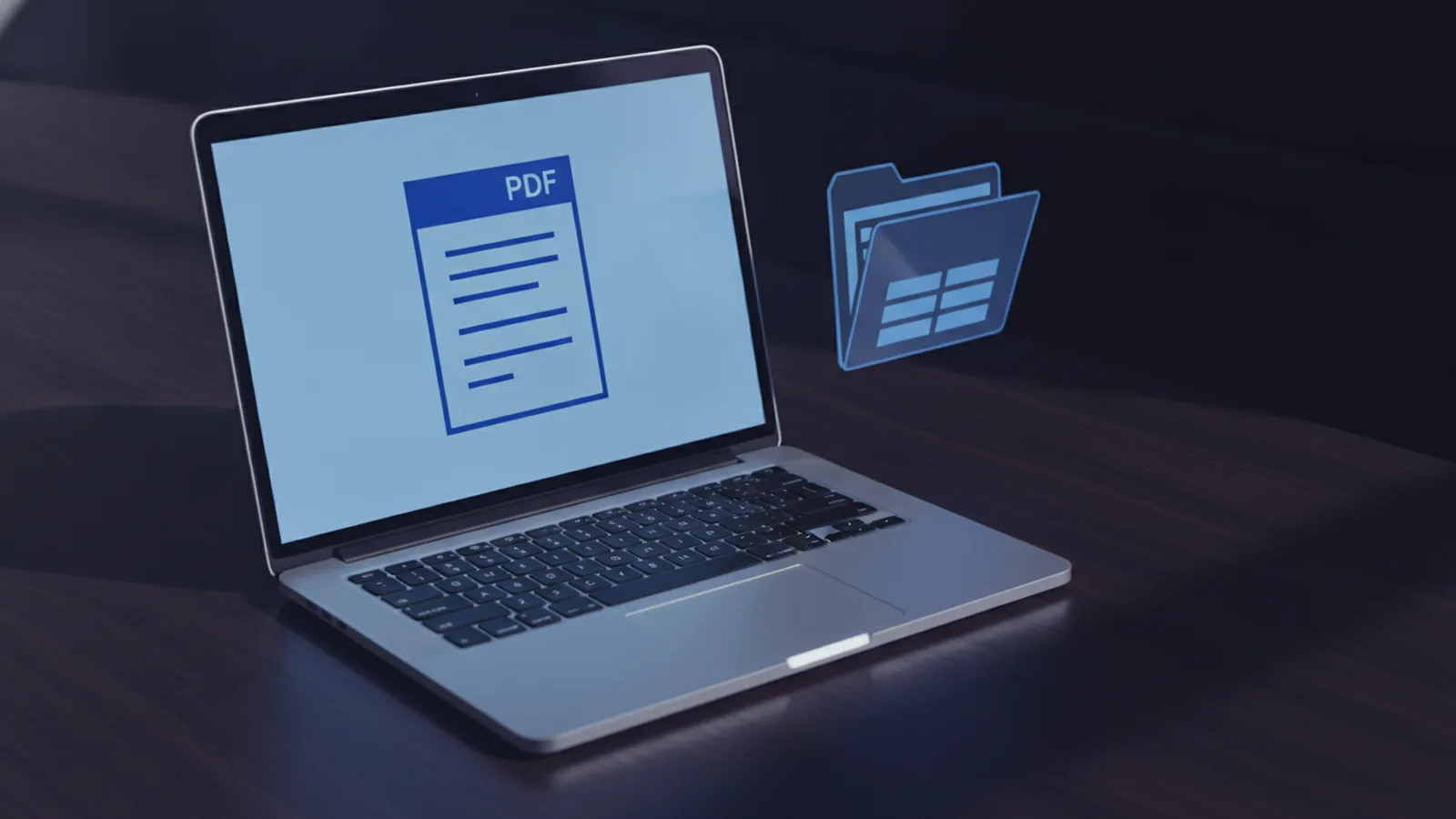
If you can’t download a PDF from Chrome, check how Chrome handles PDF files first. Chrome often opens a PDF in its built-in viewer instead of saving it. You can still save that file from the viewer. Select the download icon near the top right, then choose a folder.
This behavior does not always mean the download failed. Chrome can load the file in a new tab while keeping it out of your Downloads folder. The PDF viewer reads the file inside Chrome. It does not always create a saved copy on your device.
A failed download has different signs. The file may show a failed status, vanish from the download list, or save as a zero-byte file. A blocked site, weak connection, full disk, or damaged PDF can cause these results. The table below helps you match the sign to a likely cause.
| What you see | Likely cause | First action |
|---|---|---|
| PDF opens in a tab | Chrome uses its built-in viewer | Select the download icon |
| Download shows failed | Network, site, or security block | Retry from the source page |
| File opens in another app | Default PDF app controls the file | Check your system app choice |
| File will not open | Incomplete or damaged download | Delete it and download again |
Steps to Fix a PDF Download That Fails
Start with the simple checks. Open the PDF link again in a new tab. Then select the download icon in the viewer. If the icon does not work, right-click the link and choose “Save link as.”
Next, check Chrome’s download list. Press Ctrl+J on Windows or Linux. Press Command+Shift+J on a Mac. Look for the PDF and read its status. A failed item may offer a retry button.
If you still can’t download a PDF on Chrome, test another site. This step shows whether the issue affects Chrome or one source page. If other PDFs work, the first site may block downloads or serve a broken file.
- Reload the source page. Sign in again if the site needs an account.
- Try a private window. This test limits the effect of stored site data.
- Pause download tools. Security tools can block unknown file types.
- Check free disk space. Large PDFs need room for both the file and temporary data.
- Update Chrome. An old browser build may handle files poorly.
- Restart Chrome. Close every Chrome window, then try the download again.
Do not rename a file before it finishes saving. A partial file may look like a PDF but remain unreadable. Delete partial copies before you try again.
Change Chrome’s PDF and Download Settings
Chrome has a PDF Documents setting that controls its built-in viewer. To find it, open Chrome’s settings. Choose “Privacy and security,” then “Site settings.” Select “Additional content settings,” followed by “PDF documents.”
Choose the option that makes Chrome download PDF files instead of opening them. The exact wording may vary by Chrome version. After this change, select a PDF link again. Chrome should save the file to your chosen download folder.
Chrome’s own Chrome download help also explains file saving and download controls. Use the help page if your settings screen has a different layout.
Also review the automatic file rule. Chrome can open certain file types right after they download. If PDFs open in the wrong app, reset that rule. Open the download list, right-click a downloaded file, and clear the option that opens similar files automatically.
- Set PDF Documents to download files.
- Check the folder shown under Downloads.
- Clear automatic opening for PDF files.
- Keep the download prompt on when you need folder control.
Check Your Default PDF Application
Chrome’s viewer and your default PDF app serve different jobs. Chrome’s viewer displays a file inside the browser. Your default app opens saved PDFs after the download ends. Changing one does not always change the other.
On Windows, open Settings, then Apps, then Default apps. Search for “.pdf” and choose a trusted PDF app. On macOS, select a PDF in Finder. Choose Get Info, then pick an app under “Open with.” Select “Change All” if you want every PDF to use that app.
On Android, open Settings and search for default apps. Pick the app that should open PDF files. On some phones, you can clear the current default from the app settings. Chrome may then ask which app to use.
A default app can affect what happens after saving. It should not stop Chrome from fetching the file. If the file downloads but opens elsewhere, the default app is the likely cause. If no file appears, return to Chrome’s PDF Documents and download settings.
| Device | Where to check | What to change |
|---|---|---|
| Windows | Settings > Apps > Default apps | Choose an app for .pdf |
| Mac | Finder > Get Info | Choose “Open with” |
| Android | Settings > Default apps | Pick the PDF opening app |
Other Ways to Save a PDF From Chrome
You have several ways to download a PDF from Chrome. The best choice depends on where the file link appears. A direct link gives you the most control. A viewer page may need a second step.
- Use the viewer button. Open the PDF, then select the down arrow or download icon.
- Use Save link as. Right-click the PDF link before opening it.
- Use print to PDF. Press Ctrl+P or Command+P, then choose “Save as PDF.”
- Copy the direct address. Paste it into a new tab, then save the loaded file.
- Use a trusted PDF tool. Upload only files that contain no private data.
Print to PDF can help when a page displays the file but hides its direct link. It creates a new copy from the view on screen. Links, forms, bookmarks, and file quality may change during this process.
Some sites use short-lived download links. These links expire after a few minutes or after one use. Return to the source page and request a fresh link. Do not keep retrying an old link.

Final Troubleshooting Checks
Check Chrome’s download folder before trying advanced fixes. The file may have saved under a new name. Search your device for files ending in “.pdf.” Sort the results by date to find the latest copy.
Test the same link on another network if possible. A work, school, or public network may block file downloads. A mobile hotspot can show whether the network causes the problem. Keep private files off open networks.
Clear site data only for the affected site first. Open the site settings from the address bar. Remove its stored data, sign in again, and retry the download. This step can fix broken session data without affecting every site.
If Chrome alone fails, disable extensions one at a time. Download managers, privacy tools, and security add-ons can change file handling. Re-enable each extension after testing. This helps you find the setting that caused the block.
Last, download the PDF from a different browser. If it fails there too, contact the site owner. Give them the file link, time of failure, and error message. Do not send passwords or private documents with the report.
Related reading
Open PDFs in Chrome: View Files Fast
Open, read, save, and fix PDFs in Chrome without Adobe.
Make an Existing PDF Fillable: A Simple Process
Add form fields to a static PDF and make data entry easier.
Editing PDFs in Photoshop: Layers and Exporting
Open, edit, and save a PDF in Photoshop while protecting the original.