
How to Print a PDF on Both Sides of the Paper
Print PDFs on both sides, set the right options, and fix common duplex errors.
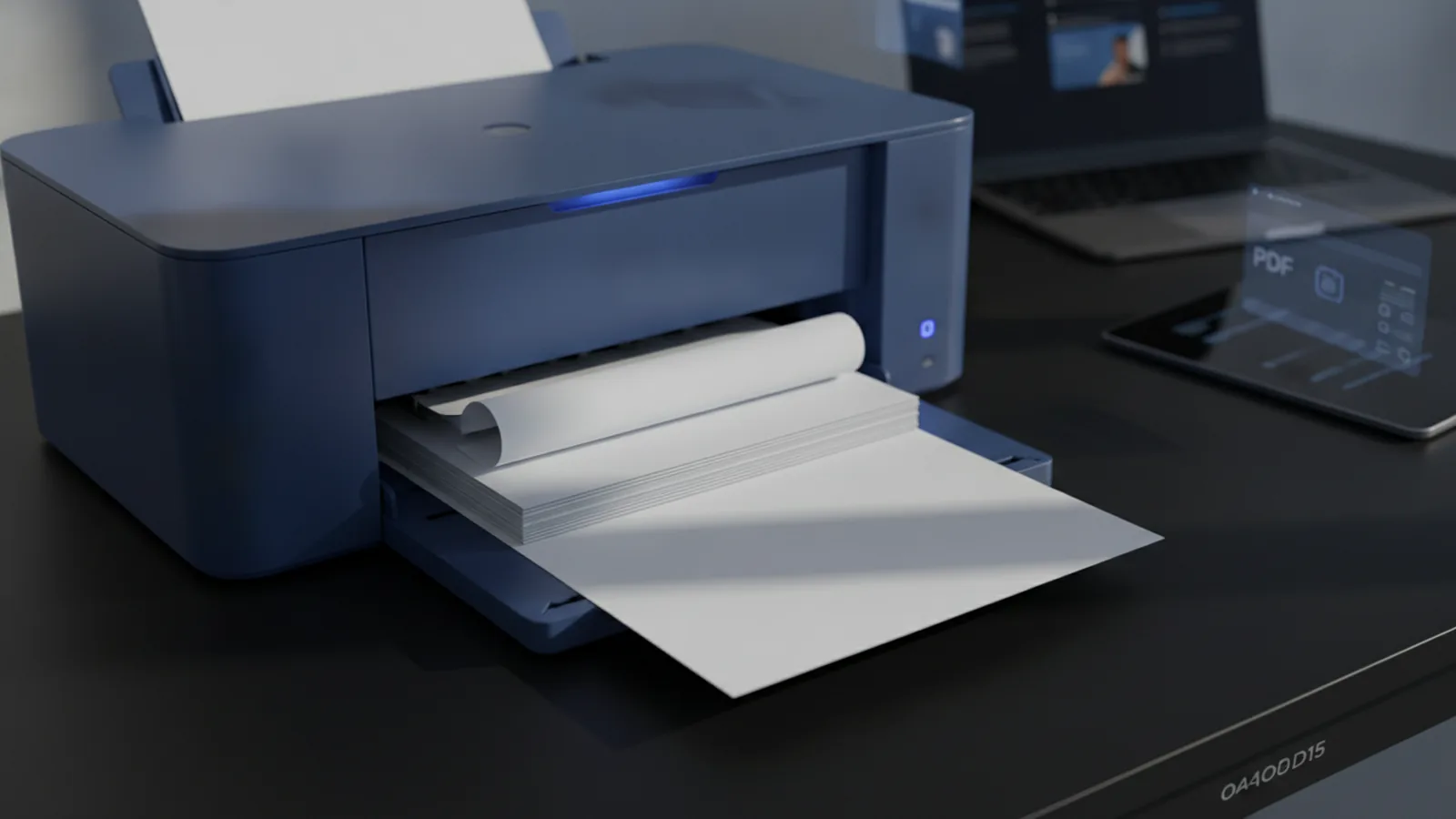
What duplex printing means
Duplex printing means printing on both sides of one sheet. It is the simplest way to make a PDF print front and back.
Most printers offer automatic or manual duplex printing. Automatic models turn the paper and print the second side. Manual models ask you to reload the pages.
Double-sided printing cuts paper use by nearly half for most documents. A 20-page file can fit on 10 sheets instead of 20. This also lowers paper costs, storage needs, and waste.
Before you start, check three things. Your printer must support duplex work, your PDF reader must show the option, and the paper must suit both sides.
- Use plain paper for reports and drafts.
- Choose thicker paper for pages with heavy ink.
- Check the page count before printing.
How to print a PDF on both sides
The basic steps work in most PDF readers. Open the file, choose Print, then find the two-sided option.
- Open the PDF in your preferred reader.
- Press Ctrl+P on Windows or Command+P on Mac.
- Select the printer you want to use.
- Turn on Print on both sides, Duplex, or a similar option.
- Choose Long-edge for normal portrait pages.
- Choose Short-edge for pages that turn from the top.
- Check the preview, then print one test sheet.
Long-edge binding suits books, letters, and standard reports. Short-edge binding suits calendars and some landscape pages.
Adobe Acrobat and Acrobat Reader place duplex controls in the print window. The exact labels can vary by printer driver. Adobe also explains related PDF print choices in its PDF printing guide.
Some readers show a separate checkbox for odd or even pages. This helps when your printer lacks automatic duplex support. Print odd pages first, reload the stack, then print even pages.
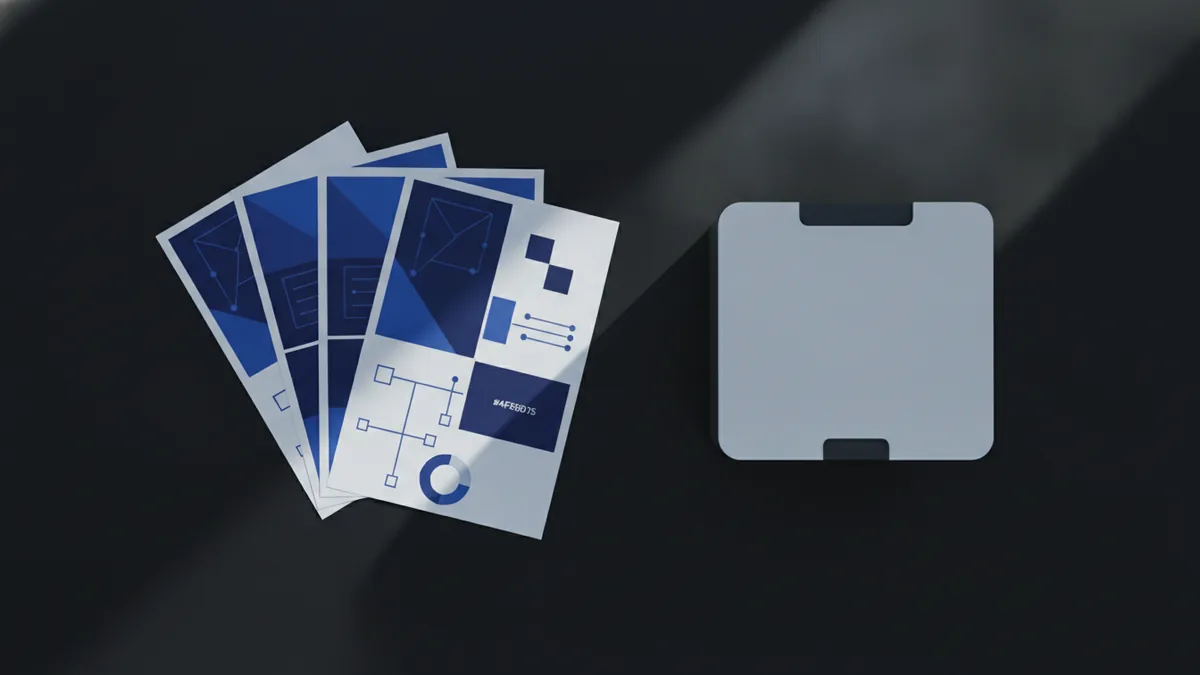
Set up two pages per sheet
Printing two PDF pages on one sheet is different from duplex printing. Duplex uses both sides. Two-pages-per-sheet places two smaller pages on one side.
This layout works well for slides, handouts, drafts, and short notes. It may be hard to read when the original pages contain small type.
- Open the PDF print window.
- Find the page sizing or layout section.
- Select Multiple or Pages per sheet.
- Set the count to 2.
- Set the page order from left to right or top to bottom.
- Turn on duplex printing if you need both sides used.
- Review the preview before printing.
With two pages per sheet and duplex printing, four PDF pages fit on one sheet. This setting saves more paper, but it reduces page size.
Look for options such as Fit, Actual size, and Custom scale. The PDF print larger options can help when a file looks too small. Keep key content inside the page margins.
PDF editing software can also change page size before printing. Tools such as PDFtk can join, split, or reorder pages. They do not control your printer by themselves. The print window still controls duplex work and paper layout.
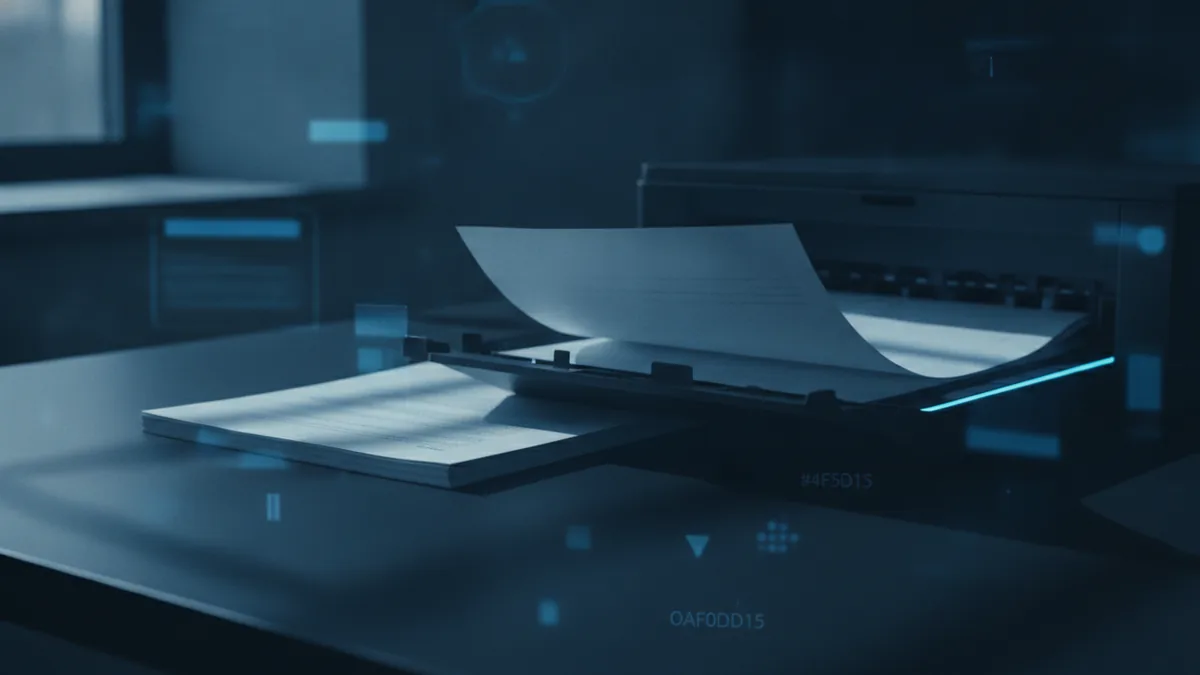
Choose the right PDF software
Your PDF reader affects which print tools you can see. Adobe Acrobat Reader offers broad support for page range, scaling, booklet layouts, and printer features.
Browser viewers often cover basic printing. They may hide advanced controls behind a system dialog. If duplex choices are missing, download the PDF and open it in a desktop reader.
PDF editing tools help when the file needs changes first. You can rotate pages, remove blank pages, or reorder a scanned document. Save a new copy before printing. This protects the original file.
| Software type | Best use | Watch for |
|---|---|---|
| Desktop PDF reader | Full print control | Printer driver labels may differ |
| Web browser viewer | Quick basic prints | Fewer layout choices |
| PDF editing tool | Fixing page order or size | Some tools change page scaling |
| Command-line tool | Batch file preparation | It may not manage printer settings |
For batch printing, group files by paper size and page direction. Test one file from the group first. Small differences between files can affect page turns.
Choose software that shows a clear preview. A preview can reveal blank pages, wrong rotation, or cut-off content.
Check printer settings before printing
Printer settings decide how each sheet turns and how content fits. A correct PDF can still print badly with the wrong driver settings.
Open the printer properties from the print window. Confirm the paper size, paper tray, page direction, and print quality. Then match those choices with the PDF page setup.
- Use Letter or A4 to match the loaded paper.
- Use portrait mode for tall pages.
- Use landscape mode for wide pages.
- Select long-edge binding for normal book-style pages.
- Use short-edge binding for top-turn pages.
- Turn off borderless mode unless the file needs it.
- Use fit-to-page when margins may be clipped.
Print quality also affects page turns. Heavy ink can make thin paper curl or stick. Let damp pages dry before loading them again.
Always print one sheet first when using manual duplex. Mark the top edge with a pencil. This shows which way the printer feeds the stack.
Fix common duplex printing problems
A missing duplex option often points to the printer driver. The printer may support two-sided work, but the installed driver may not expose it.
Start by checking the printer manual or model settings. Then install the latest driver from the printer maker. Reopen the PDF after installing it.
Use these fixes when the result is wrong:
- No duplex option: Check printer properties and install the full driver.
- Back pages upside down: Change long-edge to short-edge, or reverse it.
- Pages appear out of order: Test odd and even page settings.
- Content is cut off: Choose fit, reduce the scale, or check margins.
- Paper jams: Use the right paper weight and avoid overfilled trays.
- Blank back pages: Check for blank PDF pages and print range choices.
When manual duplex fails, print only odd pages first. Reload the stack with the printed side facing the correct way. Then print the even pages.
Run a three-page test before printing a long file. This test checks page order, turning direction, and scale. It can prevent a full stack of wasted paper.
Tips for clean, reliable results
Start with a short test file. A test gives you a safe way to check the feed path and page turn.
Keep the paper stack neat and dry. Fan the sheets lightly, but do not bend them. Load only the amount your printer supports.
Use these habits for better results:
- Save a print-ready copy of the PDF.
- Check the preview at 100 percent when possible.
- Print dark, image-heavy pages on thicker paper.
- Use two pages per sheet for drafts, not final contracts.
- Write down the correct binding choice for your printer.
- Recycle failed test sheets for notes.
For most files, the best setup is simple. Use duplex mode, long-edge binding, fit-to-page scaling, and the correct paper size.
These settings answer the common question of how to make a PDF print front and back. They also help you print PDF two pages per sheet when you need a compact draft.
Related reading
Make an Existing PDF Fillable: A Simple Process
Add form fields to a static PDF and make data entry easier.
Editing PDFs in Photoshop: Layers and Exporting
Open, edit, and save a PDF in Photoshop while protecting the original.
Save Images from PDFs: Methods and Formats
Extract PDF images or turn a picture into a PDF on your device.