
How to Convert PDF to HTML: Methods, Tools, and Fixes
Learn how to convert PDF to HTML with tools and layout tips.
Understanding PDF and HTML formats
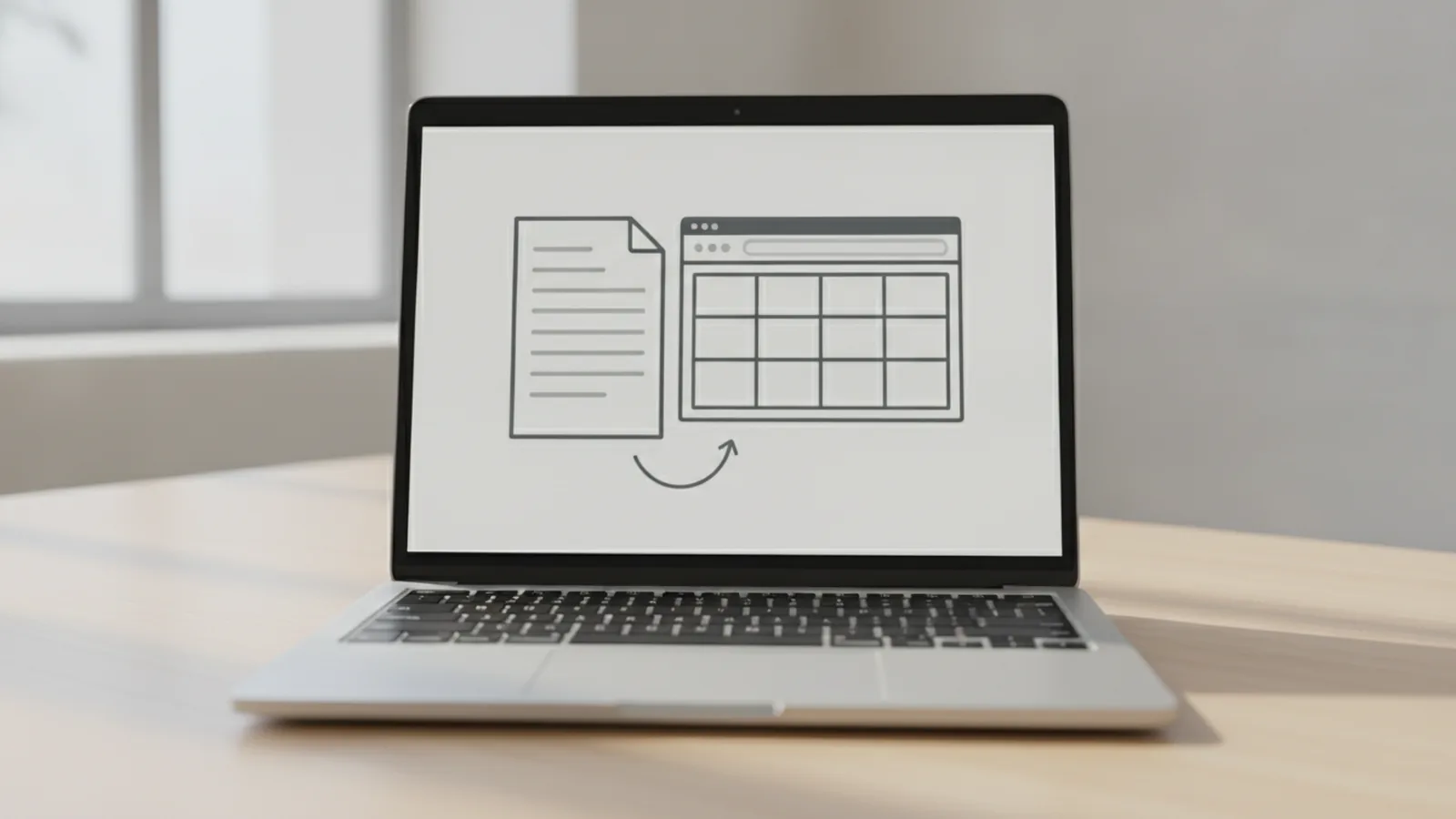
To convert a PDF to HTML, you turn a page layout document into web-ready structure. The HTML output should display like the original, but using browser-rendered elements.
A PDF format stores text, fonts, and drawing instructions so it looks the same everywhere. An HTML format stores content as tags that browsers can render and style with CSS.
Because PDF is designed for page layout, it is not inherently “web-native.” That is why file conversion techniques often need extra work to rebuild headings, paragraphs, lists, tables, and reading order.
Benefits of converting PDF to HTML
Converting PDF to HTML improves how the content works on the web. HTML is easier to search, link, and update than a static PDF.
Document accessibility can also improve. When the text becomes real HTML, screen readers can usually interpret it better than embedded PDF pages.
Another advantage is web compatibility. HTML works across browsers without special plugins, while PDF viewing can depend on reader settings.
- Better accessibility: text becomes indexable and can follow semantic structure.
- Improved web use: you can style and embed content in site layouts.
- More flexible updates: update text without re-uploading a whole PDF.
- Faster integration: copy sections into CMS pages or other web templates.
Methods to convert PDF to HTML
There are two common paths for how to convert pdf to html. You can do it manually, or you can use software tools that automate extraction and rebuild.
Manual methods work when the PDF is simple and you want full control. For example, a short article with basic headings can be recreated by copying text, then rebuilding lists and tables in HTML.
Automated conversion is usually faster for larger documents. Most tools parse the PDF format, extract text and layout hints, then produce HTML code you can refine afterward.
Manual approach: rebuild the HTML structure
If you want to do it by hand, start by inspecting the PDF. Identify headings, paragraphs, bullet lists, and any tables. Then recreate that structure using HTML tags like <h1>, <h2>, <p>, and <ul>.
After that, add images if needed. If the PDF contains charts as graphics, you may need to export them as images and place them in the HTML with responsive styling.
This approach can produce clean code, but it is time-heavy for complex layouts or scanned PDFs.
Tool-driven approach: convert pdf to html file or code
For software tools, your workflow is typically “upload, convert, download.” Some tools output a full HTML file, while others give you HTML code you can paste into a page.
When people ask “convert pdf to html file” or “convert pdf into html code,” they usually mean one of these outputs. Choose the one that matches your web workflow. If you use a static site generator, you may prefer a downloadable zip. If you edit in a CMS, code output can be simpler.
- Check the PDF type: text-based or scanned pages.
- Pick a conversion mode: “webpage,” “HTML,” or “responsive.”
- Run a small test: convert one page first.
- Review the HTML: verify headings, lists, and reading order.
- Refine: adjust CSS and fix broken tables.
Best tools for PDF to HTML conversion
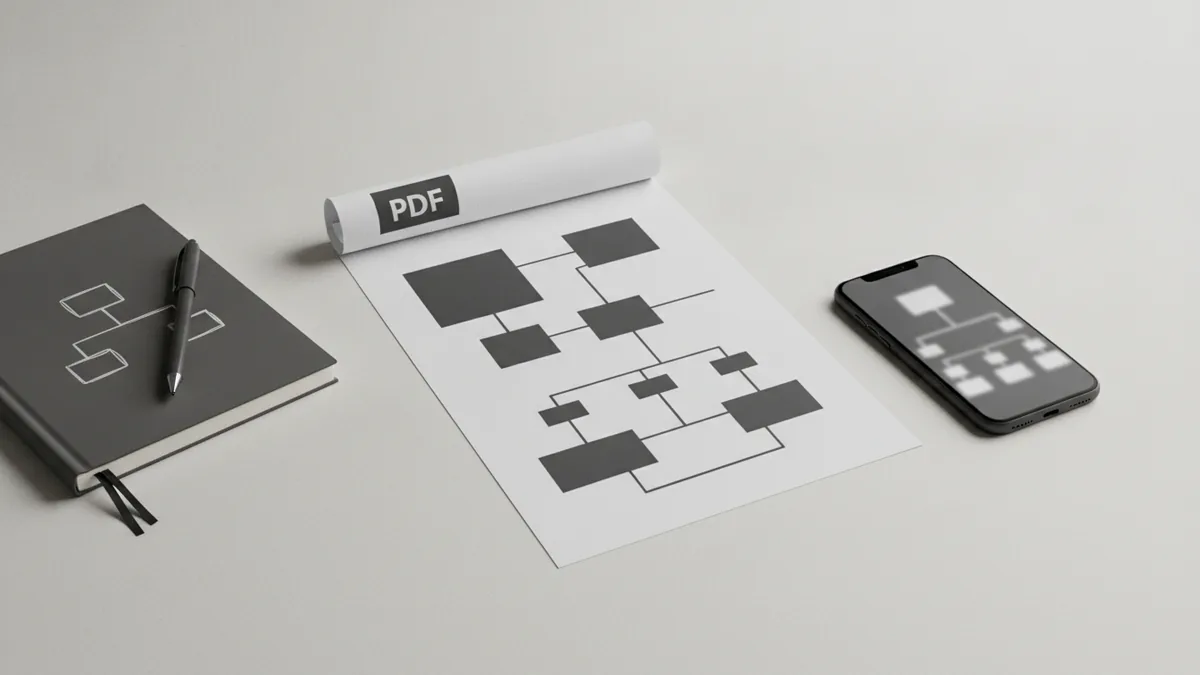
There is no single tool that converts every PDF perfectly. Still, some user-friendly conversion tools tend to work well for common documents like reports, brochures, and help pages.
When you search “how do i convert pdf to html,” you usually want a low-friction option. Online conversion services can be fast because you do not install anything.
However, for sensitive documents, consider security of file transfers. Prefer tools that use encrypted connections and clear deletion policies, and avoid uploading confidential data if you have strict rules.
Online conversion services
Online conversion services are convenient for quick turns. You upload a PDF, then download the HTML output.
- Cloud-based HTML exporters: usually support one-click conversion and provide an HTML download.
- Lightweight formatting controls: some let you choose “preserve layout” vs. “extract text.”
- Best for: text-based PDFs with clear headings and consistent spacing.
To use them, you typically upload the file, select HTML as the output, start conversion, then review the result. Do a one-page test when possible.
Desktop and developer tools
Desktop tools can be better when you process many files or need repeatable output. They also reduce the risk of repeatedly sending files over the internet.
Developer-oriented workflows matter too. People sometimes ask how to convert pdf to html in Java or how to convert pdf to html in php because they want automation in their own systems. In those cases, libraries or services can convert PDFs in the background and then store the HTML for rendering.
| Tool type | What you get | When to use |
|---|---|---|
| Online conversion services | HTML file download and assets | Quick edits and small teams |
| Desktop converters | HTML output with layout hints | Batch work and repeat runs |
| Libraries for code generation | HTML code or structured DOM | Automation in Java or PHP workflows |
Tips for maintaining document layout
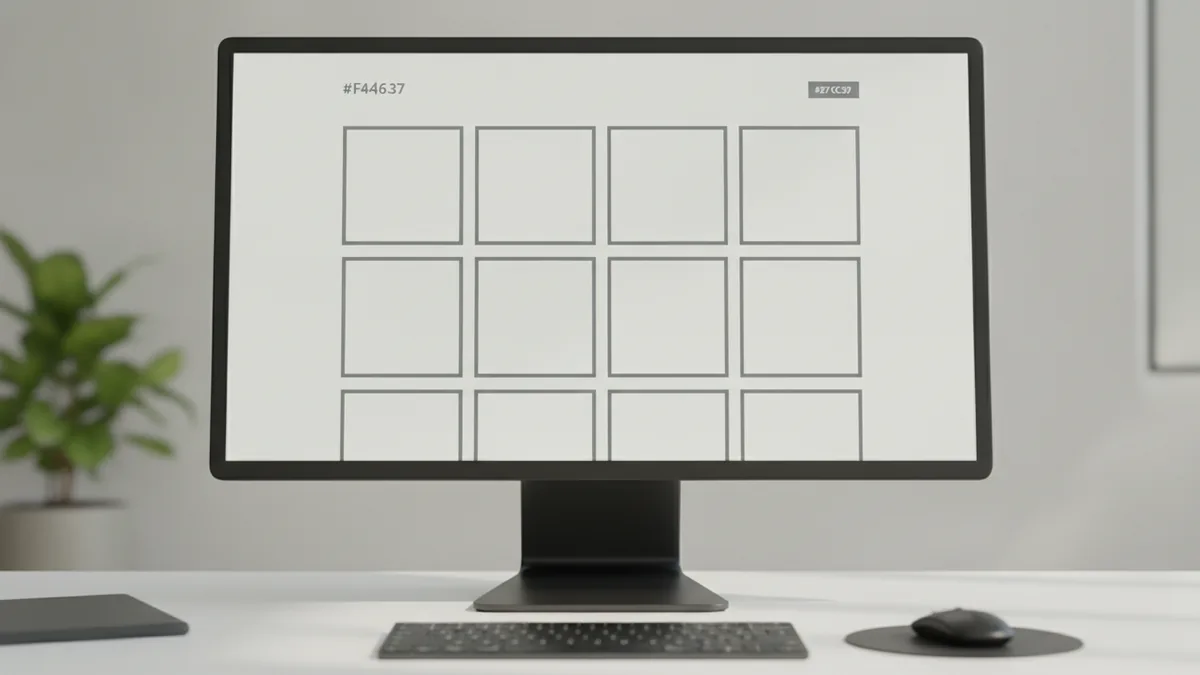
Layout preservation is the main challenge in convert pdf to html workflows. The goal is to keep headings, text blocks, and tables in the right order.
Start by choosing a “preserve layout” or “layout-first” mode if the tool offers it. Then check whether it keeps reading order. A visually correct page can still have scrambled order in HTML.
Next, verify structural elements. Headings should map to HTML heading tags, not just styled paragraphs. Lists should become real list tags, not single long lines.
Focus on structure, not just appearance
When you review the HTML output, look for these structure signals. If they are wrong, the page will feel hard to edit and less accessible.
- Headings: each section title should use an <h2> or similar tag.
- Text blocks: paragraphs should use <p> consistently.
- Lists: bullets should convert into <ul> and <li>.
- Tables: data should become <table>, <tr>, and <td>.
Handle images and scanned content carefully
If your PDF is scanned, text may not be real text. In that case, conversion often depends on OCR. Expect more manual cleanup, especially for headings and spacing.
For image-heavy PDFs, plan to export figures as images and place them in the HTML. That usually matches the original layout more reliably than forcing everything into text spans.
Also watch for font issues. If the output swaps fonts or sizes, line breaks can change and tables may shift.
Common issues and troubleshooting
People often ask “can you convert pdf to html” because they expect a perfect result. In reality, conversion can break formatting, spacing, and semantics.
The good news is that most issues follow repeatable causes. You can reduce them with small checks before and after conversion.
Formatting loss and misaligned spacing
A common pitfall is that text appears but spacing changes. This happens when the HTML relies on absolute positioning or when font metrics differ.
Fix it by switching from fixed positioning to normal flow when possible. Then use CSS margins and widths to recreate the layout. For tables, avoid “pixel-perfect” expectations. Focus on readable columns instead.
Tables that turn into messy blocks
Tables often convert into nested divs or incorrectly merged cells. If the HTML uses generic divs, rewrite the structure with real table tags.
When cells merge incorrectly, compare the original PDF columns. Then adjust the HTML structure and add CSS for borders and padding.
Broken reading order and accessibility gaps
Another issue is that the visual order does not match the HTML order. Screen readers may read content in the wrong sequence, even if it looks okay.
To troubleshoot, scan the HTML and check the order of headings and paragraphs. If needed, reorder blocks so the flow matches the PDF reading path.
Browser compatibility problems after conversion
Even if the HTML looks fine in one browser, it can shift in another. That is why post-conversion testing matters.
Test in at least two major browsers and check mobile width too. Pay attention to line wrapping and table overflow. If overflow happens, add scrolling or responsive table handling.
Security of file transfers
If you use online conversion services, treat uploads as real data movement. Only convert files you are comfortable sharing with the service.
When possible, use local tools for private documents. Also verify the service provides secure upload and clear file handling policies.
Conclusion and next steps
So, how do you convert pdf to html successfully? Pick the right method for your PDF type, then validate structure and layout after conversion.
For simple, text-based documents, online conversion services can be quick. For complex layouts, developer tools or desktop converters can produce more consistent output.
Next steps are practical. Convert one page as a test. Then refine headings, lists, and tables. Finally, test the HTML in multiple browsers and fix any shifts before publishing.
If you plan to show the output on a web page, keep your workflow tidy. Store the HTML and any image assets together, then link them correctly. This reduces breakage when you later convert pdf to html email content or embed in a CMS.
Quick checklist for your first successful conversion
- Start with a one-page test conversion.
- Confirm headings and text blocks convert to real HTML elements.
- Repair tables into structured HTML where needed.
- Test in multiple browsers for layout shifts.
- Use secure tools when handling private PDFs.
Related reading
MOV to PDF on Mac: Frames and Files
Turn video frames into a neat PDF on your Mac.
XBRL to PDF: Readability and Record-Keeping
Turn XBRL reports into readable PDFs and keep the source files safe.
PST to PDF: Methods and Best Practices
Compare Outlook, software, and expert options for converting PST files to PDF.