How to Convert Images to PDF Files (and Combine Them)
Convert images to PDF, then combine multiple into one file.
Introduction to Image-to-PDF Conversion
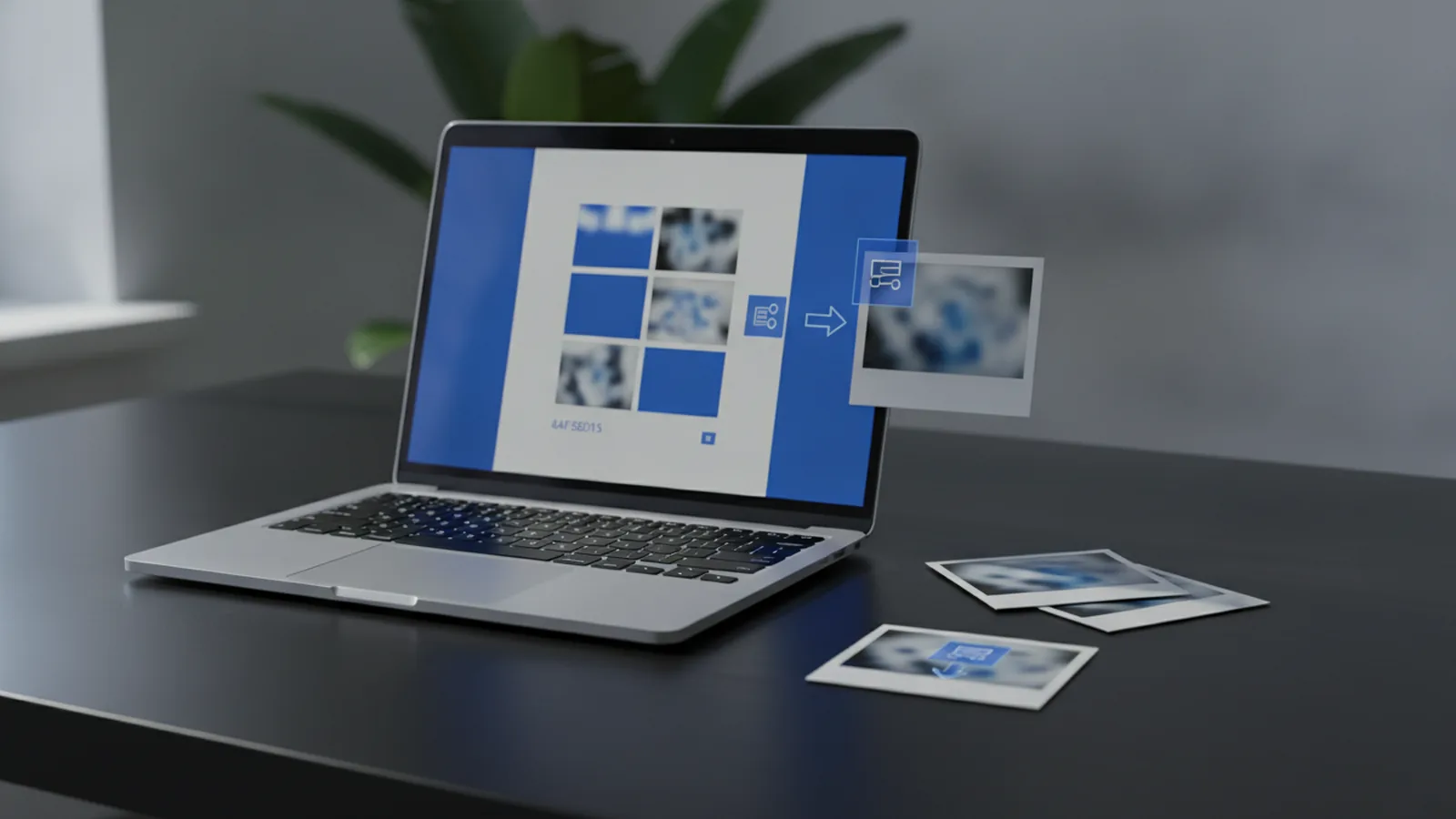
If you need to turn photos or scans into a single file, the answer is simple: convert the images to PDF. Most tools let you pick your image folder, create a PDF in minutes, and then combine pages into one document. The exact steps depend on your device and the image formats you have.
In this guide, you’ll learn how to convert images to pdf files on desktop and mobile. You’ll also see how to combine multiple images into one pdf without losing readability. Along the way, you’ll get practical tips for image quality and file size.
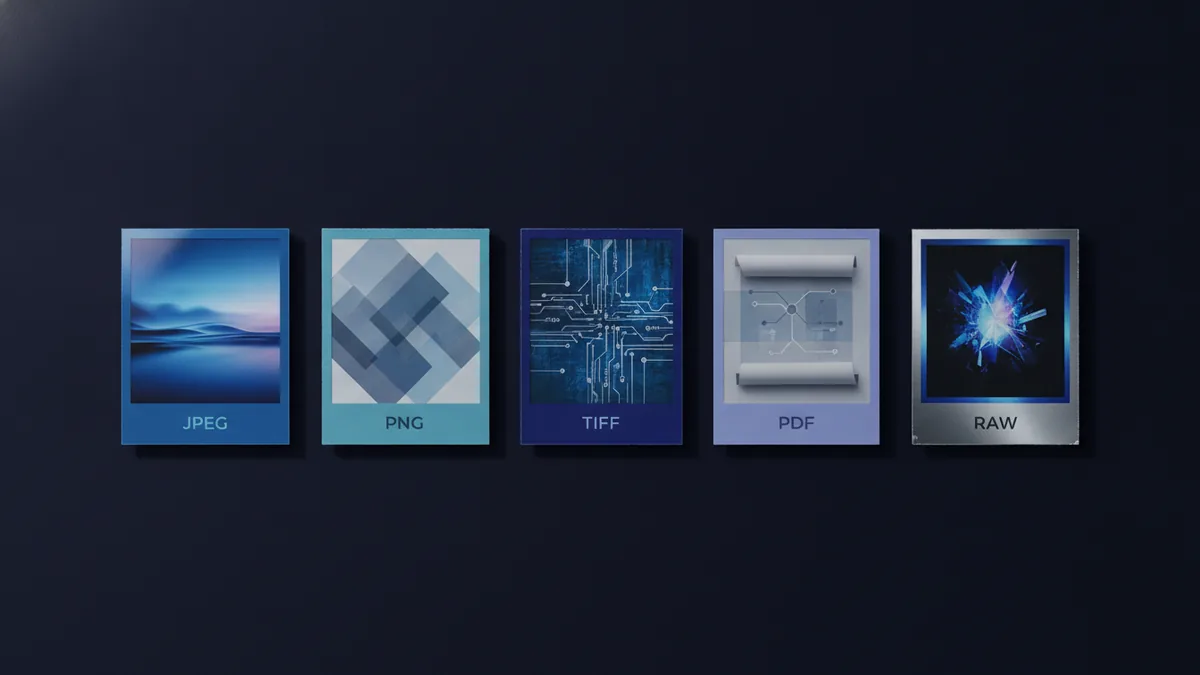
Before you start, check what you have. Many cameras save JPEG, phones often produce HEIC, and screenshots may be PNG. Your tool should handle common formats that can be converted to PDF.
Benefits of Converting Images to PDF
PDF is great for sharing because it keeps the layout stable. When someone opens your PDF, they usually see the same page size and formatting. That stability matters for documents, receipts, and scanned forms.
PDF also helps with compression and organization. If you combine images, you create one file instead of a folder of images. That makes email attachments, uploads, and archiving easier.
Another benefit is that PDF can support both images and text in a single file. Many scanners can create searchable PDFs, and some conversion tools can enhance contrast. You keep the visual content, but you gain better usability.
Finally, PDF format benefits include easier printing. Most systems print PDFs correctly without awkward reflow. You can print one page or the whole document without resizing surprises.
- Better sharing: one stable file, fewer upload issues
- Cleaner workflows: combine images into one PDF
- Print-friendly: predictable page sizing
- Usually smaller: tools can compress while keeping readable detail
Step-by-Step Guide: Convert Images on Desktop
Let’s start with desktop, because it’s usually the fastest route to a clean PDF. Whether you use desktop software or an online conversion tool, the flow is similar. You import images, set the order, choose PDF output, and export.
Understanding image file formats helps you avoid surprises. JPG and JPEG are common camera formats and typically smaller. PNG keeps sharp edges and transparency, but it can be larger. If you have HEIC from iPhones, some tools need an extra step or a conversion to JPEG first.
Use the steps below as a general desktop workflow. Then adjust based on what your tool shows on screen.
- Collect your images: Put them in one folder so you can select them all at once.
- Open the converter: Launch your desktop app or open an online conversion tool.
- Select the image formats: Add JPG, PNG, and other supported formats like HEIC if allowed.
- Choose PDF output: Pick “PDF” as the output format, not “image” or “document.”
- Set page order: Confirm the sequence matches how you want pages to appear.
- Convert and download: Export the PDF, then open it to confirm page sizes.
If you’re aiming for “how to convert multiple images to pdf” in one document, the key is step five. Page order is where mistakes happen. Rename files with numbers (like 01, 02, 03) if your tool sorts alphabetically.
For “how to convert a set of images to pdf,” look for an option like “folder to PDF” or “batch convert.” Desktop software often has better control over margins and scaling than basic web forms.
How to Combine Multiple Images into One PDF
There are two common goals: converting each image into its own PDF, or putting multiple images into one PDF. For the search intent here, you want the second goal. That means creating a multi-page PDF where each image becomes one page.
When someone asks “how to combine multiple images into one pdf,” the answer depends on whether your tool treats images as pages or as separate files. Many converters have a checkbox or mode such as “Combine” or “Merge into one PDF.”
Here’s a practical way to do it on desktop, plus checks to prevent common issues.
- Select all images at once: Use multi-select or drag-and-drop a folder.
- Enable combine/merge: Turn on a setting that creates one PDF output.
- Confirm the page size: Choose a standard size like A4 or Letter.
- Adjust scaling: If images look cropped, switch to “fit to page.”
- Review the result: Zoom to 100% and check readability.
If you’re asking “how to put multiple images into one pdf,” your tool may show a thumbnail list. Use it to reorder pages before you export. If there’s no reordering view, pre-sort your filenames.
On macOS, the phrase “how to combine multiple images into one pdf mac” often comes up. Many Mac users export a PDF from Preview by importing images, then reordering thumbnails, and saving as PDF. If you go this route, keep an eye on scaling so the content fits the page.
Regardless of platform, aim for consistent page backgrounds. For example, if you combine PNG screenshots with transparent areas, some tools may add a white background. That’s normal, but always check.

Mobile Options for Converting Images to PDF (iOS and Android)
If you’re on the go, you still have good options. Most phones have built-in tools for scanning, saving, or exporting as PDF. There are also mobile apps for PDF conversion that support batch combining.
For “how to convert multiple images to pdf in mobile,” the safest plan is to use a tool that explicitly supports multi-image to PDF. Many apps let you select several photos, then export a single PDF document. Some may create one PDF per image, so verify the “combine” behavior.
Below are common mobile patterns you can use. The names of buttons vary by app, but the logic stays the same.
- Select multiple images: Open your photo picker and choose several images.
- Choose PDF: Tap an export option that says PDF or “Save as PDF.”
- Turn on combine: If shown, enable one-file output for multiple images.
- Check order: If thumbnails appear, reorder them before exporting.
- Save and open: Confirm the PDF opens and pages look correct.
On iOS, some share sheets and scanning tools can export PDFs directly. On Android, gallery share menus and many PDF apps offer the same multi-select export. If your images are in HEIC, a tool may convert them to JPEG before creating the PDF.
When you try to “save multiple images as one pdf,” watch for two pitfalls. First, image rotation can flip pages. Second, very large images can produce huge PDFs. Fix rotation in the image gallery first, then convert.

Tips for Better Image Quality and Smaller File Sizes
Good output is not only about converting. It’s about what you do before and after conversion. Image quality depends on resolution, cropping, and how the tool scales images to page size.
Start with the image source. If you’re scanning paper, capture at a clear resolution. If you’re photographing a screen, avoid glare and keep the subject flat. For JPG images, use the original photo rather than a heavily re-saved copy.
Next, manage page fit. If your tool offers settings like “fit to page” or “scale to A4,” use them. Avoid options that crop automatically unless you’re sure the important parts fill the page.
| Goal | What to do |
|---|---|
| Sharper text | Use the highest readable resolution, and prefer PNG or scan output |
| Smaller file size | Compress images before conversion, or choose a “smaller PDF” option |
| Consistent pages | Pick one page size and apply “fit” so all images match |
Many people also search for “how to convert images to pdf free.” Free options exist online and in many device tools. But free doesn’t always mean lossless. Some converters compress images to keep uploads fast and downloads smaller.
Test one batch first. Convert a small set, open the PDF, and zoom in where the text is hardest to read. If it’s blurry, reduce cropping and choose better quality input images.
Lastly, keep your page count reasonable. A very large multi-page PDF can be slow to upload. If your document gets huge, split it into two PDFs and label them clearly.
Troubleshooting and Common Conversion Issues
Even with the right tool, issues happen. Most problems come from format support, scaling, or page order. Knowing what to check helps you fix it fast.
Here are common problems and quick fixes for troubleshooting PDF conversion.
- PDF won’t open: Download again and make sure the file finished exporting.
- Pages are cropped: Switch to “fit to page” and reconvert.
- Wrong order: Rename files with numbers and convert again.
- Blurry images: Use higher-resolution originals or avoid re-saving earlier.
- Error with HEIC: Convert HEIC to JPG first, then run the PDF conversion.
- Huge file size: Compress images before converting or choose a smaller output mode.
If you’re specifically trying “how to turn multiple images into a pdf” and you’re getting one PDF per image, you’re likely in the wrong mode. Look for a combine or merge option. If you still can’t find it, try a tool that supports multi-image to single PDF export.
For “how to convert multiple images to pdf on mac,” Preview or another built-in app can work well. If it doesn’t, a dedicated PDF converter may offer better scaling and fewer cropping surprises.
Keep a backup of your original images. If you reconvert with new settings, you’ll want to repeat from the same clean sources.
Conclusion and Helpful Resources
Once you know the flow, converting images to PDF files becomes routine. You import images, set the PDF output, confirm page order, and export. Then you review the result and adjust scaling if needed.
For combining images, focus on the combine or merge mode. That’s what turns separate images into one multi-page document. With the right settings, you’ll get readable pages that share cleanly.
If you want a standards-based reference for PDF behavior, you can read about PDF in the PDF Reference from Adobe. It’s useful background when you wonder why some converters behave differently.
If you want a tool-agnostic reminder, the best practice is consistent inputs. Use clear image formats like JPG or PNG, keep page sizes aligned, and check output quality on a zoomed view.
Related reading

Corrupted PDFs: Repair and Recovery
Try these safe steps to repair a damaged PDF and prevent the next one.
Split PDF Pages: Fast, Simple File Control
Split a PDF online or on your computer, one page or range at a time.
Easy PDF Combine: Remove It Safely
Remove the hijacker, reset your browser, and scan for leftover files.