How to Merge Scans Into One PDF (And Clean Them Up)
Combine scanned documents into one PDF, then clean and share it.
Understanding scan files and how they become PDFs
A scan is a digitized copy of paper content. A scanner or phone camera turns pages into images, then software wraps those images in a PDF container.
So when people ask how to merge scans into one pdf, they usually mean combining many page-image PDFs into a single file. Each original scan may be a one-page PDF, or a multi-page PDF already.
Scanned documents are different from native PDFs. Native PDFs store text and layout. Scanned PDFs store page images, so quality and size matter more during cleanup.
- Typical inputs: one-PDF-per-page scans, or a PDF per document.
- Goal: one PDF with all pages in the correct order.
- Extra step: optimize file size and fix scan artifacts.
Methods to combine multiple scans into one PDF
There are three common ways to combine scans into one pdf. You can merge PDF files in desktop software, use an online PDF service, or use built-in tools that come with your device.
If your scan PDFs are large, desktop merging gives you more control over settings. If you want speed, online tools reduce install time. Either way, page order is the first thing to verify.
Here are the main merge methods you can choose from, depending on your setup.
- Desktop merge: Adobe Acrobat, Preview (Mac), or other PDF tools.
- Online merge: browser-based “combine PDF” pages.
- Print-to-PDF workflows: sometimes useful, but usually worse for quality and order.
For most users, the best balance is software for cleanup and ordering, then optional online sharing afterward.
Using software tools to merge scanned PDFs
Below are step-by-step ways to put multiple scans into one pdf using popular tools. The exact buttons can vary by version, but the flow is very similar.
Adobe Acrobat (Windows or Mac)
Open Adobe Acrobat and choose Combine Files. Add your scanned PDFs as files to combine. Then set the page order before you merge.
Next, review the combined preview. If pages are out of order, drag them in the right sequence. Finally, click Combine and save the result.
- Open Adobe Acrobat.
- Select Combine Files.
- Add scanned PDF files.
- Reorder pages if needed.
- Click Combine, then save.
Preview on Mac
Mac users can merge PDFs right in Preview. This is one of the quickest ways to how to make scans into one pdf without installing extra apps.
Start by opening the first scan in Preview. Then open the thumbnail sidebar and drag in the other PDFs’ pages. Finally, export the merged PDF.
- Open a scan PDF in Preview.
- Show the thumbnail sidebar (View > Thumbnails).
- Open the other scan PDFs in separate Preview windows.
- Drag pages into the first thumbnail list.
- Save the merged file.
Other software tools for PDF
Many PDF editing apps have a similar “merge” feature. Look for terms like Combine, Merge, or Insert pages. If the tool also supports OCR, it can help later.
For document management workflows, prefer tools that preserve page sizes. Some scanners produce mixed page sizes, and certain tools rescale pages unexpectedly.
Online tools for merging scans without installation
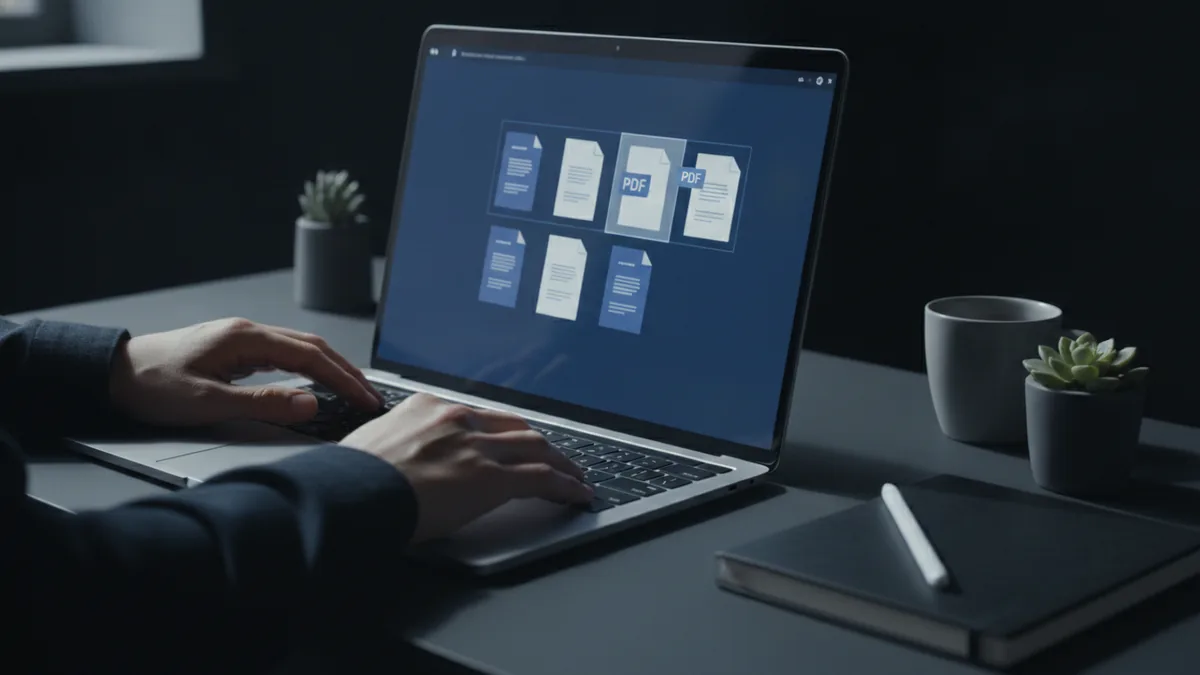
If you need to how to combine multiple scans into one pdf on a quick basis, online PDF services can help. You upload PDFs in your browser, merge them, and download the result.
The main advantages are speed and convenience. The main downsides are privacy limits and file size caps. Before using an online PDF service, check its limits for upload size and supported formats.
Using an online merge tool is usually a two-step process: upload, then download. But you should still verify page order after the merge.
- Upload multiple PDFs: add all scanned documents you want combined.
- Check ordering: confirm page sequence and rotate pages if needed.
- Download: save the combined PDF to your device.
As a rule, keep a backup copy of your original scan PDFs. If page order matters, test the flow with one small batch first.
How to clean up scanned PDFs (quality and size)
After you merge, it is common to see quality issues. Scans can look blurry, have specks, or create huge files. These problems come from how the scan was captured and saved.
To how to clean up pdf scans effectively, focus on two areas. Reduce file size without destroying readability. Fix common artifacts like skew, dust, and uneven contrast.
Common scan problems you may notice
- Large file size: often caused by high resolution or uncompressed images.
- Low readability: text looks gray or washed out.
- Background noise: dust, shadows, or stains appear on every page.
- Mis-cropping or skew: page edges are cut off or angled.
Practical cleanup steps before or after merging
Clean up can happen either before merging (per file) or after merging (for the full document). If only one document is messy, clean it first. If all pages share the same issues, clean after combining.
Compression is usually the first win for file size. If your scanner saved very high resolution, you can downsample. However, do it carefully so letters stay sharp.
- Crop and deskew: remove extra margins and straighten rotated pages.
- Adjust contrast: make text darker against the background.
- Remove noise: reduce dust and speckle artifacts.
- Compress images: lower resolution or use stronger compression.
Error correction depends on the tool. Some apps can run OCR or detect page issues automatically. If your document must be searchable, OCR can help, but it also may increase processing time.
Quick numbers you can use when deciding quality
If you are re-scanning from paper, a common target is 300 DPI for text pages. For photos or forms with fine detail, higher DPI can help. For simple text, higher DPI often just inflates file size.
When compressing after the fact, aim for “small enough to share” while keeping letters crisp. A good test is to zoom to 100% on body text. If lines blur at normal reading size, reduce compression less aggressively.
Saving and sharing the combined PDF
Once you merge and clean, save the final file with the right settings. People often ask how to save multiple scans as one pdf, but the bigger question is how to keep quality while staying shareable.
Start by saving a “master” copy. Then export a second version for email or uploads if you need it smaller. This avoids repeated quality loss from repeated compressions.
Saving options that matter
| Option | Why it matters | Practical tip |
|---|---|---|
| Image compression | Drives file size | Use medium-to-strong compression for scans. |
| Resolution (DPI) after cleanup | Affects sharpness | Keep text readable at 100% zoom. |
| Page size | Affects layout | Prevent unwanted resizing when pages differ. |
| PDF version | Compatibility | Use a standard version for widest support. |
Sharing options for combined scans
Sharing works best when your file size is reasonable. Many email providers limit attachments to a few tens of megabytes. If your combined scan is larger, sharing via cloud storage is safer.
You can upload to a cloud drive, then share a link with permissions. Or you can send via email if the attachment fits. For document management, keep file names consistent so you can find them later.
- Cloud link sharing: use when files are too big for email.
- Email attachment: use when size stays under common limits.
- Versioning: name files with date and purpose.
If the recipient needs to edit, note that scanned PDFs are image-based. Ask whether they need OCR text or just the combined pages.
FAQ: merging scanned documents into one PDF
How to merge scans into one pdf on Windows without extra tools?
You can often use a desktop PDF app that supports page insertion. If you already have the scans as PDFs, look for “combine” or “insert pages.” Then export the merged result as a new PDF.
How to make scans into one pdf when each page is a separate file?
Merge using thumbnail drag-and-drop in a PDF viewer that supports page ordering. Add each one-page PDF in sequence, then save once as the final combined file.
How do I put multiple scans into one pdf without losing page order?
Use a workflow that shows page thumbnails. Add files one by one, then reorder using drag and drop if your tool supports it. Always review the final preview before saving.
How to clean up pdf scans so they are readable?
Crop and straighten the page first. Then adjust contrast and reduce noise. Finally, compress images cautiously so text stays sharp.
How to save multiple scans as one pdf with smaller size?
Compress images during export and lower the scan resolution only if text remains readable. Create a master copy, then export a smaller “share” version for sending.
What if my merged PDF is still too large to email?
Use cloud sharing instead of email attachments. Or export a new PDF with stronger compression while checking legibility at 100% zoom.
Related reading
Corrupted PDFs: Repair and Recovery
Try these safe steps to repair a damaged PDF and prevent the next one.
Split PDF Pages: Fast, Simple File Control
Split a PDF online or on your computer, one page or range at a time.
Easy PDF Combine: Remove It Safely
Remove the hijacker, reset your browser, and scan for leftover files.