How to Save PDF Files Separately (Pages, Images, Devices)
Learn how to save PDF files separately: split pages, export images, and manage on desktop or Android.
Understanding PDF Formats
A PDF, or Portable Document Format, keeps a document’s layout stable across devices. That is why PDFs work well for forms, contracts, reports, and scanned pages. Most PDFs contain multiple pages, each with its own text and images.
When people ask how to save pdf files separately, they usually want one page per output. That can mean saving each page as its own PDF file. It can also mean exporting each page as an image.
If you need how to save pdf pages as individual images, you are doing PDF-to-image conversion. The output becomes JPG or PNG files you can insert into slides or share easily.
Why Save PDF Files Separately?
There are practical reasons to split a PDF into smaller parts. First, file organization gets easier. You can name outputs by chapter, page, or section and find them faster later.
Second, it improves efficiency in day-to-day work. If you only need one page for a form review, you do not need to move a whole multi-page file. Smaller files also help when upload limits are tight.
Third, it supports reuse. For example, you might want one page as a picture for a document draft. In that case, you would save pdf pages as images or export them to a web-ready format like JPG.
- Better file organization techniques for teams and personal folders
- Faster sharing when you send only needed pages
- Clear version control when a section changes
- Easier printing and scanning when pages are standalone
Methods to Split PDFs Into Individual Outputs
There are two main paths for methods to split pdf. You can extract pages into separate PDF files. Or you can render each page into images like JPG or PNG.
Before you choose, decide what you will use the output for. If you want a file that still behaves like a document, split into PDFs. If you want a picture that fits into slides or chats, use PDF to image conversion.
Also plan for the content type. A “PDF portfolio” bundle or a mixed document can need a different approach than a simple scan.
Step-by-step: Use online PDF editors to split pages
Online PDF tools are handy when you cannot install software. They run in your browser and often support splitting by page number. Use them when you need how to save pdf files separately quickly.
- Open an Online PDF editor or splitter in your browser.
- Upload the PDF you want to split.
- Choose an option like “split by page” or “extract pages.”
- Select the page range or the exact pages you need.
- Start the process and wait for results to finish.
- Download the output files, often inside a ZIP folder.
Rename files right after download. A simple pattern helps: “documentname_page_01.pdf.” This keeps your file order correct when you later compare versions.
Desktop PDF applications to separate pages
If you do this work often, desktop PDF applications are usually more consistent. They also keep everything local, which can matter for sensitive files. This is a common save pdf on desktop workflow.
The button names vary, but the logic stays the same. You open the PDF, pick a split or extract command, then save results as separate files. Many apps also let you preview page order before saving.
- Open the PDF in your desktop PDF application.
- Choose a command like “Split Document” or “Extract Pages.”
- Set the page range or choose single pages.
- Confirm the output mode and destination folder.
- Save, then spot-check a page to verify order.
If your PDF has scanned pages, check rotation and page sequence. One wrong page can break the final set.
Export PDF pages as images (JPG or PNG)
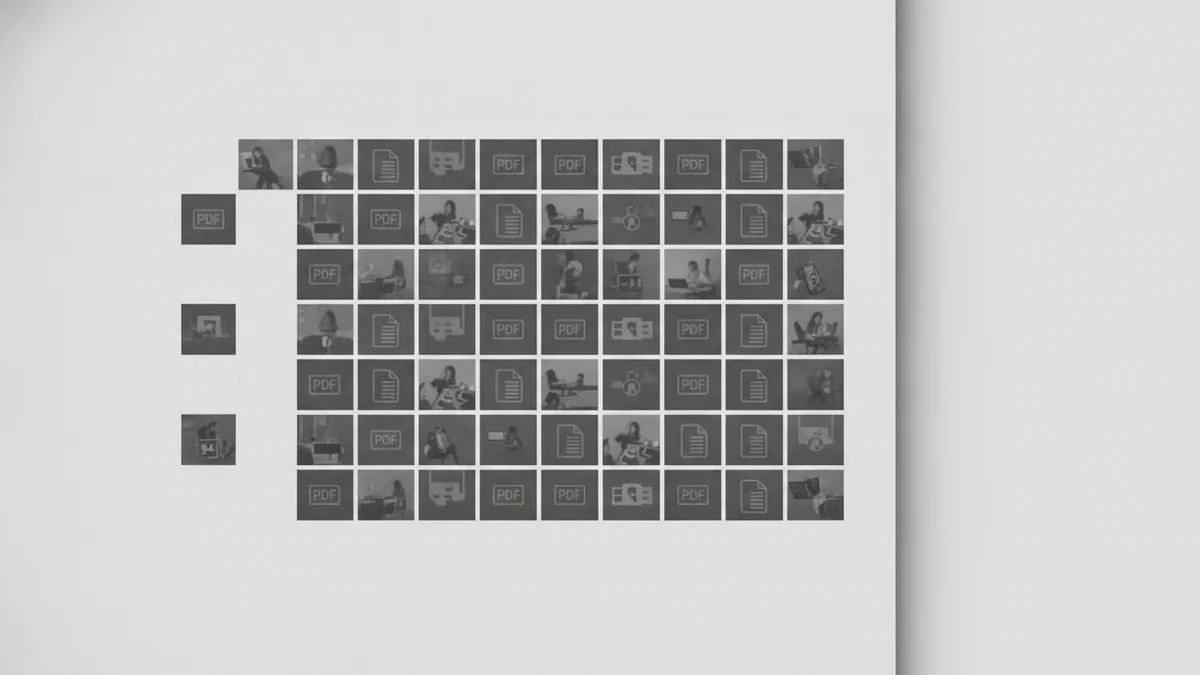
Sometimes you need images, not documents. Then you are looking for how to save pdf into jpg or how to save pdf pages as individual images. Many tools offer “PDF to image” conversion.
Choose your output type based on quality needs. JPG is good for smaller file sizes. PNG is useful when you need sharp edges and more detail.
To keep text readable, pick a suitable resolution. For web sharing, lower settings often work. For print or close reading, higher settings keep letters crisp.
- Use JPG for smaller files and easy sharing
- Use PNG for crisp graphics and clean edges
- Check orientation for scanned pages
- Verify background handling before you export a full set
If you need a specific format like TIFF, you can use the same idea. Look for a “save as TIFF” or “export as TIFF” option in conversion tools. That is how you save a pdf as a tiff when required.
Saving PDFs on Different Devices
Mobile PDF work is now common, not special. A frequent question is save pdf on mobile, especially on Android. The exact steps depend on your phone and your PDF app.
When you want how to save pdf on android phone, start by opening the PDF from your downloads or from an email attachment. Then look for an “Export” or “Share” action. Many apps let you export pages as images or convert the whole file.
If your goal is one page at a time, use a tool that supports page extraction. Some apps split by page number. Others only export the full PDF.
Android phone basics for PDF splitting and saving
- Open the PDF using a PDF viewer app.
- Look for “Split,” “Extract,” or “Page” options.
- Select the page(s) you need as separate outputs.
- Choose JPG or PNG if you need images.
- Save to your phone storage and rename files for clarity.
If you only see “Save” or “Share,” you may need a separate PDF splitting app. That is still normal for mobile workflows.
Editing Before You Save Pages Separately
People often need how to save pdf with changes before splitting. The best order is edit first, then extract. That way, the exported pages reflect your final layout.
For example, you might highlight or redact parts of a PDF, then split the result into smaller parts. If your tool supports redaction, save the edited PDF, then run the split on the saved file.
Also check for signature needs. If you want how to save pdf signature as image, you typically export the signature area as a picture or convert the page after placing the signature. The cleanest outcome depends on whether your signature is a drawn object or a pasted graphic.
- Edit and save the PDF first, then split
- Spot-check one extracted page before batch export
- Keep a simple naming scheme for page outputs
- Store originals in a “source” folder
Special cases: portfolios and other file creators
Some PDFs come from tools that bundle more than one asset. If you work with a portfolio-style PDF, you may ask how to save pdf portfolio as pdf. In many cases, “save as PDF” means exporting the bundle in a PDF-friendly layout, then splitting pages if needed.
You can also face the need to preserve content when the source is not a PDF. If you work with Prezi, Tableau, or Lucidchart, you may need exports that still become PDFs. That is when questions like how to save prezi as pdf, how to save tableau as pdf, and how to save lucidchart as pdf show up.
For each tool, the best method is usually “Export” or “Download” to PDF. Then you can run splitting on the PDF output to finish how to save things as a pdf into per-page files.
Kindle, web archive, and image conversion needs
Converting content for reading devices is a common reason to ask for PDF outputs. If you want how to save pdf to kindle, check whether your Kindle accepts PDF files directly. If it does, export your pages as a single PDF first. Then, if you need images, use PDF-to-image conversion afterward.
For web archived content, a user may ask how to save webarchive as pdf. The typical path is to export or convert the archived page into a PDF using a suitable browser or export feature. After you get a PDF, you can split or convert it like any other document.
And if you need to export writing on a page, you may look for how to save writing on a pdf. That usually means making sure edits are saved in the PDF file, then exporting to images if required.
Office, notes, and diagram exports
For office suites, you often start with an “Export as PDF” option. Many users ask libreoffice how to save as pdf when working in LibreOffice Writer, Calc, or Impress. After export, you can split pages or convert them to images.
Other writers also export to PDF. If you use R Markdown, you may ask how to save r markdown as pdf. That typically uses the PDF output target in the publishing or render step. Then you can use the split method described earlier.
For note apps, you may ask about exporting notes. If you need how to save notepad as pdf or how to save noteflight as pdf, you usually export or print-to-PDF from the app. Then you can split the resulting PDF into individual pages.
iPhone questions for email and app sharing
Mobile questions show up a lot on Apple devices. Users ask things like can i save a pdf on my iphone and can you save pdf on iphone. In general, you can save PDFs from email attachments and from share sheets on iPhone.
If you need how to save pdf on iphone from email, open the email with the PDF attachment. Tap the attachment, then use Share to save it to Files. That is the most common route for keeping PDFs on your device.
Some people also need how to save something as a pdf on iphone. For many apps, the Share menu includes an option to “Print.” From there, you can create a PDF via the Print preview save action.
If you want how to save as pdf iphone or how to save as pdf on iphone google docs, the idea is the same. Use the app’s Share or Print flow, then save the generated PDF to Files.
File deletion and PDF cleanup
Occasionally, you need to remove PDFs, not split them. If you ask can t delete pdf from desktop, the cause is often file permissions or an app holding the file open. Close the PDF app first, then try again.
Also check if the file is read-only. If it is, you may need to change permissions before deletion. After you fix that, delete should work normally.
If you run into issues, you can always re-create outputs after resolving file locks.
Free vs Paid Tools for Splitting PDFs
Choosing a tool depends on how often you split PDFs and how large your files are. Free tools are fine for light work and occasional page extraction. Paid tools often handle bigger files and offer more control.
When you compare options, check limits like maximum file size and page count. Also check what you get back: separate PDFs per page, or only a ZIP with outputs. Finally, confirm whether conversion quality is adjustable.
For quality needs like images, paid tools often give better control over resolution. That matters if you care about legibility.
| Need | Best tool type | What to look for |
|---|---|---|
| Quick page extraction | Online PDF editor | Split by page and ZIP download |
| Frequent editing and splitting | Desktop PDF applications | Preview and reliable extract controls |
| Readable page images | PDF to image conversion tool | Resolution and format options |
| Special source content | Exporter + splitter | Export to PDF, then split |
Quick export destinations beyond PDFs
Some sources have built-in export paths. If you need how to save issuu as pdf, you usually download or export the publication as PDF. After export, split into per-page files if needed.
For photos or small clips, you might convert other content too. If you need how to save snip as pdf, you typically export the snippet to an image, then convert it to PDF using a conversion tool. That keeps the workflow consistent with page exports.
Missing or restricted exports
Some systems block export or require specific roles. If you are asking about quickbooks can t save as pdf, it can be a permissions setting or an account export limitation. Try a different export path inside the app first. Then test a desktop split step on the exported PDF.
When export works, everything else follows the same steps: export, then split or convert.
FAQs About Saving PDFs Separately
How do I save one page of a PDF as its own file?
Use a splitter tool and choose “extract pages” or “split by page.” Then select the page number you need and download the results.
How can I save PDF pages as images like JPG or PNG?
Run PDF-to-image conversion and choose JPG or PNG as your output. Some tools let you set resolution for readability.
Can I save PDF files separately on my phone?
Yes, if your PDF app supports page extraction or export. Otherwise, you can split using an app designed for mobile PDF management.
What if my PDF is password protected?
You usually must open the PDF with the correct password first. Then split or export the pages using your chosen tool.
How do I save a PDF from email on iPhone?
Open the attachment, then use Share to save it to your Files app. That creates a copy you can manage later.
Can I delete a PDF from my desktop?
Usually yes, but file locks or read-only settings can prevent it. Close the PDF app, then retry deletion after fixing permissions.
Related reading
Post a PDF on Instagram: Simple Sharing Methods
Turn PDF pages into Instagram-ready images, links, videos, or private messages.
How to Save a PDF as a Picture on iPhone
Save PDF pages as iPhone pictures with screenshots, Safari, or apps.

PDF Links: Access and Sharing
Turn any PDF into a shareable link with simple tools and smart sharing tips.