How to Transform PDF to Word for Easier Editing
Convert PDF to Word easily with online or desktop tools, plus formatting tips and fixes.
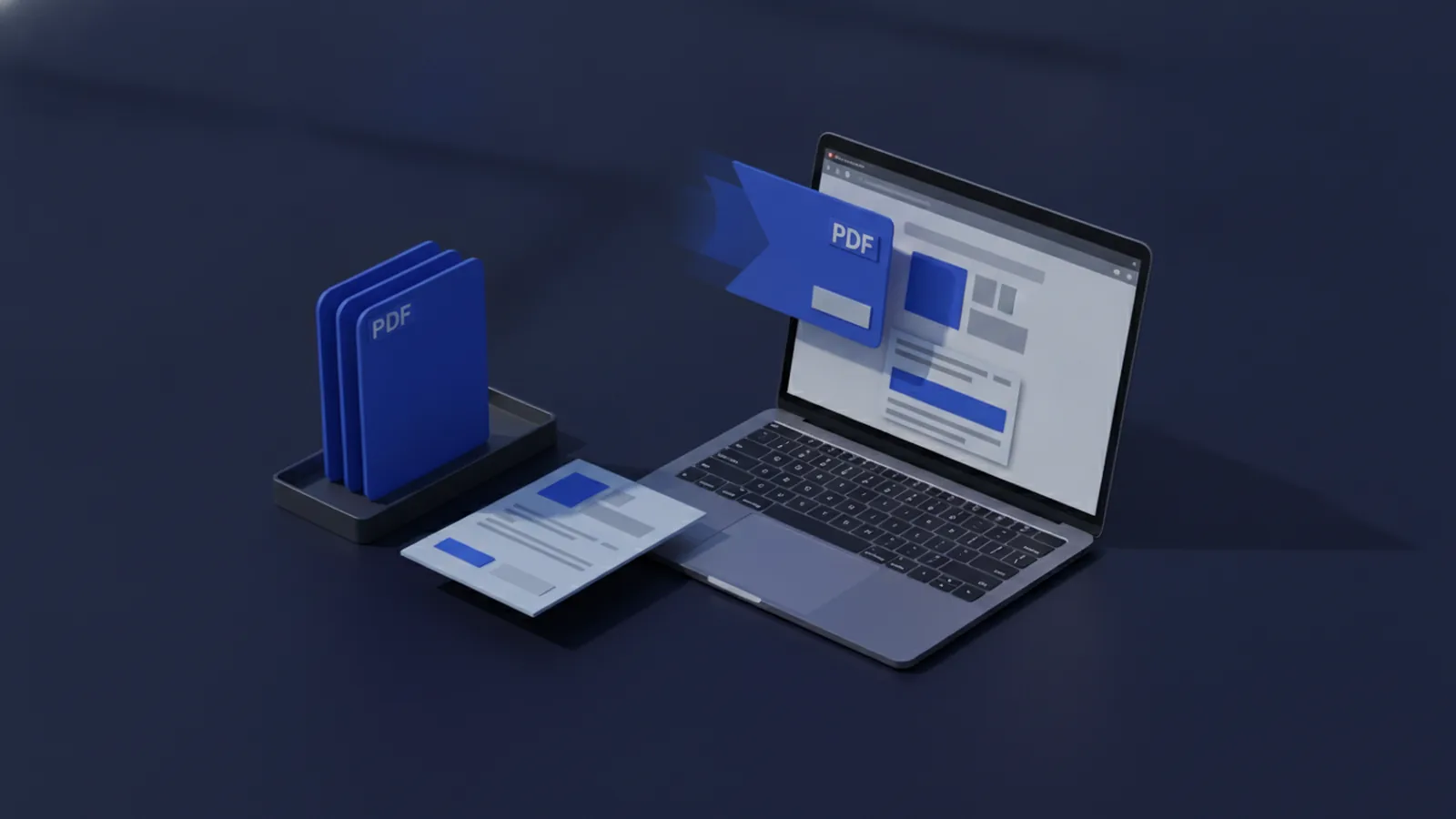
Methods for converting a PDF to Word
If you want to edit a PDF file in Word, the quickest route is usually a PDF to Word converter. There are two main paths. You can use online conversion tools, or you can use desktop PDF software.
Online tools are fast because you upload a file, convert it, then download a Word document. Desktop software can be better for larger files or when you need more control. In both cases, the goal is the same: convert the PDF into Word documents you can edit.
Before you convert, check what kind of content you have. A scanned page needs OCR technology, while a text-based PDF usually converts with fewer errors. This one detail can make the difference between clean formatting and a messy result.
- Text-based PDF: usually converts well with standard PDF to Word conversion.
- Scanned PDF: needs OCR to turn images into editable text.
- Mixed PDFs: often require OCR plus extra formatting fixes.
Using online tools to transform a PDF into Word
Learning how to transform pdf to word with an online converter is usually the easiest option. Most services follow a similar flow: upload the file, start conversion, then download the DOCX result. You do not need special skills, and you can often preview results right away.
Here is a simple step-by-step process that works for most online conversion tools. First, choose a tool that supports PDF to Word conversion and DOCX output. Next, upload your PDF document. Then, pick the conversion mode if the tool offers it, such as “preserve layout” or “OCR.” Finally, download the converted file and review it for formatting and spacing.
To convert pdf to word easily, run a quick quality check after download. Scan the headings, tables, and line breaks first. These areas break most often when the PDF uses complex fonts or multi-column layouts.
- Select an online conversion tool for PDF to Word.
- Upload your PDF document.
- Choose options like layout preservation or OCR if needed.
- Start the conversion and wait for the DOCX download.
- Open the Word document and compare key sections to the PDF.
One practical tip: if the PDF is large, consider converting in sections. For example, convert only the first 10 pages, then the next 10 pages. This often reduces timeouts and improves reliability.

Using desktop software for PDF to Word conversion
Desktop PDF software is a strong option when you convert files often. It can also work better when you have offline needs or stricter privacy rules. If your question is how to transfer pdf to word for many documents, desktop tools can save time with batch workflows.
In desktop apps, look for settings tied to file formatting and OCR. Some tools offer “retain original formatting” and “convert scanned documents” toggles. If your PDF is scanned, turn on OCR technology before converting.
When you use desktop tools, plan for a second pass. Even good converters may adjust fonts or spacing slightly. A short clean-up session in Word can be faster than repeatedly retrying conversions.
- Batch convert: convert multiple PDFs to Word in one run.
- OCR controls: improve text output for scanned pages.
- Layout options: keep column structure and spacing.
- File quality: use higher OCR settings for small text.
Try converting a small test page first. Use the page with the hardest layout, like a table plus a caption. If the output looks right on that page, the rest usually follows.
Preserving formatting during conversion
Formatting preservation is the part most people care about after they learn how to transform pdf into word. A perfect conversion would keep headings, margins, and spacing. Real conversions vary, but you can improve your odds.
Start by matching the output goal. If you need exact page layout for review, choose a converter option that prioritizes layout. If you only need editable text, a “simple text” mode can be cleaner. Layout-focused conversions often keep more structure, but they can also create more manual spacing fixes.
Here are techniques that usually help preserve file formatting. Use OCR only when needed, because OCR errors can shift spacing. Also, check whether the PDF uses embedded fonts. If it does not, some desktop tools can substitute fonts differently.
| PDF feature | What can break in Word | How to improve results |
|---|---|---|
| Multi-column text | Reading order and line breaks | Use layout mode and review column order |
| Tables | Cell widths and merged rows | Convert and then reapply table formatting in Word |
| Headers and footers | Missing repeated content | Check Word’s header/footer sections after download |
| Scanned pages | Spelling and spacing drift | Run OCR and review key headings |
After conversion, do a fast formatting pass. Fix one element at a time, such as the document’s font size and paragraph spacing. Then handle tables. This approach prevents “fixing” spacing that later tables will change.
Common issues and solutions when converting
Even when you convert documents correctly, some issues show up in the Word file. The most common problems are garbled text, broken line breaks, and missing images or table borders. Many of these issues tie back to whether the PDF is text-based or scanned.
If your converted Word document has scrambled characters, the PDF may have encoding quirks or OCR may be misreading text. Try converting again with OCR enabled, and select a language that matches the document. Also, if the scan is low quality, consider improving the source image before converting.
If formatting looks off, focus on the structure first. For example, headings may be converted as plain paragraphs. Tables may turn into separate blocks. The fix is usually to reapply Word styles and then adjust table settings.
- Wrong reading order: re-check multi-column sections and swap paragraphs.
- Missing spaces: fix paragraph formatting and then run a quick spell check.
- Broken tables: re-create tables in Word or convert with layout mode.
- OCR typos: correct critical terms first, then review the full text.
- Images missing: confirm the PDF actually contains image data.
One extra trick: compare one page at a time. Open the PDF and the converted Word file side by side. This helps you spot where the converter started failing, so you can adjust OCR or layout settings.
Additional conversion options: PDF to JPG, Word to PDF, and more
Sometimes you do not need a Word document at all. You may need to share content as images, or you may need a different target format for a workflow. In those cases, you can use related conversion paths like how to transform pdf to jpg.
PDF to JPG is useful when you need to embed pages in slides or send images to someone who cannot open PDFs easily. It can also help with OCR when you want to process page images separately. If you convert to JPG first, then convert jpg to pdf, you can keep a page-by-page image flow.
You may also need the reverse direction. If you have edited text in Word and need to send it as a PDF, you can how to transform a word document into a pdf. This helps for consistent sharing and printing. Many tools support both directions so your workflow stays simple.
- PDF → Word: best for editing and collaboration.
- PDF → JPG: best for images, page previews, and image-based sharing.
- JPG → PDF: best for bundling images back into a single file.
- Word → PDF: best for stable sharing after edits.
Pick the direction based on what you will do next. If you will edit and comment, convert to Word. If you will publish or archive, convert to PDF. If you will show page snapshots, use JPG.
Quick checklist for getting good conversion results
To avoid repeated retries, use a short evaluation before and after you convert. Look at the source PDF first. If it is scanned, plan for OCR. If it is text-based, expect better structure but still review tables and columns.
After conversion, check the sections that are hardest to repair. Titles, lists, and tables are usually the first to show issues. Fix those early, then move on to spacing and page breaks.
This is also how you measure whether you chose the right tool. If one tool keeps the layout close to the PDF, stick with it for similar documents. Over time, you will learn which source types are reliable.
- Identify scanned vs text-based PDFs.
- Use layout or OCR settings that match your file type.
- Verify tables, headers, and columns first.
- Do targeted clean-up in Word, not full reformatting.
- Convert in parts for very large PDFs.
Related reading

How to Create a ZIP File From a PDF: Easy Methods
Create ZIP files from PDFs with simple desktop, mobile, and online methods.

How to Convert a PNG File to PDF on Any Device
Convert PNG images to clean, shareable PDF files in a few simple steps.
How to Bind PDF Files Into One Clean Document
Merge PDF files into one neat, shareable document.