How to Combine Multiple Screenshots into One PDF
Combine screenshots into one PDF for easier sharing, printing, and archiving.
Overview: why you should combine screenshots into one PDF
If you have several screenshots, you can share them more clearly by putting them into a single PDF. This is often the fastest way to help a teammate, support agent, or client review what you saw. It also keeps everything in the same document context, so the order is obvious.
When screenshots arrive as separate image files, people may miss some pages. They also have to open multiple tabs or downloads. A single PDF solves that problem and usually prints better than a folder of images.
In practice, the goal is simple. You take image file types like PNG and JPG, then convert them into a multi-page PDF format file. Many screenshot tools already save the images in the right order, which helps you create a clean “page 1, page 2” flow.
Tools for merging screenshots into one PDF
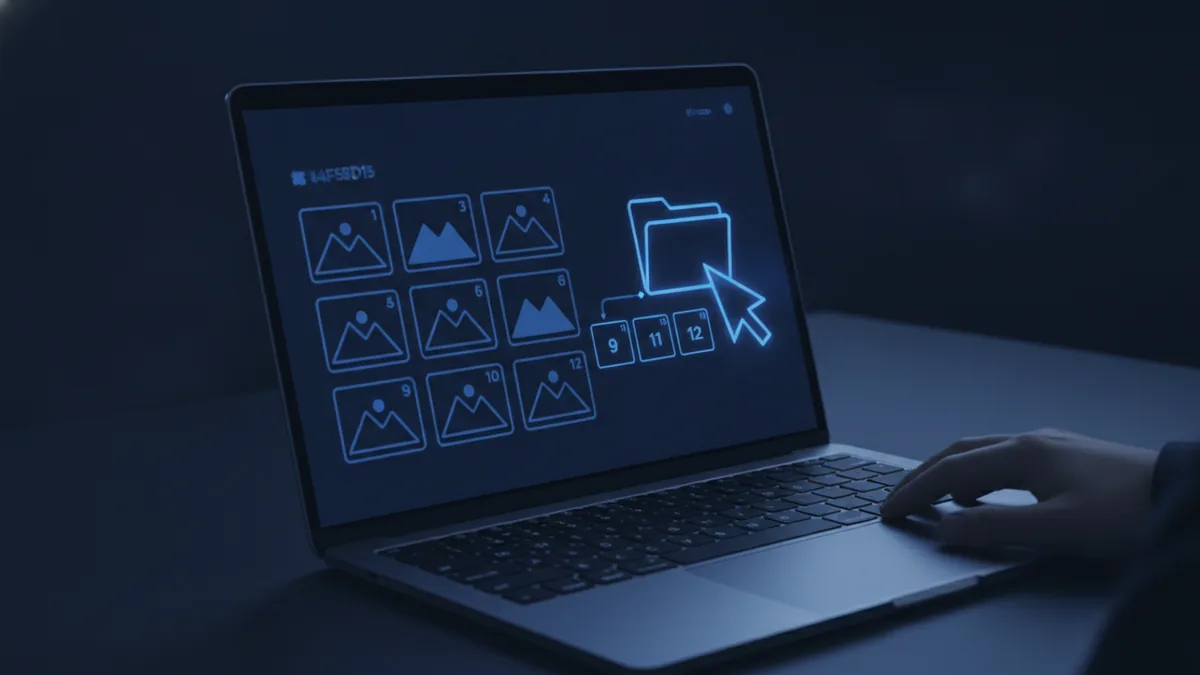
You can merge screenshots with desktop software or online services. The best choice depends on file size, privacy needs, and how many screenshots you have. For example, a handful of images can work well with online tools, while large batches often need a local app.
Common desktop options include PDF merging software and “image to PDF” tools. These tools let you choose page size, orientation, and margins before export. That matters because screenshots rarely match common page sizes like Letter or A4.
Online services are convenient when you want quick results. You typically upload images, set basic ordering, and download the PDF. Be mindful of file limits and upload bandwidth, especially if you deal with high-resolution screenshots.
- PDF merging software: best for control, repeat use, and larger sets.
- Image to PDF converters: best when you only need to build a multi-page PDF.
- Online screenshot merging: best for one-off tasks and fast sharing.
- File organization: best practice is to name files in order (example: 01, 02, 03).
Whichever tool you use, focus on ordering first. If you want “top to bottom” documentation, confirm the sequence before exporting your PDF.
Step-by-step: combine screenshots into one PDF on Windows
This Windows flow works well when you want a reliable multi-page PDF quickly. Start by collecting your screenshot images in one folder. Then confirm the images are in the order you want to appear in the PDF.
Next, convert the images to a PDF. If your Windows version supports printing images to PDF, you can use the print dialog to create a multi-page document. In many cases, you can also use built-in tools or a dedicated app depending on your setup.
To get the best results, you will also want to adjust page size and scaling. Otherwise, you may end up with cropped edges or large white borders.
- Organize your screenshots: move images into one folder and rename them in order.
- Open the first image: double-click the PNG or JPG to view it.
- Print to PDF: open Print from the app menu, then select Microsoft Print to PDF.
- Set layout options: choose paper size, orientation, and “fit to page” if available.
- Repeat or batch: add remaining images as pages, then save the final PDF.
If your print dialog only converts one image at a time, you can still finish the job. Use PDF merging software afterward to combine the one-page PDFs into one file. This approach is slower, but it is predictable.
Step-by-step: combine screenshots into one PDF on Mac
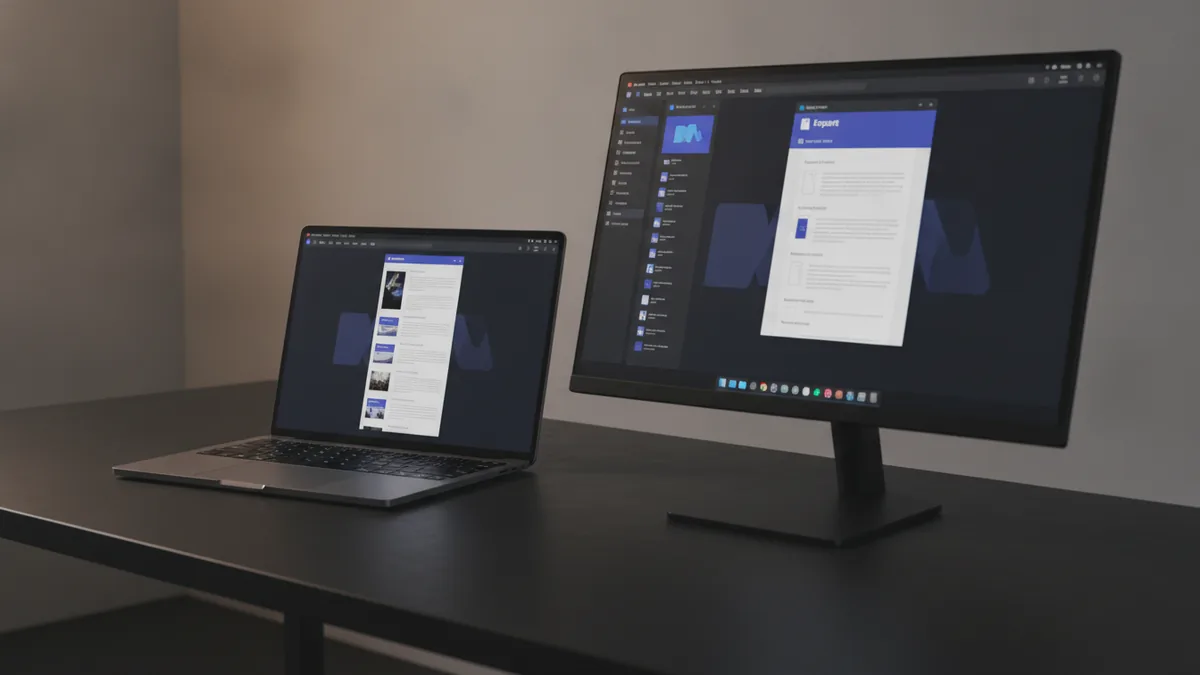
On Mac, you can put screenshots into one PDF using a few common methods. The most flexible approach is to convert images through the built-in Preview app. This works well for “how to put screenshots into a PDF” tasks when you already have the images.
First, confirm your images are in the order you want. If you took screenshots as separate files, rename them to keep sorting consistent. A simple naming scheme like screenshot-01, screenshot-02, and so on reduces mistakes.
Then import all images into Preview and export them as one multi-page PDF. Preview can also handle page size and orientation changes, so your pages look intentional.
- Open Preview: launch Preview, then open the first screenshot.
- Add more pages: in the sidebar thumbnails view, drag the other images in.
- Reorder if needed: drag thumbnails up or down until the order is correct.
- Export as PDF: select File, then choose Export as PDF.
- Check page layout: preview pages for cropping, borders, and orientation.
If your end goal is “how to combine multiple screenshots into one pdf mac” without surprises, verify the output before sharing. Zoom out in the PDF viewer to confirm each page is fully visible. This step prevents rework when you realize the margins are off.
Adjusting settings for an optimal PDF (page size, orientation, margins)
Good PDF output is not only about merging. It is about making each page look consistent. The key settings are page size, orientation, scaling, and margins.
Start with page size. If your screenshots are wider than the default paper size, you can choose a landscape orientation. For example, many browser windows look natural in landscape, while documents and forms may fit portrait.
Next, adjust margins and scaling. If you use “fit to page,” the tool will scale the image so it fits your selected paper. That usually avoids cropping, but it can also make text slightly smaller. If your PDF will be printed, test one page first to see if the text remains readable.
| Setting | What to choose | Common symptom if wrong |
|---|---|---|
| Page size | Match your audience: Letter or A4 | Edges cut off or extra whitespace |
| Orientation | Landscape for wide browser captures | Black bars or awkward scaling |
| Margins | Use “small” or “fit” unless branding requires borders | Content looks cramped or too tiny |
| Scaling | Fit to page for safe viewing | Text is unreadable when zoomed out |
For long screenshots that contain lots of vertical content, check how your tool handles them. Some tools scale down rather than splitting content. If you need maximum readability, consider cropping each screenshot to remove blank areas before you merge.
Image compression can also help keep file sizes reasonable. If you have very large PNGs, converting to JPG can reduce size while keeping text legible. Use a moderate quality setting and test one page before doing the whole set.
Common issues and troubleshooting tips
File size limits are one of the most common problems when using online services. Upload limits might be around 10–50 MB, depending on the platform. If your PDF download fails, the fix is usually to compress image file types first.
Another common issue is format compatibility. Some converters accept PNG and JPG well, while others may struggle with unusual formats from third-party screenshot tools. Stick to common image file types and rename them clearly before you merge.
Ordering mistakes also happen often. Many tools sort files alphabetically, which can place “10” before “2.” Prevent this by using leading zeros like 01, 02, 03. That makes “how to merge screenshots into one pdf” behave the way you expect.
- PDF is too large: compress images or reduce resolution before upload.
- Text is blurry: avoid aggressive compression, try PNG instead of JPG.
- Pages are cropped: switch to “fit to page” and verify paper size.
- Wrong page order: rename files with leading numbers and recheck.
- Upload fails: split into smaller batches and merge the batches later.
If your final PDF has inconsistent margins, check your export settings. Some tools remember the last used page layout. If you change orientation mid-process, re-export after you finish reordering pages.
Finally, keep a backup of your original images. If you accidentally export with the wrong settings, you can regenerate the PDF without needing to retake screenshots. This small habit helps your workflow and supports good document management.
Conclusion: best practices for combining screenshots into one PDF
To combine screenshots into one PDF effectively, focus on the workflow, not just the merge button. Start by organizing your images in order, then pick a tool that matches your needs. Use page size and orientation settings that fit the way your screenshots were captured.
On Windows, printing images to PDF or using merge software can produce a clean multi-page document. On Mac, Preview makes it easy to drag images into a single document and export it. Either way, verify one or two pages before you share the final PDF.
If you follow these steps, you get the real benefits. Sharing becomes simpler, printing becomes more predictable, and archiving gets easier. That is why knowing how to put multiple screenshots into a PDF is such a useful skill for everyday work.
- Rename files in order to prevent sorting issues
- Use landscape for wide screenshots
- Choose fit-to-page to avoid cropping
- Compress images carefully to keep file size reasonable
- Merge in batches if you hit upload limits
Related reading
PDF: Meaning and Uses
See what PDFs do, how they work, and when to use them.
Rotate PDF Pages: Fix Every Orientation
Turn sideways PDF pages, save the changes, and check the final file.
Document to PDF: Methods and Device Tips
Convert common files to PDF on a computer, phone, or browser with confidence.