How to Convert a PDF to Word: 5 Practical Methods
Convert PDF to Word with online tools or software. Keep formatting and edit fast.
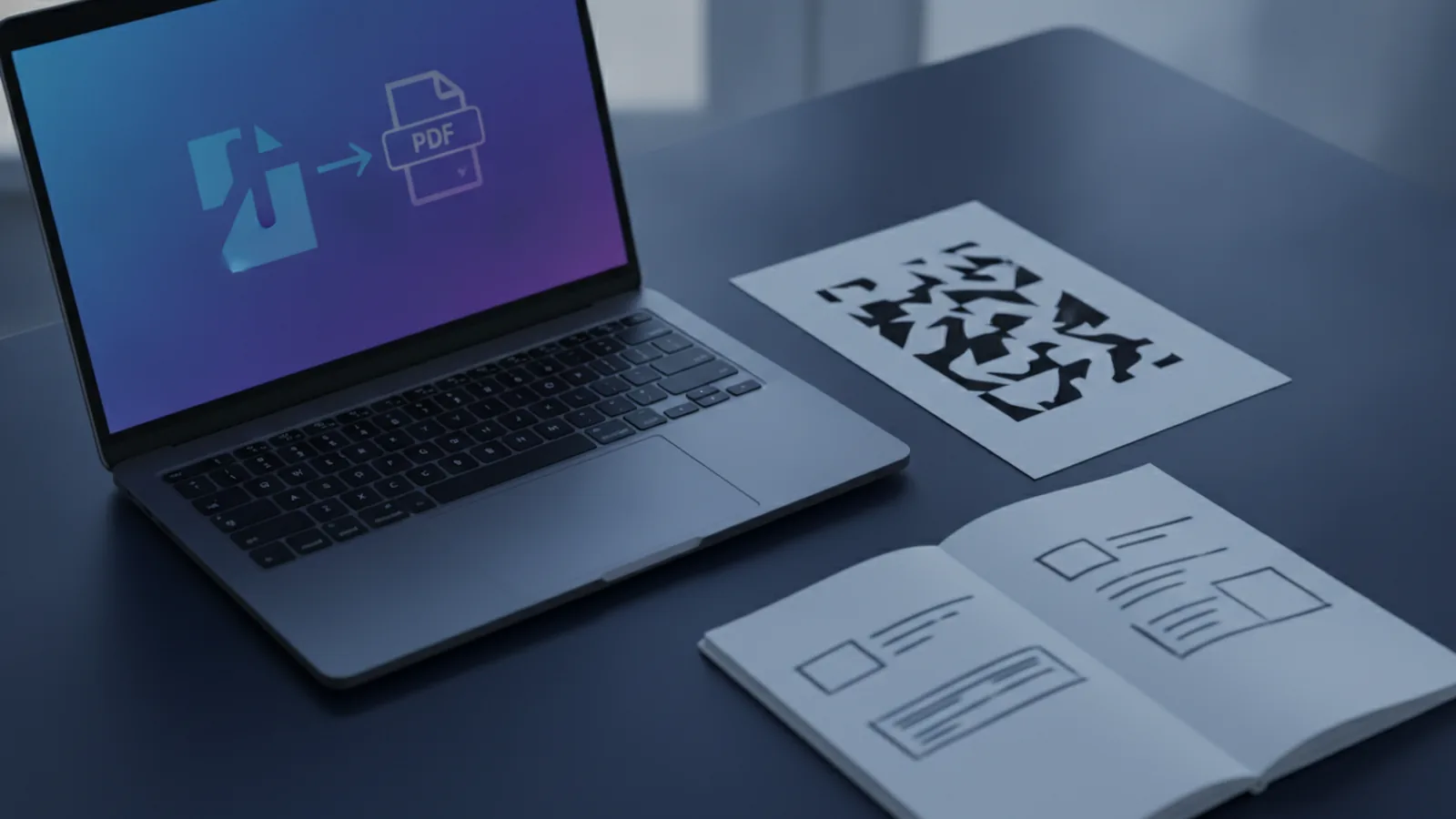
Overview of PDF to Word Conversion
If you want to edit a PDF, the fastest path is usually to learn how to convert pdf to word. The goal is simple. You turn a non-editable PDF (Portable Document Format) into a Word document you can edit.
PDF files are designed for sharing, not rewriting. Text inside a PDF may be stored as shapes or locked layouts. That is why direct editing in Word often fails. Converting gives you a new document format that Word can work with.
When people search for how to turn a pdf document into a word document, they usually have one of three needs. They want to fix wording, re-use content, or build something new from the same material. A good converter helps you keep the original structure so edits take minutes, not hours.
- Editing documents becomes easier after conversion.
- Repurposing content is faster with editable text.
- Creating forms is simpler when fields can be added.
Benefits of Converting PDF to Word
Converting to Word unlocks true document editing. You can change paragraphs, update tables, and adjust headings without rebuilding the whole file. If you have a report, contract, or brochure PDF, conversion often turns a “read-only” file into a working draft.
It also improves your workflow with other document tools. After conversion, you can use Word features like comments, track changes, and formatting styles. That is helpful when you need reviews or legal redlines.
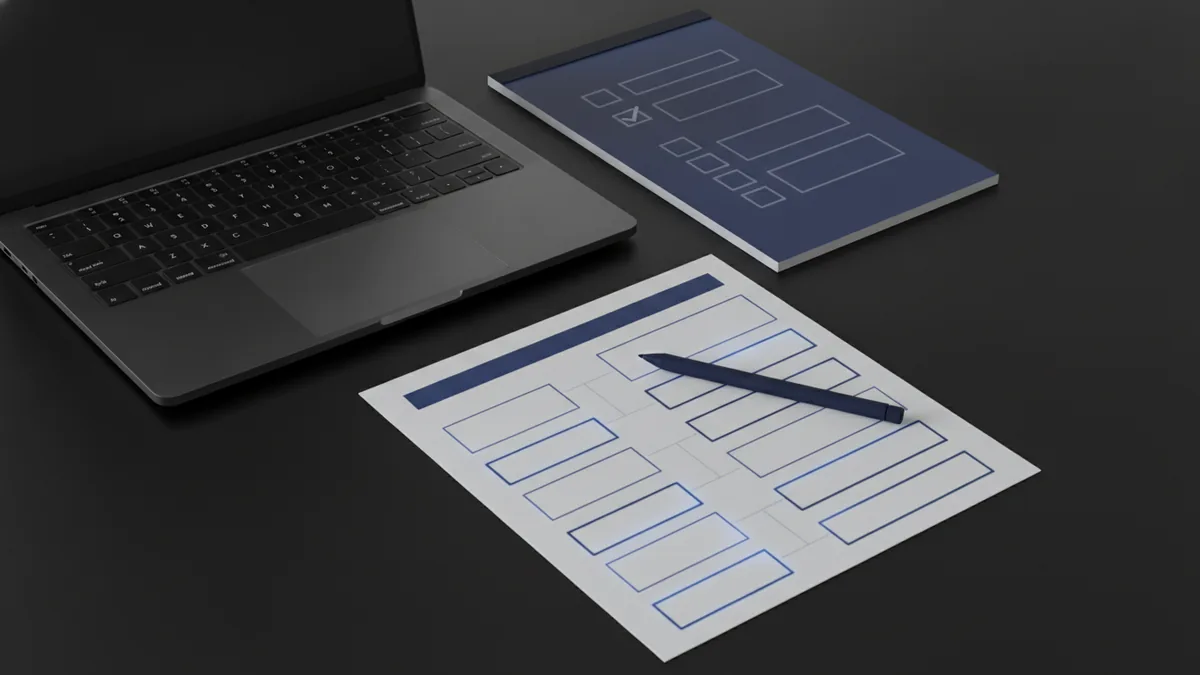
Another common reason is turning a PDF into a fillable form. Many converters output a Word file that is easier to connect to form controls. You may still need cleanup, but starting from a structured document is usually much faster.
- Convert once to get editable content.
- Fix any spacing or headers that changed.
- Add fields to create a fillable form.
Methods to Convert PDF to Word
There are two main approaches for how to turn a pdf into a document. You can use online tools or install software applications. Both work, but they fit different needs.
Online converters are best when you need speed and convenience. You upload a file, convert it, then download the result. You usually do not need to set anything up. That makes online tools a good choice for one-off tasks or quick edits.
Software applications are better when you handle many files or tricky PDFs. They often include advanced processing like batch conversion. Some also support OCR (Optical Character Recognition) for scanned documents, where the “text” is actually an image.
- Online tools: quick conversion without installation.
- Software apps: advanced options and batch processing.
- OCR support: needed for scanned PDFs.

Using Online Tools for Conversion
If you want a straightforward method, focus on online tools. They are designed for file conversion with minimal steps. Typical flow looks like this: upload the PDF, choose Word output, then download the .docx file.
Most popular services aim to keep original layout and formatting. That means headers, bullet lists, and tables may come through with good structure. However, “perfect” formatting is not guaranteed. Complex layouts, multi-column pages, and fancy fonts can shift slightly.
Popular options include Smallpdf, Nitro, and Adobe Acrobat. Each offers a conversion workflow that is easy to follow. When you compare services, look at how they handle tables and scanned pages. Some tools convert printed PDFs well but require OCR settings for images.
| Tool type | Best for | What to watch |
|---|---|---|
| Online converters | Digital PDFs with selectable text | Table spacing and font changes |
| Online tools with OCR | Scanned PDFs | Accuracy and page-by-page output |
To reduce formatting surprises, use a few quick checks after conversion. Compare the first page carefully. Then jump to a page with complex tables. Finally, search for missing text by scanning headings and key sentences. This saves time before you start editing.

Using Software Applications
Software applications are a strong option when you work with lots of documents. They can help with batch processing, which converts many PDFs at once. That matters if you receive weekly exports or large document packs.
They also handle OCR more reliably for scanned files. OCR converts text inside images into real, selectable text. For scanned contracts, receipts, or forms, this can be the difference between a usable Word file and a page full of unreadable blocks.
When you install an app, check its settings before you convert. Look for options like “preserve layout,” “convert to editable text,” or “OCR language.” The language choice affects accuracy. If your PDF contains multiple languages, you may need to set the OCR language correctly.
Even with good software, you should expect minor manual cleanup. Word may need spacing fixes around headers. Lists can sometimes turn into separate paragraphs. Tables might require resizing columns. These tasks are usually smaller than recreating the whole document.
- Use batch conversion to save time on many files.
- Enable OCR for scanned pages.
- Set the OCR language when text accuracy matters.
Maintaining Formatting During Conversion
Most converters try to maintain original formatting, but results vary by PDF type. A “clean” PDF created from Word often converts smoothly. A PDF made from a layout program, or one with complex columns, can need more adjustments.
Start by identifying the PDF source. If the PDF text is selectable in your PDF viewer, conversion usually preserves headings and paragraphs better. If the PDF only shows images, you need OCR. Without OCR, Word will not have real text to edit.
After conversion, use a practical review method. Check structure first. Then check visuals like tables, spacing, and footers. Finally, run a quick search for key terms that should appear in the document.
| Issue | Common cause | Fix in Word |
|---|---|---|
| Text order changes | Multi-column layout | Rebuild with headings and paragraphs |
| Fonts look different | Font substitution | Apply matching Word styles |
| Table cells shift | Layout conversion limits | Adjust column widths and spacing |
| Missing text | No OCR or low OCR score | Re-run OCR with correct settings |
Conclusion and Additional Resources
To answer how to turn a pdf document into a word document, start with your PDF type. If the file is digital text, online tools are often fast. If it is scanned or you need batch processing, software applications and OCR can save hours.
Remember that converting is not always the end of the work. Most converters keep formatting close, but some manual tweaks are normal. Checking tables, headers, and any pages with dense content prevents late surprises.
If your goal is how to turn a pdf document into a fillable form, plan for cleanup. You will typically convert first, then add fields in Word or with a form workflow. A well-converted Word file provides the structure you need for fields and labels.
Tip: Save a copy of the original PDF. Then work on the converted Word file so you can re-run conversion if needed.
If you want a trusted baseline for PDF handling, consider reviewing Adobe’s guidance on PDF technology. It can help you understand why PDFs behave differently than editable document formats. Here is the source: Adobe’s overview of PDF technology.
Related reading

PDF to Word on MacBook: Methods and Formatting Tips
Choose the right Mac tool to turn PDFs into editable Word files.
Adobe PDF Printer: Setup and Fixes
Set up the Adobe PDF printer in Windows 7 or 10 and fix common problems.

Create a PDF from Pictures: Tools and Steps
Turn pictures into one well-ordered PDF on your phone or computer.