
How to Convert a PDF to Word Manually (and on Mac)
Learn how to convert a PDF to Word manually, with Bluebeam or Mac Preview.
Understanding PDF and Word formats
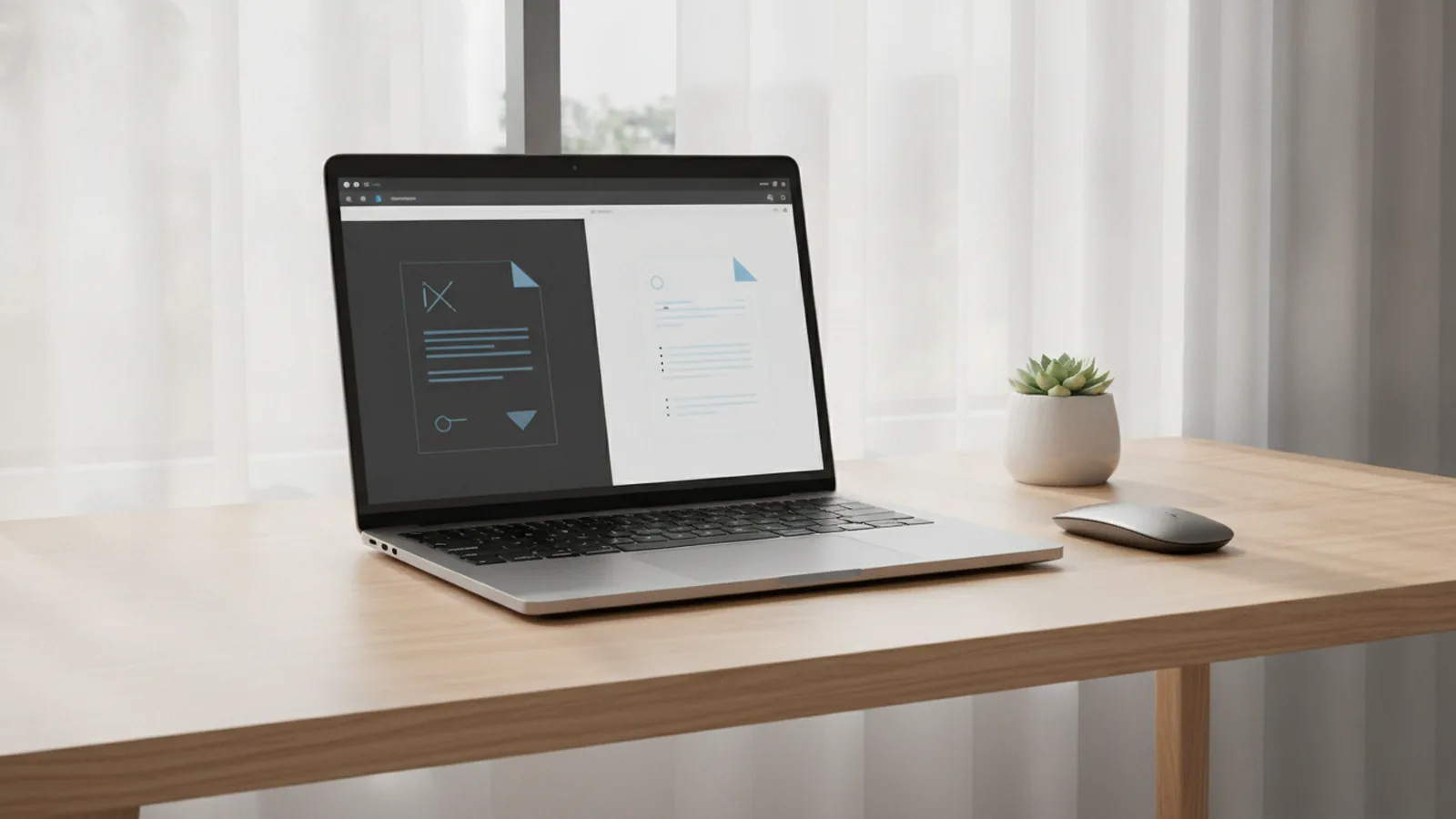
A PDF is a fixed-layout file. It keeps text, fonts, and page positions the same on most devices. A Word document is reflow-based. That means it stores content as editable objects like paragraphs, runs, and tables.
Because PDFs are fixed, conversion often needs text extraction and layout rebuilding. If a PDF is mostly “real text,” conversion is usually cleaner. If it is scanned, you need OCR technology first to turn images into text.
Here is what typically changes during conversion. Lines may wrap differently, spacing can shift, and tables might split across cells. Even when the tool claims “PDF to Word,” it may be mapping PDF objects to Word structures imperfectly.
- PDF: fixed page, best for viewing and printing
- Word: editable document flow, best for editing and reformatting
- Conversion: text extraction plus layout reconstruction
How to convert PDF to Word manually (step-by-step)
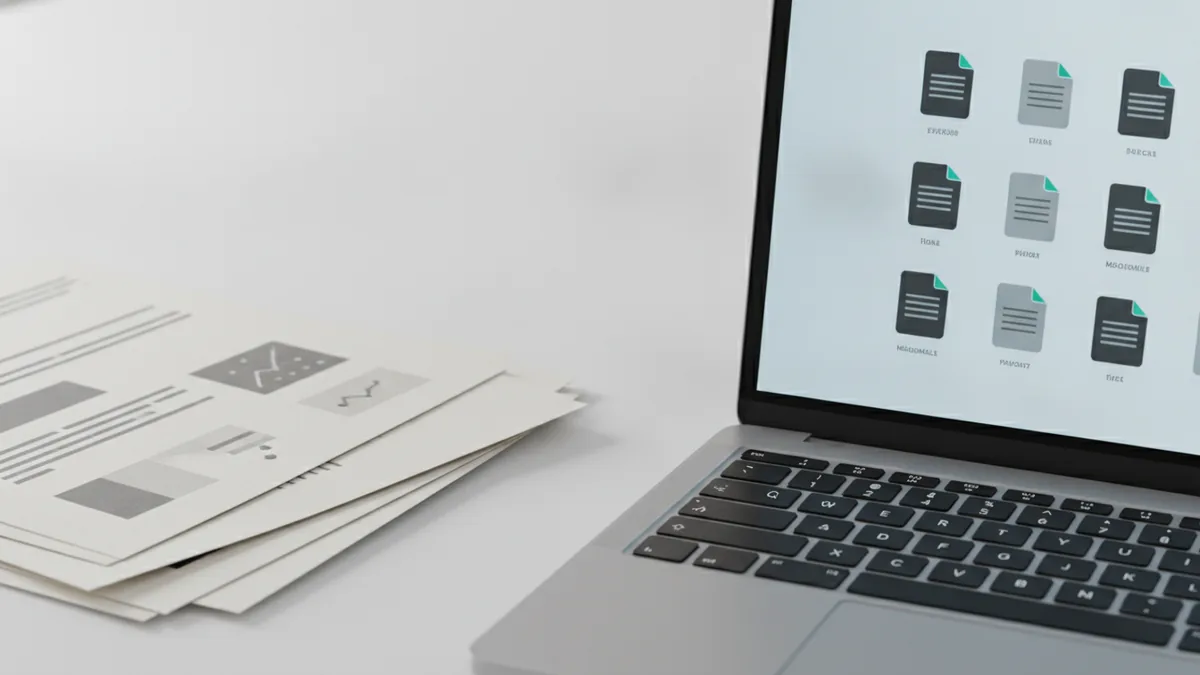
Learning how to convert PDF to Word manually usually means you copy text and recreate the layout in Word. It is slower than automated tools, but it avoids extra software installs. It also helps when you only need a clean Word draft.
Before you start, check whether the PDF is selectable. If you can highlight text, you can copy it directly. If you cannot highlight anything, the file is likely scanned, and you will need OCR via an online tool or a built-in app.
- Open the PDF in any viewer you already have, like your browser or a PDF reader.
- Select the content you need by dragging a text highlight region, page by page.
- Copy and paste into Word. Paste using Word’s keep text only option if formatting looks messy.
- Recreate headings and structure by applying Word styles to improve readability and navigation.
- Rebuild tables and columns using Word’s table tools, then paste cell contents row by row.
- Check spacing and line breaks. PDF line ends often do not match Word’s wrapping.
If your PDF contains form fields or multi-column layouts, expect extra cleanup. You may need to insert manual page breaks or adjust indents. For “PDF to Word in Excel” style results, this manual route still works, but you must rebuild the grid as a Word table first.
A practical approach is to convert one page at a time. It keeps you from losing time to repeated fixes. When your goal is editing PDF files in Word, this method is often the most controllable.

Using Bluebeam for PDF to Word conversion
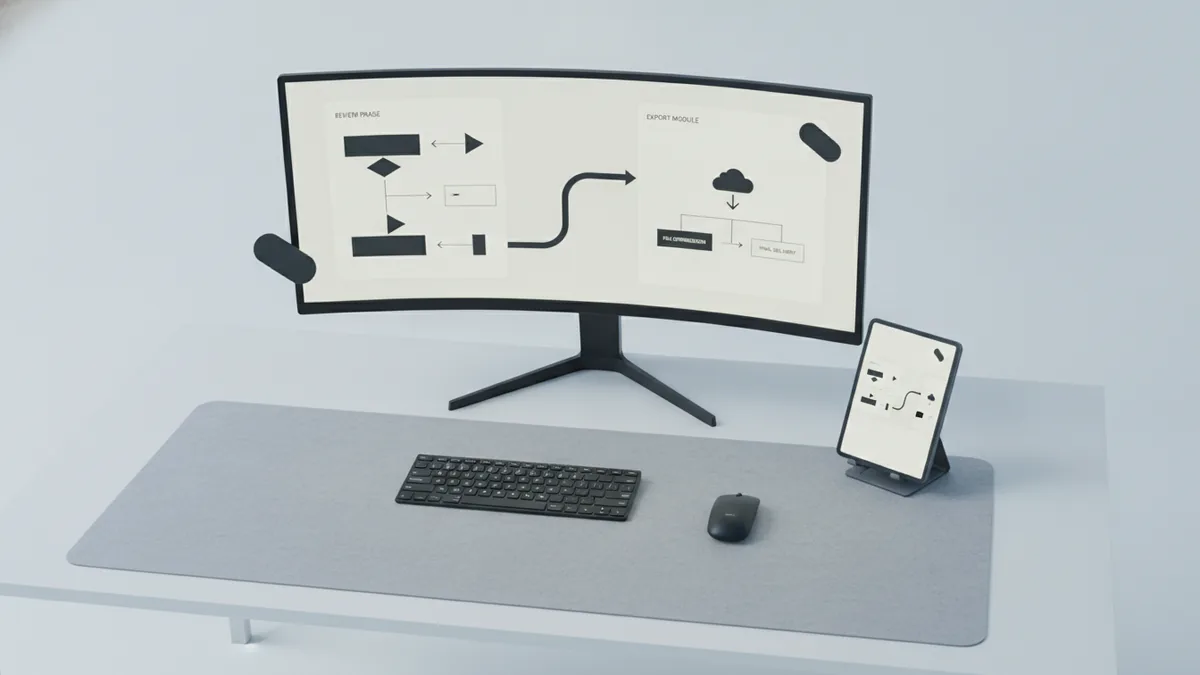
If you are asking how to convert a PDF to Word in Bluebeam, the key is choosing the right output. Bluebeam is designed for markup and plan review. It can export content, but table and form-heavy pages may need extra alignment work after export.
Start by opening the PDF in Bluebeam Revu. Then look for export or OCR-related options, depending on whether your PDF is text-based or scanned. For scanned pages, you must OCR first, because Bluebeam cannot magically extract text from images without that step.
- Open the PDF in Bluebeam Revu.
- Run OCR if needed. Use the OCR workflow when the text is not selectable.
- Export the document from the File or Export menu.
- Select a Word-compatible output such as DOCX or RTF, if offered.
- Review one page carefully before exporting everything. Check headers, fonts, and table breaks.
What to watch for: sheet-like layouts. Bluebeam may convert a multi-column plan into paragraphs. It can also split a single table across multiple blocks. If you need comparison of PDF to Word conversion tools, do a small test export with the same page.
After export, open the Word file and look for font substitution. If the original PDF used embedded fonts, Word may switch to a similar default font. That can change character widths and push text to new lines.
Using Preview on Mac to convert PDF to Word
Mac users often ask how to convert PDF to Word on mac without adobe. A common answer is: use Preview for extraction, then save as an editable format. Preview does not always produce perfect DOCX layouts, but it can save time for text-based PDFs.
First, open the PDF in Preview. Then see what export formats are available in your version of macOS. Some versions allow “Export as” options that create Word-readable outputs, while others require copy and paste.
- Open the PDF in Preview by double-clicking it.
- Check export options under File, then Export or Save As.
- Try a Word or RTF option if it appears.
- If Word export is missing, copy text from Preview and paste into Word.
- Rebuild tables in Word if they do not match the PDF.
If your PDF is text-selectable, copy and paste usually works best. It preserves actual text, not just pixels. If the PDF is scanned, Preview alone cannot do full OCR in every setup, so you may need OCR technology from another method.
For people specifically searching how to convert PDF to Word in preview, test with one section first. Compare wrapping, spacing, and list formatting. Then decide whether you want to refine manually or use an online tool for the rest.
Additional tools for conversion without installing software
When you want how to convert pdf to word without any software, online tools can help. These run in your browser. You upload the PDF, the service converts it, and you download the Word file.
You may also see claims like how to convert pdf to word document online free. Results vary based on the PDF’s type. Text-based PDFs convert much better than scans. Tables and complex headers are also harder than plain body text.
If you are comparing methods, do a small “same page” test. That tells you whether the tool maintains formatting in conversions for your specific document. Some tools also offer batch conversion processes, which helps when you have many files.
- Online conversion: upload, convert, download
- OCR-enabled tools: needed for scans
- Text extraction tools: helpful when layout is not critical
Be cautious with sensitive documents. Choose tools that let you control retention and access. Also consider whether you truly need the layout rebuilt in Word, or whether text and headings are enough for editing.
For mobile users, you may wonder how to convert pdf to word on ipad. Many services support file upload from iPad browsers. The limitations are the same: scan quality and table structure drive how much cleanup you will need.
Tips for best results when converting PDF to Word
Conversion quality depends on the source PDF. If possible, start with a text-based PDF created from the original document. If you only have a scan, focus first on OCR quality. Better OCR usually means better Word editing PDF files in Word afterward.
Here are practical steps that reduce cleanup. First, check fonts and layout after conversion. Word substitutes fonts when the PDF font is missing or unsupported. That changes line breaks, especially in narrow columns.
- Verify text quality: scan for broken characters and missing words
- Check fonts: confirm the font family and size match expectations
- Inspect spacing: look at paragraphs, line height, and margins
- Review tables: ensure rows and cells stay aligned
- Validate headings: confirm page titles and section headers appear correctly
If your document is mostly tabular, treat it like a data layout problem. Expect “PDF to Word sheets” conversions to break grids. A good workaround is to convert tables into separate Word tables, cell by cell, rather than trying to keep a single complex layout.
Finally, compare PDF to Word conversion tools using the same sample pages. Look at the specific elements you care about. Those can be line wrapping, bullet indentation, or table alignment. That test saves time later.
If you only need content, not pixel-perfect formatting, manual conversion can be the most reliable. If you need closer formatting, try Bluebeam for extraction and export, or Preview on Mac for basic cases. For fully automated conversion, online tools are usually the fastest option.
FAQ: PDF to Word conversion without installing software
How to convert PDF to Word manually?
Open the PDF, select text you need, then copy and paste into Word. Rebuild tables and headings in Word so line wrapping stays correct.
How to convert PDF to Word without any software?
Use an online converter in your browser. For text-based PDFs, you can also copy and paste from your PDF viewer.
How to convert PDF to Word in Bluebeam?
Open the PDF in Bluebeam Revu, run OCR if the text is not selectable, then export to a Word-compatible format. Always review one page first.
How to convert PDF to Word in Preview on Mac?
Try Preview’s File export options first. If Word export is not available, copy text from Preview and paste into Word, then fix tables manually.
Can Foxit convert PDF to Word?
Foxit tools often include export or conversion options to Word formats. Exact steps depend on your Foxit version and whether the PDF is scanned.
Why does my converted Word file look different?
PDFs store layout differently than Word documents. Conversion can change fonts, spacing, and table structure, especially with multi-column pages.
Related reading

PDF Bookmarks: Creation and Organization
Add, rename, and organize PDF bookmarks for faster reading.
GIFs in PDFs: Options and Limits
GIFs can go in PDFs, but animation may not play in many viewers.
Editing an Existing PDF: Text and Page Changes
Edit PDF text, images, and pages while keeping your original file safe.