Scanning Multiple Pages: Methods and Fixes
Scan and save a multi-page document as one PDF on your phone or computer.
Understand how multi-page scanning works
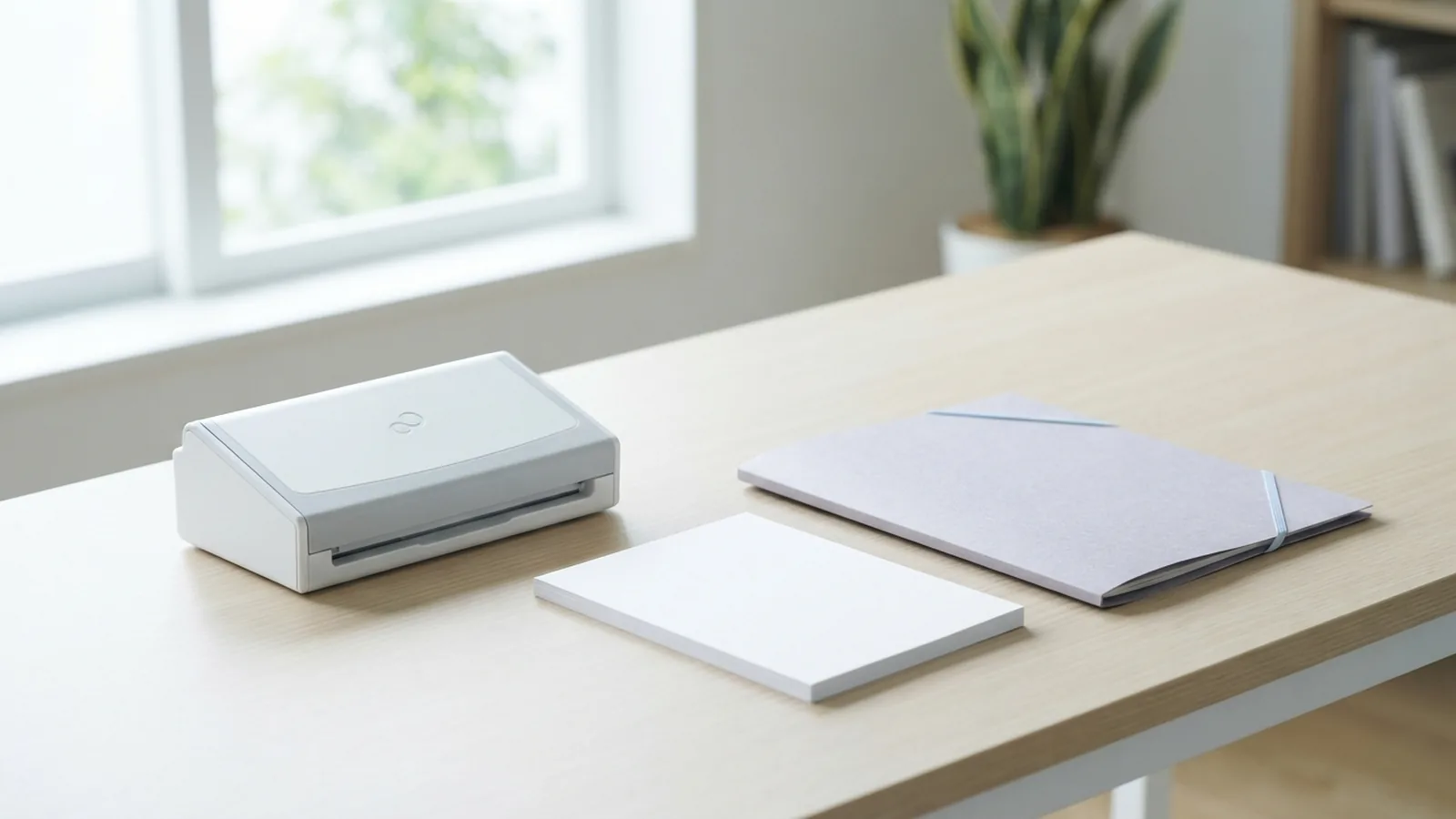
To scan multiple pages into one PDF, scan each sheet as part of the same job. Then save or export the full set as one file. Most scanner apps offer an add-page option or a multi-page PDF setting.
Can I scan multiple pages to PDF with a flatbed scanner? Yes. Scan each sheet in order, and add every scan to the same document before saving. A document feeder can do this faster by pulling in a stack of pages.
- Flatbed scanner: Place each page on the glass, one at a time.
- Sheet-fed scanner: Load a stack into the feeder, if your device has one.
- Multifunction printer: Scan from its control panel or computer app.
Use a flatbed for books, fragile pages, or odd-sized sheets. Use a feeder for a tidy stack of loose pages. A phone can scan short documents when you do not have a scanner nearby.
The key is to check the output before you share it. Confirm that all pages appear in the right order and face the right way. This simple check can prevent an incomplete or hard-to-read PDF.
Choose a scanner and set PDF options
Windows and macOS include scan tools for many supported devices. Printer makers also offer apps for their own models. HP Smart, Epson ScanSmart, Canon PRINT, and IJ Scan Utility are common options, though features vary by model.
Set the scan quality before you begin. For plain text, 300 dpi is a useful starting point. Use a higher setting for tiny print or detailed images. Higher resolution can make a PDF much larger.
- Color: Use color for photos, stamps, or colored notes. Choose grayscale or black and white for plain text.
- Compression: Lower the image quality a little if the file is too large.
- File name: Pick a clear name, such as “Lease-May.pdf.”
- Paper size: Match the scan area to the page to avoid cutting off edges.
Save one test page when quality matters. Check that small print stays clear and the edges remain visible. Then use the same settings for the rest of the document.
These choices apply whether you want to scan a multi page document to PDF or create a PDF from multiple scans. Save to a folder you can find again. Avoid names such as “Scan001” when you may need the file later.
Scan several pages into one PDF on Windows
Connect your scanner, turn it on, and open Windows Scan. If the app is missing, install it from Microsoft Store. You can also use your printer maker’s scan software.
- Select your scanner from the device list.
- Choose the source, such as flatbed or feeder, and set the file type to PDF.
- Set the page size, color, and resolution.
- Load the stack, or place the first page on the glass.
- Select Scan. For flatbed scans, choose Add page or Scan more.
- Check the page order, then save the full set as one PDF.
The steps are much the same in Windows 10 and Windows 11, though button names can differ. If you ask, “How do you scan multiple pages into one PDF?” the main step is using the app’s add-page option before saving.
If the app saves separate files, check its settings for a multi-page PDF choice. You can also combine the saved files with a PDF tool. For HP, Epson, or Canon devices, select the feeder when loading a stack. With a flatbed, add each scan to the same job.
To scan multiple pages to one PDF on an HP printer, open its scan app and choose PDF output. Epson and Canon apps offer similar options on supported models. If you are unsure how to scan multiple pages into one PDF file on HP, Epson, or Canon, check the app’s source and output settings first.
Use macOS to scan several pages
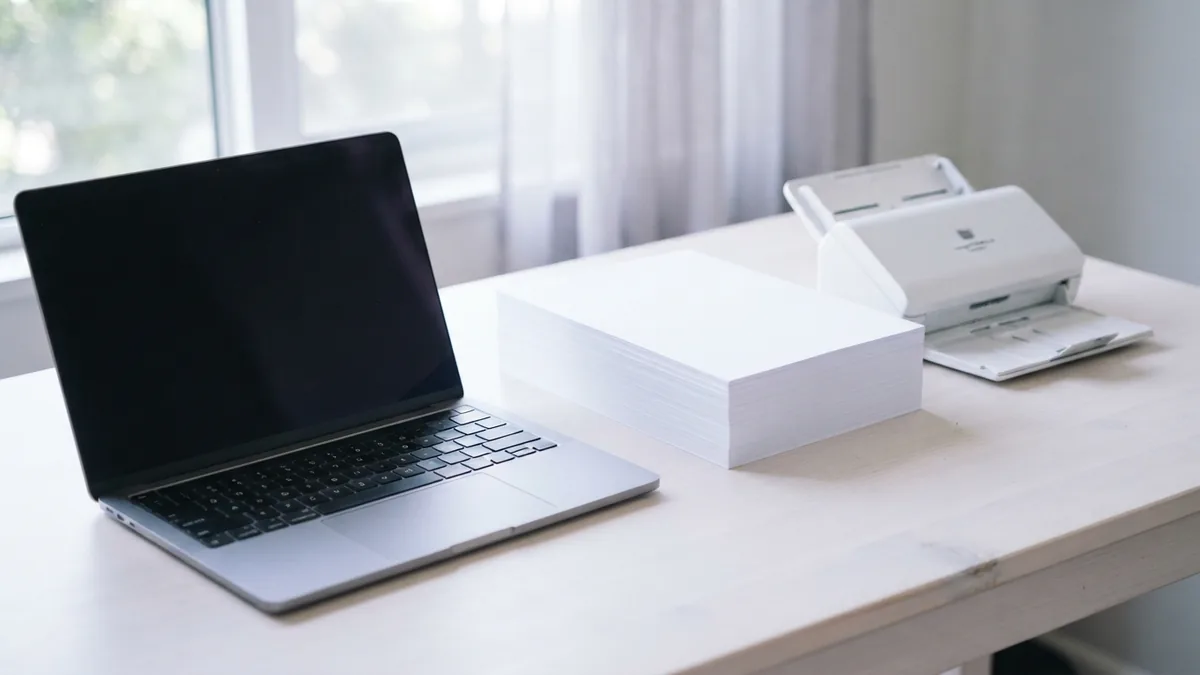
Open Image Capture or Preview on your Mac, then choose the connected scanner. You can also use software from the scanner maker. Load the pages into the document feeder, or scan them one by one on the glass.
- Choose the scanner in Image Capture or Preview.
- Set the scan area, color mode, and resolution.
- Choose PDF and look for an option to combine pages.
- Scan the stack, or add each flatbed scan in order.
- Review the page sequence and save the combined file.
If you need to know how to scan multiple pages into one PDF on Mac, start by checking whether your scanner app supports multi-page output. Controls vary by model. When no combine option appears, scan the pages, then join them in Preview.
To join files in Preview, open the first PDF and show page thumbnails. Drag the other PDF pages into the thumbnail sidebar. Move them into the right order, then save the combined file with a new name.
Look through the finished PDF before sending it. Check that each page is upright and that no text or edge is missing. Fix the order in the thumbnail view if needed.
Scan multiple pages on an iPhone or Android phone
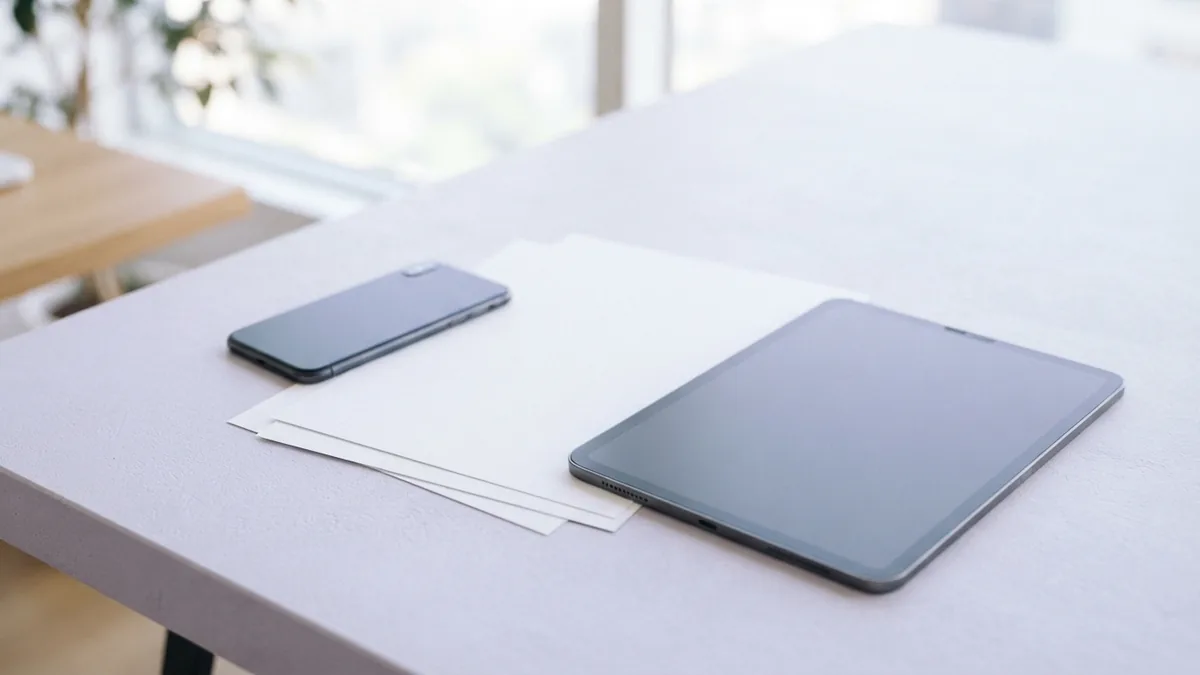
A phone camera works well for short documents. Use a built-in notes or drive app, or a trusted scanning app. Place the page on a flat surface, hold the phone steady, and use even light.
On an iPhone, open Notes and start a note. Tap the camera control, choose Scan Documents, and capture the first page. Keep scanning pages in the same session, then save the set as one PDF. These are the basic steps for how to scan multiple pages into one PDF on iPhone.
On Android, open a scanning feature in a supported camera, drive, or document app. Choose the document scan option and capture the first sheet. Tap Add or the matching control for each next page, then save or export as PDF. This is how to scan multiple pages into one PDF on Android in most apps.
App names and controls differ across phones. If the app saves each page as a separate image, look for an export or combine option. Crop each page carefully, and check the order before saving the file.
For better results, keep the whole page in view and avoid shadows from your hand. Place dark text against a plain surface. Retake any page that looks blurred or has a cut-off edge.
Fix common scanning problems
If pages save as separate files, return to the scan settings and choose multi-page PDF or add page. Some apps only show this choice before the scan starts. If you already scanned the pages, use a PDF tool to join them.
When pages appear out of order, use the app’s page list or thumbnail view to move them. If a page is missing, scan it again and add it to the right place. Do not overwrite your only copy until you have checked the new file.
- Blurry text: Clean the glass, hold the page flat, and try 300 dpi or more.
- Cut-off edges: Match the page size or widen the scan area.
- Large PDF: Use grayscale for text, lower the resolution, or choose stronger compression.
- Feeder jams: Remove clips, fan the stack, and reload pages evenly.
- Blank pages: Check for double-sided settings and remove empty sheets before saving.
If the scanner does not appear, check its power and cable or wireless connection. Restart the scanner app, then try again. A maker’s app may work when the built-in tool does not support a device feature.
Once the scan looks right, save a final copy with a useful name. Open the PDF and check every page at normal size. You now have one file that is easier to share, store, or print.
Related reading
PDF Compression: Smaller Files, Better Quality
Shrink PDFs by tuning image settings and choosing the right compression level.
Compress PDF Files: Size and Quality
Shrink PDF files while keeping text and images clear.
Searchable PDFs: OCR and Easy Access
Turn scanned pages into searchable, smaller, and more useful PDF files.