Compress PDF Files: Size and Quality
Shrink PDF files while keeping text and images clear.
Understanding how PDF compression works
To compress a PDF, reduce the size of its images, remove unneeded data, or use both methods. Start with an online compressor for a quick, simple job. Use desktop software when you need more control over image quality or compression settings. The best result depends on what makes your file large.
Photos and scanned pages often take up the most space. A scan saved as a high-resolution image may add several megabytes per page. Embedded fonts, duplicate images, and hidden document data can add more. A PDF with mostly text is often small already, so compression may have little effect.
- Image compression: Shrinks image data, sometimes by lowering image detail.
- Data cleanup: Removes extra items, such as unused objects or metadata.
- Resolution changes: Reduces image dots per inch, or DPI, to suit the file's use.
These methods can work together. But stronger compression may make photos look soft or make small text in scans harder to read. Keep an untouched copy before you begin. That gives you a safe version to compare.
Why reduce a PDF's file size?
A smaller PDF takes up less storage and is easier to send. It can help when an email service limits attachment size or a web form sets a file cap. Smaller files may also upload faster on a slow connection. The gain depends on the file and the level of compression.
For example, a scanned report might be 24 MB before compression. Reducing its image size could bring it below 10 MB, though the result will vary. A text-only contract may shrink by very little. Check the new file before sharing it, especially when it contains fine print or detailed charts.
Think about how people will view the document. A PDF meant for a phone screen may not need print-level image detail. A report headed to a print shop needs sharper images. Choose a target size that fits the sharing limit and the reader's needs.
Ways to compress PDF files
There are three common options: an online PDF compressor, desktop PDF software, and built-in device features. Online tools suit quick tasks and need little setup. Desktop apps offer more control and can work without uploading a file. Some phones and computers also have print or export settings that can make a smaller PDF.
Try the simplest method that meets your needs. For one file, a web tool may be enough. For a set of sensitive files, an installed app can keep the documents on your device. For regular work, look for batch processing, which handles several PDFs at once.
- Online tool: Fast to use, but check its privacy terms before uploading sensitive files.
- Desktop software: Better for fine control and repeated work.
- Device options: Useful when exporting a document or scan from its source app.
First check the file's current size and purpose. Then make a test copy and apply one method. Compare the result with the original before choosing stronger settings.
Compressing a PDF with an online tool
Tools such as Smallpdf and iLovePDF offer a simple way to shrink a PDF in a browser. In general, you select a file, choose a compression level, and save the processed copy. The exact steps and options can change by tool. Check the final file on your device before sending it.
- Open the compressor's official website and select its PDF compression feature.
- Choose the PDF from your device and wait for the upload to finish.
- Select a lower, balanced, or stronger compression option when offered.
- Download the result, then check its size and view every page.
A lower setting often keeps more image detail, while a stronger setting may create a smaller file. Names for these settings differ between services. If the first result is too large, try one level stronger. If photos or scanned text look poor, return to the original and choose a gentler setting.
Online tools send your file to a service for processing. Avoid uploading private records unless the service meets your needs for data handling. Read its privacy details and check how long it keeps uploaded files. For confidential documents, use trusted desktop software instead.
Using desktop software and device options
Desktop PDF software can offer more control than a basic web compressor. Adobe Acrobat, for example, has tools for reducing file size and changing PDF settings. Its options and labels may vary by version. See Adobe's instructions for optimizing PDFs for current steps.
In Acrobat, open a copy of the document and look for its PDF optimization or size reduction tools. Review image settings before saving. You may be able to change image resolution, remove unused data, or adjust other parts of the file. Save the result under a new name so the source stays intact.
Some device apps can make a smaller PDF when you export or scan a document. Look for options that control image quality or resolution. Avoid repeatedly printing a PDF to another PDF unless needed. Each conversion can change page layout or image detail.
If you often work with many files, check for batch tools. Apply the same settings to copies, then inspect a sample from the group. This saves time while helping catch problems before you process every file.
Keep the document clear after compression
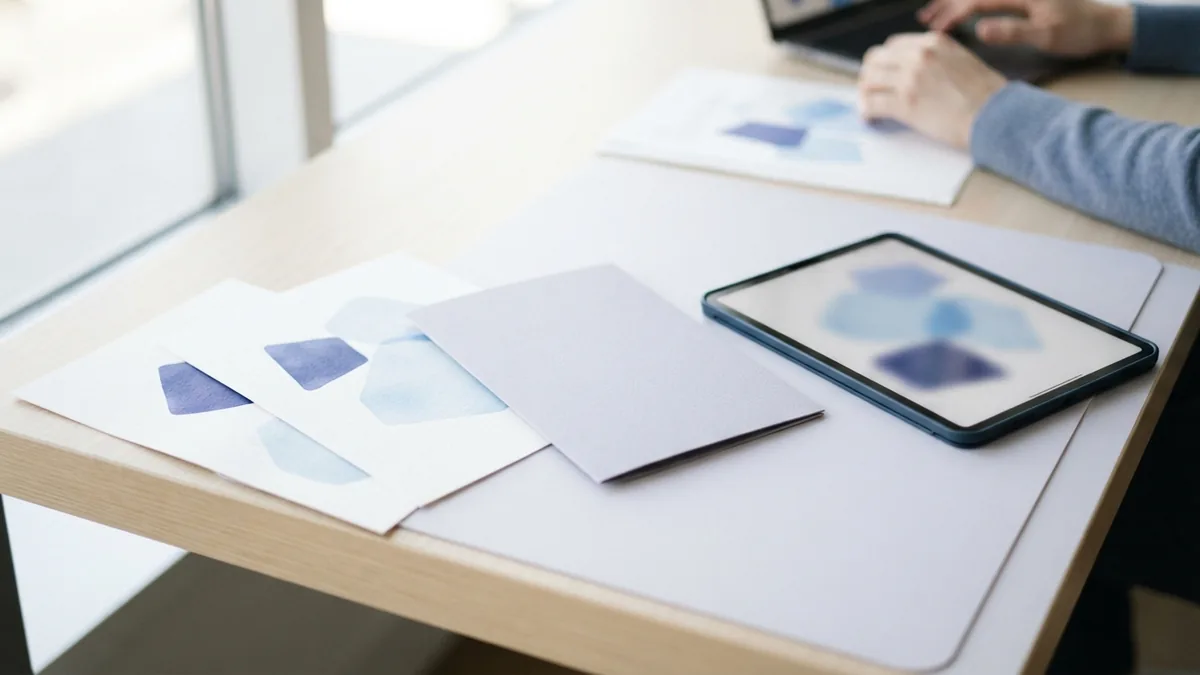
Compression is a trade-off between file size and detail. A PDF for screen reading can often use smaller images than one meant for print. As a starting point, test a setting near 150 DPI for screen use. For print, keep a higher resolution, often around 300 DPI, if the source allows it.
These figures are starting points, not fixed rules. Small text, line art, and detailed charts may need more resolution than ordinary photos. Open the result at normal viewing size and zoom in on fine details. Check that text remains sharp and images do not show blocky patches.
Keep the original file and compare both versions side by side. Check page count, links, form fields, and bookmarks if the PDF uses them. A file can look smaller yet lose a feature that matters. Do not choose the smallest result without checking how it works.
- Use gentle compression for scans with small print.
- Use stronger compression for large photos viewed on screens.
- Keep color when readers need to tell shades apart.
- Test one page with fine detail before processing a large file set.
Tips for a smaller PDF without needless quality loss
When you can, improve the source before making the PDF. Scan pages at the resolution you need rather than the scanner's highest setting. Crop blank edges and avoid adding large photos when a smaller version will do. A clean source gives the compressor less extra data to handle.
Use a balanced compression level first. Check the file size and inspect pages that contain photos, diagrams, or small print. If the file remains above a sharing limit, try a stronger setting on a copy. This step-by-step test helps you find a useful balance.
For scanned documents, text recognition can make words searchable, but it may not shrink the file. Some tools add a text layer over page images. Keep that feature only if search or copy functions matter. Always check the final file for missing pages or hard-to-read text.
There is no single setting that works for every PDF. Match the method to the file, the reader, and the sharing limit. Use a web tool for a quick, non-sensitive task. Choose desktop software when privacy or detailed control matters.
Related reading
PDF to Word Conversion: Accuracy and Tips
Compare PDF to Word methods, limits, and fixes for cleaner editable files.
PDF to Photo: Quality and Speed
Convert PDF pages to sharp JPEG photos on desktop, online, or iPhone.
Searchable PDFs: OCR and Easy Access
Turn scanned pages into searchable, smaller, and more useful PDF files.