How to Scan Several Pages Into One PDF
Scan many pages into one tidy PDF on any device.
Choose the Best Way to Scan Several Pages
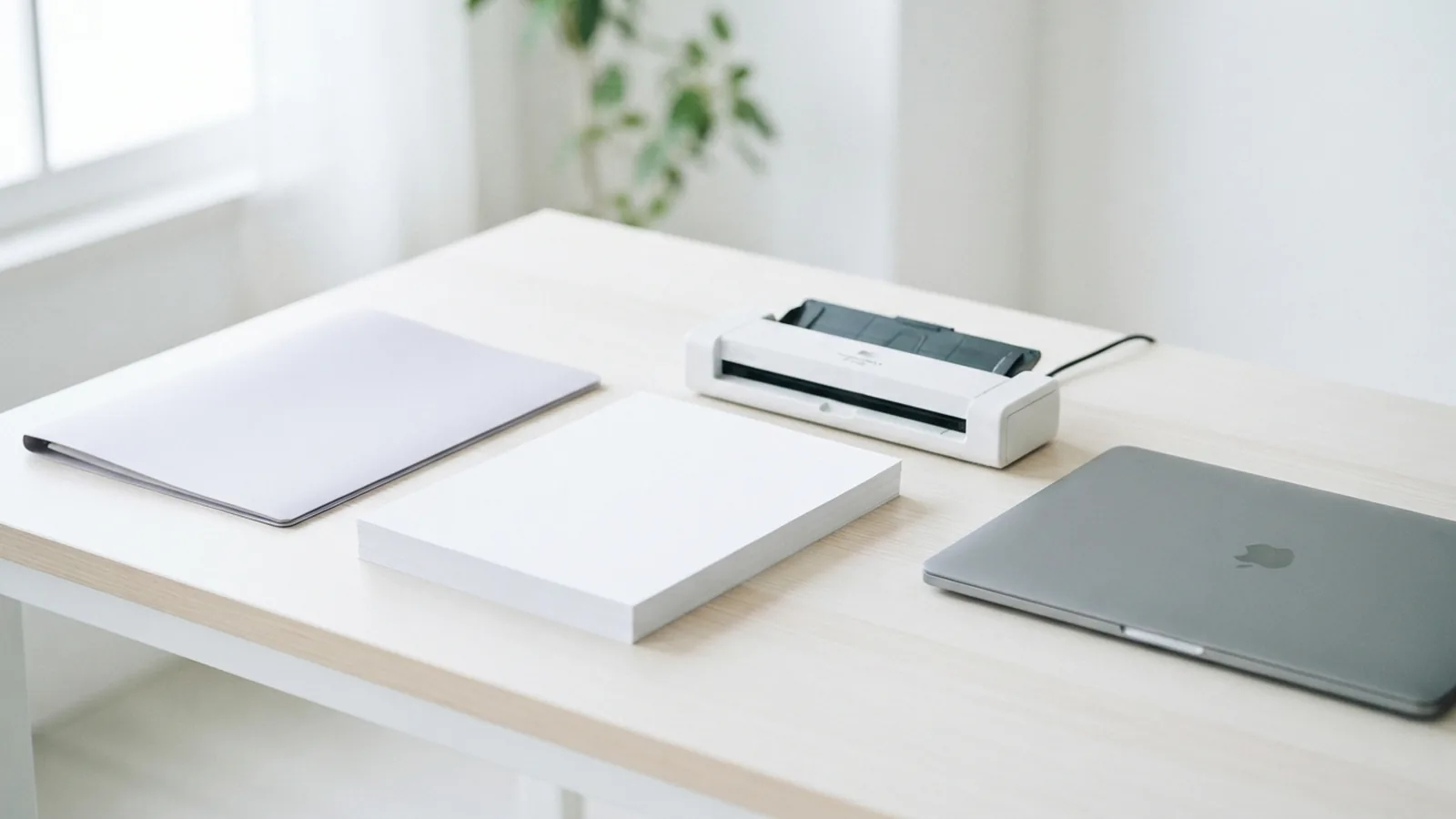
The easiest way to scan several pages into one PDF depends on your device. Windows has the Windows Scan app. Mac users can use Preview or Image Capture. Many printers also scan a full stack through an automatic document feeder.
PDF is a common file type for scanned documents. It keeps page size, spacing, and layout steady across devices. This makes PDFs useful for forms, receipts, notes, and work records.
Before you start, check your scanner connection and place pages in order. Decide if you need color or black and white scans. Most text pages look clear at 200 to 300 dots per inch, also called DPI.
- Use PDF as the file type when you want one finished file.
- Use 200 DPI for basic text and 300 DPI for small print.
- Choose color for photos, stamps, or colored marks.
- Choose black and white for small files and plain text.
Scan Multiple Pages on Windows
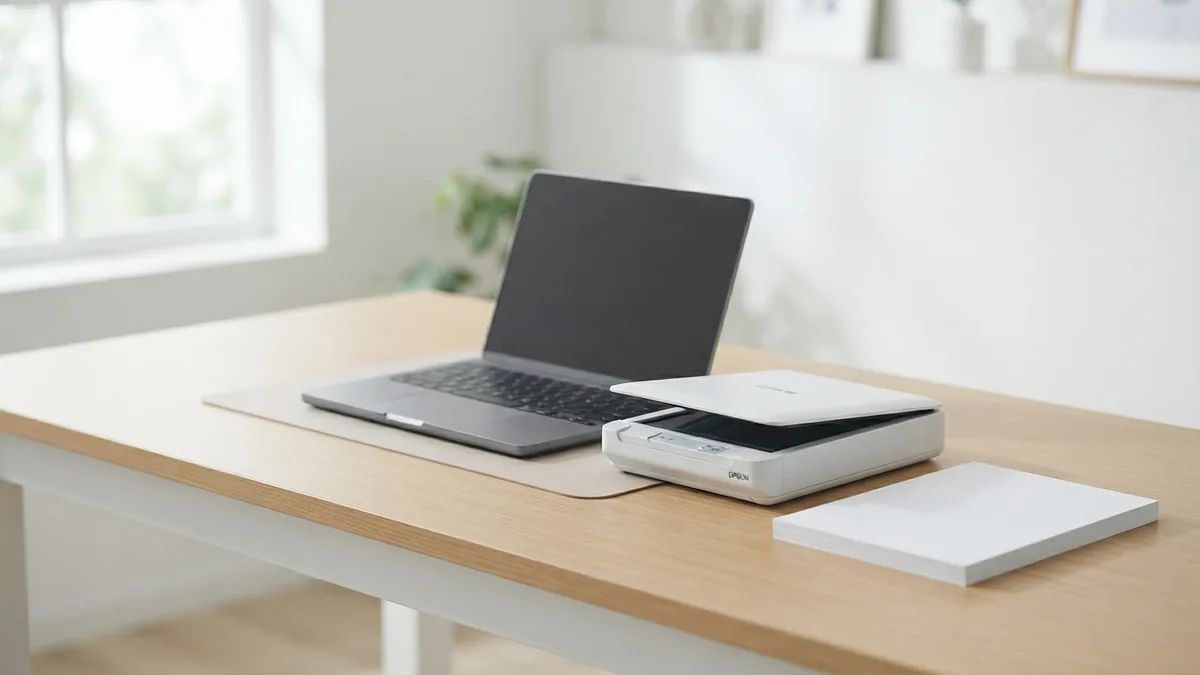
Windows users can scan pages into a PDF with the Windows Scan app. The app works with many flatbed scanners and printer scanners. Install the scanner driver first if Windows cannot find the device.
Open Windows Scan from the Start menu. Select your scanner, paper size, color mode, and file type. Choose PDF when the app offers that format.
- Place the first page on the scanner glass.
- Open Windows Scan and pick the right scanner.
- Set the source, color, size, and resolution.
- Choose PDF as the output type.
- Start the scan and wait for the first page to finish.
- Place the next page on the glass and scan it.
- Keep adding pages if the app shows an add-page option.
- Save the completed set with a clear file name.
Some Windows Scan versions do not offer a multi-page PDF button. In that case, scan each page as a separate PDF or image first. Then merge the pages with a trusted PDF tool.
Check the final file before sending it. Open every page and confirm the order. A two-page scan should show two pages in one PDF, not two separate files.
Scan Pages into a PDF on Mac
Mac users can use Preview or Image Capture for this task. Both apps can work with a scanner that macOS detects. Connect the scanner by USB or through the same Wi-Fi network.
Preview is useful when you want a quick scan and a PDF file. Open Preview, then choose the scanner from the import menu. Select the scan area, paper size, and color mode before starting.
- Open Preview from the Applications folder.
- Choose File, then Import from Scanner.
- Select your scanner from the device list.
- Set the scan type and resolution.
- Choose PDF when the scan window provides that choice.
- Scan the first page and add later pages as prompted.
- Save the finished document as one PDF.
Image Capture gives you more control over saved files. Open the app and select your scanner in the left panel. Set the scan area, resolution, and save folder.
Choose PDF for the format when available. Look for a setting such as Combine into single document. If you cannot find it, scan each page and merge them later.
Use a Multifunction Printer
A multifunction printer can often scan several pages without a computer app. Its screen may offer choices such as Scan to PDF or Multi-page PDF. The exact labels vary by printer maker and model.
For a flatbed scan, place one page on the glass. Start the scan, then follow the prompt to add another page. Keep using the same job until all pages are complete.
For a stack, use the automatic document feeder. Put the pages face up or face down as shown by the feeder mark. Remove clips, folded corners, and loose scraps before loading the stack.
- Choose a multi-page or combined PDF mode.
- Set the paper size to match the pages.
- Use 300 DPI for forms with small print.
- Pick a folder or cloud target you can access later.
- Review the page count after the scan ends.
Feeders save time, but they can pull pages unevenly. Watch the first few sheets during the scan. For fragile or mixed-size pages, use the flatbed instead.
Fix Common Scanning Problems
A scan may save as JPG instead of PDF. This often happens when the file type is set to an image format. Change the output type to PDF before you begin, if your app supports that choice.
You may also get separate files for each page. Look for options named Add page, Multi-page, Combine, or Single document. If no such option exists, merge the finished files into one PDF after scanning.
A blank page can point to a placement error or a dirty glass. Clean the glass with a soft cloth and check the page mark. Place the page face down on the marked corner when using a flatbed.
- Scanner not found: Check power, cable, drivers, and Wi-Fi.
- Scan stops: Restart the scanner and lower the scan size.
- Pages look blurry: Raise the setting to 200 or 300 DPI.
- File is too large: Use grayscale or a lower resolution.
- Pages are out of order: Rename files or reorder pages before saving.
Large color scans can take more storage space. A ten-page color scan at 600 DPI may be much larger than a 300 DPI grayscale scan. Use the lowest setting that still keeps the page easy to read.
Make Multi-Page Scans Faster and Cleaner
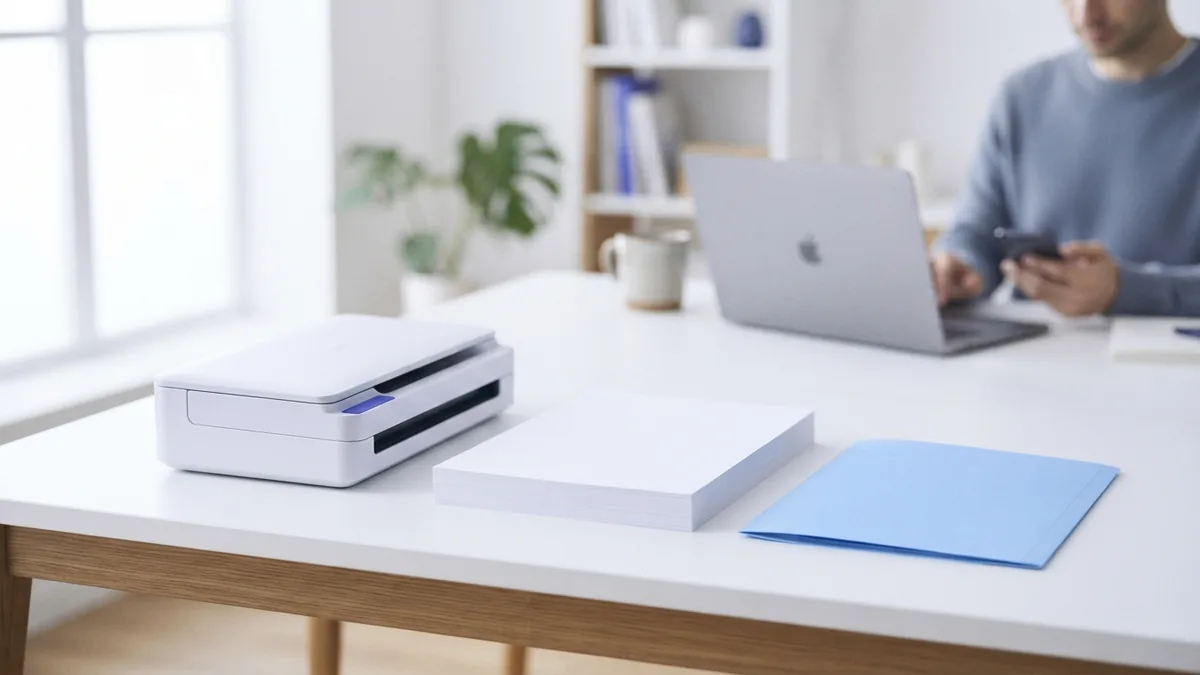
Prepare the whole stack before opening the scan app. Remove staples, smooth bent edges, and place pages in order. This cuts down on pauses and helps prevent missed pages.
Use the automatic document feeder for a clean stack of similar pages. Use the flatbed for books, photos, receipts, or thin paper. Do not force thick items through a feeder.
Give each PDF a useful name, such as receipts-march or lease-signed. Store the file in a folder with related records. This simple step makes later document management much easier.
| Document type | Suggested setting | Best source |
|---|---|---|
| Plain forms | Grayscale, 200 to 300 DPI | Document feeder |
| Small print | Color or grayscale, 300 DPI | Flatbed or feeder |
| Photos | Color, 600 DPI | Flatbed |
Protect private scans with your normal file security settings. Avoid saving sensitive files in a shared folder by mistake. Delete extra image files after you confirm the final PDF works.
Finally, check the PDF on a second device. Look for missing pages, poor contrast, and crooked scans. Then share the single file instead of sending a group of separate pages.
Related reading
How to Scan Multiple Pages Into One PDF
Scan, merge, organize, and fix multi-page PDFs on Windows, Mac, or mobile.
Copy Images from PDFs: Methods and Quality
Copy, save, and move PDF images while keeping their quality intact.
PDF Compression: File Size and Quality
Shrink PDF files while keeping text and images clear.