How to Print a PDF With Comments That Stay Visible
Learn pdf how to print comments with a visible comment summary, layout, and filters.
Introduction: printing a PDF with comments (and making them visible)
The direct answer is simple: open the PDF in Adobe Acrobat, then print with a comment summary so your notes appear on paper. Acrobat’s default print settings often skip comment text, so the printed page looks like “nothing was added.”
If you are using PDF commenting features for reviews, you want the printout to include what reviewers wrote. The good news is that Acrobat offers print options tied to comments. You just need to select the right path in the print dialog.
This guide focuses on pdf how to print comments in a way that stays readable. You will also learn how to filter which comments appear, and how to choose layout and font settings that work on paper.
Use the print dialog to find comment options
Start by opening the file in Adobe Acrobat. Then open the print dialog through the app’s Print command. This is where you control what Acrobat includes in the print job.
In many cases, the default print option targets only the document pages. That means comments exist in the viewer, but they do not show on paper. So, treat the print dialog as the first checkpoint.
Once the print dialog is open, look for a section that relates to comments or summaries. Depending on Acrobat version, the wording can vary, but the option should mention printing comments or summarizing them. If you see only page-level output, switch to the comment-related option.
- Open the PDF in Adobe Acrobat.
- Select Print to open the print dialog.
- Check for options that mention comments or comment summaries.
- Proceed to the comment summary step if you see it.
Create a comment summary you can print alongside the document
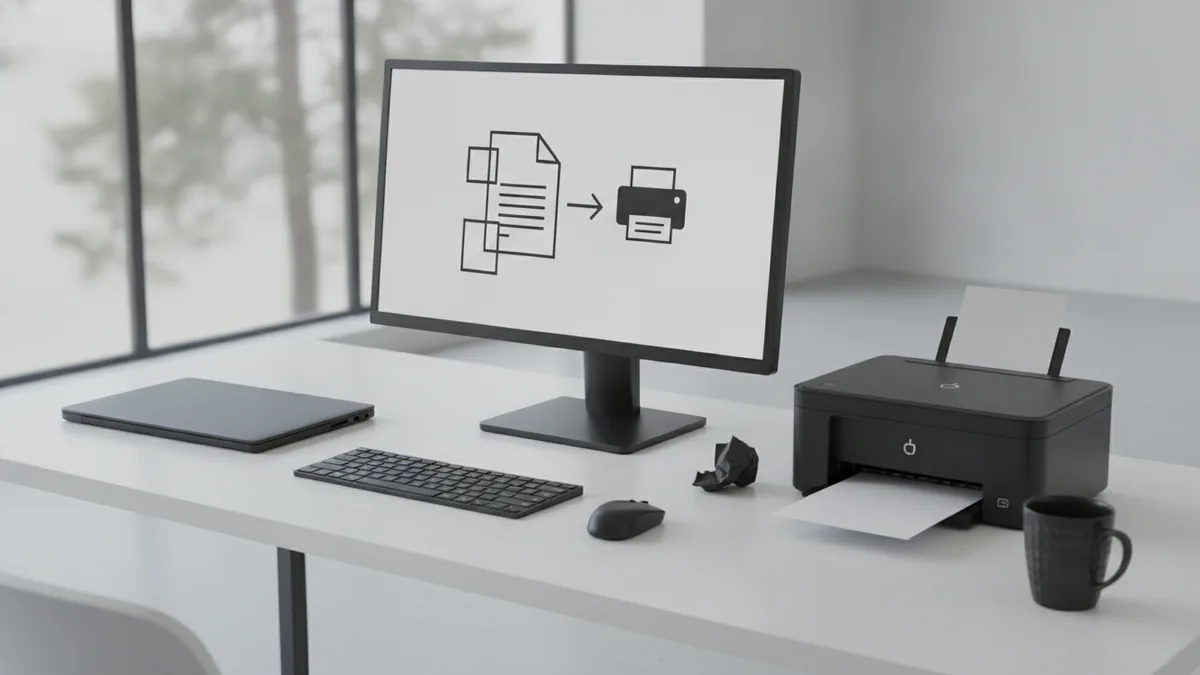
The most reliable way to print comments is to use the Summarize Comments button. This prints a structured summary of the comments with their text. It is designed for paper output, not just on-screen viewing.
Think of it as a second “output section” after the document pages. When it is enabled, your review notes appear even if the original page has pop-up comment bubbles. That is why this method often fixes the “printed version shows nothing” problem.
To do print pdf with comments correctly, turn on the option that summarizes comments for printing. If the dialog offers both inline and summarized formats, prefer the summarized format for best readability. Inline comment markers can be too small at common print zoom levels.
When you print, confirm that the job preview shows both the page content and the comment summary. If you cannot preview, do a short test print of one page plus the summary. This catches formatting issues early.
Choose layout and font options for readable comment text
Comment summaries can take up space. If you use a small font or a cramped layout, comments may print as blocks you cannot scan. Your goal is quick reading, like what a reviewer would need during a meeting.
In the comment summary options, adjust the document layout and font size. Larger font sizes improve readability but may reduce how many comments fit per page. Sorting can also affect how much text appears before page breaks.
Use font size as your main lever. If your comment text is usually several sentences long, pick a size that keeps lines from wrapping into tiny columns. As a practical rule, choose a font size that stays readable on a normal desk view from arm’s length.
Also check the layout mode for the summary section. Some setups use a single column for easier scanning. Others use a compact layout that fits more items. For most reviews, single-column summaries read best.
| Setting | What it affects | Practical tip |
|---|---|---|
| Font size | How large comment text prints | Increase until you can read lines without zooming |
| Layout | How summaries wrap on the page | Prefer a layout that avoids cramped columns |
| Sorting | Order of comments in the summary | Use a logical order for review sessions |
Filter comments so only the right feedback prints
Not every comment needs to be on the printed version. You might want only “resolved” items, only comments from one reviewer, or only specific types like text edits. Acrobat’s filter options let you control what prints.
To access these filters, start from the comments pane. Apply filter options there, then print the summary based on the active comment view. This matters because the summary can include more than you want if you did not filter first.
In practice, the best workflow is: filter, verify what you see in the comments pane, then open the print dialog and print the summarized output. This avoids printing irrelevant notes or draft-only remarks.
Common filter categories include comment type and reviewer or author. If your project has multiple people leaving feedback, filtering by author helps keep the printout focused.
- Filter down to the comment types you want to review.
- Filter by author when multiple reviewers contributed.
- Verify the comments pane shows only what you expect.
- Then print using the comment summary option.
Conclusion and practical tips for clean print output
To ensure comments stay visible, avoid relying on the default print option alone. Instead, use the print dialog to enable a comment summary. The Summarize Comments button is the key feature that turns on printable comment text.
Next, fine-tune layout and font settings so comment text is readable on paper. Small font sizes can hide the meaning of a review note. Choose a size that keeps sentences readable without guessing.
Finally, use filter options from the comments pane to print only the feedback you need. This keeps the output focused and prevents long, cluttered summaries.
If you want extra confidence, run one test print before your final batch. Print a single page plus the comment summary, then check whether fonts and sorting match your expectations. Adjust once, then print the full set.
Quick checklist: enable comment summary, verify the preview, adjust font size for legibility, and apply filters before printing. That workflow gives you a reliable “print pdf with comments” result every time.