
How to Turn Meme Images Into a Printable PDF
Turn JPG or PNG memes into sharp, shareable PDF files with ease.
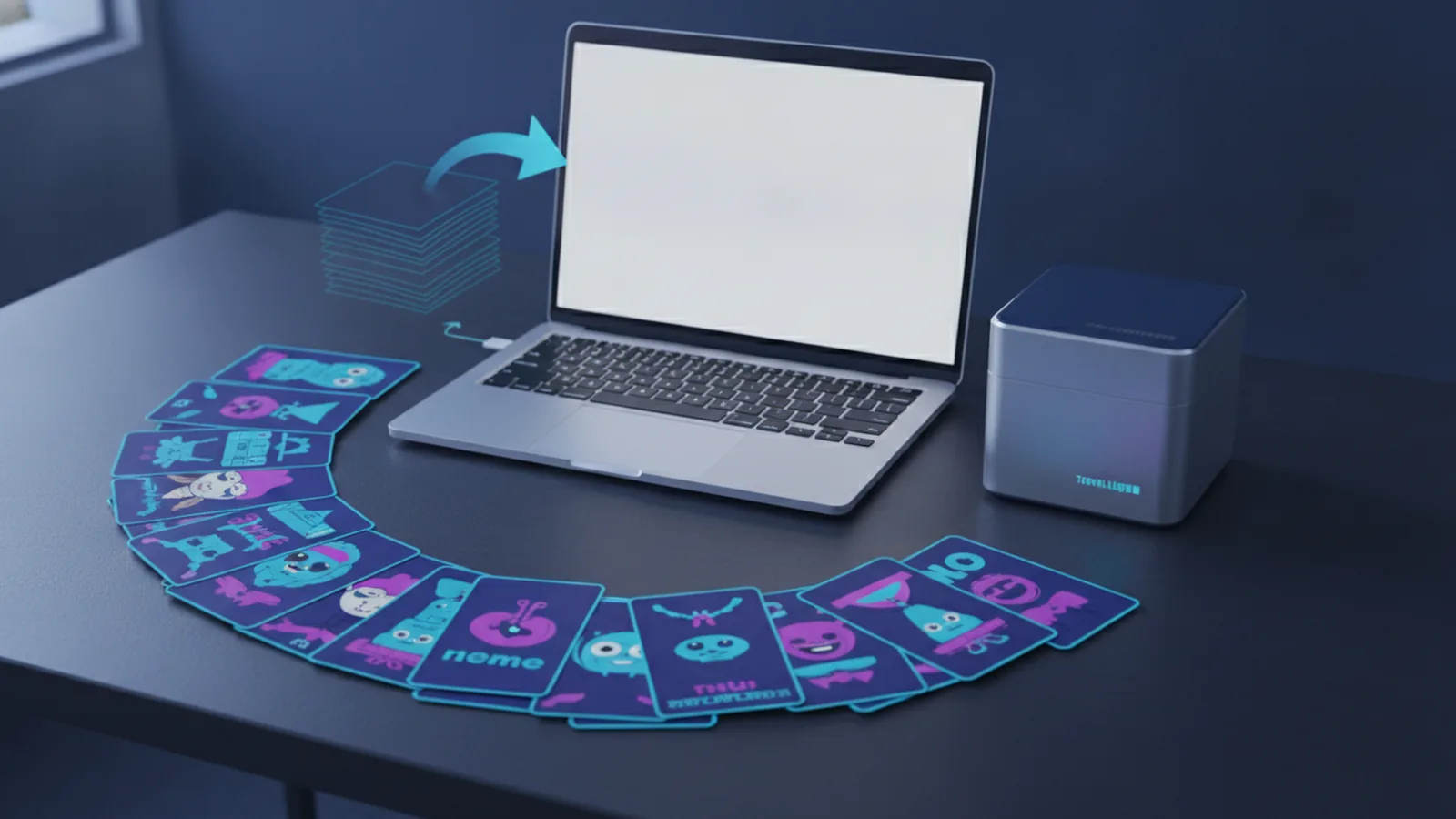
Convert a Meme to PDF in Minutes
To convert a meme to PDF, upload the JPG or PNG file to an image-to-PDF tool. Choose a page size, set the image fit, then save the new PDF.
This method works on phones, tablets, and computers. It also works for one meme or a whole folder of images.
Most tools need only three steps: add images, set page options, and download the file. The steps below help you keep sharp images and clean page layouts.
What a PDF File Does
PDF means Portable Document Format. It keeps a document’s layout steady across many devices and apps.
A PDF can hold images, text, links, and page settings. The file should look much the same on a phone, laptop, or printer.
Memes often use JPG or PNG files. JPG keeps file sizes small, while PNG can keep sharp edges and clear graphics.
- JPG: Best for photos and small files.
- PNG: Best for sharp shapes, screenshots, and clear backgrounds.
- PDF: Best for fixed layouts, print jobs, and grouped files.
A PDF viewer opens PDF files. Common viewers include browser apps, phone file apps, and desktop readers.
Why Turn Meme Images Into PDF?
PDF files make meme sharing more predictable. Your images stay in one file instead of arriving as separate attachments.
PDFs also help when you need to print memes. You can place one meme per page or fit several memes onto one sheet.
A PDF can also help with storage. A group of 20 memes becomes one file with a clear page order.
- Share a meme pack through email or cloud storage.
- Print memes for a party, classroom, or craft project.
- Keep a fixed copy of a favorite meme collection.
- Send one file when a form accepts PDF files only.
Searchers sometimes type “what do you meme printable PDF” when seeking printable meme pages. A simple PDF maker can meet that need without special design software.
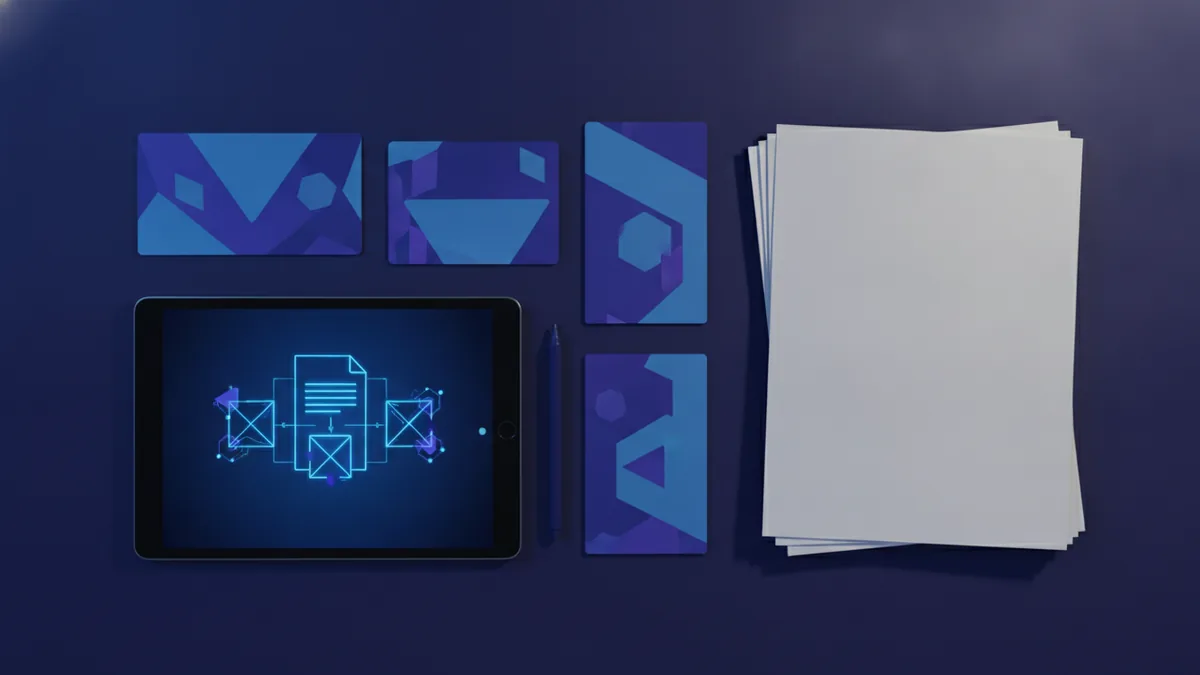
How to Convert a Meme to PDF
You can use an online conversion tool or a built-in print feature. Both methods can produce a useful PDF.
Method 1: Use an online image-to-PDF tool
- Open a trusted image-to-PDF converter.
- Choose the JPG or PNG meme from your device.
- Add more images if you want a multi-page file.
- Set the page size, direction, and image fit.
- Start the conversion and save the PDF.
- Open the saved file and check every page.
Use portrait pages for tall designs and landscape pages for wide designs. Select “fit to page” when you want the full meme visible.
Method 2: Print the image as a PDF
- Open the meme in your photo app or web browser.
- Select Print from the file or share menu.
- Choose “Save as PDF” as the printer.
- Set the paper size and page direction.
- Save the file in a folder you can find later.
This method works well on many computers and phones. The exact menu name can differ by device.
For several memes, add each image before conversion. Check the page order before saving the final file.
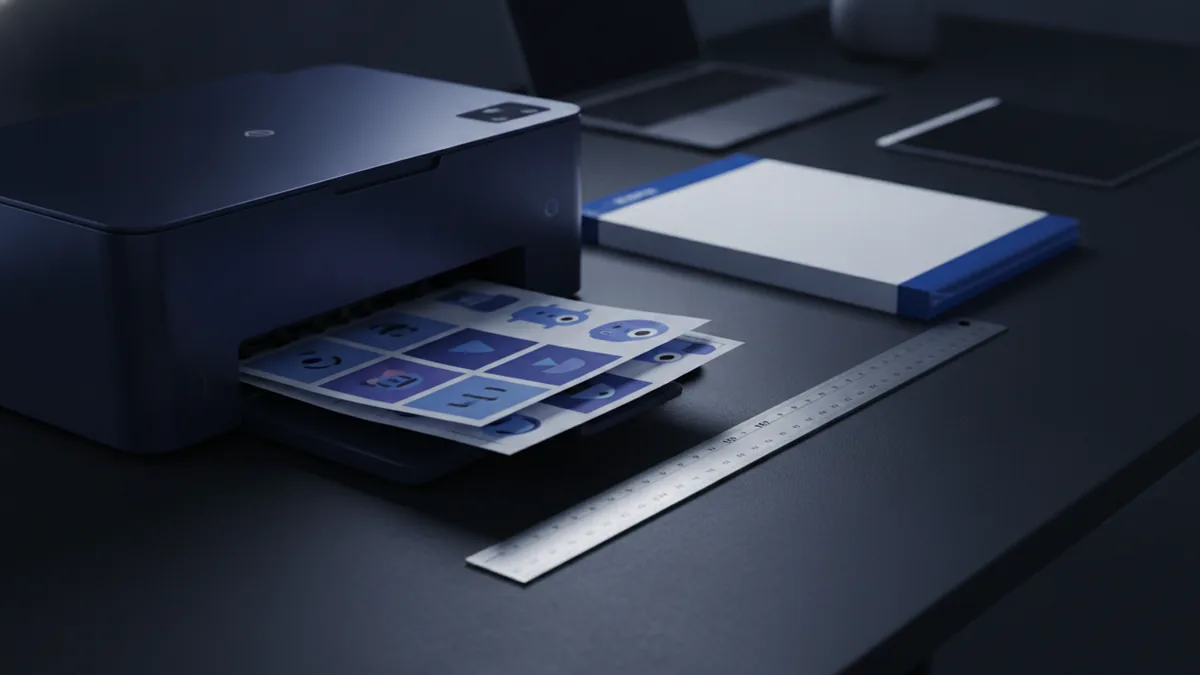
Pick the Right Tool for Your Meme
The best tool depends on your device, file count, and privacy needs. A basic tool is enough for one small meme.
Online conversion tools work fast and need no install. They suit quick jobs on shared or personal devices.
Desktop apps offer more control over page size, margins, and image placement. Built-in print tools work well for simple one-file tasks.
| Tool type | Best use | Main benefit |
|---|---|---|
| Online converter | Quick single or batch jobs | No install needed |
| Desktop PDF app | Frequent work and fine control | More page settings |
| Print to PDF | One image on a device | Already built in |
| Phone share menu | Fast mobile conversion | Works from the photo app |
Check the tool’s file limits before starting. Some free tools limit page count or image size.
Do not upload private images to a service you do not trust. Delete temporary files from shared devices after downloading.
Keep Meme Quality Sharp
Conversion does not fix a blurry source image. Start with the largest clear version of the meme you have.
Keep the original file before changing its size. This gives you a clean backup for later prints or edits.
- Use PNG for sharp edges and simple graphic designs.
- Use a high-quality JPG for photo-based memes.
- Keep the image at its original size when possible.
- Use a 300 pixels-per-inch setting for small print projects.
- Choose “actual size” when the meme has exact dimensions.
- Choose “fit to page” when full-page printing matters most.
Avoid enlarging a tiny meme to fill a large sheet. That change can make faces and fine shapes look soft.
Leave a small margin around the meme when printing. Many home printers cannot print to the paper edge.
Fix Common Meme-to-PDF Problems
A few issues appear often during conversion. Most problems come from page settings, source files, or device limits.
The PDF looks blurry
Use a larger source image and avoid repeated saving as JPG. Pick a high-quality export setting when the tool offers one.
The meme looks cropped
Change the image fit from “fill” to “fit.” You can also switch between portrait and landscape pages.
The file is too large
Resize very large images before conversion. You can also use moderate JPG quality for photo-heavy meme packs.
The page has the wrong direction
Wide memes need landscape pages in most cases. Tall memes usually look better on portrait pages.
The PDF will not open
Download the file again if the first save stopped early. Then try another PDF viewer or browser.
If you ask, “how do I open PDF meme,” open the file from your device’s file app. You can also tap it in a browser or PDF reader.
The pages appear in the wrong order
Rename files with numbers before adding them. Names such as “01,” “02,” and “03” keep the order clear.
Check the Finished File Before Sharing
Open the PDF on the same device used for conversion. Then check it on a second screen if the file will reach others.
Look at each page from top to bottom. Make sure no face, border, or key part of the meme sits outside the page.
- Confirm every meme appears in the right order.
- Check that the page size suits your printer.
- Zoom in on fine lines and small shapes.
- Print one test page before making many copies.
- Use a clear file name, such as “party-memes.pdf.”
These checks take less than two minutes for a small file. They can prevent wasted paper and repeat downloads.
When the PDF looks right, share it through email, cloud storage, or a file transfer app. Keep the original JPG or PNG files as a backup.
Related reading
PDF to PowerPoint: Editing and Sharing
Turn a PDF into editable slides with the right tool and a few quick checks.
Editing PDFs in Photoshop: Layers and Exporting
Open, edit, and save a PDF in Photoshop while protecting the original.
Blog PDFs: Design and Sharing
Turn blog posts into polished PDFs readers can save, share, and read offline.