How to Print a PDF on Both Sides (Duplex Printing)
Print your PDF double-sided using duplex or manual page flips.
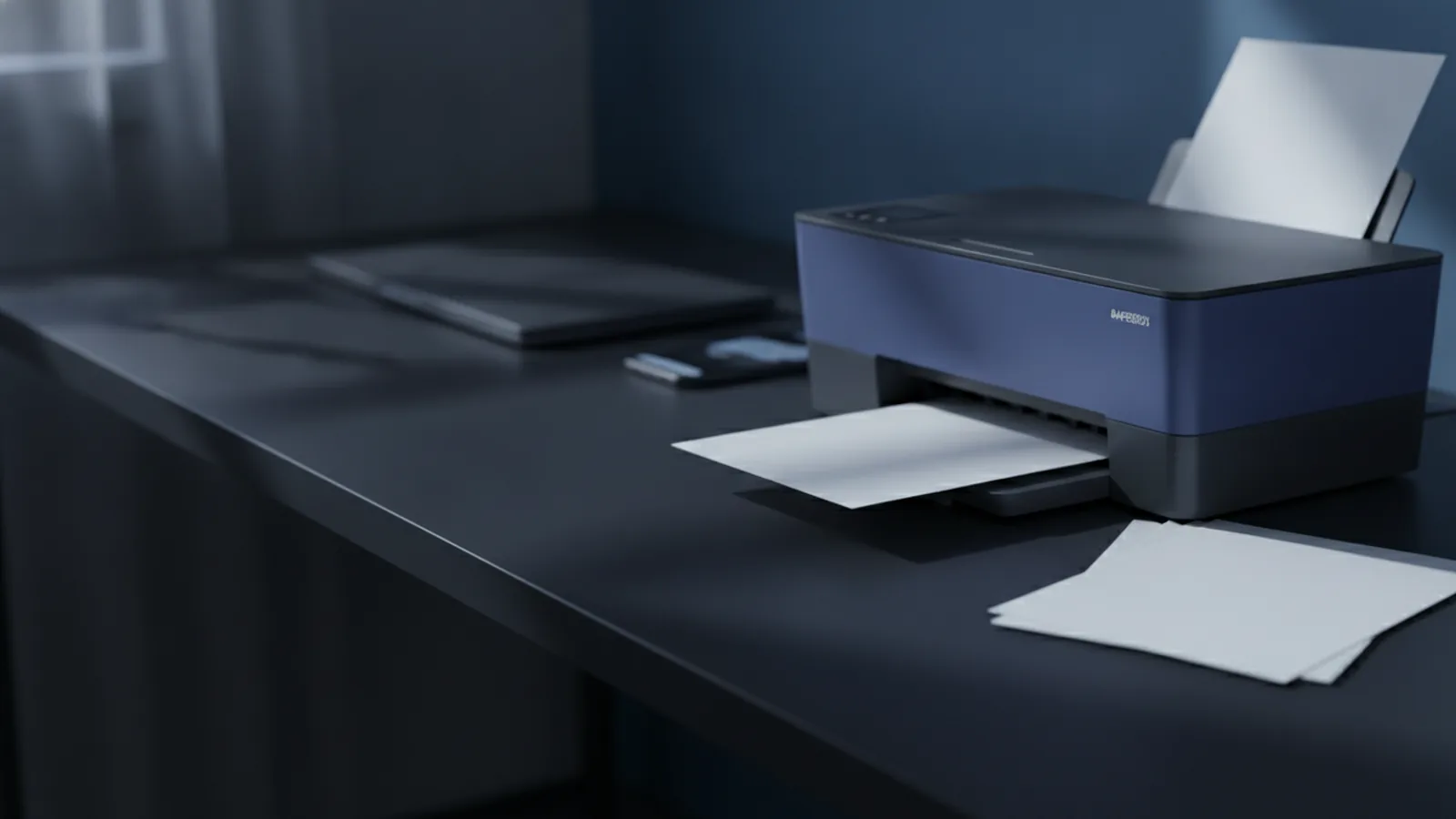
Quick answer: how to print on both sides of a PDF
If your printer has duplex support, choose the duplex option in your PDF printing settings and print normally. If it does not, you can still do manual duplex printing by printing one side first, then flipping and reloading the pages to print the other side. This guide walks you through both methods, including how to print odd and even pages separately and how to keep the page order correct.
Start with a small test print. A test print saves paper, time, and frustration, especially when your printer loads paper in a different direction than you expect. Then use the steps below to match your printer type and your PDF printing options.
Understanding duplex printing
Duplex printing means printing on both sides of the paper in a single workflow. In practice, it can happen automatically or with user input, depending on how your printer is built and how your PDF printing options are set.
Automatic duplex printing uses a built-in paper path that flips the sheet for you. Your printer controls the “flip” step, so you usually just pick an option like “Duplex,” “Print on both sides,” or “Two-sided” in the print dialog.
Manual duplex printing means you do the second side yourself. You print the first set of pages, then reload the paper - often by flipping the stack or changing which way it sits in the tray - before printing the other side. This is common with basic office printers or some home printers.
- Automatic duplex printing is fastest and least error-prone.
- Manual duplex printing works on nearly any printer.
- Both methods still depend on correct page order and correct paper orientation.
Checking printer compatibility before you start
Before you attempt how to print on both sides pdf, confirm whether your printer supports duplex printing. The easiest check is in the print dialog, where you may see a two-sided setting if duplex is available.
Open your PDF, then open the print dialog. Look for settings such as “Duplex,” “Print on both sides,” “Two-sided,” or “Sides: 2.” On many systems, the option only appears after your printer is selected.
If you do not see any duplex option, your printer likely needs manual duplex printing. You can verify this in printer properties or the printer’s manual, but the print dialog is the quickest real-world signal.
Fast compatibility checklist
- Select your printer in the print window.
- Find the “two-sided” or “duplex” section in settings.
- Look for choices like “Long edge” and “Short edge.”
- Choose a page range and ensure you can run a test print.
Pay attention to long edge vs short edge. Long-edge duplex usually matches portrait documents like standard reports. Short-edge duplex is more common for landscape layouts, such as some brochures.
Automatic duplex printing guide
Automatic duplex printing is the most direct answer to how to print both sides pdf. When duplex is supported, you can often print your whole document with one setting change.
In the print dialog, set the document to print on both sides. If you see “Long edge,” choose it for portrait pages. If you see “Short edge,” pick it only if your document is rotated or you know it matches your printing guidelines.
Then confirm your page size and margins. Duplex output can make mis-sized documents look worse, because both sides share the same alignment. Use the same paper size the PDF uses, such as Letter or A4.
Steps for automatic duplex printing
- Open the PDF and open the print dialog.
- Select your printer.
- Set Sides to 2 or turn on Duplex.
- Choose Long edge (most portrait documents) or Short edge.
- Pick your page range for a test print, such as pages 1–2.
- Click Print.
After the test print, check two things: page order and whether text looks upright on both sides. If the back side looks mirrored or upside down, you likely picked the wrong long-edge/short-edge option.
If your PDF printing options include scaling, keep it set to “Fit to page” for the test. After you confirm duplex alignment, you can change scaling if needed. Avoid “Actual size” until you are confident your printer and PDF size match.
Manual duplex printing steps (when duplex isn’t available)
If your printer does not offer automatic duplex, you can still learn how to print on both sides of paper in pdf using manual duplex printing. The goal is to print one side for specific pages, then flip and print the other side with the right orientation.
Manual duplex printing often fails for one reason: the paper reload direction does not match what the printer expects. To avoid that, start with a test print and use the same paper tray and settings you will use for the full job.
Set up for manual duplex printing
- Print a small test set, like page 1 only or pages 1–2.
- Notice how the printed side ends up in the tray when it exits the printer.
- Reload the same paper stack for the second pass using the correct flip.
- Check orientation by printing a second test page before printing everything.
Different printers “flip” the sheet in different ways. That is why reloading direction matters. Treat your test print as the truth source, not a guess.
Step-by-step: manual two-sided print loop
- Print odd pages first (see next section).
- Let pages dry and avoid stacking too tightly, so the edges stay flat.
- Flip the stack and reload it in the tray without changing paper type.
- Print even pages next.
- Verify the final sequence and correct side orientation.
Keep your page range settings precise. Printing the wrong range or reordering the stack by mistake is the fastest way to end up with scrambled pages.
Printing odd and even pages correctly
One of the most reliable methods for how to print both sides pdf manually is printing odd and even pages separately. This works because you can control which set of pages gets printed on the first side.
Odd/even printing is also helpful for automatic duplex when you need extra control. But in most cases it is mainly used for manual duplex printing, because you must do the second side as a separate print job.
Use the page numbering in your PDF printer window. Many print dialogs allow “Odd pages” and “Even pages” choices. If not, you can enter explicit page ranges.
Common odd/even page range patterns
| Page count | Odd pages | Even pages |
|---|---|---|
| 6 pages | 1, 3, 5 | 2, 4, 6 |
| 7 pages | 1, 3, 5, 7 | 2, 4, 6 |
Tips for correct page order
- Reload the paper in the same way every time for each pass.
- Use a test print to confirm whether you need to flip the stack.
- Keep the same print orientation setting for both sides.
- After the first side, check one sheet’s printed side and placement.
When in doubt, print a two-page range, such as pages 1–2, and then compare the result to how you expect the booklet to look. This makes it easier to correct reloading and orientation before you waste a full document.
Troubleshooting common duplex printing issues
Even with correct steps, duplex printing can show problems. The good news is that most issues map to a small set of causes, like wrong flip direction, incorrect paper orientation, or mismatched PDF settings.
Use the table below to diagnose the most common failures. Make one change at a time, then run a test print on a couple of pages.
| Issue | What it looks like | Likely cause | Fix |
|---|---|---|---|
| Back side is upside down | Text on side two is rotated | Wrong duplex edge setting | Switch long-edge vs short-edge and test again |
| Back side is mirrored | Text appears reversed | Reloading flip direction is wrong | Flip the stack differently before printing pass two |
| Pages come out scrambled | Order looks wrong after binding | Odd/even job ranges mismatch | Reprint odd and even ranges based on page numbers |
| Skew or cropped text | Margins shift on one side | Paper size or scaling mismatch | Set correct page size and use “Fit to page” for tests |
| Printer feeds blank pages | Second side missing content | Reloaded stack is upside down | Reload so the printed side faces the correct direction |
Practical fixes that usually help
- Run a test print with 1–2 pages before the full job.
- Keep paper type the same and avoid mixing sizes.
- Turn off scaling surprises by matching paper size.
- Print guidelines: check the PDF page rotation setting first.
If you still cannot get duplex right, try printing fewer pages as a test booklet. For example, print pages 1–4 as two passes, then adjust reloading and edge settings. Once you find the correct combination, apply it to the full document.
With the right settings, duplex printing becomes routine. Your next job will likely take only a minute to set up.
Related reading
Combining PDF Files in Foxit: Steps and Tips
Combine, reorder, and save PDFs in Foxit PDF Editor with these steps.
PDF to Word Conversion: Tools and Tips
Convert PDFs to editable Word files, then check the text and layout.
Secured PDFs: Passwords and Merging
Unlock permitted PDFs, merge them with a trusted tool, then secure the new file.