
How to Batch Print PDF Files Quickly and Easily
Print many PDFs at once with simple tools, smart settings, and fewer errors.
What batch printing means
To batch print PDF files, select several files and send them to one printer job. This avoids opening and printing each file by hand. It works well for invoices, reports, forms, and class handouts.
You can use built-in tools on Windows or macOS. Adobe Acrobat also supports grouped print jobs through its action tools. Some third-party apps add drag-and-drop control and better job sorting.
Batch printing does not merge files into one PDF. Each file stays separate in the print queue. The printer handles them in the order you send them.
- Place the files in one folder.
- Check the file names and print order.
- Choose one printer and set its options.
- Send the full group to the print queue.
Why batch printing saves time
Printing 30 files one at a time can take several minutes. Each file may need a new window, print command, and setting check. A single batch cuts out much of that repeated work.
Batch printing also lowers the risk of missed files. You can review one folder before starting the job. Clear file names make the final paper stack easier to sort.
The method helps most when every file uses the same paper size. It also suits jobs with the same color and page range settings. Mixed jobs need more care.
| Job type | Best approach |
|---|---|
| Ten similar reports | One batch from a folder |
| Mixed paper sizes | Small groups with checks |
| Large image-heavy files | Short batches to limit memory use |
| Private files | A trusted local tool |
System resources can affect large jobs. A batch of 100 image-heavy PDFs may fill memory or slow the print spooler. Split that job into groups of 20 or 25 files.
Ways to print several PDFs at once
The quickest method often uses your file manager. On Windows, select the PDFs in one folder, right-click the group, and choose Print. The exact menu name can vary by Windows version and installed PDF app.
On macOS, select files in Finder and open them with Preview. You can then print selected documents through the print window. This route may require more checks when files use different page sizes.
You can also use a command line or script for repeat jobs. This suits offices that print the same folder each day. It needs setup and may require printer-specific commands.
- Gather the PDFs into a temporary folder.
- Sort the files by name or date.
- Select the full group.
- Open the system print command.
- Review the queue before releasing the job.
These built-in methods are free and quick to test. They may offer few controls for order, page ranges, or mixed paper. A dedicated tool can help when those needs matter.
Using Adobe Acrobat for batch printing
Adobe Acrobat Pro can run an action across many files. An action is a saved set of steps. You can add files, choose a print task, and run the action on the group.
Open Acrobat and choose the Action Wizard. Create a new action, then add the print step. Add your PDF files or select a folder before you run the action.
Adobe explains its Action Wizard setup in Adobe's Action Wizard guide. The guide covers saved steps, file lists, and action controls. Check your Acrobat version because menu names can differ.
- Open the Action Wizard in Acrobat Pro.
- Create an action for the print task.
- Add a folder or selected PDF files.
- Set the printer and page options.
- Run one test file first.
- Start the full batch after the test looks right.
Acrobat can use a fair share of system memory. Large files may slow the app or the print queue. Close other heavy apps before starting a large batch.
Acrobat may not suit every mixed job. It can be slower when files have many images or unusual fonts. A smaller group often gives more stable results.
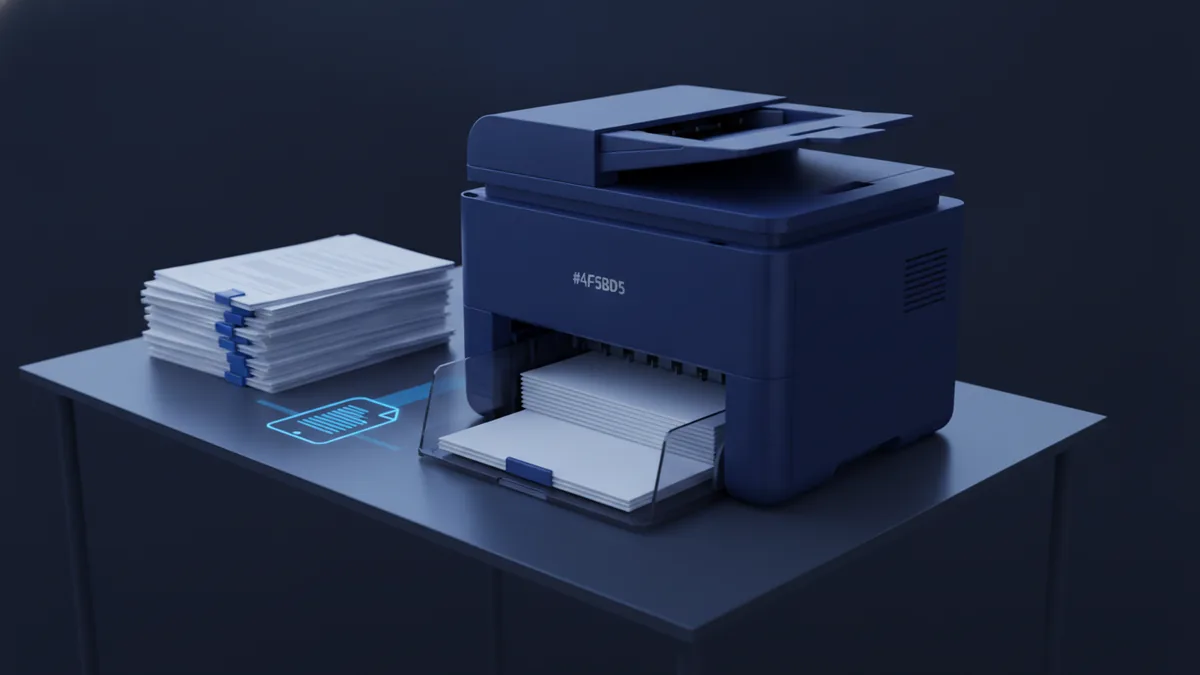
Third-party tools and drag-and-drop workflows
Third-party printing software can make batch work simpler. Most tools let you drag PDFs into a job list. You can then set the printer, order, copies, and page range in one place.
Look for a tool that supports local files and your printer model. Some apps can add separators between jobs. Others can save print presets for common tasks.
Drag-and-drop control helps you build a clear queue. Drop files into the right order, remove unwanted files, and start the job once. This approach works well for teams that print folders each morning.
- Choose a trusted vendor with clear support pages.
- Check support for your Windows or macOS version.
- Confirm duplex and color controls before buying.
- Test a small group before a large job.
- Keep private PDFs on a local, secure device.
Free tools may limit file counts or printer options. Paid tools may add saved presets and job logs. Pick the smallest feature set that meets your daily needs.
Printer settings that prevent failed batches
Correct printer settings matter as much as file selection. Set the paper size, print side, color mode, and number of copies first. These choices apply to every file in many batch tools.
Check whether the printer uses letter or A4 paper. A mismatch can cause scaled pages, blank sheets, or a stalled job. Set the right tray when your printer has more than one.
Duplex printing saves paper but can change the page order in some workflows. Test a two-page file before printing a large group. Also check whether the printer flips pages on the long or short edge.
| Setting | What to check |
|---|---|
| Paper size | Match the loaded tray |
| Color | Use grayscale when color is not needed |
| Duplex | Test the page flip direction |
| Copies | Check both app and printer values |
| Page range | Confirm full document or chosen pages |
Print one file before you release the full batch. Look for the right scale, margins, and page order. Then watch the first few files leave the queue.
If the queue stops, pause it and check the printer display. Remove the failed job before sending the full group again. Restarting the printer may help, but save the job list first.
For most users, the best answer to “how do I batch print PDF files?” is simple. Group similar PDFs, set the printer once, test one file, and print the rest. Use Acrobat or a third-party tool when you need saved actions and better queue control.
Related reading

Merge Documents into One PDF: Fast, Safe, Simple
Join documents into one PDF and keep the pages in the right order.
Paper to PDF: Scanning and Saving
Scan paper with a phone or scanner, then save and manage it as a PDF.
Removing Content from Word Before PDF Conversion: Privacy and Control
Remove unwanted Word content, then check your PDF before sharing it.