PDF to Word Conversion: Tools and Tips
Convert PDFs to editable Word files, then check the text and layout.

Why convert a PDF to Word?
PDFs keep pages looking much the same across devices. Word files are easier to edit, update, and reuse. Converting helps when you need to revise a report or reuse text.
If you are asking, “how do i convert a pdf,” start by checking what kind of file you have. A PDF with selectable text often converts well. A scanned page may need OCR before Word can read its words.
No tool keeps every font, table, or page break in place. Treat the new Word file as a draft. Compare it with the source before you share it.
- Use Word when you need to edit or reuse text.
- Keep the source PDF as a reference copy.
- Check layout and key details after conversion.
Choose a tool that fits your file

Desktop tools work well for private files and complex layouts. Microsoft Word can open many PDFs and save them as editable DOCX files. Adobe Acrobat offers export tools and OCR for scanned pages.
Online PDF tools can help with a one-time task. They run in a browser and need no extra software. You must upload your file, so check the service’s privacy terms first.
Free tools may set limits on file size, daily use, or layout control. Paid plans may add OCR, batch conversion, or more export choices. Test a short file before paying or converting a large set.
- Microsoft Word: A useful choice for text-based PDFs and simple edits.
- Adobe Acrobat: Helpful for scans and files with complex page layouts.
- Online converter: A quick choice for files that are safe to upload.
Adobe explains its own PDF-to-Word conversion tool. Check its terms before sending a file.
How to convert PDF documents to Word

Save a copy of your PDF somewhere easy to find. Open it and check that all pages look right. If you plan to use an online tool, make sure the file is safe to upload.
- With Word: Open Word and choose the PDF from the Open menu. Accept the prompt to convert it. Check the pages, then save a new copy as DOCX.
- With Acrobat: Open the PDF and choose the export option for Microsoft Word. Pick a Word format and save the new file. Run OCR first if the PDF is a scan.
- With an online tool: Choose a trusted converter’s PDF-to-Word feature. Add your file, select DOCX if asked, and start the job. Download the result when it is ready.
- Keep both files: Compare the Word copy with the source PDF before you edit or share it.
These steps explain how to convert PDF to MS Word with tools many people already use. Menu names can vary by app version. Look for options such as “open,” “export,” or “convert.”
On a Mac, open the PDF in Word or Acrobat and follow the same steps. Save the DOCX beside the source file. This makes it easier to compare both versions as you edit.
To learn how to convert PDF on iPhone, save the file in the Files app first. Open a trusted browser tool or converter app, then choose the PDF from Files. Save the DOCX back to Files. Check it on a larger screen if layout matters.
Use OCR for scanned PDFs
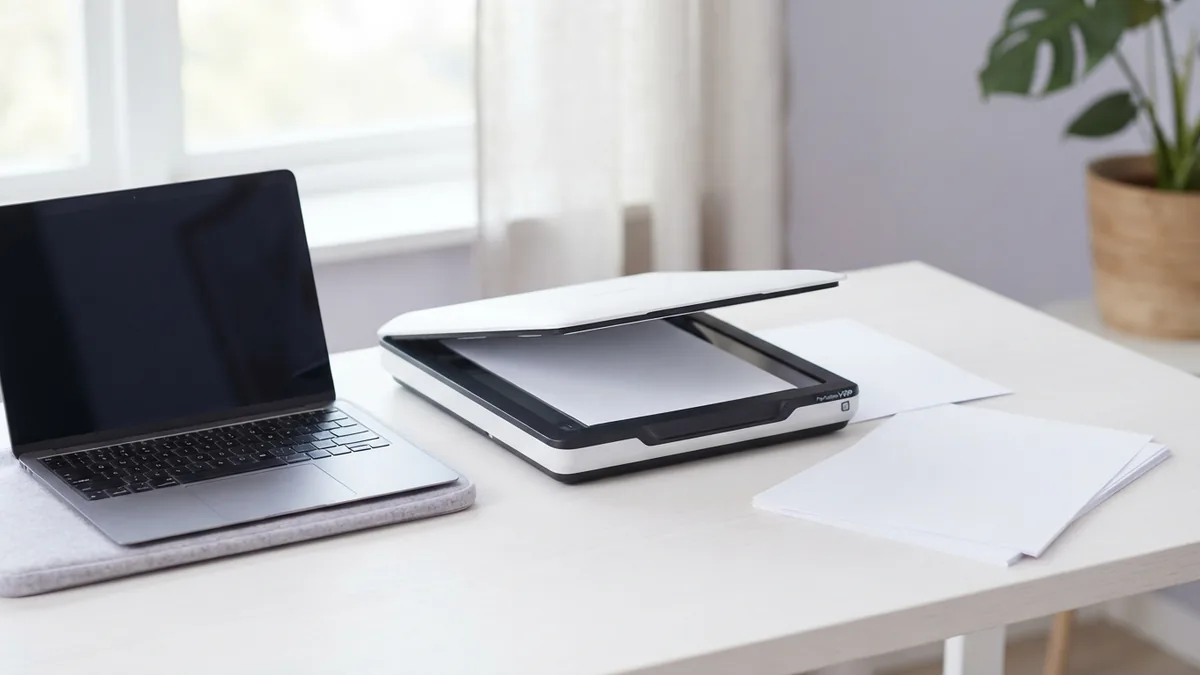
OCR means optical character recognition. It reads letters in a scan and turns them into text a computer can find and edit. Without OCR, a scanned page may act like a picture inside Word.
Try to select a line of text in the PDF. If you cannot select or copy words, the file may need OCR. Choose the right language when the tool asks. Clear, straight scans tend to give better results.
OCR can mistake marks that look alike, such as “0” and “O.” It may miss small print, footnotes, or text near a page edge. Check names, dates, and totals with care.
For a long file, test one page first. This can reveal a poor scan or the wrong language setting early. If you can, scan the source again with good light and straight pages.
Edit and check the converted Word file

Compare each page with the source PDF. Check headings, tables, columns, page breaks, and images. These parts can shift during conversion, even when the main text looks right.
Next, review the words. Look for missing lines, odd spacing, broken words, and wrong symbols. Pay close attention to names, dates, amounts, and other key details.
Fix the layout after you check the text. Use Word styles for headings, and set page breaks where needed. Keep a copy of the original PDF in case you need to check it again.
- Check that no pages or lines are missing.
- Review tables, lists, links, and images.
- Proofread names, dates, and figures against the source.
Tips for a cleaner conversion
Start with the best source file you have. A clear, text-based PDF is easier to convert than a low-quality scan. If you control the scan, use straight pages and sharp focus.
For a large set, try batch conversion only after testing a few files. This helps catch layout issues before they affect every document. Keep file names clear so you can match each DOCX to its PDF.
If a page has complex columns or forms, check it closely after conversion. Some fields may become plain text or move out of place. Rebuild those parts in Word when you need a clean, editable copy.
There is no single best method for every PDF. Choose a tool based on privacy, scan quality, and the amount of editing you need. A careful final check is part of the conversion.
Related reading

PDF to Word on MacBook: Methods and Formatting Tips
Choose the right Mac tool to turn PDFs into editable Word files.

PDF to Word Conversion: Edit Files Faster
Convert PDFs to editable Word files while keeping text, images, and layout in shape.

How to Switch PDF to Word Without Losing Your Layout
Switch PDF to Word with clear steps, OCR tips, and layout fixes.