How to Send a PDF as an Email Attachment: Methods and Tips
Send PDF by email with attachment steps, size checks, and security tips.
Understanding PDF attachments
A PDF (Portable Document Format) is a file type built for sharing documents. It keeps fonts, layout, and images looking the same across devices. That makes PDFs a common choice for invoices, forms, resumes, and reports.
When you hear “sending a PDF as an email attachment,” it means attaching the PDF file to an outgoing message. The recipient then downloads or opens the file directly from the email.
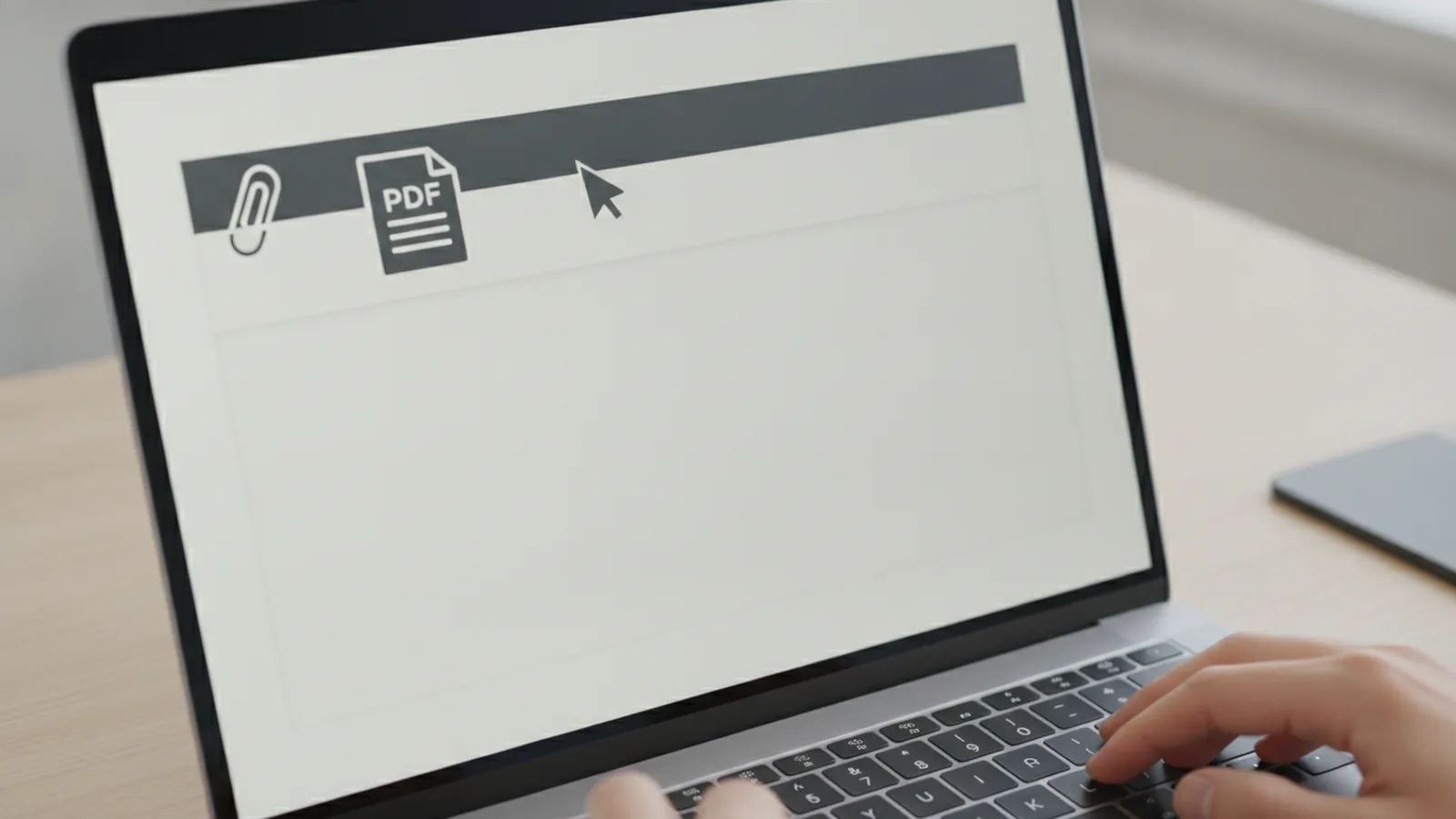
Most email apps support PDF attachments through an attachment button in the compose window. You may see it as a paperclip icon or a “Attach files” option. The exact wording differs by Gmail, Outlook, and other clients.
Step-by-step guide: sending PDFs via email
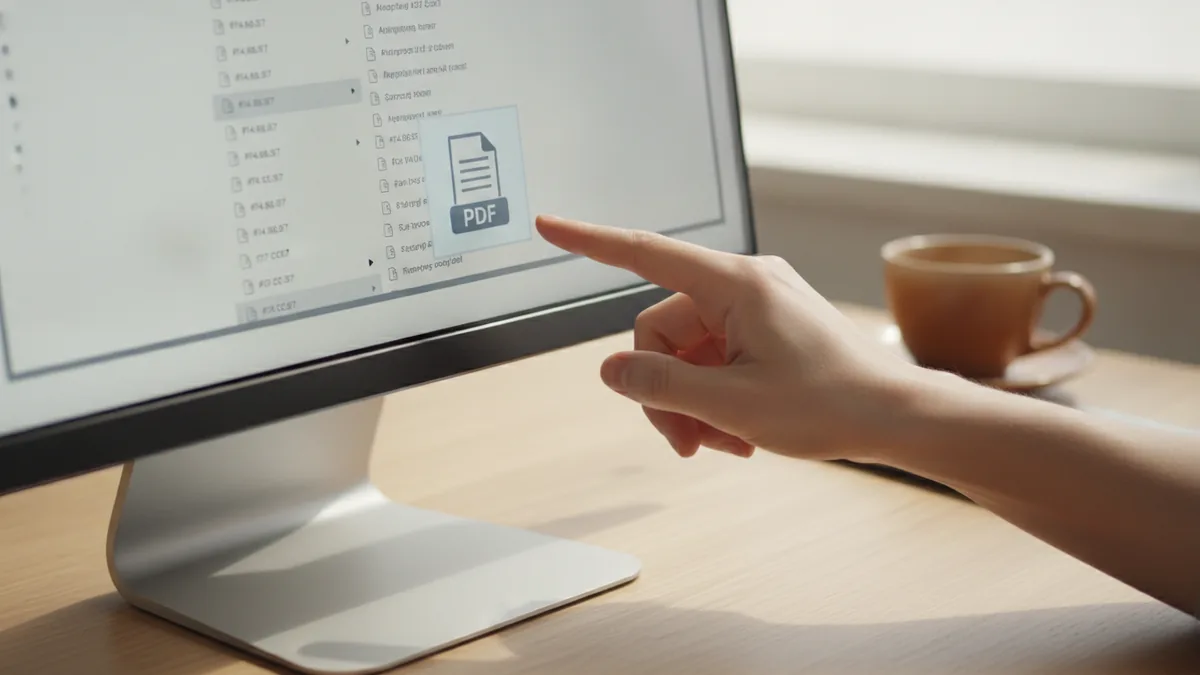
If you are asking, “how to attach a pdf to an email,” the answer is usually straightforward. You use your email client’s “attach file” feature, then choose the PDF from your computer. Most problems happen later, like size limits or permissions.
Here is a clear flow you can follow in most email clients. It maps to what you will see in Gmail or Outlook.
- Log into your email account.
- Click “Compose” or “New message” to start a draft.
- Enter the recipient email address and add a subject line.
- Look for the attachment option, often shown as a paperclip.
- Select the PDF file from your device.
- Wait for the upload to finish, then review the attachment name.
- Send the email once everything looks correct.
Even if your question is “how do i send a pdf as an attachment,” do not skip the upload step. If the upload fails, you might think you attached it, but the recipient will not receive the file.
For sending pdf files via email, pay attention to two practical details. First, confirm the file opens for you before you send, especially if you edited it. Second, use a file name that matches the email context, like “Client_Proposal_2026.pdf.”
Optimizing PDF attachments for email delivery
Email delivery often depends on attachment size. Many email providers impose caps that affect sending a pdf attachment successfully. For example, Gmail commonly limits attachments to about 25 MB.
If your PDF is larger than the limit, your email client may block sending or the message may fail. Instead of guessing, check the message area for attachment warnings. Some clients show the size during selection.
Try these ways to reduce size while keeping quality usable. They also help with download speed for the recipient.
- Compress the PDF before attaching it. Many PDF viewers and tools offer a “reduce file size” option.
- Convert from another format (like screenshots) into a real PDF. PDFs made from scans can include large images.
- Remove unused pages if you do not need the full document.
- Reduce image resolution when the PDF is mainly photos.
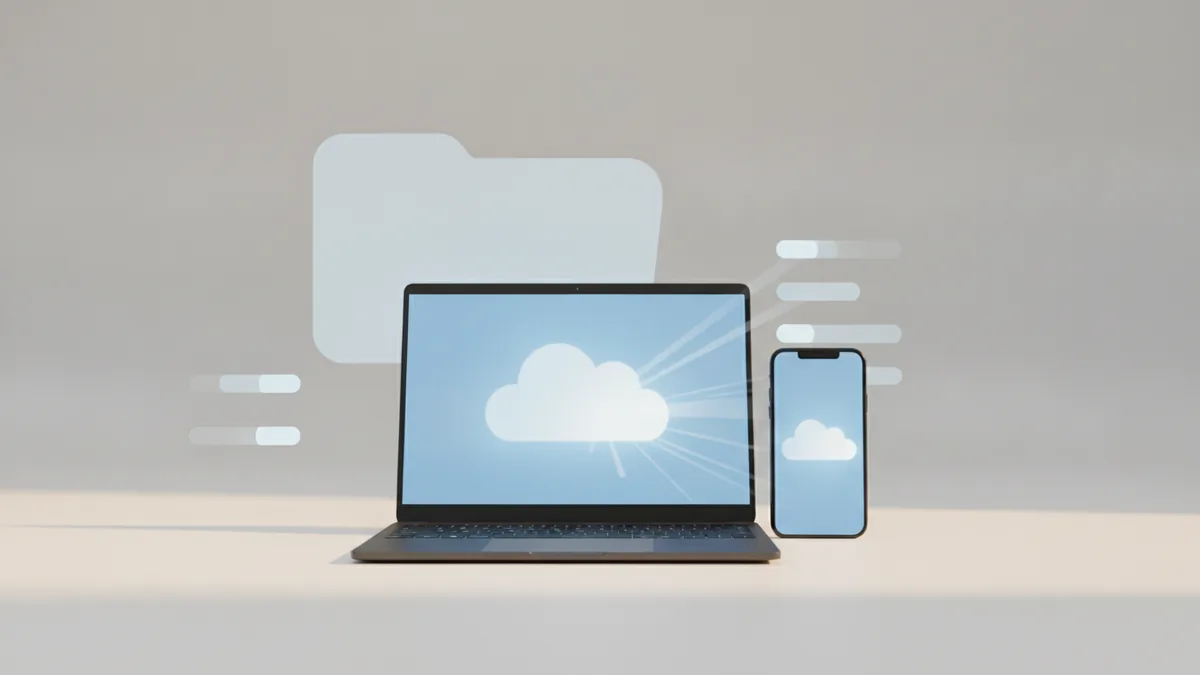
If you need to share a large PDF, cloud storage is often the better route. Instead of attaching the whole file, you upload it and share a link. This is a common approach for sending large PDFs when you hit PDF file size limitations.
For cloud storage for PDFs, options often include Google Drive or Dropbox. You typically upload the file, then share a link with the recipient. Choose a sharing setting that matches your situation, like “anyone with the link” only when needed.
Common issues with PDF attachments
When sending a pdf attachment, problems usually fall into a few buckets. You might see errors while attaching, the recipient might not get the file, or the PDF may open incorrectly.
Here are frequent issues and what to do next.
| Issue | What it looks like | What to try |
|---|---|---|
| Attachment size too large | “Message too large” or the send button stays disabled | Compress the PDF, split it, or use cloud storage |
| Upload did not finish | No attachment appears on the sent message | Wait for the upload indicator, then reattach |
| Corrupted PDF | Recipient gets an error opening the file | Open the file yourself, then resend from the original source |
| Wrong sharing setting | Recipient cannot access a cloud link | Adjust permissions, then resend the link |
Another issue is editing PDFs after you attach them. Some people edit the same file repeatedly but assume the email will update. It will not. Attach the final version, or save a new version like “Proposal_v3.pdf.”
If the recipient says the PDF download takes too long, it can be size or server speed. Compressing the file often helps more than changing email settings. It is also a clean way to follow best practices for email attachments.
Security considerations for PDFs in email
People often ask, “can a pdf attachment have a virus?” The short answer is yes. A PDF can be used to deliver malware, usually through exploits in a reader. That is why both senders and recipients should use basic checks.
For the sender, scan the PDF with your antivirus or security tool before sending. Many devices have built-in scanning. If you generate the PDF from a safe system, the risk is lower, but it is still smart to check.
For the recipient, safety comes from how they handle the file. If you do not recognize the sender, treat the attachment as suspicious. Also, avoid enabling features inside the PDF if your viewer asks for extra permissions.
You can also check integrity on your side. If you receive a PDF and need to trust it, re-download it from the original source when possible. Do not accept modified versions from random links.
One more practical step is to keep your PDF reader updated. Security fixes in PDF readers close known holes. If you support recipients, tell them to use the latest viewer version.
When you share sensitive docs, consider whether email attachment is the right tool. A link with controlled access can be safer than broad attachment forwarding. For highly confidential files, use stronger access controls and share only with the right people.
Tips for managing PDF files before you send
Good sending habits save time on both sides. They also reduce the chance of sending the wrong version or causing confusion for the recipient. A clean process matters as much as the technical steps.
Here are practical tips you can use before you hit “send.” These focus on editing, naming, and making the file easy to open.
- How to edit a pdf attachment: edit the original file, export a new PDF, and attach the new file. Do not try to “edit” the already attached copy.
- Choose a clear file name that includes purpose and date, like “Invoice_April_2026.pdf.”
- Verify it opens in your PDF reader after editing or compressing.
- Use the right format for the content. Text-heavy docs can compress well, while scanned images often need more tuning.
- Limit unnecessary size by removing extra pages or unused images.
If you need a quick improvement before sending, focus on size and readability. Compressing can reduce download time. Converting a scanned document into a smaller PDF can help too, especially when the scan is high resolution.
Finally, include a short note in the email body. Mention what the PDF contains and what the recipient should do next. For example, “Please review the attached contract and reply with approval by Friday.” This keeps the message actionable.
For anyone using PDF tools, you can start with general guidance on secure handling from NIST guidance on choosing antivirus. It is a good reminder to treat malware checks as part of the process.
Related reading
Word to PDF: Steps and Benefits
Save Word files as PDFs, keep the layout steady, and edit copies with care.
Searchable PDFs: OCR and Easy Access
Turn scanned pages into searchable, smaller, and more useful PDF files.
PDF Redaction: Safety and Privacy
Black out PDF text safely and stop hidden data from being recovered.