
Why PDFs Won’t Open, Print, or Sign—and How to Fix Them
Fix PDF opening, printing, and signing problems with clear steps.

Common Reasons a PDF Won’t Open
If a PDF won’t open, first test the file and the app separately. Copy the file to your desktop. Then open another PDF in the same reader. This quick test shows whether the file or the software causes the fault.
A damaged download is a common cause. File corruption can happen after a failed download, cloud sync error, or sudden drive shutdown. A zero-byte file is also unusable. Check the file size before trying more fixes.
Software problems can block a valid PDF. Your reader may not support newer PDF features. It may also lack a recent security fix. Adobe Acrobat, browser viewers, and other PDF tools can behave differently.
- Check that the file ends with .pdf and has a sensible file size.
- Download the file again from the original source.
- Try a second reader or your web browser.
- Check whether other files open on the same computer.
- Ask the sender to create and send a fresh copy.
Permissions can cause trouble too. A file may be locked by another user or stored in a folder you cannot access. Work folders, shared drives, and email attachments often add these limits.
System conflicts may sit behind the error. An antivirus tool can scan or lock a new file. A damaged browser download can also fail before the file reaches your drive.

Steps to Troubleshoot a PDF That Will Not Open
Start with a clean copy of the file. Save it to a local folder with a short name. Avoid special symbols in the name during testing. Then restart your computer and open the file from that folder.
Next, update your PDF reader. In Adobe Acrobat, use the Help menu and choose the update option. Other readers have a similar check. The Adobe guide to PDF opening problems also lists common reader checks.
- Open a known working PDF.
- Update the reader and restart it.
- Download the problem file again.
- Try the file in a different reader.
- Move the file to a local folder.
- Check folder and file permissions.
If the computer won’t open any PDF, repair or reinstall the reader. Remove only the affected app, then install its current version. Keep a backup of saved forms before removal.
If one file fails in every reader, suspect corruption or a bad source file. Ask the sender for a new export. A PDF made from an incomplete upload cannot be repaired by changing reader settings.
On Windows, right-click the file and open its properties. Look for an unblock option if the file came from the internet. On macOS, check access under the file’s Get Info panel. Grant read access to your user account when needed.
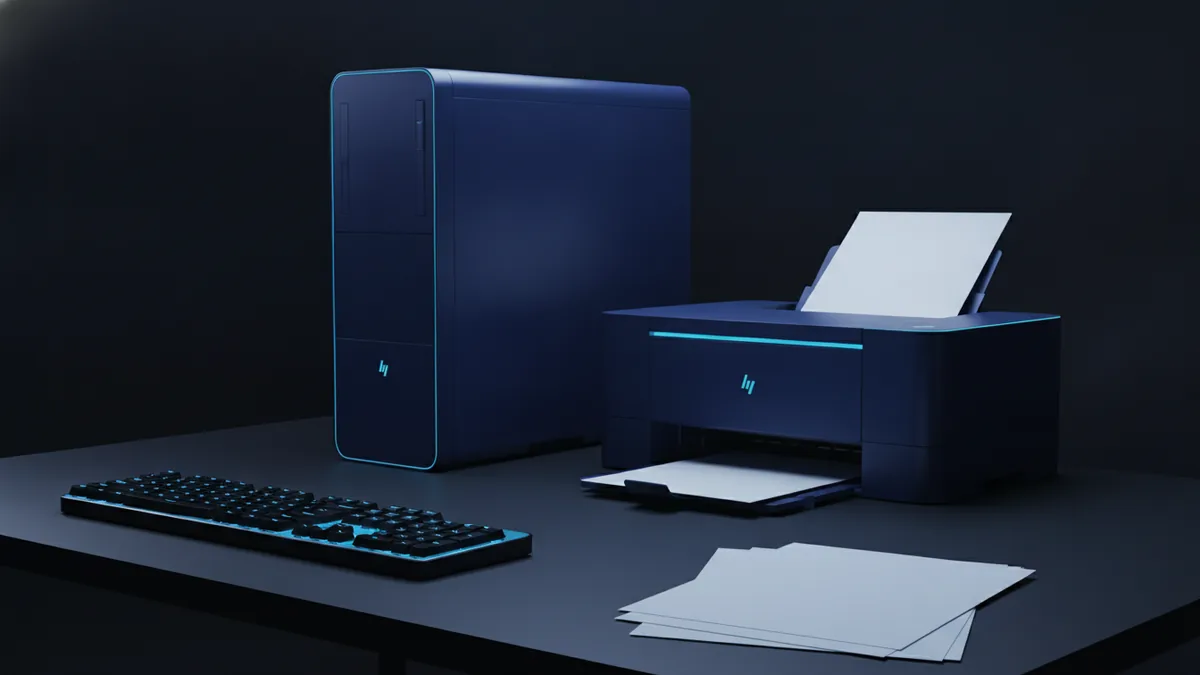
How to Fix a PDF That Will Not Print
When a PDF won’t let me print, I first test the printer with another document. This separates a PDF issue from a printer issue. Also check the printer status, paper, ink, and connection.
Open the PDF and confirm the right printer is selected. Check paper size, page range, orientation, and scale. A wrong paper size can make a print job appear stuck.
- Print one page as a test.
- Clear paused or failed jobs from the print queue.
- Choose the correct printer, not a saved offline printer.
- Turn off unusual page ranges and booklet settings.
- Restart the reader and printer.
Some PDFs have print limits set by the creator. Open the document properties and inspect its security settings. If printing is not allowed, contact the owner for an unrestricted copy.
Try the reader’s advanced print option. In Acrobat, the “Print as Image” setting can help with broken fonts or complex graphics. It sends each page as a flat picture. This may fix output errors, but print quality can change.
Still stuck? Save a new copy through the reader’s print dialog. Choose a PDF printer, then open the new file. This can remove damaged page data. Do not use this method for files that need working form fields or signatures.
Printer drivers can also cause system conflicts. Update the driver from the printer maker. Then restart the print service or computer. Test again with a simple one-page file.

Solutions for PDF Signing Problems
A PDF won’t let me digitally sign it for several reasons. The file may have a lock, a read-only status, or a form that does not support signing. The document may also require a certain certificate or sign-in account.
First, save the file locally. Do not sign a file inside an email preview or shared drive. Open the saved copy in a current PDF app. Then check whether the signature field is active.
- Confirm that the file is not read-only.
- Check the document’s security permissions.
- Use the right signing tool for the form.
- Update the PDF app before signing.
- Check that your certificate has not expired.
Security settings may block changes to the file. Open document properties and review the security panel. Some files allow viewing but block form filling or signing. Only the owner can change those limits.
Signatures can fail after a file changes. A later edit may invalidate an earlier signature. Some forms also need a specific certificate type. Ask the sender which signing method the form supports.
Do not remove security from a file without permission. That can break trust in the document. It can also violate the sender’s rules or your workplace policy.
Preventing Future PDF Problems
Good file habits prevent many PDF errors. Download files fully before opening them. Keep the original copy in a safe folder. Use clear names with dates when several versions exist.
Keep your reader and printer tools up to date. Enable automatic updates when your device allows them. Test major forms before a deadline. This matters for tax forms, contracts, and job applications.
| Problem | Best prevention step |
|---|---|
| Damaged download | Download again and compare the file size |
| Old reader | Install updates from the app maker |
| Blocked access | Store files where your account has access |
| Print failure | Test a one-page print before the deadline |
| Signing error | Confirm permissions and certificate needs first |
Use one trusted PDF app for key tasks. Switching between browser viewers and desktop apps can change results. A stable workflow makes faults easier to trace.
Keep two copies of important files. Store one on your computer and one in a trusted backup service. If a file becomes corrupt, you can restore the earlier copy.
When a PDF fails, note the exact error message. Record the app, device, and file source. These details help the sender or support team find the cause faster.
Related reading
Printing PDFs at Walgreens: Options and Steps
Upload a PDF, choose print options, then arrange pickup or shipping.

Print Multiple PDF Pages: Save Paper and Space
Fit PDF pages or copies onto one sheet and solve common print layout issues.

PDF Reading, Printing, and Page Flips
Read, print, or turn PDF pages like a book with these simple methods.