
How to Save Scanned Documents as PDF on Any Device
Save paper scans as clear, organized PDF files on any device.

Saving scanned documents as PDF: the quick answer
To save a scanned document as a PDF, scan it with your phone or computer. Then choose Save as PDF, Export as PDF, or Print to PDF. Pick a folder, name the file, and save it.
A scanned document is a digital copy of a paper page. A scanner or phone camera captures the page as an image. A PDF then stores that page in a format that keeps its layout on most devices.
PDF works well for forms, receipts, notes, and signed papers. It keeps pages together in one file. It also supports easy sharing, printing, and cloud storage.
Good scans need clear edges and even light. A clean scan saves time later.
Why save scans as PDF files?
PDF files give you a steady copy of a scanned page. The page should look much the same on a phone, tablet, or computer. This helps when you send forms to a school, bank, or employer.
PDF also keeps multi-page scans in one place. You can scan a five-page form into one file instead of five image files. Many services accept PDFs without extra file conversion.
File size matters too. A PDF often uses less space than a set of full-size camera images. You can lower scan quality when needed, but keep enough detail for small print and signatures.
- Use 300 dots per inch for forms and normal print.
- Use color when stamps, marks, or photos matter.
- Use black and white for plain text and smaller files.
- Check every page before you share the file.
Use a mobile app to scan and save a PDF
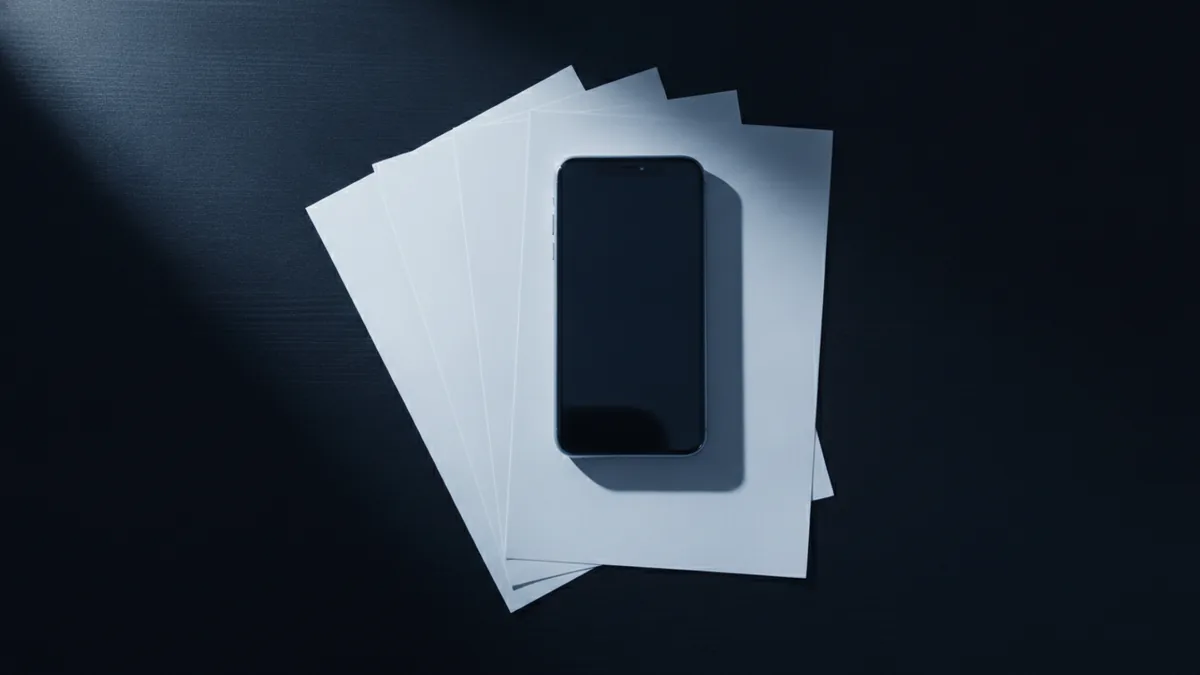
Mobile scanning apps use your phone camera to capture paper pages. Many apps find the page edges for you. They can also crop, turn, and brighten each page.
Place the paper on a flat, dark surface. Keep the phone above the page. Avoid strong glare from lamps or windows.
Scan one page at a time when the document has several sheets. Add each page to the same scan. Then review the order before you save the final PDF.
Cloud storage can make the file easier to reach later. Still, keep a local copy for important records. You can find more scan tips in Google Drive's scan help.
How to save scanned documents as PDF on Android
Google Drive includes a scan tool on many Android phones. It saves the result to your Drive account. You need the Drive app and permission to use the camera.
- Open the Google Drive app on your Android phone.
- Tap the camera icon or the New button, then choose Scan.
- Place the paper inside the camera view and capture the page.
- Crop or turn the page if its edges look uneven.
- Tap the add-page button to scan more pages into the same file.
- Tap Done, choose a file name, and pick a Drive folder.
- Tap Save to store the scan as a PDF.
The scan will appear in your chosen Drive folder. Open it to check the page order and sharpness. Rename the file if the default name is hard to search.
For example, use 2026-08-06_lease-renewal.pdf instead of a name like Scan001.pdf. A date-first name sorts well in most folders. Avoid symbols that your cloud service may reject.
If the Drive scan tool is missing, update the app first. You can also use a trusted scanner app from the Play Store. Check its save menu for PDF export before scanning many pages.
How to save scanned documents from Notes to PDF on iPhone
Apple Notes can scan paper on an iPhone or iPad. The scan stays inside a note until you export or share it. This makes Notes useful for quick records and receipts.
- Open Notes and create a new note.
- Tap the attachment button, then choose Scan Documents.
- Hold the camera over the page and let Notes capture it.
- Tap the shutter button if it does not capture the page on its own.
- Adjust the corners, then tap Keep Scan.
- Scan more pages, then tap Save when finished.
- Tap the scanned page inside the note.
- Tap the share button, then choose Save to Files.
- Select a folder and tap Save.
This answers the common question, “How do I save scanned notes as PDF?” Notes stores the scan as a PDF when you use its share or save action. You can then move the file to iCloud Drive, local storage, or another supported app.
If you need more control, choose Markup before sharing. You can add a signature or simple notes there. Keep changes small so the scan stays easy to read.
Apple explains this flow in its guide to scanning documents with Notes. The button names may vary slightly by iOS version.
Scan and save documents on a Windows PC
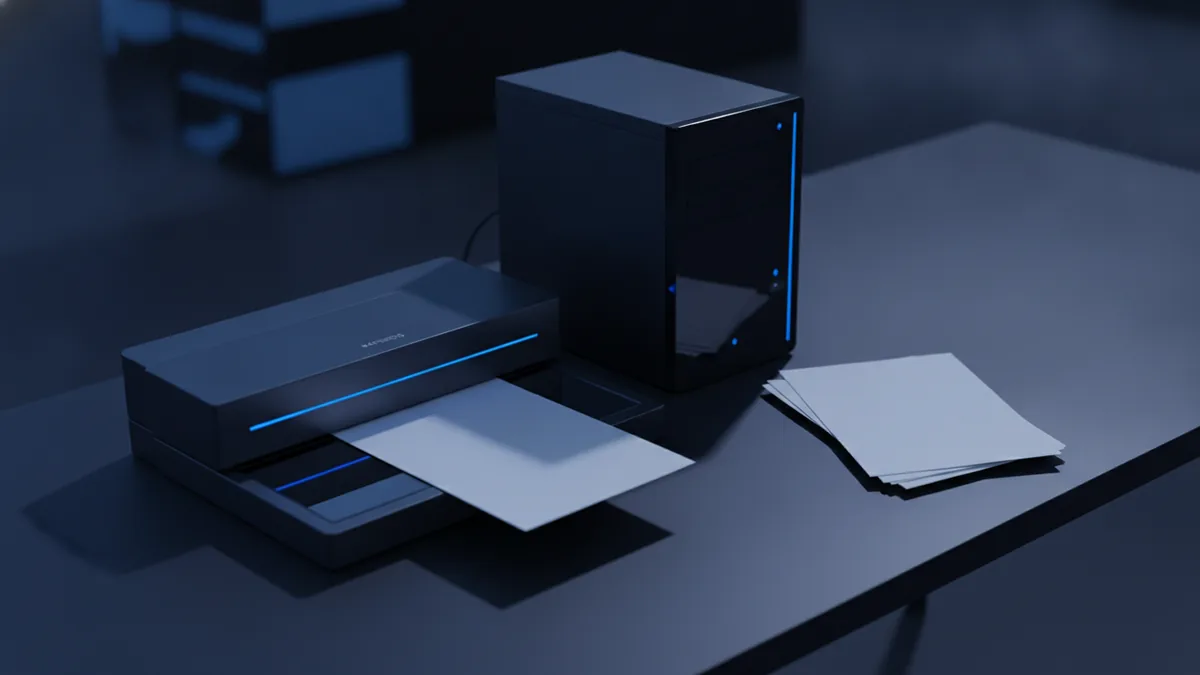
Windows users can scan with a flatbed scanner, an all-in-one printer, or a USB scanner. First, connect the device and install its driver. Then pick a scan app that supports PDF output.
The Windows Scan app may work with many connected scanners. Open the app, select the scanner, and choose the page source. Set the file type to PDF if that option appears.
- Place the page on the scanner glass or feeder.
- Open Windows Scan or the scanner maker's app.
- Choose a color mode and a resolution.
- Select PDF as the output type.
- Start the scan and add more pages if the app allows it.
- Choose a folder, enter a useful file name, and save.
Some scanner apps save each page as a separate image. In that case, scan the pages first. Then use a PDF tool to combine them into one file.
You can also use the Windows print menu with image files. Open the images in the correct order. Choose Microsoft Print to PDF as the printer, then save the result.
Third-party scanner software can offer text search, page cleanup, and file sharing. Check the output after each scan. Features vary, so test one page before scanning a large stack.
Common scan problems and simple fixes
A blurry scan often comes from movement or poor focus. Clean the camera lens or scanner glass. Place the page flat and use more light.
Dark edges can appear when the page sits near the scanner cover. Crop the page before saving. If the app cuts off content, use manual corner controls.
A large PDF may be hard to email. Lower the scan resolution or choose gray scale. You can also compress the PDF after saving it.
- Missing pages: scan the pages again and check the page count.
- Wrong order: use the app's page view to drag pages into place.
- Upside-down pages: rotate them before you export the PDF.
- Unreadable text: rescan with better light and a higher setting.
- Save failure: check free storage and folder permissions.
Some apps offer text recognition. This turns scanned letters into text that you can search. Review the result before relying on it, since small print can cause errors.
Organize your scanned PDFs for easy access
A good file system prevents lost scans. Create folders for taxes, health records, school papers, work, and home repairs. Keep the folder names short and clear.
Use names that show the date and subject. For example, 2026-08-06_insurance-policy.pdf is easier to find than document.pdf. Add a person or account name when that detail helps.
Store important files in two places. One copy can stay on your computer. Another can sit in a trusted cloud storage service or an external drive.
Review your scan folders every few months. Delete duplicates and fix vague names. Keep private files in folders with device or cloud security turned on.
Best practices for clean, useful PDF scans
The best method depends on the device you have. Android users can scan through Google Drive. iPhone users can scan through Notes. Windows users can use a scanner app or a printer's software.
Before you finish, open the saved PDF. Check every page, file name, and folder. This small check catches most scan errors.
So, how do you save scanned documents as PDF files? Capture the page, choose PDF as the output, save it in a clear folder, and review the result. That process works across phones, tablets, and PCs.
Keep one clean master copy. Make smaller copies only when sharing or sending by email.
Related reading
Paper to PDF: Scanning and Saving
Scan paper with a phone or scanner, then save and manage it as a PDF.
Scanning Multiple Pages: Methods and Fixes
Scan and save a multi-page document as one PDF on your phone or computer.
PDF Compression: Smaller Files, Better Quality
Shrink PDFs by tuning image settings and choosing the right compression level.