How to Convert a Scanned Document to PDF (Mobile + Online)
Convert scans to clean PDFs with mobile apps and free online tools.
Introduction to scanned document conversion
If you want to convert a scanned document to a PDF, the fastest path is usually your phone’s scan app. Most let you capture pages, then export as a PDF in a few taps. You can also use desktop apps or free online PDF conversion tools for the same goal. The best method depends on how many pages you have and how good the scan looks today.
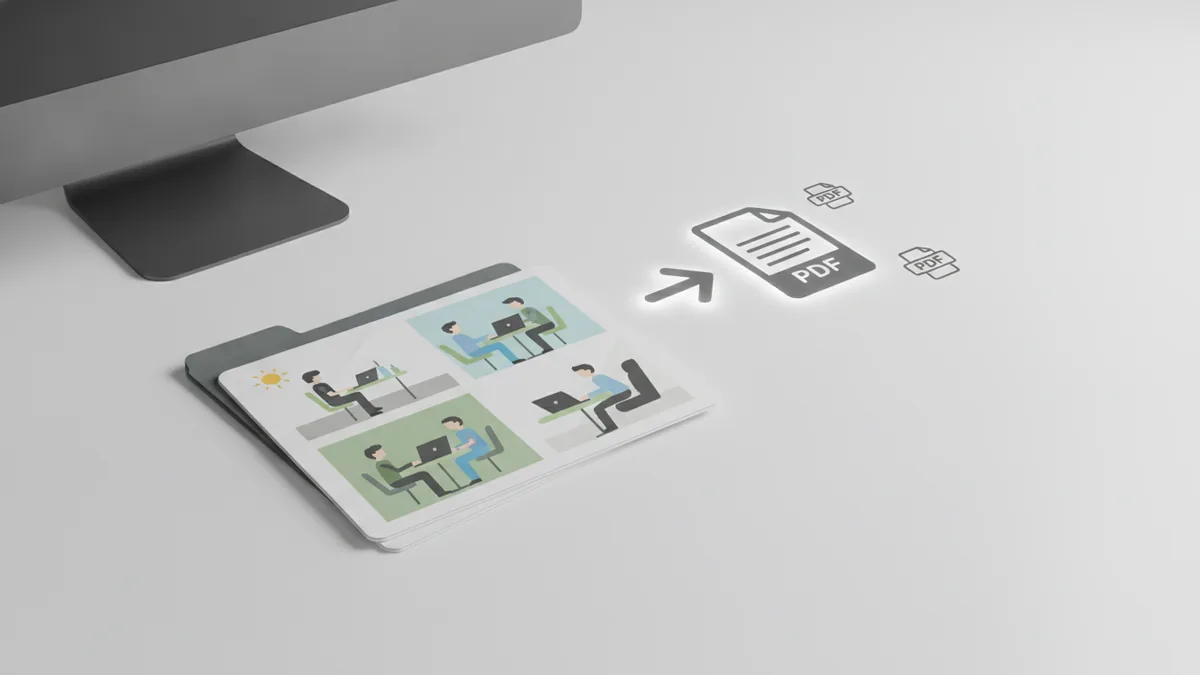
Before you start, understand what you already have. A “scan” is typically an image file, like JPG or PNG per page. A PDF is a file format that can store those pages in one document. Converting means turning those images into a single PDF while keeping the page order and readability.
This guide covers multiple ways to convert a scanned document to PDF format. You’ll learn mobile scanning steps, options for free online PDF converters, and practical tips for image quality optimization. You’ll also see common use cases so you know what settings to aim for.
- Goal: one PDF file with clear, readable pages
- Input: scanned images (JPG/PNG) or a live phone scan
- Output: a multi-page PDF you can share or store
Why convert to PDF? Benefits explained
PDF is the default choice for document storage because it keeps a page layout stable across devices. When a recipient opens the file on a phone, tablet, or laptop, the text and page sizes stay consistent. That stability matters for forms, letters, and signed documents.
PDF also makes documents easier to organize. Instead of a folder full of separate image files, you get one file per document. That reduces confusion when you attach files to emails or upload to cloud storage.
For work and school, PDF is usually the expected format. Many document management best practices assume PDF delivery because it supports multi-page files and consistent viewing. If you’ve ever tried to send ten JPG images in one email, you already know why one PDF is simpler.
| Need | Why PDF helps |
|---|---|
| Sharing | One link or one attachment with the same page order |
| Archiving | Smaller, structured file storage than many separate images |
| Printing | Better control of page sizing for paper output |
Methods for converting scanned documents
There are several ways to convert a scanned document into a PDF file. The main options are: scanning directly to PDF using software, converting existing images with desktop tools, or using free online PDF conversion tools. Your choice comes down to speed, privacy needs, and how much control you want over image quality.
Here are practical conversion methods, from simplest to most controlled. For one or two pages, mobile or online tools are usually enough. For batch scanning or frequent conversions, desktop software often saves time.
- Scan to PDF on your device. Use a mobile scanning app or built-in scanner.
- Convert image files to PDF. If your scan is already JPG/PNG, convert it.
- Batch conversion. Use a desktop tool when you have many pages or documents.
- Online conversion. Upload images or a PDF scan result, then download the PDF.
When you ask, “how can i convert a scanned document to pdf,” the answer is often whichever tool you can use fastest. If you already have image pages, conversion is straightforward. If you only have paper, you need a scanning step first, then export as PDF.
For clarity, you can think of the workflow like this. First, capture or import pages as images. Then, merge pages into a single PDF and save in a format your recipients can open. That’s what most software and free online tools do behind the scenes.
Using mobile apps for scanning and converting
Mobile scanning apps make “how do i convert a scanned document to pdf” feel easy. You scan pages with your camera, the app crops and straightens, then it exports a ready-to-share PDF. This is ideal when you need a fast result on the go.
Step-by-step: scan and export as PDF with Google Drive
One common approach uses Google Drive’s scanning feature. The steps are similar across Android and iOS, even if button names vary slightly.
- Open Google Drive and tap the “+” button.
- Select Scan or Scan document.
- Point the camera at the page. Wait for the app to capture automatically.
- Tap Add or the “+” option to scan more pages.
- When finished, tap Save or the checkmark.
- Choose a file name, then confirm to export the result as a PDF.
After saving, you can rename, organize, and upload the PDF. This fits well with document management best practices because your files are stored and searchable in one place.
How it looks on iPhone
If you’re asking how to convert a scanned document to PDF on iPhone, you typically use the built-in Notes scanner or a Drive scanning flow. Both capture pages as images first. Then they package them into a single PDF when you hit Save.
Before you export, check for page rotation and cropping. If a corner is cut off, rescan that page. Exporting a clean PDF now avoids rework later.
If you’re scanning documents for professional use, aim for dark text and minimal glare. That improves readability once you convert to PDF.
How it looks on laptop and Mac
If you’re searching for how to convert a scanned document to PDF on laptop, desktop tools can convert existing image files quickly. Many workflows are drag-and-drop: import scanned JPG pages, then save as a multi-page PDF. If you have a document scanner, it may also offer “Save as PDF” directly.
On Mac, you can convert images to PDF using built-in tools after scanning. You can place multiple images into one preview window, then export as a PDF file. That’s a good option when you want a simple “make a scanned document a pdf” workflow without extra installs.
Free online tools for conversion
When people search how to convert scanned document to pdf free, they want a quick, low-cost method. Free online PDF converters can handle image uploads and return a PDF without installing software. This is great for occasional conversions or when you are away from your laptop.
Popular options in this category usually support common input types. Look for tools that accept JPG, PNG, and sometimes multi-page scans. Then confirm they let you download the PDF after processing.
- Image to PDF converters. Upload images, then download one PDF.
- Scan organizers. Upload multiple page images and keep order.
- Merge tools. Combine separate PDFs or convert and then merge.
- OCR-enabled converters. Convert scanned images into text, when needed.
Before you upload sensitive documents, think about privacy. If the scan contains personal or confidential data, prefer tools you trust and review their handling policies. For many users, mobile scanning with an offline-first app is safer for private materials.
Also consider limits. Free tools may restrict file size or the number of pages per upload. If you need batch scanning, you might be better off using desktop tools or a scanner app that exports directly to PDF.
If your goal is how to convert a scanned document into a pdf file using free online PDF conversion tools, start with a small test page. Confirm that text is sharp and pages are oriented correctly. Then run the full document.
Tips for quality scanned PDFs
Conversion quality mostly comes from the scan quality. Still, you can improve image quality optimization during conversion by adjusting color settings and resolution. If your images are blurry, converting them to PDF will not magically make them readable.
Here are practical tuning tips that make a noticeable difference. These tips apply whether you use mobile scanning apps or convert image files with software or free online tools.
- Check resolution. Aim for a clear scan where text edges look crisp.
- Use proper color. Choose grayscale or black-and-white for text-heavy pages.
- Reduce glare. Scan under even light, and avoid strong reflections.
- Straighten and crop. Remove background and keep the full page content.
- Keep page order. Verify the sequence before exporting.
For color documents like photos, keep color settings instead of forcing black-and-white. For receipts, forms, and printed text, grayscale often gives a cleaner result and smaller files.
If you’re converting image pages, pay attention to file types. JPG can introduce compression artifacts that hurt readability. PNG can preserve edges better, so it often looks sharper for scanned text. Then converting to PDF keeps those sharper edges.
Batch scanning considerations
If you have many pages, batch scanning helps you avoid repeated setup. Mobile scanning apps can capture multiple pages in one session. Desktop tools can also convert multiple image files at once.
When you batch, do a quick quality check on the first two pages. If the app is overexposing, you’ll see it early. Fix the lighting or adjust your camera angle, then continue scanning.
Conclusion and best practices
To convert a scanned document to a pdf, pick the method that matches your situation. Mobile apps are usually best for fast scans and clean exports. Desktop conversion works well for existing image files and batch scanning. Free online tools help when you need how to convert scanned document to pdf format without installs.
For best results, focus on scan quality optimization first. Use straight pages, reduce glare, and choose grayscale for text-heavy documents. Then convert to PDF with confidence that your output will be readable.
If you’re converting for organizational or professional contexts, keep the file naming consistent. Save one PDF per document and keep page order correct. That simple habit reduces mistakes when you store and share files.
Finally, test your workflow once. Try one document end-to-end, from scan to export to open on another device. If it looks right, scale up to the full set.
Common use cases
- Submitting forms to work or school portals
- Organizing paperwork for taxes and record-keeping
- Sharing signed documents with clients or agencies
- Archiving contracts with stable page layout
- Creating study materials from printed notes
FAQ: convert scans to PDF fast
How do I convert a scanned document to PDF?
You can scan directly to PDF in a mobile scanning app, or convert existing JPG/PNG images using a converter. Export a multi-page PDF and double-check page order before sharing.
How can i convert a scanned document to pdf free?
Use a free online image-to-PDF converter or scan with a mobile app that exports PDFs at no cost. If your tool has upload limits, convert a few pages first.
How to make a scanned document a PDF on iPhone?
Use a scanning feature in an app like Notes or Google Drive. Scan each page, then tap Save to export the result as a PDF.
Can I convert scanned documents to PDF on laptop or Mac?
Yes. If you already have image files, you can import them into a desktop converter or built-in preview tool. Then export or save the combined pages as a PDF file.
Why does my PDF look blurry after conversion?
Blurry scans usually come from motion, low light, or glare. Re-scan with steadier lighting and closer framing, then convert again.
What’s better for scanned text, grayscale or color?
Grayscale or black-and-white often improves legibility for printed text. Use color when the document needs color details, like charts or photos.
Related reading
How to Scan Multiple Pages Into One PDF
Scan, merge, organize, and fix multi-page PDFs on Windows, Mac, or mobile.
How to Save Scanned Documents as PDF on Any Device
Save paper scans as clear, organized PDF files on any device.
Word to PDF: Steps and Benefits
Save Word files as PDFs, keep the layout steady, and edit copies with care.