
Paper to PDF: Scanning and Saving
Scan paper with a phone or scanner, then save and manage it as a PDF.
What a PDF Does for Paper Documents
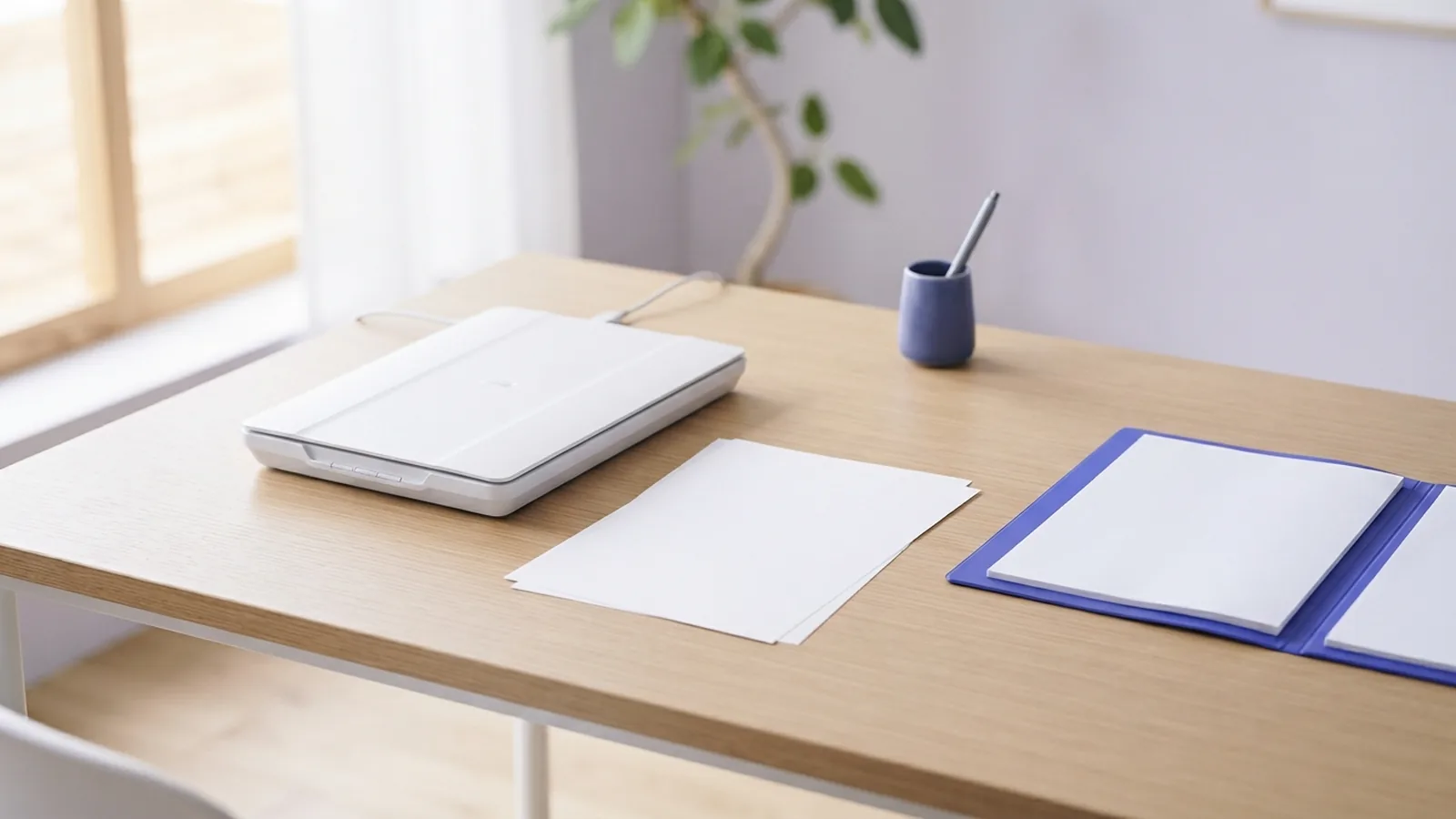
A PDF is a file format that keeps a page’s layout steady across devices. It can hold text, images, and several pages in one shareable file. That makes it useful for forms, receipts, notes, and records.
If you want to learn how to turn a paper into a PDF, first pick a way to capture each page. Use a scanner for a stack or fragile paper. A phone works well for a few pages. The right choice depends on your tools and the detail you need.
A scan may save each page as a picture inside a PDF. The words may not be searchable or selectable. OCR, or text recognition, can make scanned words searchable. Use it when you need to find terms or copy text later.
Scan Paper with a Printer or Scanner
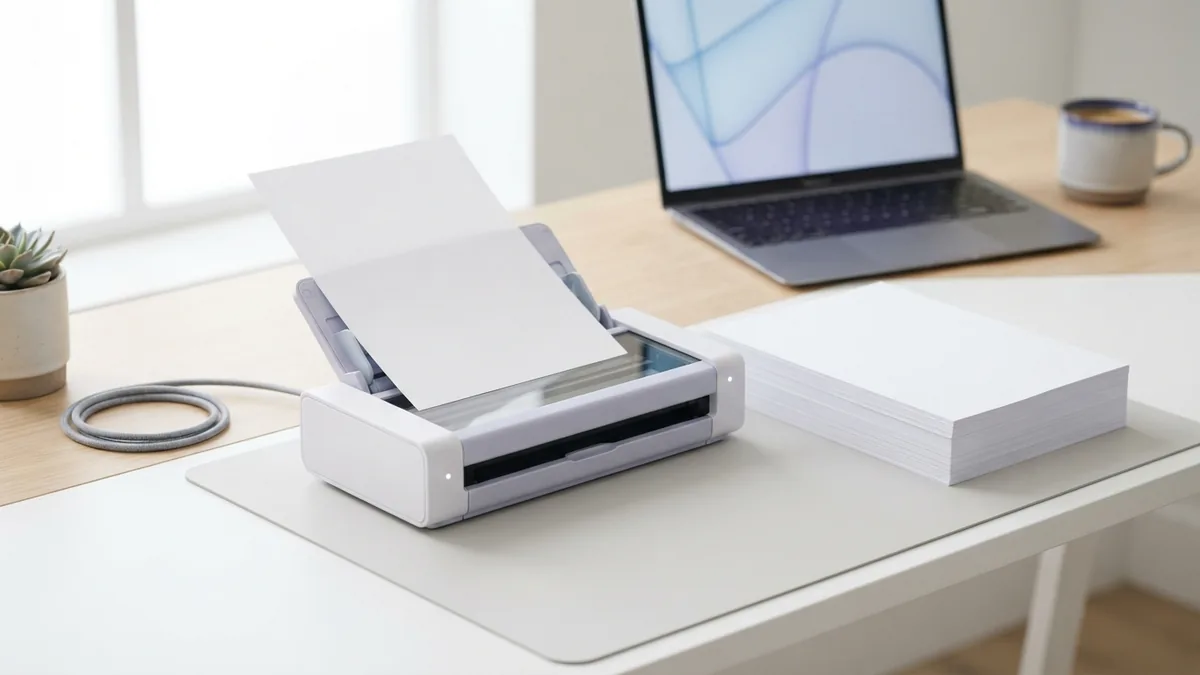
A flatbed scanner is a good pick for books, photos, and delicate sheets. A document feeder can scan loose pages faster. For most text, start at 300 dpi. Use a higher setting for small print or fine detail.
- Connect the scanner to your computer and place the page on the glass or in the feeder.
- Open the scanner app. Choose PDF as the file type.
- Set the scan to 300 dpi. Pick color for colored pages or grayscale for plain text.
- Preview the page. Check that it is straight and that no edges or words are cut off.
- Scan each page. Add later pages to the same file if the app allows it.
- Save the PDF with a clear name in a folder you can find.
Remove clips and staples before using a feeder. Wipe the scanner glass with a soft cloth if spots appear. Scan one test page before starting a large batch. This can catch a wrong page size or color choice early.
For a better result, keep the paper flat and use the right size setting. Choose letter or A4 to match the original sheet. If the page has color marks or stamps, keep color mode on. Check every page before you save the final file.
Use a Phone to Scan Paper to PDF
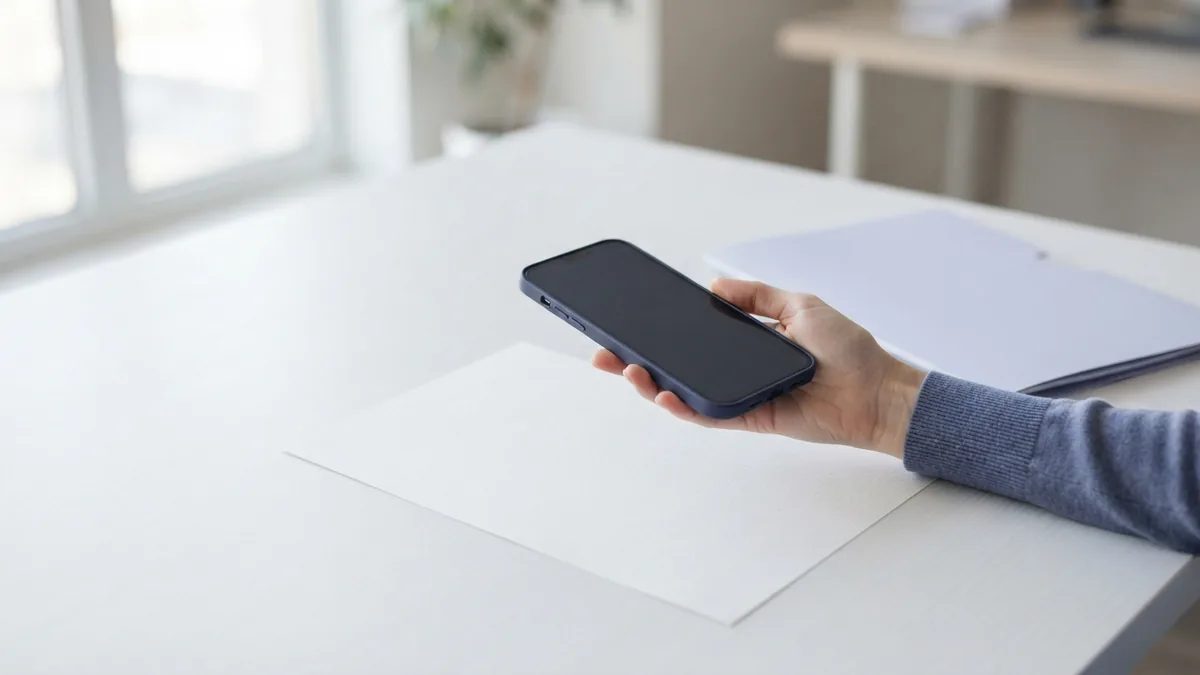
A phone can help when a scanner is not nearby. Many phones have a scan feature in a notes or file app. Mobile PDF apps can also capture pages and save them as one file.
- Place the paper on a flat surface with even light.
- Open the scan feature in your phone’s notes or file app.
- Hold the camera above the page and keep all four edges in view.
- Capture the page. Check focus, crop, and contrast before moving on.
- Add more pages if needed, then save or export the scan as a PDF.
- Open the saved file and check page order and legibility.
To find how to turn a paper into a PDF on iPhone, open Notes or Files and look for its scan tool. The steps can vary by iOS version. Scan each page, check the crop, then save the file. Other phones often offer a similar feature in a notes, camera, or file app.
Bright, even light helps more than a high-end camera. Avoid glare, hand shadows, and a slanted view. Retake a blurry page instead of trying to fix it with edits. Keep the phone still until the app captures the page.
Before sharing a scan, check that it shows the whole page. A tight crop can hide a date or signature. If the file looks too dark, try better light or a color setting. Review every page at full size.
Make a PDF on a Computer
After scanning, save the file as a PDF in the scanner app. You can also open a scan in a suitable program and use its export or save-as option. Check the chosen file type before saving. A JPEG image and a PDF are different file types.
If your scanner saves pages as separate pictures, use a PDF tool to combine them. Add the pages in order, then check their size and direction. Some tools also offer OCR, page rotation, or simple edits. Keep a copy of the first scan before changing it.
Print a document as a PDF
Print-to-PDF works for digital files. It cannot capture paper that has not been scanned. First scan the paper or take a phone scan. Then open the file and choose Print from the computer menu.
On Windows, choose Microsoft Print to PDF as the printer. On a Mac, use the PDF menu in the Print window and choose Save as PDF. Set the page size and direction before saving. This can help when you need to print custom size paper in PDF, if the app and printer settings support that size.
For a custom page size, check both the document settings and the print window. Enter the width and height if your software allows it. Some printers limit the sizes they can handle. If the new PDF looks wrong, return to the source file and adjust its page setup.
Printing one PDF to another PDF may not improve it. Keep the original scan if it looks right. Use print-to-PDF when you need a new page setup or an app lacks a direct save option.
Use Online Tools and Keep Files in Order
An online service can change scanned images into a PDF. Upload the pictures, choose PDF as the output, and save the result. Some tools can also join several pictures into one file. Check the page order before downloading.
Use an online tool only for pages you are willing to upload. Avoid sending identity records, health papers, or bank details to a service you do not trust. For private files, use a tool on your own device. Read the service’s file and privacy terms before you start.
After you learn how to convert paper to PDF, set up a simple way to find each file. Use names that show the date and subject, such as “2026-10-31 rent receipt.” Store files in folders by topic or year. Keep a backup in a safe place.
For smaller files, look for a compression option in your PDF tool. Compression can make sharing easier, but it may lower image quality. Check the result before deleting the full-size scan. Open the PDF on another device when possible to confirm it still looks clear.
Check Quality Before Sharing
To turn paper into PDF well, check the file before you send it. Make sure every page is present, straight, and easy to read. Look for cut-off edges, dark shadows, and blank pages. Fix these issues while the paper is still close at hand.
Use OCR if you need searchable text, but check its results. Small print, handwriting, and poor contrast can lead to errors. Keep the scan as the source copy if exact wording matters. A text layer can help you find words, but it should not replace a careful visual check.
When you make a paper into a PDF for someone else, consider how they will use it. A clear, full-size scan suits printing and review. A smaller file may suit email, as long as the words remain legible. These steps show how to turn a paper document into a PDF that is easy to open, share, and keep.
Related reading
Finding Keywords in PDFs: Search and Metadata
Find words in one PDF or search a whole folder with the right tools.
PDF Compression: Smaller Files, Better Quality
Shrink PDFs by tuning image settings and choosing the right compression level.
Compress PDF Files: Size and Quality
Shrink PDF files while keeping text and images clear.