
How to Make Adobe Your Default PDF Reader (Windows & macOS)
Set Adobe Acrobat or Reader as your default PDF app on Windows or macOS.
If you are asking, “how do i make adobe my default pdf reader,” the short answer is this. You change the default app in your operating system settings, then verify file associations by opening a PDF.
Adobe Acrobat and Adobe Reader are common PDF readers. Switching the default can help you use features you already have, like signing or advanced form tools. The steps are similar across devices, but the menus differ between Windows and macOS.
This guide walks you through both platforms. You will also learn how to confirm the change and handle cases where another app keeps taking over.
Understanding default PDF reader
A default PDF reader is the app your device uses when you double-click a PDF file. This is controlled by file associations inside your operating system settings. It is not tied to the PDF itself, even though every PDF file contains metadata.
Adobe Acrobat and Adobe Reader can both serve as default applications. Acrobat is the paid, full-feature app. Reader is free and still supports many day-to-day viewing tasks.
Changing default applications can improve your workflow. It also reduces friction when you rely on a specific feature set. For example, if you frequently fill forms, you want the viewer that handles those forms best.
- Default application means the app used for opening a file type.
- File associations map “PDF file type” to a specific app.
- Operating system settings store the rule for what opens first.
Steps to change default in Windows
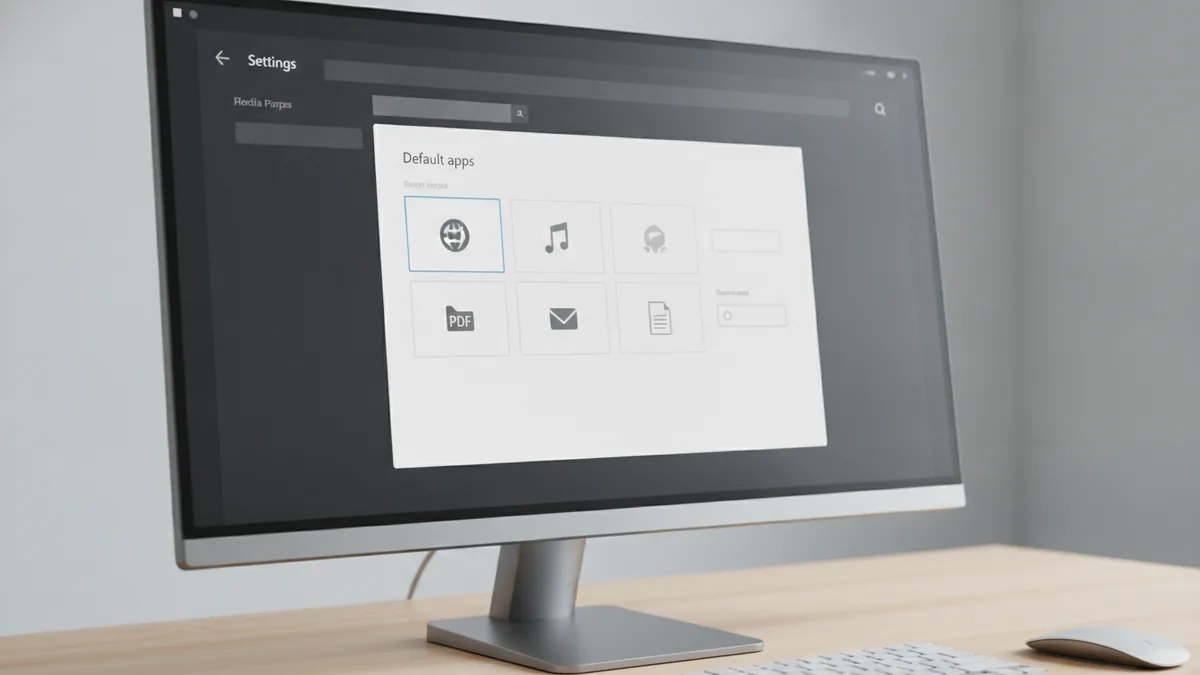
Windows lets you change defaults through Settings. The exact screen name can vary slightly by version, but the flow is consistent. You will also need the Adobe app installed first.
Start by checking that Adobe Acrobat or Reader is present. If it is not installed, Windows cannot select it as a default. After installation, use the steps below to set the default for PDF file types.
- Open Settings.
- Go to Apps, then choose Default apps.
- Select the option for Choose defaults by file type.
- Find the entry for .pdf.
- Choose the current default app, then select Adobe Acrobat or Adobe Reader.
Alternative method: right-click a PDF file, then choose Open with and pick Adobe. Use the option to set it as the default if it appears. This can be the fastest path when you only care about one device and one file type.
If Windows shows a different option than you expected, make sure the correct Adobe product is installed. Some devices have both Acrobat and Reader. Windows can default to one based on the last use or the file association you updated.
Change default in macOS
On macOS, you change defaults using Finder and System Settings. The goal is the same: update the file association for PDF file types. You can set it per file type or via “Get Info” on a PDF.
Before you start, confirm which Adobe app you want. If you use “how to make adobe default for pdf,” decide between Adobe Acrobat and Adobe Reader. Then follow the method that fits your comfort level.
- Open Finder and locate any PDF file.
- Right-click the file and choose Get Info.
- Find the section labeled Open with.
- Select your preferred app: Adobe Acrobat or Adobe Reader.
- Click Change All to apply the setting to all PDFs.
If macOS prompts you for permission, provide your admin credentials. This is common on managed devices. It connects to user permissions and can block changes if your account lacks rights.
In newer macOS versions, you can also visit System Settings. Look for sections related to Default apps or file type handling. If you do not see a direct PDF rule there, “Get Info” is the most reliable path.
Verifying the default PDF reader
After you switch defaults, verify it using two checks. First, confirm the file association in properties or Finder info. Second, open a PDF directly and see which app launches.
This verification step helps when you are trying to “make adobe acrobat default pdf reader” or “make adobe reader my default pdf viewer.” If the association did not save, you will notice immediately when double-clicking a file.
- Windows: Right-click a PDF, open Properties, and look for the current “Opens with” value.
- macOS: Use Finder Get Info and check the “Open with” setting.
Then run a quick functional test. Double-click a PDF file and confirm the correct Adobe app appears. Also test opening from inside a folder view, not just from a recent file list.
One more practical check: if your device has multiple Adobe entries, watch which one opens. Acrobat and Reader can both appear in the “Open with” list. Your goal is to ensure the exact one you chose is the one that launches.
Troubleshooting common issues
Sometimes the setting does not “stick” after you change it. Most issues come down to permissions, conflicting apps, or Windows and macOS overriding your choice.
Here are the most common problems and what to do next. Each fix targets a typical cause behind failed changes to default applications and file associations.
- User permissions: On managed devices, you may need admin approval. Try again using an admin account.
- Another app is overriding: Tools like other PDF readers can reset file associations. Change the default again after installing.
- Wrong Adobe app selected: If both Acrobat and Reader exist, choose the one you actually want for opening PDFs.
- Corrupt or missing registration: If Adobe does not appear in the list, reinstall or repair the app.
If Windows keeps switching back, start by checking the PDF “Open with” setting for a specific PDF file. Sometimes one file type rule differs from another. For example, you might have a different default for scanned document variants.
For macOS, check whether you used “Change All” in “Get Info.” Without that button, macOS may only update one file. Also check that you did not choose a third-party app like a preview-only viewer.
How to remove other default readers
If your goal is “how to make adobe the default pdf reader,” you may need to remove competing defaults. The device can keep a different app as the default because it was set earlier, or because another program changed the association later.
Start by identifying what is currently set as the PDF default. Then switch it to Adobe, and repeat after you uninstall other readers if needed.
Depending on your OS, you can either set Adobe again or remove the conflicting app. Removing an app is useful when defaults keep changing after updates.
- Windows: Open Default apps in Settings and review the PDF association for “.pdf.” Set it to Adobe Acrobat or Adobe Reader.
- macOS: Use “Get Info” on a PDF and click “Change All” after selecting Adobe.
If you are trying to “remove adobe as default pdf reader,” the reverse works. Choose a different default app for the PDF file type, then confirm with file properties. For example, if you meant “how to make foxit my default pdf,” select Foxit for “Open with,” then apply it to all PDFs.
Finally, watch for reversion after installing new software. Many PDF tools attempt to become the default during installation. If that happens, re-check the PDF association and set Adobe again.
Quick answers for common Adobe default questions
If you search “how to make adobe acrobat default to open pdf,” the key is the same: update the OS file association for .pdf. Select “Adobe Acrobat” in the default apps screen or the “Open with” dialog, then confirm with verification steps.
If you search “how to make adobe default pdf viewer,” do not rely on the last-opened PDF session. Always verify the default through properties or Finder info. This ensures you are changing the default, not just opening one file in the right app.
And if you wonder “how to make adobe your default pdf reader,” check that Adobe actually launches when you double-click any PDF. A correct default should work from any folder and from within file managers.
Tip: keep one test PDF on your desktop. Use it to confirm your setting after updates or after you install new PDF tools.
Related reading

Facebook App Development: Setup and Launch
Build, test, and submit your first Facebook app with less guesswork.
Joan Didion’s “Why I Write”: Voice and Vision
Explore Didion’s essay, its key themes, and what it can teach writers.
Web Copywriting: Clarity and Impact
Write web copy that is clear, persuasive, and easy to save as a PDF.