
How to Uninstall PDF Expert From Your Mac (Step by Step)
Uninstall PDF Expert on macOS using Finder or Terminal, then clean up leftover files.
Understanding PDF Expert
PDF Expert is a popular PDF editing software for Mac. It lets you read, annotate, sign, and combine PDF files. Like many Mac applications, it usually installs both the main app and some support files.
So when you search “how do i remove pdf expert from my mac,” you are really asking two things. You want to delete the app itself. You also want to remove leftover files that can remain after you delete the main app.
Below, you will find a step-by-step process for application uninstallation using Finder, plus an optional Terminal method. There is also a short cleanup section so your local disk management stays tidy.
- Goal: remove the PDF Expert app
- Optional goal: remove leftover support files
- Safety note: back up important files before changes
Uninstalling PDF Expert from Mac
Start by confirming the exact app you want to delete. PDF Expert should appear in Finder under Applications. If you installed it from a disk image or a web installer, the app bundle is still what you remove first.
You have three common ways to uninstall Mac applications. You can use Finder, you can use Terminal commands, or you can use an app management tool. For most people, Finder is the simplest and safest choice.
Choose the method that fits your comfort level. If you prefer a guided approach, use Finder. If you want more control or you cannot delete the app normally, use Terminal.
- Quit PDF Expert before uninstalling
- Pick a method: Finder, Terminal, or an app tool
- After deletion, check for leftovers in Library
Using Finder to Remove PDF Expert
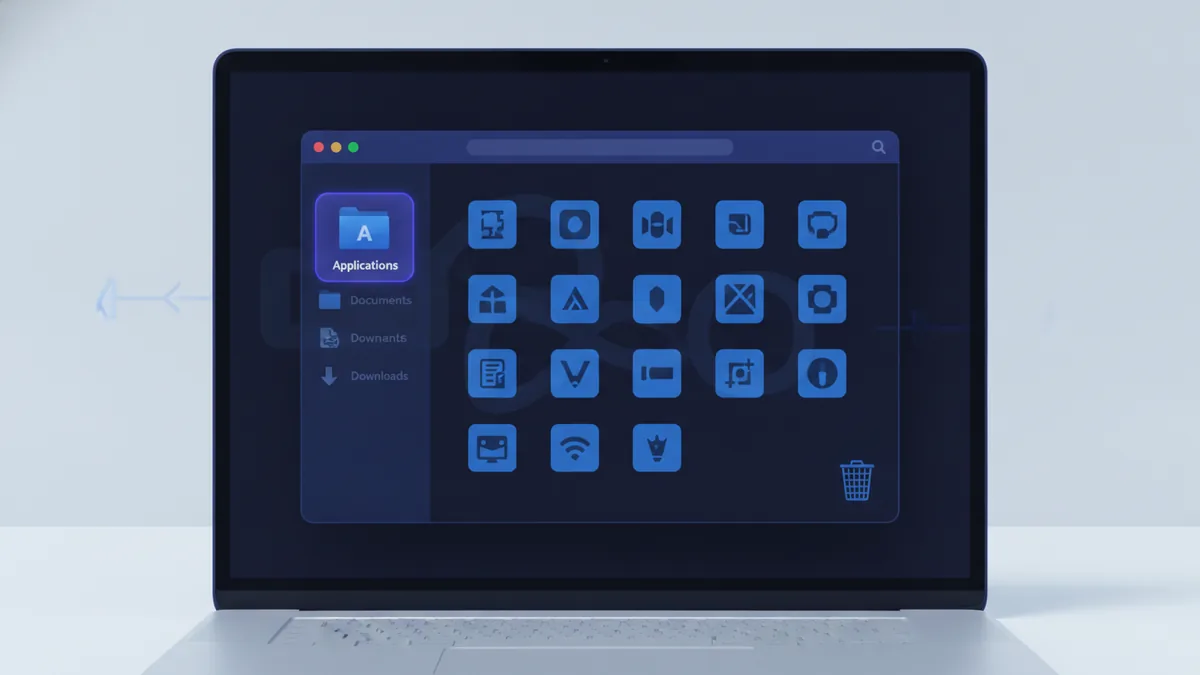
Finder is the standard way to uninstall Mac OS applications. It relies on the app bundle location in your Applications folder. This is also the method most users mean when they ask “how to delete pdf expert on mac.”
Use these steps exactly. Open Finder, then locate the app. When you move the app to Trash, macOS removes the main application bundle.
- Open Finder
- Go to Applications
- Locate PDF Expert
- Drag it to Trash
After you drag PDF Expert to Trash, empty the Trash to complete the uninstall. To do that, right-click Trash and choose Empty Trash. If you skip this step, the files may still take space on your disk.
If the app will not move to Trash, check that it is fully quit. Sometimes macOS keeps an app open in the background. Quit it, then try the Finder delete again.
Removing PDF Expert via Terminal
Terminal is useful when Finder fails or when you want a more direct delete. It is also a good option when you are comfortable with commands. This answers the “how to remove pdf expert from mac” intent with a clear set of steps.
Before you run commands, quit PDF Expert. Then open Terminal from Applications, then Utilities. Keep in mind that you can always copy output so you can verify what was removed.
Try the following approach. The first command checks the app path. The next commands remove the app bundle and then remove common support folders.
| Step | Command | What it does |
|---|---|---|
| 1 | ls "/Applications" | grep -i "pdf expert" | Helps you confirm the app is in Applications |
| 2 | sudo rm -rf "/Applications/PDF Expert.app" | Deletes the PDF Expert app bundle |
| 3 | rm -rf "~/Library/Containers/com.readdle.PDFExpert" | Removes sandbox container data for the app |
| 4 | rm -rf "~/Library/Application Support/PDF Expert" | Removes common app support files |
Not every Mac will have the exact same folders. If a folder does not exist, the command may return an error. That can be normal. The key is to avoid deleting unrelated files.
After deletion, restart your Mac. This clears any cached state. Then verify the app is gone by checking Applications again.
What to Do After Uninstallation
After you uninstall PDF Expert, do a quick cleanup. This is where many “how do i remove pdf expert from my mac” searches lead. The app may be gone, but some Library items can remain.
Check your Library folders for leftover files. Look in both your user Library and the shared Library. You will remove what looks like PDF Expert data. If you are unsure, start with the user Library.
- Open Finder
- Go to Go in the menu bar
- Select Go to Folder…
- Visit these paths one at a time
Use these paths as targets. Remove only the items that clearly belong to PDF Expert.
- ~/Library/Containers/ (look for the PDF Expert container folder)
- ~/Library/Application Support/ (look for PDF Expert support folders)
- ~/Library/Preferences/ (look for PDF Expert preference files)
- ~/Library/Caches/ (optional: caches for the app)
To remove leftover files from these folders, move them to Trash. Then empty Trash. This keeps disk usage lower and reduces clutter from old app data.
Finally, double-check the results. Open Finder and confirm PDF Expert is not in Applications. Then search your Mac for “PDF Expert.” If nothing relevant shows up, your uninstallation is complete.
If you plan to reinstall later, keep notes about which method you used. Reinstalling may recreate the same support folders. That helps you know what will return.
When to use an app management tool instead
If Finder and Terminal both feel risky, an app management tool can help. Many tools can uninstall apps and then remove related files. This can be helpful if you do not want to browse Library paths manually.
Just remember that “complete removal” still depends on what the tool detects. After using any tool, do the same quick Library check described above. It takes a few minutes and avoids surprises later.
Troubleshooting common uninstall issues
Some users see errors if the app is still running. Quit first, then try again. If you still cannot delete, restart and then repeat the method.
Another common issue is permission errors in Terminal. Use sudo only for deleting the app bundle. Avoid running broad delete commands on folders you do not recognize.
If you want a reference for safe file operations, you can compare your steps with guidance from Apple’s documentation on managing files and permissions.
Tip: The simplest safe order is Finder delete first, then cleanup in your user Library.
Related reading
MOV to PDF on Mac: Frames and Files
Turn video frames into a neat PDF on your Mac.
XBRL to PDF: Readability and Record-Keeping
Turn XBRL reports into readable PDFs and keep the source files safe.
PST to PDF: Methods and Best Practices
Compare Outlook, software, and expert options for converting PST files to PDF.