
How to Load PDF on Kindle
Send a PDF to Kindle by email, USB, or Amazon’s Send to Kindle service.
How Kindle handles PDF files
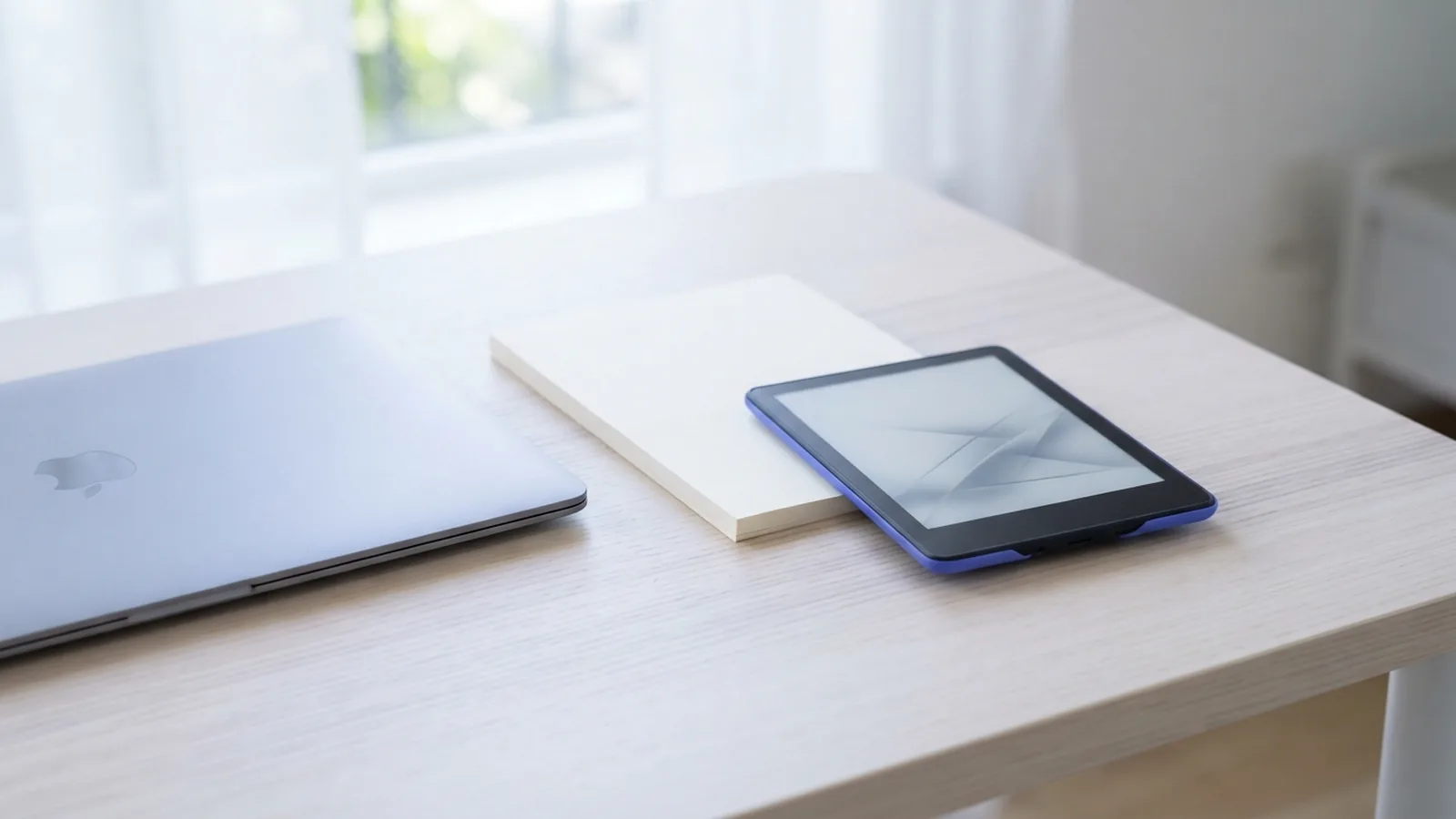
Can you load PDF on Kindle? Yes. Kindle devices can open PDF files without converting them first. You can send a PDF by email, copy it through USB, or use Amazon’s Send to Kindle service.
PDF pages keep their set layout. This helps with forms, charts, and manuals. But a page made for paper may look small on an e-reader. Text may not reflow like it does in a Kindle book.
Can I load a PDF on my Kindle and read it comfortably? Often, but the result depends on the page size and layout. Zooming in or turning the device sideways can help. Dense charts may still be hard to read.
- Choose PDF when the page layout matters.
- Choose a Kindle book format when you want text to resize and reflow.
- Open the file on your Kindle before relying on it offline.
Choose a way to load a PDF to Kindle

The best way depends on where the file is and whether you have internet access. Email works well for a file on your phone or computer. USB is useful when you want a direct copy or have no Wi-Fi.
Send to Kindle is Amazon’s online file delivery service. It can send supported files to your Kindle library or device. Amazon’s Send to Kindle service lists current ways to send personal documents.
To load a PDF into Kindle, choose one method and test the file. Send or copy one file first if you have several. This makes it easier to spot a damaged file or a delivery issue.
| Method | Best for | Internet needed |
|---|---|---|
| Sending a file from a phone or computer | Yes | |
| USB | Direct copying and offline use | No |
| Send to Kindle | Online delivery to linked devices | Yes |
Send a PDF using your Kindle email address
Each Kindle account can have a unique Send to Kindle email address. Email the PDF as an attachment from an approved sender address. Amazon then delivers it if the file meets its current rules.
Find your Kindle email address in your Amazon account’s device or content settings. The address appears beside the registered Kindle. Add your own email address to the approved sender list if needed.
- Open your email app and start a new message.
- Attach the PDF and check that it is the right document.
- Enter your Kindle email address as the recipient, then send the message.
- Connect the Kindle to Wi-Fi and check its library or home screen.
Allow time for delivery. The file may appear in your library, based on your delivery settings. If it does not appear, check the sender list, email address, Wi-Fi, and file type.
Amazon may change its supported file types and size limits. Check the current Send to Kindle page if an email is rejected. A failed message does not always mean the PDF is damaged.
Transfer a PDF to Kindle with USB
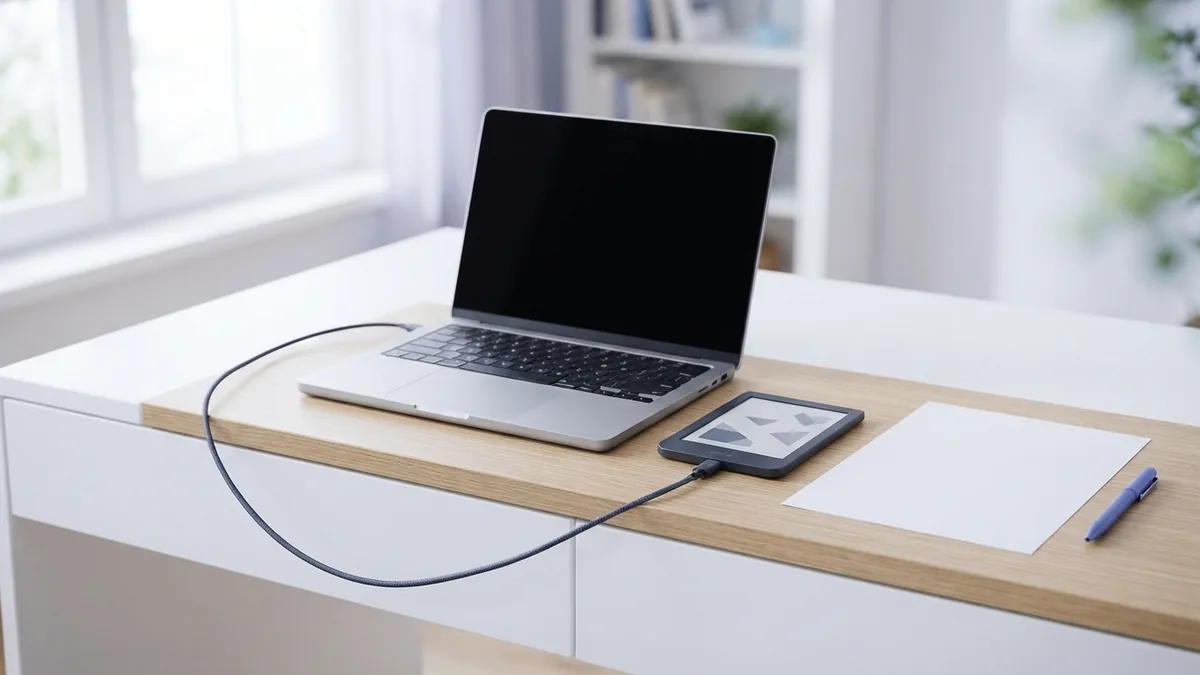
A USB cable moves a PDF straight from a computer to a Kindle. This method needs no Wi-Fi or email address. Use a cable that fits your Kindle, then connect it to the computer.
When the Kindle appears as a drive, open it and find the folder named “documents.” Copy the PDF into that folder. Eject the Kindle safely before unplugging it.
- Connect the Kindle to your computer with a USB cable.
- Open the Kindle drive, then open the documents folder.
- Copy the PDF into that folder.
- Eject the Kindle, unplug it, and look for the file in your library.
If the computer does not show a Kindle drive, try another port or cable. Some cables only charge devices and cannot transfer files. Keep the Kindle awake while you connect it. Check its screen for a connection prompt.
Use cloud services to send a PDF
You can use Amazon’s Send to Kindle website or app to send a PDF from a computer or phone. Choose the file, select a linked Kindle or library, and send it. Your Kindle needs a network connection to receive the file.
Amazon Drive is no longer a current option for storing and opening files on Kindle. Use Send to Kindle or download the PDF from a cloud service first. The exact steps depend on the cloud provider and your Kindle model.
If the PDF is in a cloud account, open that account on a phone or computer. Download the file, then send it through Send to Kindle or copy it by USB. This avoids relying on a cloud app that may not work on your Kindle.
Some Kindle models have a web browser, but file downloads can vary. For a dependable copy, use Amazon’s service or a USB cable. Keep another copy in your cloud account or on your computer.
Fix common PDF loading problems
If you wonder, “How do I fix failed to load PDF?” start with the file itself. Open it on a computer or phone to check that it works. A damaged or incomplete PDF may fail on Kindle as well.
Next, check how you sent the file. For email, confirm the recipient address and approved sender list. For USB, make sure the file is in the documents folder. For online delivery, connect the Kindle to Wi-Fi and sync its library.
- Restart the Kindle, then try opening the PDF again.
- Download or copy a fresh version of the file.
- Check that the file name ends in .pdf and that the file is not empty.
- Try another transfer method if the first one fails.
- Update the Kindle software if an update is available.
To fix a failed PDF document, check its size and page layout too. Very large files can take longer to send or open. A scan with many high-resolution pages may need a smaller file size.
If the PDF opens but looks wrong, that may be a layout issue rather than a loading failure. Zoom in, turn the Kindle sideways, or view one page at a time. For text-heavy files, a reflowable Kindle format may be easier to read.
Related reading
Can You Download PDFs to Kindle? Steps and Fixes
Send PDFs to Kindle by email, app, or USB and fix common reading issues.

How Do You Make a PDF Searchable?
Turn scanned pages into searchable PDFs with OCR, then check the text for errors.

How to Create a JPEG File From a PDF
Turn PDF pages into JPEGs online or on your computer, with quality tips for clear results.