
Kindle Paperwhite PDF Reading, Transfer, and Conversion
Read, transfer, and convert PDF files on your Kindle Paperwhite.
Understanding PDF compatibility
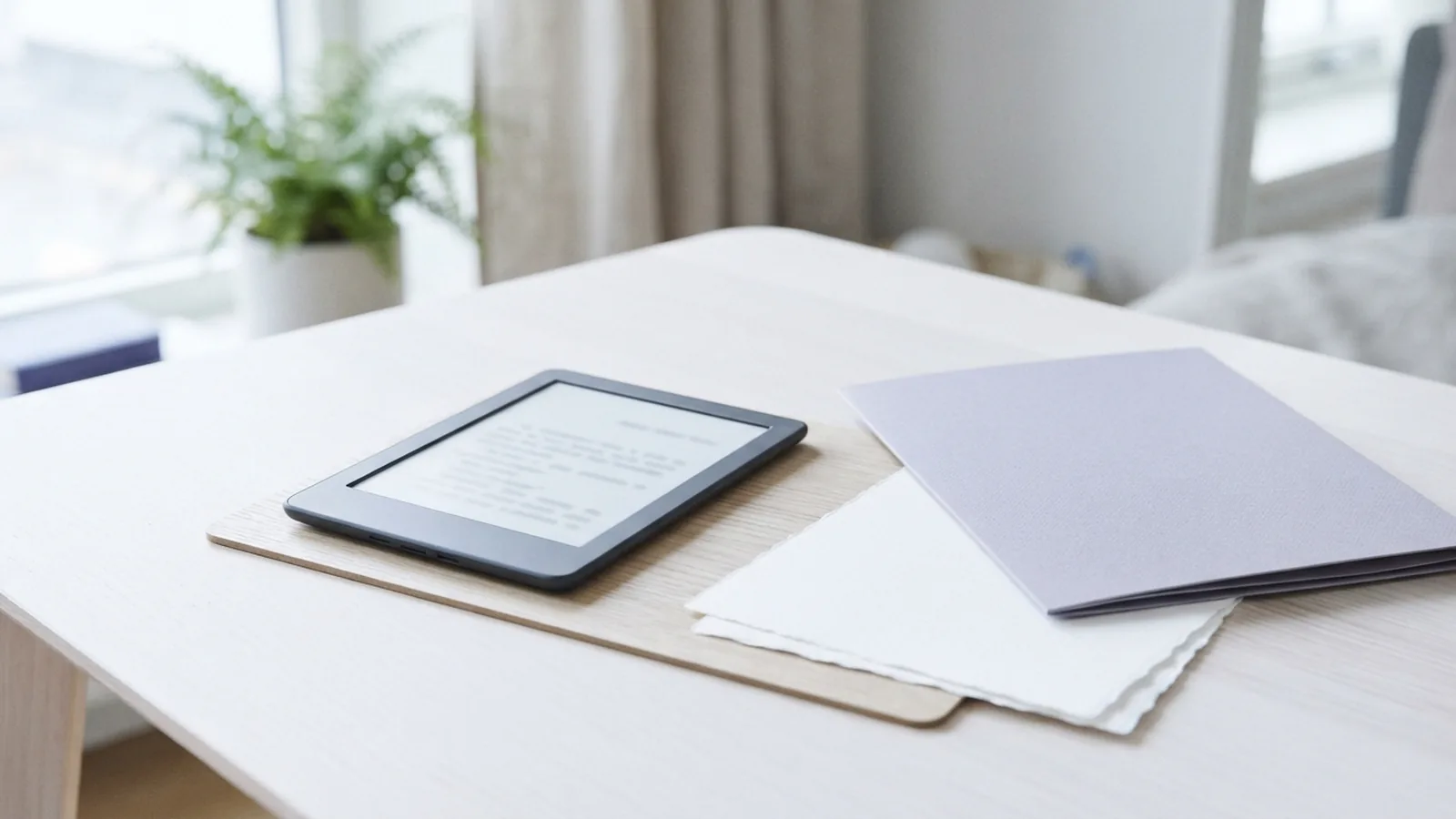
Does Kindle Paperwhite read PDF files? Yes. The Paperwhite can open PDFs, including reports, forms, study notes, and other saved documents. You can read the file as it was made, or try converting it for a more book-like view.
So, can Kindle Paperwhite read PDF files as well as Kindle books? Not quite. A PDF keeps its page layout, while many Kindle books let text flow to fit the screen. That means a PDF page designed for paper may look small on an e-reader.
PDFs also lack some features found in Kindle books. Notes, highlights, and bookmarks may be limited or work in a different way. The result can vary by file and device software. Test any feature you need before relying on it.
A fixed layout is useful when page design matters. It keeps charts, forms, and page breaks in place. For long stretches of plain text, a converted file may be easier to read.
- Original PDF: Keeps the source layout and page design.
- Converted file: May let text fit the screen and change size.
- Scanned PDF: May need text recognition before conversion works well.
In short, can you read PDF on Kindle Paperwhite? Yes, but the best choice depends on the document. Keep the original when layout matters. Try a converted copy when text is too small.
How to transfer PDF files
Can you download PDF to Kindle Paperwhite? Yes. You can send a file through Amazon's Send to Kindle service, copy it by USB, or use a supported Kindle app or computer tool. Choose the method that matches where your PDF is saved.
For email, check your Amazon account for the Paperwhite's Send to Kindle address. Add your own email address to the approved sender list if needed. Then send the PDF as an attachment. Amazon may ask you to confirm the request.
The Amazon Send to Kindle service supports personal documents on compatible Kindle devices and apps. Check its current page for file size limits and supported formats. Those details can change.
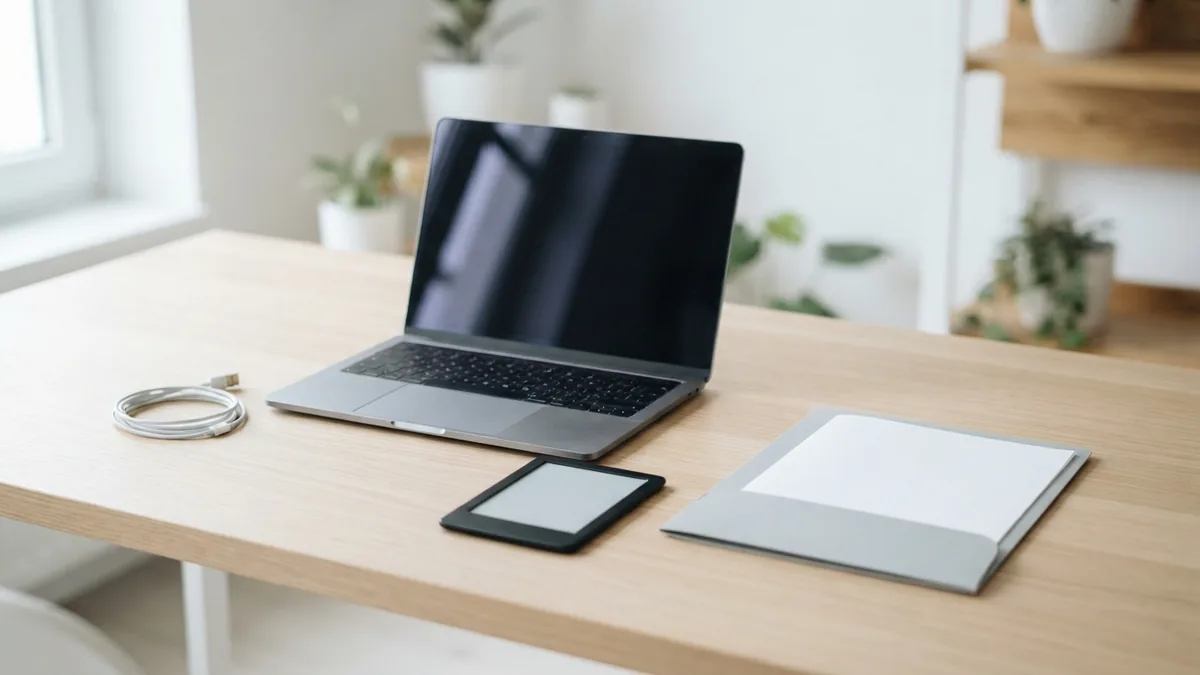
Can you put a PDF on a Kindle Paperwhite without Wi-Fi? Use a USB cable that can transfer data. Connect the reader to a computer, open its Kindle drive, and copy the file into the documents folder. Eject the device before unplugging it.
You can also use a supported Kindle app or computer tool. Pick its send or share option, then choose the Paperwhite linked to your account. Menus differ across devices and app versions. After sending, connect the Paperwhite to Wi-Fi and give the file time to appear.
- Email: Send the attachment from an approved address.
- USB: Copy the PDF into the Kindle documents folder.
- Kindle app or tool: Send the document to your linked device.
These steps answer how to put PDF on Kindle Paperwhite by the three common routes. If a file does not show up, first check that the transfer finished. Then confirm the device uses the same Amazon account.
Reading PDFs on Kindle Paperwhite
Open the document from your library or home screen. Tap the page to show the reading controls, then try the view options. Control names can differ by model and software version.
For small print, zoom in and move around the page. This can help with a chart or a short passage. It also means more page movement, which can slow down long reading sessions.
Landscape mode can help with wide tables and diagrams. Try portrait mode first for a standard page of text. If columns feel cramped, turn the device and check whether the wider view helps.
PDF pages keep their original shape. A page made for a large sheet can look tiny on a compact screen. If zooming becomes tiring, consider a larger screen or a converted copy.
Keep the source PDF before you change its format. A spare copy gives you a way back if tables, footnotes, or page breaks shift. It also preserves the file for printing or sharing.
How to read PDF on Kindle Paperwhite depends on the page. Use zoom for details, landscape for wide content, and the original view when layout matters. Switch to conversion for text that needs to flow.

Converting PDFs for easier reading
Amazon may convert some documents sent through Send to Kindle. For email delivery, add “convert” to the subject line if the option is available for your account. The service then tries to make the document act more like a Kindle book.
This method often works best with selectable text and a simple, single-column page. Text can then flow to fit the Paperwhite screen. Depending on the file, you may also be able to change text size or spacing.
How to convert PDF to Kindle Paperwhite format is not the same for every file. Scanned pages, forms, complex tables, and image-heavy books can convert poorly. A scan may be only a picture of a page, not text the device can reshape.
For a scan, use optical character recognition, or OCR, to turn page images into text first. Check the result closely. OCR can mistake letters, numbers, or symbols, especially in small or faint print.
Always review the converted copy before using it as your only version. Look for missing symbols, shifted images, broken columns, and odd page breaks. If the layout is damaged, read the original PDF instead.
Conversion is most useful when the document has plain text and few design elements. Keep the original for forms, charts, and pages where exact placement matters. A quick test can show which version works better on your device.
Troubleshooting PDF issues
If a PDF will not open, confirm that the transfer finished and the file is intact. Try opening it on a computer or phone. If it fails there too, the file may be damaged or incomplete.
If the document does not appear in your library, check your Wi-Fi connection and Amazon account. For email delivery, confirm the sender is approved and the Paperwhite uses the matching account. Wait a little, then sync the device again.
When text looks too small, zoom in or switch to landscape view. You can also send a fresh copy for conversion if the file has selectable text. For a scanned file, OCR may help, but check its text for errors.
If notes or bookmarks do not work as expected, the PDF may not support those features like a Kindle book does. Keep important notes elsewhere if the document is time-sensitive. A converted copy may offer more options, but results are not guaranteed.
Can you put PDF on Kindle Paperwhite and keep its layout? Yes. Transfer the original file by email, USB, or a supported app. If you need larger, flowing text, try a converted copy and compare both versions.
Related reading

Corrupted PDFs: Repair and Recovery
Try these safe steps to repair a damaged PDF and prevent the next one.
Copying Text from PDFs: Selection and Fixes
Copy PDF text, fix common issues, and learn when OCR or conversion can help.

AutoCAD PDF Import: From Page to Lines
Import PDF pages, turn vector details into lines, and set a known scale in AutoCAD.