
Download PDFs to Kindle: Steps and Fixes
Send PDFs to Kindle by email, app, or USB and fix common reading issues.
Understanding Kindle File Formats
Yes, you can download a PDF to Kindle. Kindle devices support PDF, DOC, DOCX, TXT, HTML, RTF, and several image formats. The best choice depends on how you plan to read the file.
PDF files keep their page layout. This helps with forms, charts, and fixed designs. It can hurt readability on a small Kindle screen.
A PDF page may shrink to fit the display. You may need to zoom, pan, or rotate the device. Text also may not reflow around images.
Kindle formats such as AZW and KFX suit ebooks better. They let the font size change with fewer layout problems. Amazon also supports EPUB files through Send to Kindle, which converts them for Kindle reading.
- PDF: Good for fixed layouts and scanned pages
- DOC and DOCX: Useful for editable office files
- TXT: Best for plain notes with simple formatting
- EPUB: A flexible ebook format that Amazon converts
Check the file before sending it. Remove blank pages and reduce very large images first.
Ways to Download a PDF to Kindle
You have three main options. Send the file by email, use Send to Kindle, or transfer it with a USB cable.
Send to Kindle is the easiest option for most users. Amazon offers web, desktop, and mobile tools for this task. Its Send to Kindle page lists supported file types and current upload options.
USB transfer works without an internet connection. Connect the Kindle to your computer with a data cable. Open the Kindle drive, then copy the PDF into the Documents folder.
Wireless delivery can take a few minutes. Keep Wi-Fi on until the file appears in your library. Large files may take longer to process.
| Method | Best for | Main limit |
|---|---|---|
| Send to Kindle website | Fast wireless delivery | Upload size can reach 200 MB |
| Email to Kindle | Sending from any email app | Attachments often allow up to 50 MB |
| USB cable | Offline transfers | Needs a suitable data cable |
Limits can change by tool and account. Check Amazon's current rules if your upload fails.
Using Send to Kindle by Email
First, find your Kindle email address. Open your Amazon account and visit Manage Your Content and Devices. Select Devices, then choose your Kindle to view its address.
Next, add your approved email address. Open the Preferences tab and find Personal Document Settings. Add the email account that will send the PDF.
Now create a new email from that approved account. Put your Kindle address in the recipient field. Attach the PDF and send the message without extra files.
You do not need a subject line for a normal PDF. For some files, you can type Convert in the subject line. Amazon may then turn the file into a Kindle format.
- Find the Kindle email address in your Amazon account.
- Add your sending email to the approved list.
- Attach one PDF to a new email.
- Send the message and keep Kindle connected to Wi-Fi.
- Open the library and check the recent items list.
Email attachments often have a 50 MB limit. The Send to Kindle website may allow files up to 200 MB. Compress the PDF when it exceeds the limit.
Converting PDFs for Easier Reading
Conversion can make a PDF easier to read. It works best when the PDF contains real, selectable text. Scanned pages may need optical character recognition first.
Try the email subject word Convert when you send the file. Amazon may create a reflowable version for your Kindle. The result can change page breaks, tables, and image placement.
You can also convert the PDF before sending it. Choose EPUB when the source has normal paragraphs and headings. Choose a Kindle format when your conversion tool supports it.
Keep the original PDF. Compare both files before deleting anything. A conversion may damage forms, footnotes, columns, or complex charts.
- Use a clean source file with selectable text
- Remove sidebars and wide tables when possible
- Split a large book into smaller parts if needed
- Check headings, images, and page breaks after conversion
Conversion is not always the best answer. A legal form or design-heavy report may look better as a fixed PDF.
How to Download a PDF to Kindle Fire
Kindle Fire tablets use Fire OS and offer more file options than an ebook reader. You can use Send to Kindle, download from cloud storage, or transfer files by USB.
To use Send to Kindle, send the PDF to your device email address. Turn on Wi-Fi, then open the Kindle app or the Docs library. The file should appear after Amazon finishes delivery.
For a direct download, open the browser on your Fire tablet. Visit a trusted file source and download the PDF. Open the download, then choose the Kindle app or a PDF reader.
USB transfer gives you more control. Connect the Fire tablet to your computer and allow file access. Copy the PDF into the Books or Documents folder, depending on the Fire model.
Use the file manager if the document does not show in the Kindle app. Search the tablet for the file name. You can then open it with a compatible reader.
Troubleshooting Common Kindle PDF Problems
If the PDF does not arrive, check the sender address first. It must appear in your approved personal document email list. Also confirm that the Kindle has a working Wi-Fi connection.
If the file is missing from the library, search for its title. Open the Docs section on Kindle Fire. On an ebook reader, sync the device from the settings menu.
If the upload fails, check the file size and type. A 200 MB web upload limit and a 50 MB email limit are common guideposts. Smaller files usually send more reliably.
If pages look tiny, the PDF likely has a fixed layout. Turn the device sideways and use zoom. For books with normal text, send a converted EPUB or use the Convert option.
If the PDF has no selectable words, it may be a scan. Run optical character recognition with a trusted PDF tool. Review the result because scans can produce wrong characters.
- Not delivered: Check Wi-Fi and the approved sender list
- Upload rejected: Reduce the file size or use USB
- Tiny page view: Rotate, zoom, or convert the file
- Missing on Fire: Check Docs, Books, and the file manager
- Bad conversion: Keep the original PDF and try a cleaner source
Most delivery problems take only a few checks to fix. Start with the sender address and file size.
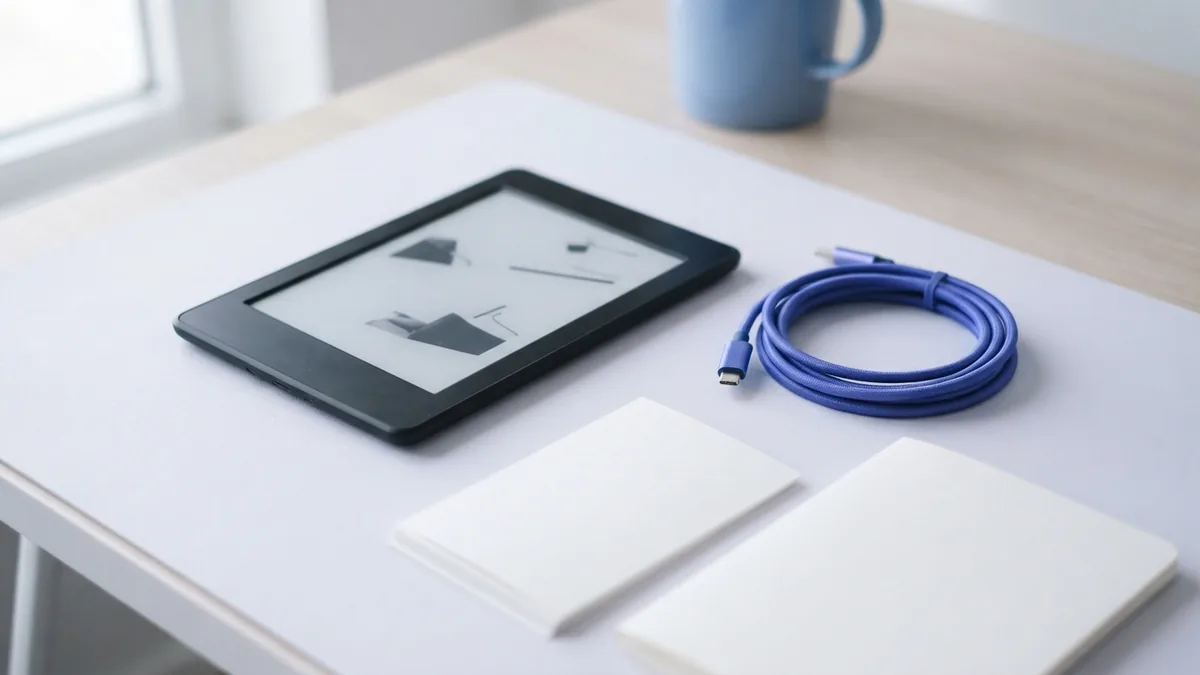
Choose the Best Method for Your PDF
Use Send to Kindle when you want a quick wireless transfer. Email works well when you send files from a phone or work computer. USB is best when you have a weak connection or a large file.
Keep the PDF format for forms, charts, and fixed designs. Convert it when you need larger fonts and smoother page flow. The right choice depends on the file, not just the Kindle model.
So, can you download a PDF to Kindle? Yes. Pick a transfer method, stay within its file limit, and test the result on your device.
Related reading
Combine Pictures into One PDF: Order and Quality
Turn JPG, PNG, and other pictures into one neat PDF with the right order and quality.
Unlocking PDFs: Safe Steps That Work
Unlock PDFs you own, while keeping private files safe.
PDF Dimensions: Size and Readability
Check PDF page size, then resize it for clear printing and sharing.