
How Do You Make a PDF Searchable?
Turn scanned pages into searchable PDFs with OCR, then check the text for errors.

What makes a PDF searchable?
A searchable PDF contains text that a reader can find, select, and copy. Many files made in word processors already have this text. Scanned pages often contain only pictures of words.
OCR, or optical character recognition, reads those pictures and adds a hidden text layer. The page still looks like the original scan. The new text layer lets you search for names, dates, and phrases.
If you are asking how to make a PDF searchable, first check whether it already has selectable text. Open the file and try to select a word. You can also search for a word that appears on the page.
If neither test works, OCR is likely the right fix. Keep an untouched copy of the scan before changing it. That gives you a clean source if the text needs correction.
Why make a PDF searchable?
Search saves time in long files. You can find a contract clause or receipt date without checking every page. It also helps teams sort records and copy details into notes.
A searchable text layer can help some assistive tools read scanned content. OCR alone does not make a document fully accessible. Check the reading order and add tags when people need screen reader access.
Text recognition can make mistakes with small print, faint ink, or unusual fonts. Check names, figures, and dates before you rely on the result. A quick review can prevent costly errors.
- Find a word or phrase across many pages
- Select and copy text from a scan
- Sort scanned records by their contents
- Give assistive tools text to work with
How to make a PDF searchable
The best method depends on your device, file size, and privacy needs. If the file has no text layer, choose an OCR app or service. For private records, prefer a tool that works on your own computer.
For a small, non-sensitive file, an online converter may be faster. Read its file limits and privacy terms before uploading. Avoid sending private health, legal, or financial papers to a service you do not trust.
Good source pages lead to better results. Scan straight pages at about 300 dots per inch when possible. Remove skew, shadows, and blur, then choose the correct page language in the OCR tool.
- Open the PDF and test whether its text is selectable.
- Make a copy of the file before you run OCR.
- Set the page language and choose the pages to process.
- Run OCR, save the new PDF, and search for sample words.
- Check names, numbers, and copied text against the scan.
This is the basic answer to how to make PDF text searchable. If text recognition seems poor, improve the scan first. Running OCR again on a clear source often works better than editing errors one by one.
Make a PDF searchable in Adobe Acrobat
Acrobat can add searchable text to scanned pages. Tool names can vary by version. Adobe describes the scan and text recognition process in its guide to scanning documents in Acrobat.
To make a PDF searchable in Adobe, open the scanned file and find Scan & OCR. Choose the option to recognize text. Set the page range and document language before you start.
When OCR finishes, save a new copy. Search for a word near the start and another near the end. Select a line and paste it into a plain text editor to check the word order.
These steps also answer how to make PDF searchable in Adobe when the menu wording differs slightly. Look for the text recognition tool in Acrobat. Keep the original scan in case you need to try again.
- Open the scanned PDF in Acrobat.
- Choose Scan & OCR, then select text recognition.
- Set the page range and language.
- Run OCR, save a copy, and test its text.
Make PDFs searchable on a Mac
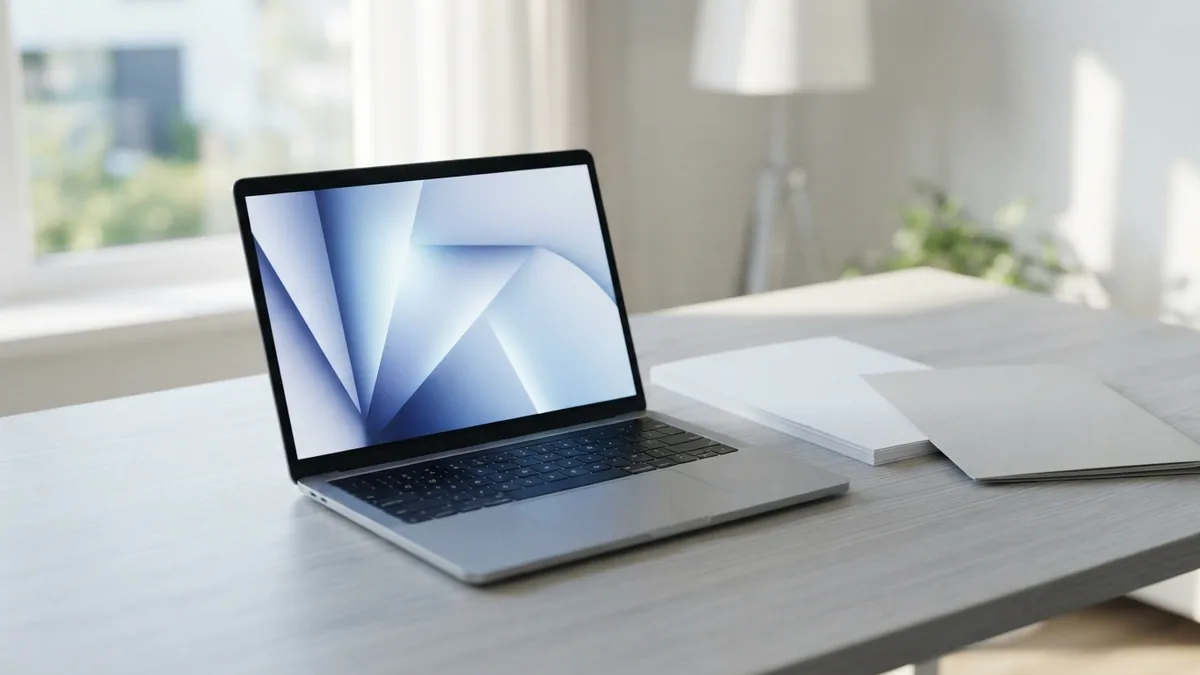
Preview can search PDFs that already contain text. Open the file and press Command-F, then enter a word from the page. If Preview finds nothing, the file may be an image-only scan.
On supported Macs, Live Text can recognize words in some images. It can help you find or copy text. It may not add a lasting text layer to the PDF itself.
For how to make a PDF searchable on Mac, use an OCR app if you need a saved text layer. OCRmyPDF is a free, open-source option for people comfortable with Terminal. Its OCRmyPDF documentation explains its command-line workflow.
Run OCR on a copy, then open the result in Preview or another reader. Search for words on different pages. Check the copied text before sharing or storing the file.
Free tools, Bluebeam, and privacy
You can make a PDF searchable free with desktop tools or online services. OCRmyPDF runs locally, while some web converters let you upload a file for text recognition. Free plans may limit pages, file size, or daily use.
Google Drive can recognize text when it opens some scanned PDFs as Google Docs. The result may not keep the original layout. Compare the output with your source before using it as a final record.
Bluebeam Revu also includes OCR tools in versions that support text recognition. Open its OCR feature, choose the pages and language, then apply recognition. Menu names and features can vary by version, so check the current help for your release.
If you searched how to make PDF searchable Bluebeam, use the same quality checks as with other apps. Search for words on several pages and inspect copied text. Do not assume a successful OCR run means every word is right.
Sometimes people want to know how to make a PDF not searchable. The safest way to prevent text search is to remove the text layer, but this does not secure sensitive content by itself. Redact private details with a proper redaction tool, then verify that the data cannot be selected or recovered.
Choose a local app for sensitive scans and an online tool only for files you can safely upload. Whatever you choose, save a separate result and keep the source. A short final check catches many OCR errors.

Check the finished PDF
After OCR, search for a few words from different pages. Pick one short word and one name or number. If search misses clear print, review the scan quality and language setting.
Copy a sentence into a plain text editor to check its order. Columns, tables, and footnotes may be read in the wrong sequence. Fix the source or use a tool with better layout handling when order matters.
Searching only confirms that a text layer exists. It does not prove that every word is accurate or that the document is accessible. Check the details that matter, then share the new copy.
Related reading
How to Turn Scanned PDFs Into Searchable Documents
Turn scanned PDFs into searchable files with OCR and simple quality checks.
How to Make a PDF into Word: Methods and Fixes
Turn PDFs into editable Word files, then check the layout and text.
How to Copy and Paste Text from a PDF: OCR and Copy Fixes
Copy PDF text, fix common issues, and learn when OCR or conversion can help.