How to Insert a PDF Link into Google Docs (Step-by-Step)
Add a PDF to Docs fast: link it, insert as an image, or convert to text.
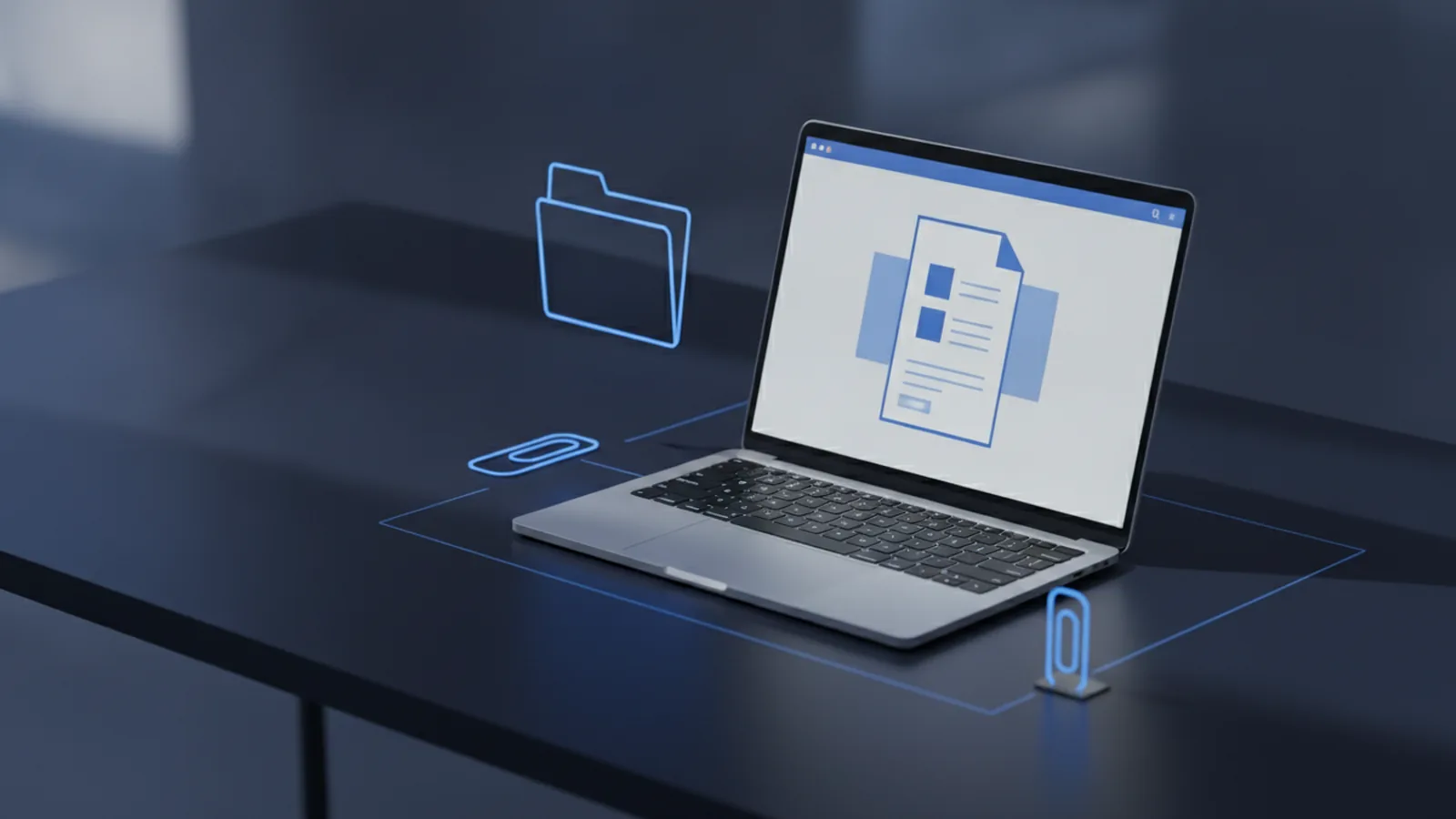
Quick answer: link a PDF in Google Docs using Google Drive
If you want to how to insert a pdf link into google docs in the cleanest way, upload the PDF to Google Drive first. Then open your Google Doc, select the text you want to link, and paste the Drive share link. When permissions are set correctly, your team can open the PDF without downloading anything.
This is also the fastest way to keep your document usable during review. It supports collaboration because links work across devices, and you avoid broken attachments. You also keep your PDF in its PDF format as a stable reference for later.
1) Why linking PDFs in Google Docs matters
PDF files are great for forms, reports, and exports. But if you only place the PDF file on your computer, your coworkers cannot access it from the Doc. A link fixes that problem by pointing to one shared file in Google Drive.
Linking also improves traceability. Reviewers can open the exact source when they comment, and you can update the file in Drive later if you need to refresh content. Finally, it avoids clutter inside the Doc, since the Doc stays lightweight.
- Collaboration: teammates can open the PDF directly from the Doc.
- Reference: comments can point to a stable PDF link.
- Control: Drive permissions decide who can view or edit.

2) Method 1: Upload the PDF to Google Drive
Start by making the PDF accessible in Drive. This step is required for the most reliable link workflow and for consistent access across devices. It also keeps your Google Docs functionality simple.
Follow these steps:
- Go to Google Drive and sign in.
- Click New in the top-left corner.
- Select File upload.
- Choose your PDF from your computer.
- Wait for the upload to finish.
- Right-click the uploaded PDF and select Share.
- Set access permissions based on your audience.
- Copy the sharing link from the share dialog.
When you set permissions, think about your goal. If this is for internal review, choose options like “Anyone with the link can view” only if your org allows it. If you need tighter control, share with specific people instead.
Tip: if the PDF contains confidential material, avoid “anyone with the link” settings. Link sharing permissions are the difference between smooth collaboration and accidental exposure.

3) Method 2: Insert a PDF as a link in Google Docs
Once your PDF is in Drive, you can insert pdf link into google doc (or how to insert a pdf link into google docs) in a few moves. This method keeps your document clean and lets readers open the PDF in a new tab.
Use this step-by-step flow:
- Open the Google Doc you want to edit.
- Highlight the text you want to turn into a link.
- Click the Insert link button (or press Ctrl + K).
- Paste the PDF’s share URL into the link field.
- Press Apply.
- Click the link once to confirm it opens the PDF correctly.
If you want the link to be obvious, use anchor text like “Project report PDF” or “Final pricing PDF.” Reviewers find it faster than a generic file name.
If your link opens but readers see an access error, you need to fix Drive permissions. Check who has permission to view the file. Then re-test by opening the link from a private browser tab.
Note: people often ask about inserting PDF links elsewhere too. For example, insert pdf link into excel can be done with a hyperlink formula or the Insert Hyperlink dialog. And insert pdf link into word typically uses Word’s hyperlink feature. But inside Google Docs, the Drive share link is the key input.
4) Method 3: Insert a PDF as an image (useful for quick scanning)
Sometimes a link is not enough. If you need readers to see a page snapshot directly inside the document, use insert as image by converting the PDF page into an image file first. This can speed up reviews because people can skim without opening the PDF.
Advantages of inserting a PDF page image include better scanning and fewer clicks. It also works well when the PDF is long and reviewers only need a specific page. However, images are not editable content, so you should use them for reference.
Here’s a practical workflow:
- Open the PDF and choose the page you need.
- Export or screenshot that page as a PNG or JPG.
- In Google Docs, place your cursor where you want the image.
- Click Insert → Image.
- Upload the image file.
- Optionally add a caption like “Section 3, page 2.”
Best practice: keep the image size reasonable. Large images can slow down your document and increase loading time. If the text becomes unreadable, use a higher resolution export rather than scaling a tiny screenshot.
5) Method 4: Convert a PDF into editable text for Google Docs
Links and images are great for reference, but not for editing. When you need editable content inside your Doc, you must convert the PDF text into something Google Docs can work with. This is where conversion tools and copy-ready text extraction matter.
A reliable approach is to convert the PDF to an editable document format, then paste the text into Google Docs. Depending on your PDF, you may get clean results or you may need light cleanup. Scanned PDFs often require OCR (optical character recognition).
Follow this conversion approach:
- Open the PDF using a viewer that supports text selection.
- If you can highlight text, copy it directly.
- Paste into a new Google Doc and format headings and lists.
- If you cannot select text, the PDF is likely scanned.
- Run OCR using a converter tool, then export to editable text.
- Paste the converted text into Google Docs.
- Proofread carefully, especially numbers and short words.
When conversion is successful, you can edit content, add comments, and reuse sections across projects. But even good OCR can make mistakes with names and tables. Plan a quick review pass before you rely on the converted text.
Tip: keep your original PDF link alongside the converted text. This gives reviewers a way to verify any unclear parts after conversion.
Conclusion and best practices for PDF links in Google Docs
To how to insert a pdf link into google docs effectively, upload the file to Google Drive, then insert the Drive share URL as a link. This method supports collaboration, keeps your Doc tidy, and makes the source easy to open. It is also the most consistent way to avoid broken attachments.
If the PDF needs visual context, consider inserting a key page as an image. This helps readers scan quickly, even without clicking. And if the goal is rewriting or editing, convert the PDF into editable text and proofread the results.
No matter which method you choose, treat permissions as part of the process. The Doc can be perfect, but access errors will stop collaboration. Test the link using an incognito window, or with a colleague’s account, before you share the Doc widely.
Common pitfalls to avoid
- Wrong permissions: your link works for you but not for others.
- Broken previews: some systems block embedded previews for protected files.
- Unreadable images: screenshots that are too small force extra zooming.
- OCR errors: converted text may misread short words and numbers.
Related reading
Notes to PDF: Steps and Tips
Export Apple Notes as a PDF on iPhone, iPad, or Mac with these steps.

PDF Signatures: Methods and Steps
Create, add, and troubleshoot a signature in your PDF with simple steps.
Rotate One PDF Page: Steps and Fixes
Turn one PDF page, keep the rest unchanged, and save a corrected copy.