
How to Insert a PDF into AutoCAD (Quick, Practical Steps)
Learn how to insert a PDF into AutoCAD, scale it right, and troubleshoot edit limits.
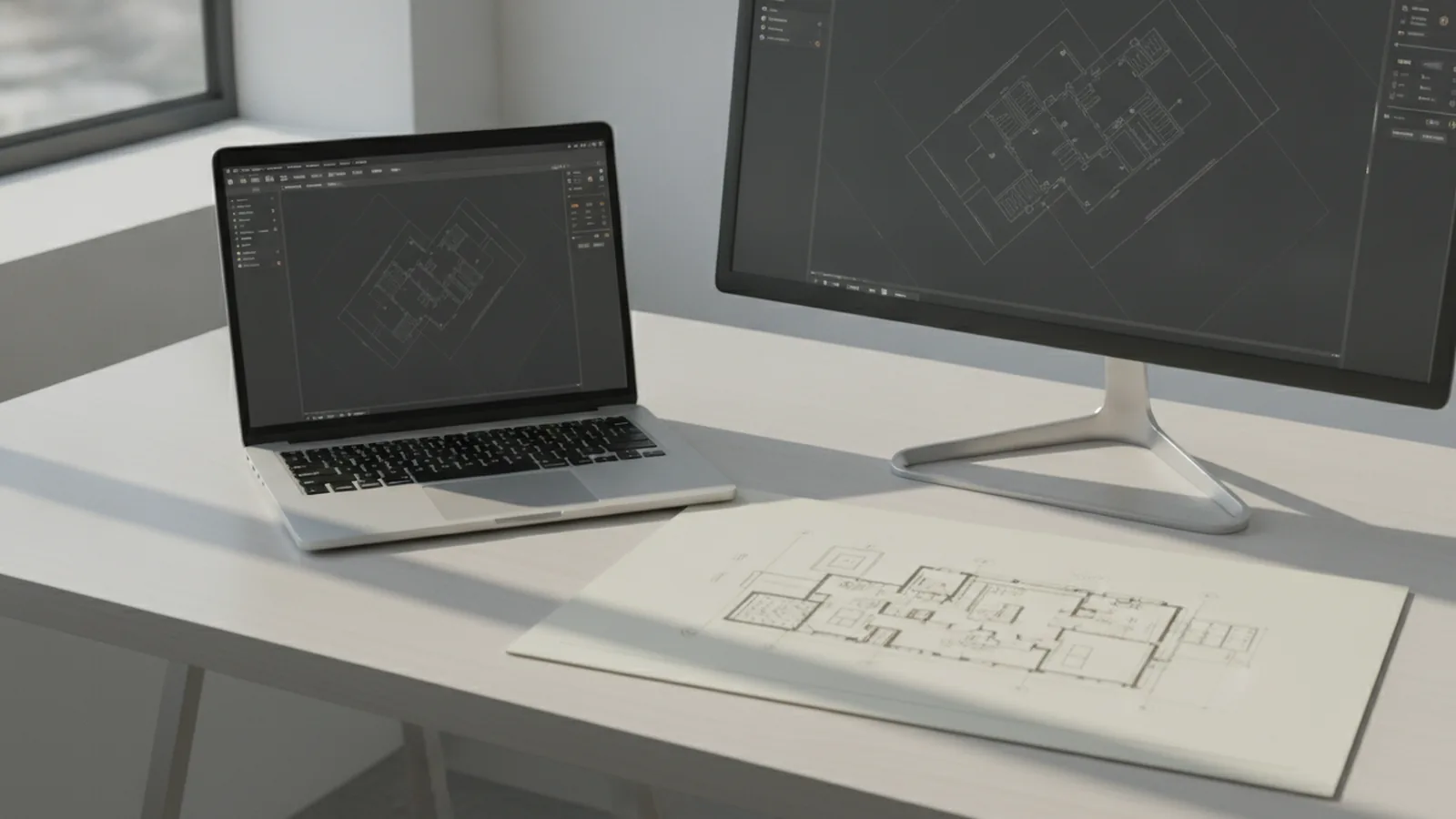
Understanding how to insert a PDF into AutoCAD
Knowing how to insert pdf in autocad usually means picking the right workflow first. AutoCAD lets you attach a PDF as a reference, or import it as geometry. These two options behave very differently once you start editing.
If your PDF is mostly a design reference, attachment is often the simplest path. It places the PDF in your drawing for viewing and measurement. You typically plan around scale and location rather than deep text edits.
If your PDF contains vector art, PDF import can help more. Import turns shapes into CAD-like objects you can trim and clean up. In AutoCAD 2017 and later, this workflow is usually the best fit for vector PDFs.
- Attachment: fast placement, great for reference and scale checks
- PDF import: best for vector PDFs you want to reshape as geometry
- Scanned PDFs: often raster, so editing is limited
Step-by-step guide: how to insert PDF into AutoCAD
To learn how to insert pdf into autocad with the Insert menu, start in your DWG file. Confirm your drawing units first, because units mismatches cause most “wrong scale” problems. This saves time before you place anything.
Next, use the Insert workflow to attach the PDF near the right spot in model space. AutoCAD will ask for placement and you may choose options tied to the file. Then scale it using one known length that exists in both your PDF and your drawing.
If you specifically need geometry you can edit, also consider how to embed pdf in autocad via import. The idea is not to “make the PDF editable like text.” It is to convert vector shapes into objects for CAD editing.
- Open your DWG and set units to match the PDF source.
- Go to the Insert command and choose the PDF attachment option.
- Select the PDF and place it in your model space.
- Scale using one measured distance from the PDF.
- Stabilize the reference with layers and view settings.
After insertion, verify scale using at least one extra measurement. If one distance looks right but another does not, re-check units and your scaling reference. This is the quickest way to prevent downstream tracing mistakes.
Editing options for inserted PDFs (and what is not editable)
Inserted PDFs do not behave like native CAD objects by default. You usually cannot edit PDF text as if it were your AutoCAD text. You also cannot always change line styles the same way you would for lines you drew yourself.
You can still control what you see. Overlays and wipeouts help hide portions of the reference that you do not need. This works well when you want clean view for tracing only the important parts.
If the PDF contains true vector data, import can unlock more CAD-like editing. Then you can delete paths you do not need and recreate details on new layers. If the PDF is scanned or low resolution, you may need to trace key lines instead.
- Use overlays and wipeouts to mask text and clutter
- Use PDF import options when the PDF is vector-based
- Plan to trace for raster-heavy PDFs
Some users try OLE objects in AutoCAD as an alternate “embed” path. OLE can wrap a document reference for viewing inside the drawing. It still does not replace native editing for precision CAD linework.
Common issues and troubleshooting when you insert a PDF
Most insertion issues come from scale, clarity, or data type. A blurry look often means the PDF is raster content. A shifted or stretched look usually points to a unit mismatch or an incorrect scaling step.
Use this table to narrow the cause quickly. Fix one change at a time so you know what improved your result.
| Problem | Likely cause | What to try |
|---|---|---|
| PDF does not match drawing scale | Wrong units or wrong insertion scale | Set correct units, then rescale using a known distance |
| Lines look jagged or unclear | Raster content or low PDF quality | Use PDF import for vector PDFs, or redo export as vector |
| PDF text cannot be adjusted | Inserted PDF is not editable geometry | Mask with overlays, or re-import as geometry if supported |
| Imported geometry is messy | Export settings or mixed PDF content | Re-export from the source, then test PDF import options again |
If you cannot get clean geometry, treat the PDF strictly as a reference. Then redraw key elements on new layers. This is often faster than fighting conversion limits, especially for scanned documents.
Also note that AutoCAD LT may have workflow differences for import features. If you are on LT, rely more on attachment and manual tracing for underlay tasks.
Finally, if you arrived here from another platform search, keep expectations aligned. This guide is about AutoCAD integration, not how to insert PDFs in other tools. For example, “how to insert pdf in ppt” or “how to insert pdf into one note” can work differently because those apps focus on viewing, not CAD geometry.
Best practices for using PDFs in AutoCAD drawings
Start with the PDF’s source quality before you touch AutoCAD. A vector PDF usually imports cleaner than a scanned PDF. If your source is scanned, plan for tracing key shapes rather than expecting perfect editing.
When you attach a PDF, keep your reference organized. Put the PDF on a dedicated layer, and keep it separate from your drawing lines. Then you can hide it quickly while you draft over it.
For PDF import, test with a small area first. Import a section that includes the shapes you care about, then review how AutoCAD converts paths. This helps you learn which PDF import options work best before you invest time.
- Set units correctly before insertion
- Use one known measurement for scaling
- Keep references on their own layers
- Trace when content is raster or messy
Think about your end goal. If you need measurement and layout, attachment is enough. If you need geometry cleanup and editing, import is the better route. Either way, your results depend on vector vs raster data and on careful scaling.
Related reading

GIFs in PDFs: Options and Limits
GIFs can go in PDFs, but animation may not play in many viewers.

Editing an Existing PDF: Text and Page Changes
Edit PDF text, images, and pages while keeping your original file safe.
Find Your PDF: Quick Device Checks
Check common folders and search tools to find your PDF on any device.