How to Electronically Sign a PDF in Adobe Acrobat
Sign PDFs in Acrobat or Reader, add a signature field, then share securely.

You can sign a PDF in Adobe Acrobat by adding a signature field and then placing your e-signature in the document. If you are using Acrobat Reader, you can also use the Fill & Sign tool. This guide walks you through the steps, how to save the signed file, and what to do if you do not have Acrobat.
Understanding PDF signing (electronic and digital)
Signing a PDF electronically usually means you apply a signature image or signing action that captures your intent. This is often called an electronic signature. In many workflows, it replaces a wet ink signature while keeping the document readable and traceable.
A digital signature is a stronger form that uses a certificate tied to your identity. It can support signature verification and tamper detection. Both can be accepted, but acceptance depends on the rules of your country and the contract you are signing.
Before you sign, confirm what the other party needs. Some requests specify an electronic signature, while others require a certificate-based digital signature. If you are unsure, ask for their exact signing requirements.
- Electronic signature: shows intent and usually satisfies common document workflows.
- Digital signature: adds verification and tamper checks via a certificate.
- Signature verification: confirms the signature state and whether the file changed.

How to sign a PDF in Adobe Acrobat (step by step)
Below is the practical workflow people use most often when they need to sign a PDF in Acrobat. The goal is to place a signature field, then apply the signature. After that, you save a new signed PDF.
Start by opening your PDF in Acrobat. Look for the signature tools under the signing or fill options. If your PDF is scanned, Acrobat may prompt you to confirm text recognition, but signing still works either way.
Now follow this process to sign a PDF in Acrobat:
- Open the PDF in Acrobat.
- Choose the signature tool (often labeled Fill & Sign or Request & Sign depending on your version).
- Add a signature field where you need to sign.
- Place your signature in the field.
- Save the signed file and share it.
Add a signature field in Acrobat
Adding a signature field makes the document clear for both you and the recipient. It also keeps the signing step repeatable, especially for multi-signer documents. When you add the field, you are marking the exact location for the signature.
Select Add Signature or a similar command. Then click in the PDF at the spot where you want the signature to appear. Resize the box if needed so it fits your name, date, and any required details.
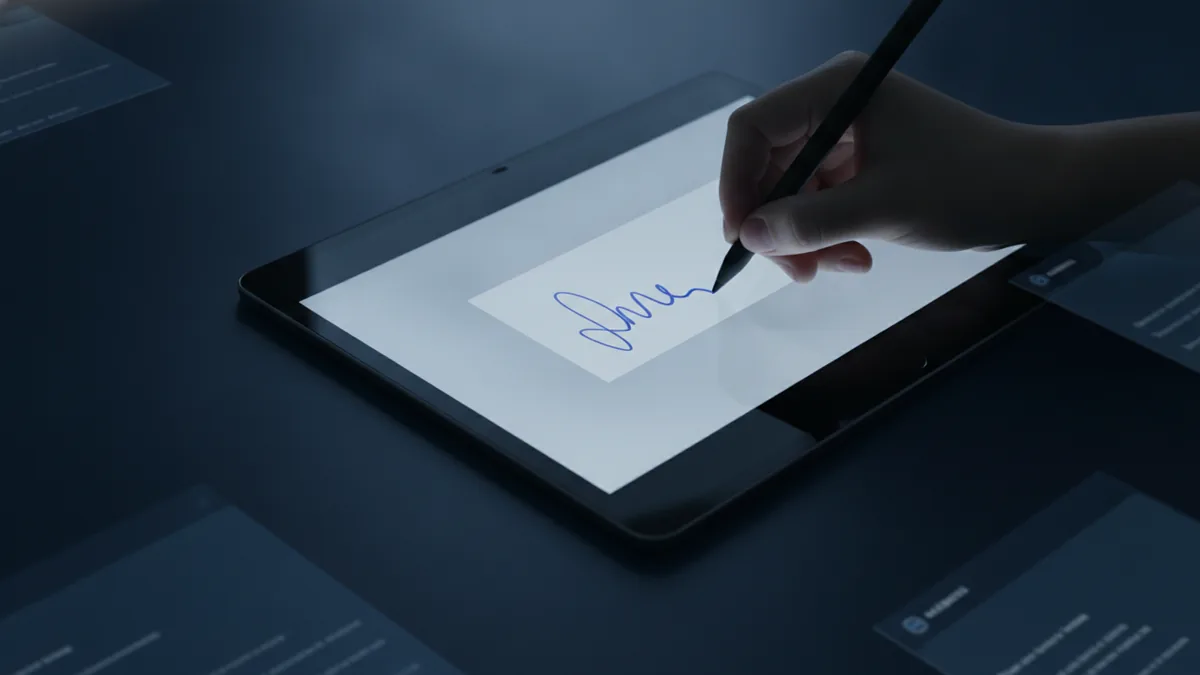
After the field is placed, Acrobat typically shows a panel to choose how you will sign. You might type your name, draw a signature, or use an existing saved signature. Choose the method that best matches what the other party expects.
Apply your signature and finish the sign
Once you confirm the signature settings, Acrobat inserts your signature into the field. If you are using a certificate-based signature, Acrobat may ask you to select a certificate. If you are not, you can still apply an appearance-based signature.
Check the signature panel for status. Some versions show whether the document is “signed” and whether the signature is valid. This matters before you send the PDF to anyone else.
Finally, save the document as a new file. Use a name that includes the status, such as Signed or the date. That way you do not accidentally share the unsiged original.

Can you sign a PDF with Acrobat Reader?
Yes, you can often sign a PDF with Acrobat Reader, but the experience depends on what tools your version provides. The most common route is using the Fill & Sign feature. That lets you place a signature appearance without necessarily using certificate-based digital signing.
Open your PDF in Acrobat Reader. Then locate the Fill & Sign tool in the toolbar or tools panel. If you do not see it, your installation may have limited PDF editing features.
Once you have Fill & Sign, you can add your signature into the document in a few clicks. It is fast, and it works well for simple signing needs.
Use Fill & Sign to place your signature
After launching Fill & Sign, look for a signature option. You can usually choose Draw, Type, or Upload depending on your device. If you want a consistent look across documents, start by saving your signature once.
Then click where the signature should go. Acrobat Reader inserts the signature appearance at that location. If the field moves, you can usually drag it, but keep an eye on alignment and readability.
Before you send, scroll to the signed area and confirm the signature is fully visible. Zoom in if the text near your signature is small. This avoids the common problem of a signature that looks fine at normal zoom but cuts off when viewed on another device.
Save and share from Reader
When you finish, save the file from Reader. Use Save As if you want to keep your original. The signed PDF is what you share with the other party.
If the recipient needs proof of signing, confirm what type of signature they requested. With appearance-based signing, they may only see the signature appearance. With a certificate signature, they may also see verification details.
If you need signature verification, you may have better results using full Acrobat. That is one reason teams keep Acrobat for identity-backed signing workflows.
Alternatives for signing PDFs without Acrobat
If you need to how to sign pdf without acrobat, you have several solid options. The best choice depends on whether you need an appearance-based signature or a certificate-based digital signature with verification.
For simple cases, many PDF tools and signing software let you upload your signature and place it onto the document. For higher assurance, you can use certificate providers or e-sign services that support verification.
Here are common alternatives and when to use them:
| Option | Best for | What to check |
|---|---|---|
| PDF tools with signature stamps | Quick signatures for internal or low-risk docs | Whether the recipient accepts appearance-only signing |
| Dedicated e-sign platforms | Workflows with multiple signers and audit trails | Whether they support the signature type you need |
| Certificate-based digital signing | Verification and tamper evidence | Whether your certificate and signer software match |
| Browser-based signing | Signing when you cannot install desktop apps | Privacy and what data gets uploaded |
If you are asking how to sign pdf without acrobat because you do not have the software, start by checking the exact requirement from the requester. If they only need a visible signature, any signing software may work. If they require verification, you need a solution that supports digital signature verification.
Also confirm the final output. Some tools generate a signed copy but remove other form fields. Others preserve form data. The safe move is to request a sample signed PDF first when the workflow is new.

Tips for successful PDF signing and secure sharing
Good signing is about placement, appearance, and document integrity. Before you apply your signature, make sure the page you are signing is the final one. If the PDF changes after signing, your signature status may change.
Choose a signature appearance that stays readable. If the document uses a small font near the signature, do not sign with a tiny signature image. Resize the signature field so it fits naturally beside the name and date.
After signing, verify the signature status in the signature panel. In some cases, the UI shows whether the document was modified after the signature. That is the first signal you should check.
- Zoom test: view the signed area at 100% and 150% zoom.
- Resize carefully: keep the signature inside the signature box.
- Do not edit later: avoid changing text or fields after signing.
- Use Save As: keep the original file untouched.
Signature security checklist that prevents common failures
Security is mostly about process. Do not reuse signatures across different identities without clear permission. If you use a certificate, keep the certificate secure and follow your organization’s sign-in rules.
If a signature verification is required, confirm it right after signing. Then send the signed PDF immediately. Delays can lead to version mix-ups, especially when multiple copies exist.
Finally, share only what is needed. If you sign for a form that contains private data, share the signed PDF and nothing else. This reduces the chance that sensitive fields leak via older versions.
Troubleshooting common signing issues
Most signing problems come from mismatched requirements or from document changes after signing. If your signature does not appear where you expect, check the signature field size and placement. Also check that you are signing the correct page.
If you cannot find signing tools, your Acrobat setup may be limited. Try locating the signing or Fill & Sign option in the tools panel. If it still does not show, you may be using a version or platform that requires a different tool.
Here are targeted fixes for frequent issues.
- Signature is cut off: enlarge the signature field before you apply the signature.
- Signature moved or misaligned: place the signature again at the correct coordinates.
- Signature shows “invalid”: do not edit the PDF after signing; re-sign from the original source file.
- Tools are missing in Reader: use the Reader Fill & Sign option or try full Acrobat.
- Recipient cannot verify: confirm whether they need an appearance signature or a certificate digital signature.
If you need a reliable workflow, keep a simple habit. Use one signing app, sign the final PDF version, then save and share immediately. That prevents most “it works on my screen” issues.
When in doubt, ask the recipient which signature type they want. That single detail often determines whether you should use how to sign pdf in acrobat with certificate verification or use an appearance signature from Acrobat Reader or a different signing software path.
Outbound reference: For background on electronic signature acceptance and risk controls, see FDA guidance on electronic signatures.
Related reading

PDF Links: Creation and Sharing
Upload a PDF, set access, then test and share its link.

Save a PDF as JPEG: Methods and Fixes
Turn PDF pages into JPEGs on Mac, Windows, or iPhone, with tips for sharp results.
Scanning Multiple Pages: Methods and Fixes
Scan and save a multi-page document as one PDF on your phone or computer.