How to Turn a DOCX Into a PDF: Easy Methods
Convert DOCX files to PDF with Word, online tools, or free desktop software.

How to turn a DOCX into a PDF
The easiest method is Microsoft Word. Open the DOCX file, choose File, then Save As. Select PDF as the file type and save the new file.
You can also use an online PDF converter. These tools work in a browser and need no desktop app. They suit quick jobs, batch work, and devices without Word.
Both methods create a fixed PDF file. The layout stays steady across most computers, phones, and printers.
- Use Word for private files and precise export settings.
- Use an online tool for speed and simple file conversion.
- Check the finished PDF before sharing it.
DOCX and PDF: What each format does
DOCX is the main file type used by modern Microsoft Word. It stores editable text, images, tables, styles, and page settings.
A DOCX file can change when opened in another app. Fonts may differ. Line breaks can move. Images may shift across pages.
PDF means Portable Document Format. It saves a page as a fixed view. The file aims to preserve its layout on different devices.
PDF files can still include links, forms, bookmarks, and tags. These features support reading, sharing, printing, and document access.

| Format | Main use | Key trait |
|---|---|---|
| DOCX | Writing and editing | Easy to change |
| Sharing and printing | Fixed page layout |
Why turn DOCX into PDF?
PDF is useful when the reader should see the same pages you approved. This matters for forms, resumes, reports, invoices, and school work.
PDF also reduces layout surprises. A reader does not need your exact Word version. The file usually opens in a free PDF reader.
The format can help protect your final copy. A PDF is harder to edit by accident than a DOCX file. You can also add a password or limit changes with some tools.
Conversion does not improve every file. A PDF may lose some edit features from the original document. Keep the DOCX when you expect more changes.
- Consistent layout: Pages look much closer to the source file.
- Simple sharing: Most devices can open a PDF.
- Smaller risk: Readers cannot easily change the main content.
- Print control: Page size and margins stay more stable.
Using Microsoft Word to make a PDF
Word provides a direct way to turn DOCX into PDF. The steps work in many recent desktop versions.
- Open the DOCX file in Microsoft Word.
- Review the pages, images, links, and page breaks.
- Select File, then choose Save As or Export.
- Pick PDF from the file type list.
- Choose a folder and enter a clear file name.
- Select Save or Publish.
- Open the new PDF and check every page.
Word may show an option called Optimize for. Choose Standard for print work or sharp images.
Choose Minimum size for email files or web sharing. This setting can lower image quality.
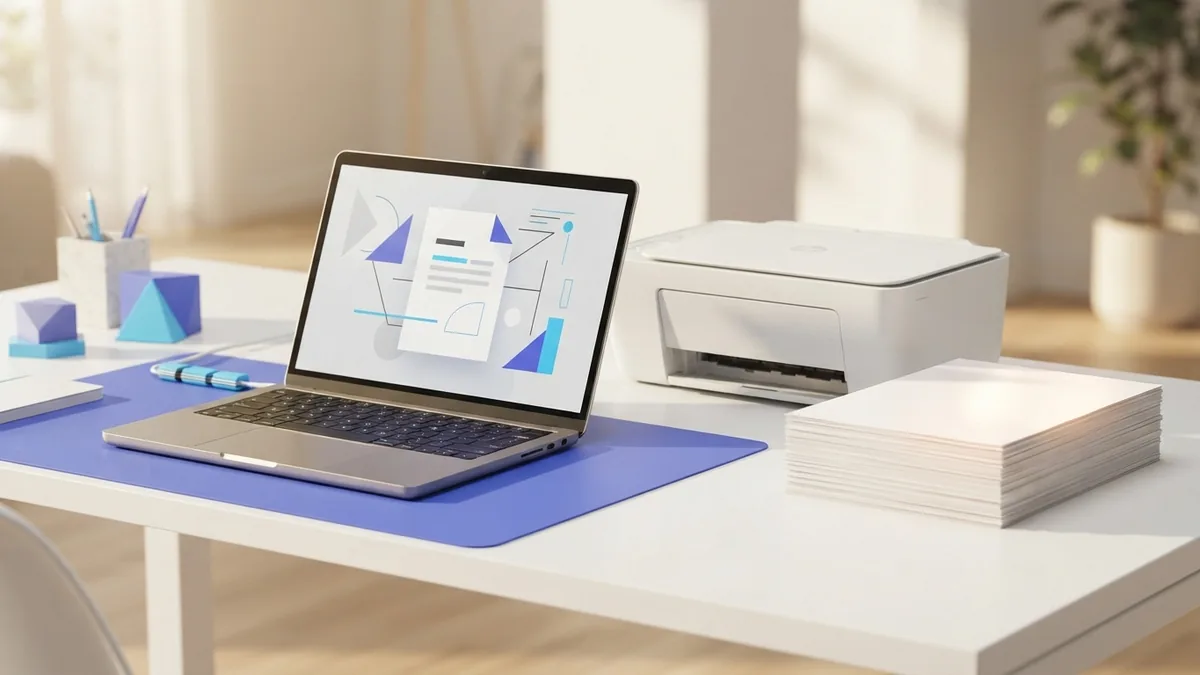
Some Word versions include an Options button. Use it to set page ranges, bookmarks, comments, or PDF tags.
For a short file, print preview can catch most layout faults. Still, inspect the saved PDF itself. The export step can reveal problems hidden in Word.
Online tools and other software choices
Online PDF converters offer a fast answer when Word is not installed. Open a trusted service, upload the DOCX file, and choose its PDF option.
After conversion, download the result. Then remove the upload from the service when that option exists. Avoid online tools for private files unless their terms fit your needs.
Popular choices include Adobe Acrobat online, Smallpdf, and iLovePDF. Each service has its own file limits and free-use rules.
Desktop alternatives can help with large jobs. LibreOffice can open DOCX files and export them as PDFs. Apple Pages can also open many Word files and export PDFs.
- Adobe Acrobat: Useful for PDF work beyond basic conversion.
- Smallpdf: Offers a simple browser-based workflow.
- iLovePDF: Supports conversion and later PDF tasks.
- LibreOffice: A free desktop choice for many users.
- Apple Pages: A useful option on Mac devices.
Online tools save time, but desktop apps give you more control. Pick the method that matches the file risk and job size.
How to keep quality during conversion
Start with a clean DOCX file. Replace missing fonts and remove blank pages before export.
Check every image at full size. Blurry source images stay blurry in the PDF. A converter cannot restore detail that is not there.
Use the right output setting for the job. Print files need sharper images than files meant for email.
Keep the page size consistent. A4 and Letter pages have different heights. A change can move headings, tables, or footnotes.
Links should remain active after export. Test them in the PDF reader. Also test forms, bookmarks, and page numbers when they matter.
- Check fonts, headings, and page breaks in the DOCX.
- Choose a standard output setting for print quality.
- Open the PDF on a second device.
- Zoom in on photos, charts, and small type.
- Test links and review the final file name.
Common conversion problems and fixes
Fonts can change when the source font is missing. Use a common font or embed fonts in Word when possible.
Images may move if they use floating placement. Change image wrapping to In Line with Text. Then export the file again.
Tables can split across pages. Add a page break before the table or reduce its size. Check the result at normal zoom.
Some converters reject large files. Compress images first or split the DOCX into smaller parts. Then combine the PDFs after conversion.
A PDF may look right but fail screen reader checks. Use heading styles and clear table headers in Word. Add tags when your export tool supports them.
If the PDF will not open, download it again. A partial upload can create a damaged file. Try Word or a desktop app if the online result fails.
- Wrong page count: Review breaks, margins, and paper size.
- Missing images: Reinsert damaged images before export.
- Bad text flow: Check fonts and paragraph spacing.
- Low image quality: Export with a print or standard setting.
- Upload failure: Reduce file size or use desktop software.
Choose the best DOCX to PDF method
Word is the best choice for private files and exact control. It also makes later edits easy.
An online converter is best for a quick task. It works well when the file has no sensitive data.
LibreOffice and Pages suit users who need a desktop alternative. They can handle common DOCX layouts.
Whichever method you choose, inspect the final PDF. A one-minute review can catch a missing page or broken link.
Related reading
Document to PDF: Methods and Device Tips
Convert common files to PDF on a computer, phone, or browser with confidence.
How to Change an MS Word Document to PDF
Convert Word files to PDF with three simple methods and avoid common format errors.

How to Change a Google Doc to a PDF Without Losing Format
Turn any Google Doc into a clean PDF on desktop or mobile.