How to Edit PDF Pages Using Apple Pages on a Mac
Edit simple PDF pages on your Mac with Apple Pages.

Start with the right PDF editing method
Yes, you can edit PDF pages on a Mac with Apple Pages. Pages works best for simple files with text, images, and basic shapes. It is mainly a word processor, not a full PDF editor.
Pages may open a PDF directly on some Mac versions. You can also create a Pages document, then add the PDF as a fixed object. This method lets you place new items over the original page. It may not let you change every word in the source file.
Before you begin, make a copy of the original PDF. Then check its layout. A simple two-page form is easier to edit than a twenty-page report with columns and charts.
- Use Pages for notes, labels, images, and light page changes.
- Use a dedicated PDF editor for deep text or form edits.
- Keep the original file safe before you start.
How to edit a PDF in Pages on Mac
First, open Pages from the Applications folder or the Dock. Choose File, then Open. Select your PDF if Pages lists it as a supported file.
Pages may ask how to handle the file. Choose the option that keeps the page layout. The PDF can appear as a fixed page object instead of normal text.
If Pages will not open the file, start a blank document. Choose a page size that matches the PDF. Then use Insert and choose the PDF file. You can place each PDF page on its own Pages page.
Apple's Pages User Guide covers the app's main tools and file workflows. Menu names can vary between Pages versions.
Save your work as a Pages file during the edit. This keeps the separate objects easy to change. It also gives you a safer working copy.
Add text, pictures, and shapes
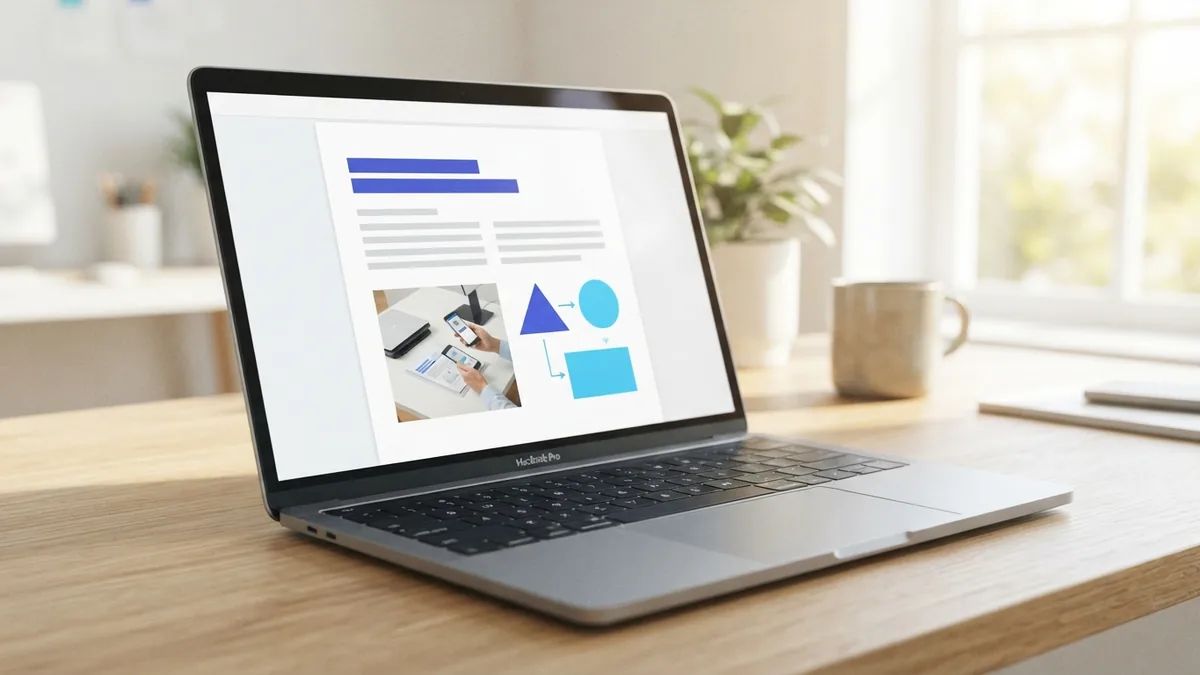
To add text, select the text tool or insert a text box. Type your note, then drag the box into place. Use the format panel to set its font, size, color, and alignment.
Text boxes work well for dates, short labels, and form notes. They do not rewrite text inside the original PDF object. You may need to cover old text with a matching shape first.
To add a picture, choose Insert, then select an image. Drag a corner handle to resize it. Hold the image near an edge to place it with care.
Shapes can hide old content or highlight a key area. Set the shape fill to white when you need to cover text. Then move the shape behind your new text.
- Insert a text box for the new words.
- Insert a shape to cover unwanted old content.
- Move the shape behind the text box.
- Insert and size any needed image.
- Review the page at 100 percent zoom.
Use short text whenever possible. Large text boxes can shift when you change the page size.
Rearrange, delete, or copy PDF pages
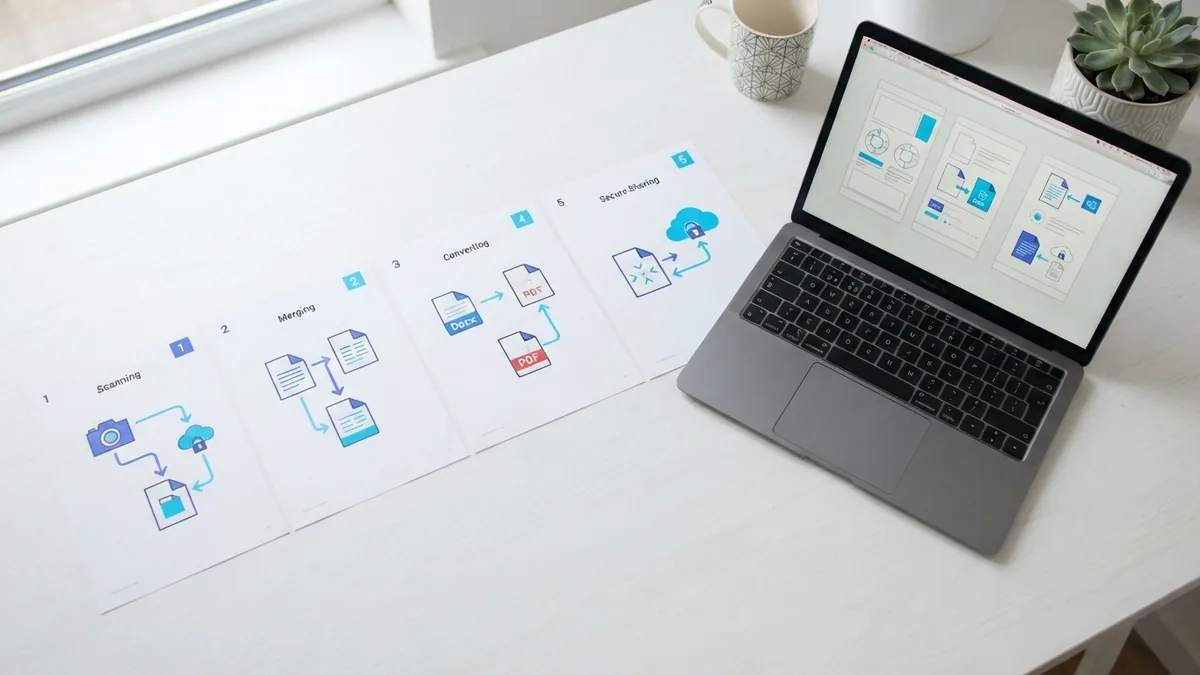
Pages uses thumbnails to show document pages. Open the page view on the left side of the window. If it is hidden, use the view control to show page thumbnails.
Drag a thumbnail up or down to change its place. Watch the blue line that marks the new position. Release the page when the line sits in the right spot.
To delete a page, select its thumbnail and press Delete. To duplicate one, use Edit, then Duplicate. You can also copy and paste a page in some Pages versions.
These steps work best when each PDF page sits on its own Pages page. A single imported PDF object may not split into separate pages. In that case, add each source page separately.
| Task | What to do |
|---|---|
| Move a page | Drag its thumbnail to a new position |
| Delete a page | Select the thumbnail and press Delete |
| Copy a page | Duplicate or copy and paste the page |
| Check the order | Review every thumbnail before export |
Check page numbers after every move. Headers and footers may still show the old order.
Export the edited file as a PDF
When your edits are ready, choose File, then Export To, then PDF. Pick the image quality that fits your use.
Choose a higher setting for printing. Choose a smaller setting for email or online sharing. Then select a folder and click Export.
Pages can also export files as Word documents or Pages files. Choose the format that matches your next task. A Pages file keeps the layout easy to change.
Apple explains these export choices in its Pages export guide. Keep the exported PDF separate from your editable source.
Open the new PDF in Preview before sharing it. Check the page count, links, fonts, images, and blank pages. Also print one test page when the file needs to look exact on paper.
Fix common Pages and PDF problems
The PDF will not open: Pages may not support that file's structure. Start a blank document and insert each page instead. A damaged PDF may need repair before Pages can use it.
The text cannot be changed: The page may be one flat object. Add a text box over the old words. For a full rewrite, copy the text into Pages and rebuild the page.
The layout looks wrong: Complex PDFs often rely on exact columns, fonts, and spacing. Pages may move items during import. Match the page size and use fixed text boxes.
Images look blurry: The source PDF may use low image quality. Export at the highest useful setting. Avoid enlarging small images inside Pages.
Pages shift during export: Check object placement and text wrapping. Set key objects to stay fixed on the page. Then export again and review the result.
- Keep page size, margins, and object positions consistent.
- Use one font family when the source uses simple text.
- Test the final PDF on another Mac or device.
- Keep both the Pages file and exported PDF.
Choose Pages for simple PDF edits
Pages can edit a PDF on a Mac when the changes are light. It handles added text, images, shapes, and page order well. It also offers useful export choices.
It is less suited to complex PDF layouts. Tables, columns, forms, and custom fonts may not import cleanly. A specialist PDF tool is better when you must edit the original text.
For a quick note or small page fix, Pages is often enough. Save a copy, edit with separate objects, and check the exported file. This workflow keeps the risks low.
Related reading
Add Pages to a PDF: Simple Ways
Add blank or saved pages to any PDF with these simple methods.
How to Rearrange PDF Pages Free Without Installing Software
Move PDF pages into the right order online, free, and without installing software.
Making a PDF on a Mac: Preview and Print to PDF
Create polished PDFs on your Mac from documents, scans, or a blank file.