
How to Edit a Locked PDF: Unlock, Edit, and Convert
Learn why your PDF is locked and how to unlock and edit it safely.
Why your PDF is locked (and what that lock really means)
If you want to know how to edit a pdf that is locked, start by checking what kind of protection it has. Most “locked PDF” issues come from one of two password types. Once you know which one applies, you can pick the right method and avoid wasting time.
PDF security usually uses two different passwords. An owner password controls permissions like editing, printing, and copying. A user password is required to open the file in the first place.
To figure out what you have, open the PDF in a viewer and use document properties. On many systems, right-click the PDF file, choose Properties, and look for security or permissions details. If the PDF won’t open without a password, it is likely a user-password lock.
- Owner password: editing may be blocked, but the file still opens.
- User password: the file won’t open without a password.
This is the fastest way to answer “why is my pdf locked” in practice. It also helps you understand what is possible, like whether you can print a pdf that is locked or only read it.
Methods to unlock or work around locked PDFs
There are a few legitimate paths for learning how to edit pdf that is locked. The key rule is to use the correct permission. If you only have an owner-password restriction, your job is about enabling actions like editing or printing.
First, confirm the permission limits. Try selecting text, copying content, or printing. If the PDF opens but editing controls fail, it is commonly an owner-password restriction. In that case, some workflows let you create an editable copy without breaking the document’s rules.
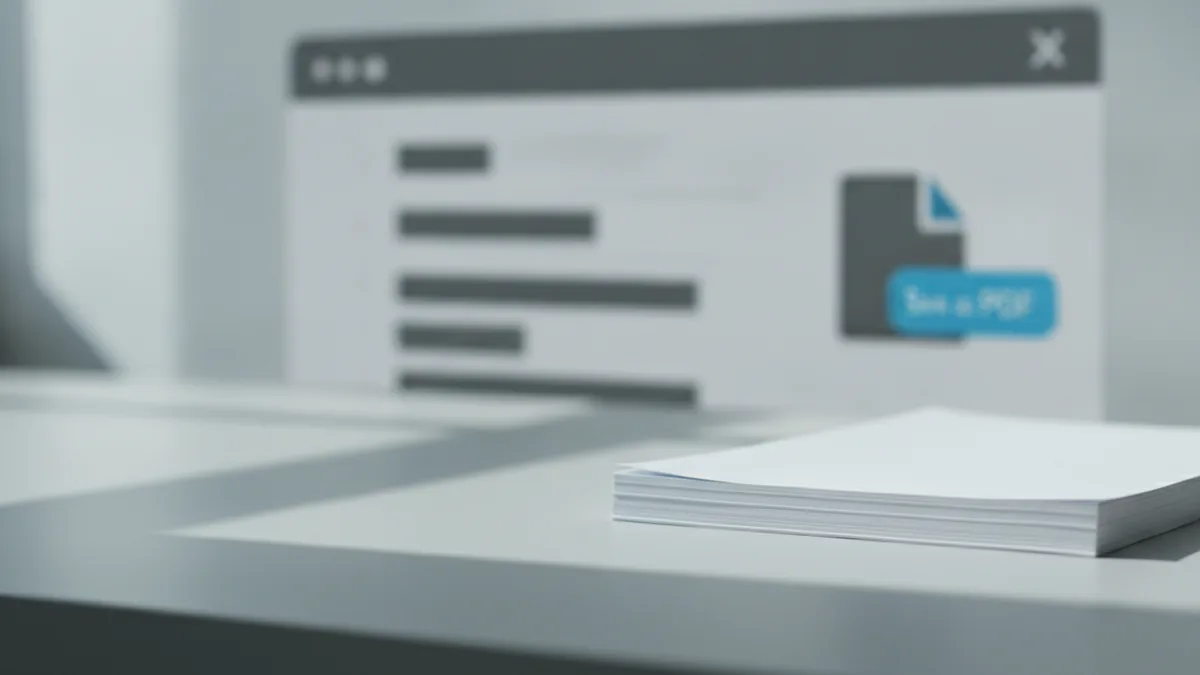
One practical option is using your browser’s Save as PDF flow. This can work when the PDF blocks editing but does not fully block printing or saving. The browser effectively creates a new PDF from what it can render.
Try this approach:
- Open the PDF in a standard browser or viewer.
- Use the print command.
- Choose Save as PDF as the destination.
- Open the newly saved file and check whether editing restrictions remain.
If the PDF does not allow saving or printing, this option may not work. In that case, you may need a tool that supports permission-based editing, or you may need the correct password from the document owner.
Important note for signing: “how to sign a pdf that is locked” depends on the lock type. If the file is protected in a way that blocks form filling or digital signatures, you may still be able to sign with a different method. If the PDF blocks opening, you cannot sign until you have access.
Using online tools for editing (when permissions allow it)
Online PDF editing tools can streamline the workflow from locked file to editable output. Some tools offer an integrated process that combines unlocking, converting, and editing. For example, Smallpdf is often used in a single flow for PDF editing and transformation.
When you use online tools, the best results come from matching the tool to your PDF type. If your PDF opens normally but blocks editing, a tool that can export to editable structures tends to work better. If the PDF requires a user password to open, most online tools will not help until you have access.
Look for tool steps that mention one or more of these actions:
- Unlock or remove restrictions as part of editing
- Convert PDF to Word or editable documents
- Extract text for selection and edits
- Rebuild layout after editing
Also be realistic about what “edit” means. Some tools allow text edits but may change spacing. Others preserve layout better but only when the PDF has a clean text layer.
If your goal is signing, check whether the tool supports form fields or signature overlays. Some locked PDFs let you add a new layer, while others restrict changes. Always test on a copy first, especially for client documents.
Convert locked PDFs to editable formats (and expect layout shifts)
Another strong route to “how to edit a pdf that is locked” is PDF conversion. Converting to a format like Word or Google Docs can make edits much easier. This is often the best method when direct PDF editing fails due to restrictions.
Conversion works best when the PDF contains real text. When the content is selectable, conversion typically preserves headings, paragraphs, and lists more accurately. When the content is just images, conversion alone may produce poor results without OCR.
Common options include converting to:
- Word (.docx) for rich text edits
- Google Docs via import for collaborative editing
- Plain text if layout is less important
Be aware of trade-offs. Converting may affect fonts, line breaks, margins, and table alignment. Invoices and forms are especially sensitive. Plan to review the converted file carefully before sending it back.
If you need to maintain a specific appearance, use a two-step workflow. First, convert to capture the content. Then, use a PDF editor to rebuild the final layout as needed. This usually saves time compared to repeated trial edits inside the original locked PDF.
Edit scanned or image-only PDFs using OCR
Many PDFs look like documents but actually store pages as images. When that happens, you cannot reliably edit text without OCR. This is where OCR (Optical Character Recognition) becomes crucial.
A good sign that you need OCR is when you cannot highlight text. Another sign is when conversion produces empty paragraphs or garbled characters. For scanned forms, OCR can extract fields, but only if the scan is clear enough.
Before running OCR, prep the scan for better accuracy. Use higher resolution if you can. Aim for clean contrast and avoid tilted pages. If your PDF is a low-quality scan, OCR errors become editing errors.
When you apply OCR, verify key parts first. Check headers, totals, and any numbers that matter. Then review name fields and addresses line by line. OCR can be very good, but it will still make mistakes on similar-looking characters.
If you also need to sign, OCR alone does not add signatures. After OCR, export to an editable format or rebuild the PDF. Then add your signature method that works with your tool.
Finally, remember that unlocking and OCR are different steps. Unlocking changes permissions. OCR changes how the content becomes editable text.
Legal considerations for editing PDFs with protection
Before you try any method to bypass restrictions, confirm you have the right to edit. Legal considerations for PDF editing matter because “locked” often reflects ownership or consent rules. If you do not own the PDF or lack permission, editing can be unlawful even if you find a workaround.
Only edit PDFs you own or for which you have permission to modify. This includes documents from colleagues or clients where editing rights were granted. It can also include PDFs you created for your own use and control.
If a PDF is protected with an owner-password restriction, it may be intended to prevent unauthorized edits while still letting you view the file. In those cases, the right step is often to ask the document owner for an editable copy. That is faster than trial-and-error and reduces risk.
When you need a practical output, ask for the right deliverable. For example, request a Word file or an unlocked version for updates. If you only need to print a pdf that is locked, ask whether printing permissions can be enabled. For signing, ask for a copy that supports signature fields or allows modification where required.
If you use online tools, also consider what you upload. Many services handle files briefly to run conversion. Still, review their data handling terms, especially for sensitive documents.
For security and best practice, keep a record of who provided the PDF and what permission you received. That matters if you later need to prove you acted with consent.
| Lock type | What it affects | Typical next step |
|---|---|---|
| User password | Opening the file | Get the password or an unlocked copy |
| Owner password | Editing, copying, printing | Check permissions, then convert or save as PDF |
For a clearer view of PDF rules and terms, you can also refer to the official PDF specification from the standards community at the PDF 3.2 specification. It explains how password protection and permissions are structured.
Related reading

Edit a PDF Document: Free Ways to Start
Edit PDF files free with online tools, Word, Mac apps, or LibreOffice Draw.

PDF Editing: Tools and Simple Steps
Edit PDFs with Word, Acrobat, or online tools, then save them correctly.

Read PDFs Aloud: Clear Steps Anywhere
Read PDFs aloud on PCs, iPhones, and tablets with simple tools.