How to Convert Avery Files to PDF for Printing
Convert Avery label designs to PDF, then print at the right size.
Understanding Avery file types
Avery label designs start in a format meant for editing, not for direct printing. Your goal is to export a PDF file format version that your printer driver and print workflow can handle reliably.
Most Avery label projects are built with Avery Design & Print. In that workflow, you create or pick a template that matches your label size, then you export the design for printing. If you skip exporting to PDF, you may see misalignment, scaling, or cut-off labels.
Before you convert, confirm two things: the label size (for example 5160) and whether your design includes barcodes. Barcodes add sensitivity to scaling, so exporting to a PDF and printing at 100% scaling is important.
- Find your label product number (like 5160) and matching template.
- Check whether the design uses text-only or also includes barcodes.
- Verify your printer can print to the label media size without “fit to page.”
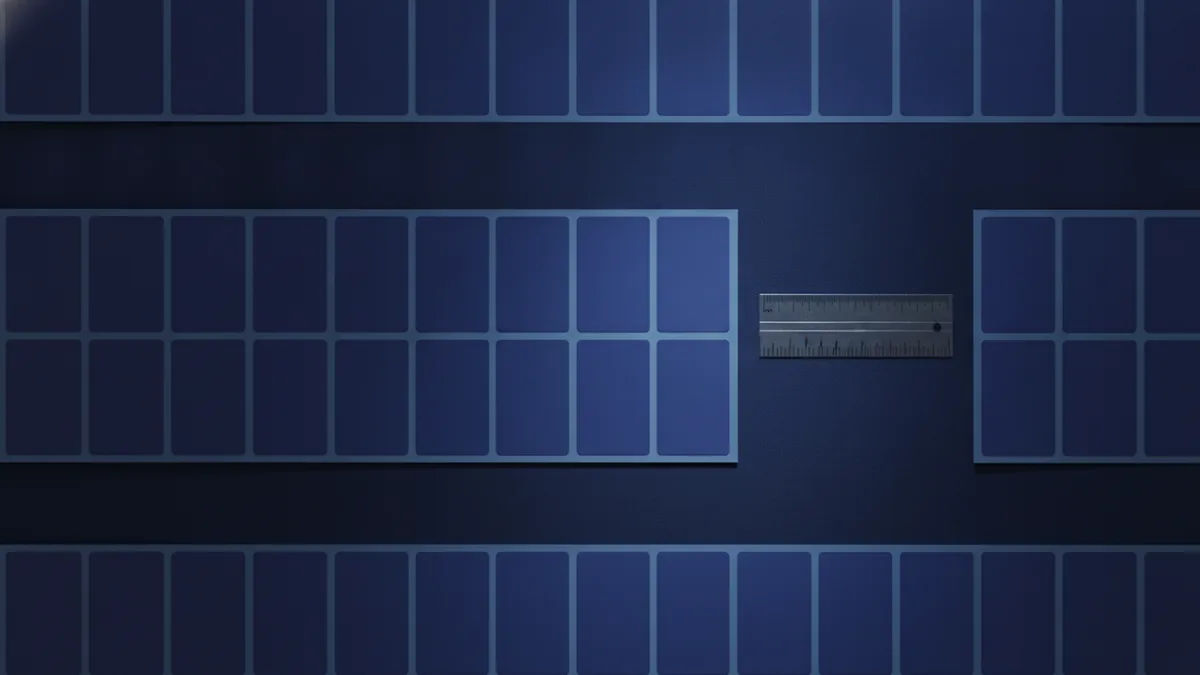
Steps to convert Avery files to PDF
There are two common paths, depending on where your Avery design lives. If you edited in Avery Design & Print, you can export from there. If you have an Avery source file you created elsewhere, you still typically need to open it in Avery’s tools first.
If your search question is how to convert avery file to pdf, the short answer is: open the Avery project, use the save/export option that outputs a PDF, then save the PDF to a folder you can reach quickly during printing.
Here is the practical flow you can follow.
- Open your Avery project in Avery’s Design & Print tool.
- Confirm the label template matches your label product number.
- Export as PDF using the tool’s Save or export option.
- Store the PDF in a known folder, like “Documents/Labels/PDF.”
- Open the PDF in a PDF viewer and double-check page size.
When you print, the PDF viewer matters. Some viewers can alter scaling or page handling. Use a stable PDF viewer you already trust, and avoid browser print “best fit” modes when possible.
Using Avery Design & Print online
For online conversion, the key detail is where you find the Save option. In Avery Design & Print, navigate to the Save area that lets you export or download your work.
In most cases, you will see a choice to save the document, then select the option for PDF export. This is the most direct answer to how to save avery file as pdf without extra tools.
Try this online workflow.
- Open your design in Avery Design & Print.
- Go to Save in the editor.
- Select the PDF export option.
- Download the PDF to your computer.
- Save it into a known folder for printing later.
After download, open the PDF and check that one sheet matches your label layout. For formats like 5160, confirm the number of labels per page looks right. If it looks off, fix the template in the editor and export again.
Using Avery Design & Print offline
Offline usage can mean you are using a desktop version, downloading a project package, or working in a print workflow that expects a direct PDF. In that case, your main step is still the same: export designs to PDF before you print.
When you print from an offline editor, choose Save As PDF in the print options. This is a reliable substitute for exporting from the Avery editor itself.
Use this approach when you need a PDF quickly or when the editor output is not directly downloadable.
- Open the Avery design or template in the offline tool.
- Choose Print or File > Print.
- In the printer drop-down, select Save As PDF.
- Pick the correct page size or “match paper size” setting.
- Export the PDF, then save it to a folder you can find fast.
Once the PDF exists, treat it like the source of truth. Your next steps become using a PDF viewer, checking scaling behavior, and printing to the right media. If you change label templates after export, export again.
For best results, save PDFs with descriptive names. Example: “Avery_5160_Barcode_Set_1.pdf.” That makes it easier to compare test prints.
Troubleshooting PDF conversion issues
Even when you export correctly, printing can fail if the printer driver scales the page. Most label printing problems come down to size mismatch and scaling settings, not to the PDF itself.
Start by confirming the PDF matches the Avery label size. Then check whether your PDF viewer or print dialog is using “fit to page,” “shrink oversized pages,” or “scale to printable area.” Those options can shift barcode positions and make labels unusable.
Here are targeted fixes for common problems.
- PDF size looks wrong: return to the Avery template and re-export.
- Labels cut off: disable “fit to page” and print at 100% or “actual size.”
- Text is fuzzy: re-export from Avery as PDF, then print from the PDF file.
- Barcode won’t scan: verify the barcode is not being scaled down by the print dialog.
- Multiple pages misalign: check that the sheet layout is consistent across pages.
If you are troubleshooting printing issues, do one controlled test print. Print a single page, then measure label placement from the top-left corner. If it is off by even a few millimeters, you likely need to adjust the printer’s scaling or margins.
For barcode labels, this step is crucial. Barcodes need accurate width and quiet zones. If the barcode prints slightly smaller, scanners may fail.
Printing Avery labels from PDF
Once you have a PDF, you are ready for how to print avery labels from pdf. The main goal is to keep scaling consistent from PDF to printer. Treat the PDF like a print master.
Begin with your printer settings. Select the correct paper type, disable “fit to page,” and set scaling to 100% or “actual size.” If your printer driver offers a choice like “labels” or “media,” pick the closest label-compatible option.
If you need to know how to print avery 5160 labels from pdf, you should also make sure the Avery template was set to 5160 before export. Then your PDF will already have the right grid and spacing for that label sheet.
Follow this practical print workflow.
- Load the label sheet in the printer tray correctly.
- Open the exported PDF in a PDF viewer.
- Select print and set scaling to 100% or actual size.
- Turn off any option named “fit to page” or “shrink oversized pages.”
- Print one test page, then compare alignment.
- If the test looks correct, print the full batch.
For barcodes, keep an eye on the print quality and color mode. Choose a setting that prints crisp graphics, not draft mode. If you are printing barcode labels from pdf, avoid any driver option that reduces resolution.
Finally, if you are wondering how to print labels from a pdf or how to print on avery labels from pdf, remember that the biggest variable is printer scaling. Fix scaling first, then fix template size. Once those are aligned, printing stays repeatable.
Quick compatibility checklist for accurate label printing
| What to check | Why it matters | What “good” looks like |
|---|---|---|
| PDF page size matches Avery sheet | Prevents cut-off and drift | Grid of labels fits one sheet |
| Scaling is 100% | Keeps barcode and text aligned | No “fit to page” behavior |
| Printer margins | Controls start position on paper | Margins do not eat label corners |
| Label template matches product number | Spacing must match the sheet | Correct layout for 5160 |
Related reading
Finding Words in PDFs: Search and OCR
Search PDF text fast, or use OCR to find words in scanned files.

Unsecuring a PDF: Safe Methods and Key Risks
Remove PDF limits safely, and know when a password or owner’s consent is needed.
Redacting PDFs in Adobe Acrobat
Permanently remove private PDF content with Acrobat Pro, then check the saved file.