How to Convert Google Slides to PDF: Save, Export, and Fix Issues
Convert Google Slides to a PDF with export options, speaker notes, and layout tips.
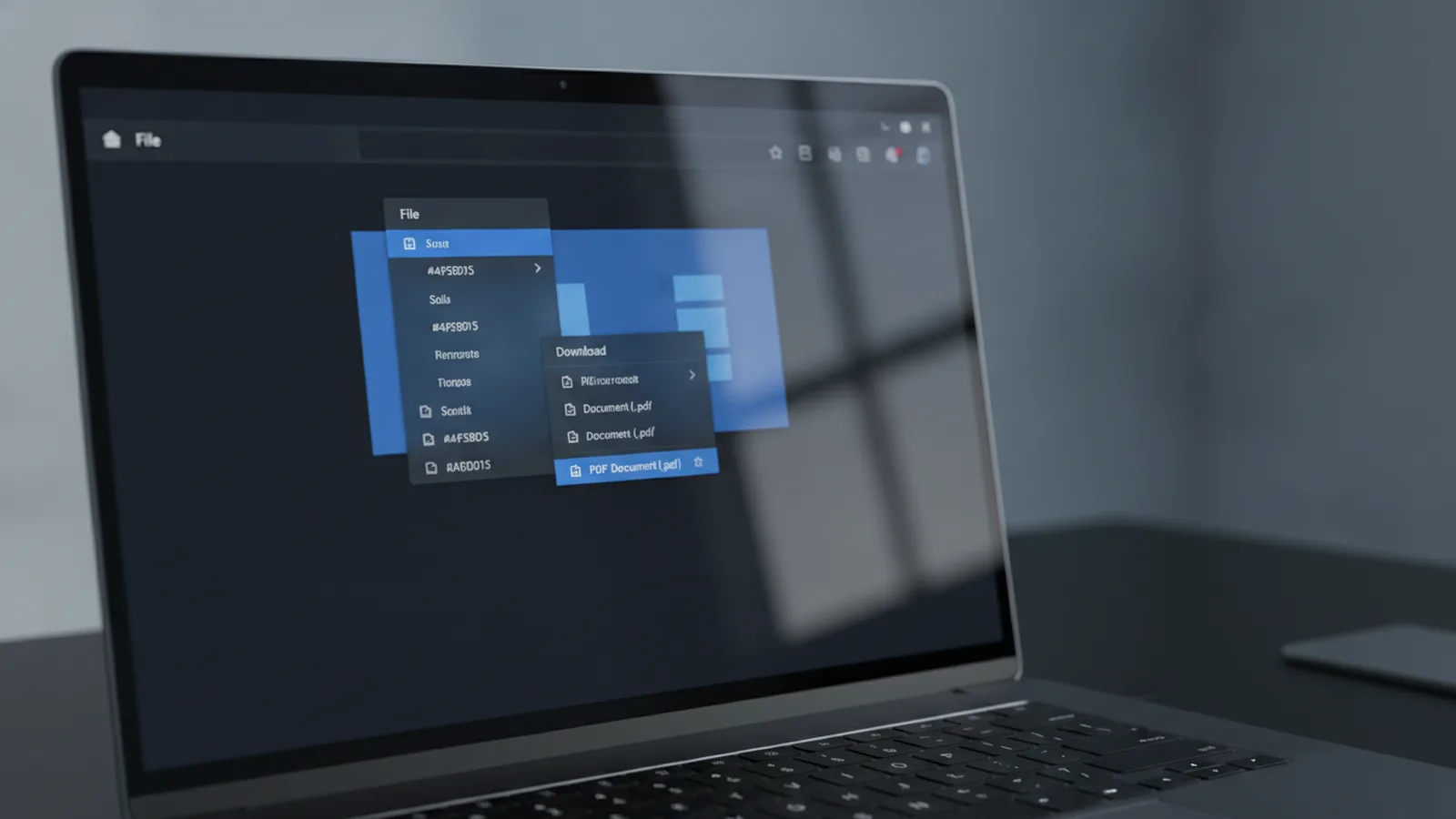
Steps to Save Google Slides as PDF
If you want to turn a Google slide into a PDF, you can usually do it in minutes. Google Slides lets you export your deck directly as a PDF file. That means you avoid copy-paste work and keep your slide layout consistent.
Start by opening your presentation in the Google Slides interface. Then use the File menu and choose the export option for PDF. Finally, confirm your export settings and download the PDF to your device.
Here is the basic path most people use. You can follow it even if your deck is long or includes speaker notes.
- Open the slide deck in Google Slides.
- Click File.
- Choose Download.
- Select PDF Document (.pdf).
- Download the file and open it to check formatting.

Exporting Options Overview
Before you download, Google Slides offers Export options that control how your PDF comes out. These options matter if your deck has many slides or if you need a specific reading layout.
The two most common choices are speaker notes and slide layout. For example, you can export each slide as a full page, or fit more than one slide per page. You can also pick page orientation, such as portrait or landscape, depending on how the PDF will be viewed.
To access the download menu in Google Slides, look in the top bar for File. Then open Download to see format choices like PDF Document. If you do not see the options you need, click through the PDF export flow again and check the export settings.
- With notes: includes speaker notes under each slide.
- Without notes: exports only the slide content.
- Slides per page: controls how many slides are placed on one PDF page.
- Orientation: portrait for tall layouts, landscape for wide slides.
When you are learning how to make a Google slide a PDF for print, choose fewer slides per page. When you are learning how to download a Google slide as a PDF for screen viewing, you can try more slides per page. Always open the PDF after export because your theme can affect spacing.
Including Speaker Notes in PDF
Speaker notes are helpful when you plan to review a deck later or share talking points with others. Google Slides supports exporting your PDF with or without Speaker notes. This directly answers can you save a Google slide as a PDF while keeping the notes.
To export with notes, select the PDF option that includes speaker notes in the export settings. In many cases, the exporter offers two labeled PDF choices. One is for “current slide” or “all slides,” depending on your deck setup. Another includes notes content beneath the slides.
Think about how the PDF will be used. If someone will present from the PDF, exporting with notes can reduce prep time. If someone only needs the visuals, exporting without notes keeps the file cleaner.
| Use case | Export setting | What to expect in the PDF |
|---|---|---|
| Presenting later | PDF with speaker notes | Notes appear under each slide |
| Sharing slide visuals | PDF without speaker notes | Only the slide content is shown |
| Handout for review | Without notes, 1–2 slides per page | More whitespace for comments |
If your notes are long, test a short export first. Long notes can push slide content down when Google Slides formats the PDF. That can also change the balance of text and images on the page.
Tips for Formatting Slides
Converting a Google Slides presentation into PDF works best when your slides are already built for clean layout. The PDF file format preserves what you designed, so problems in Slides become problems in the PDF. That includes clipped text, low-contrast colors, and elements near slide edges.
Start with font size and spacing. If a title is tight in Slides, it can feel crowded in the PDF. For example, slide themes may scale slightly depending on page orientation and slides-per-page settings. Give key text a little extra room.
Next, check images and aspect ratios. When you place images, avoid stretching them to fit small spaces. In the PDF export, stretched images can look blurry or cut off. Also ensure that background images do not crowd any text area.
- Use high-contrast text for easier reading.
- Keep important content away from the bottom edge.
- Test orientation: portrait vs landscape.
- If fitting multiple slides per page, reduce visual clutter.
If you are trying to convert a Google slide to a PDF for printing, consider margins. Most printers handle margins differently than your screen. A quick test print on one page can save you from re-exporting the full deck.
Finally, watch the export option for slides per page. If your goal is a one-slide-per-page handout, pick that. If your goal is a compact PDF for email, choose more slides per page. Either way, open the downloaded file and zoom in.

Common Issues and Troubleshooting
Even when you follow the standard file download process, things can go wrong. The most common issue is mismatched layout after export. This usually comes from slides-per-page settings, page orientation, or content that is too close to the slide edge.
If your PDF looks cut off, check two things first. Confirm that you exported with the right page orientation. Then export again with fewer slides per page. Fitting many slides can reduce visible space for text and charts.
If images look blurry or shift, it is often due to how the original deck scales media. Try replacing very low-resolution images with higher quality versions. Also avoid using tiny text embedded inside shapes. Instead, use normal text boxes so the exporter can render it cleanly.
- Problem: Text is clipped in the PDF. Fix: Increase text box padding in Slides.
- Problem: Slides appear too small. Fix: Reduce slides per page in Export options.
- Problem: Notes are missing. Fix: Re-export using the PDF option that includes speaker notes.
- Problem: Layout changes from your screen. Fix: Check orientation and reopen the PDF.
Another frequent question is how to turn a slide into a PDF when you do not want the whole deck. Google Slides can export either the full presentation or the selected content, depending on what you choose before downloading. Look for the option related to the selection or current slide. Then choose the PDF document format again.
To keep your workflow smooth, export a small test first. Exporting a few slides helps you confirm fonts, alignment, and image quality. After that, export the full deck using the same settings so the rest matches.
Quick checklist for a clean export
Before you hit download, do one fast review. Make sure text is readable and key elements are not near edges. Then confirm whether you need speaker notes in the PDF.
- Check page orientation and slides per page.
- Confirm whether you need speaker notes.
- Zoom in on the PDF after export.
- Re-export with corrected settings if needed.
Related reading

PDF to Text: Methods and Best Practices
Turn PDF text into an editable file with the right tool and a quick proofread.

Unflattening a PDF: Recovery and Workarounds
Find out what you can recover from a flattened PDF and how to rebuild its features.
CAC PDF Signing: Setup and Troubleshooting
Set up your CAC, sign a PDF, and fix common certificate or PIN issues.