
Save a Webpage as a PDF for Offline Reading
Save web pages for offline use, sharing, or printing with a few simple steps.
What happens when you save a webpage as a PDF?
To download a webpage as a PDF, open the browser’s Print dialog and choose “Save as PDF” or a similar option. Set the page size, orientation, and scale, then save the file to your device. This works in Chrome, Firefox, Edge, and Safari.
A PDF keeps the page in a format that is easy to share and read offline. The saved copy may not look exactly like the live website. Menus, ads, videos, and other interactive parts may be removed or changed.
Use this method for articles, travel details, recipes, and other pages you may need later. Check the saved file before sharing it, especially if the page contains images or important links.
- Open the webpage you want to keep.
- Press Ctrl+P on Windows or Linux, or Cmd+P on Mac.
- Choose “Save as PDF” as the printer or destination.
- Check the preview, then save the file.
It takes only a few clicks.
Ways to download a webpage as a PDF
The browser’s Print function is the simplest way to save a page. On a computer, press Ctrl+P or Cmd+P. You can also open the browser menu and choose Print. In the print window, select “Save as PDF” instead of a physical printer.
Review the preview before saving. Choose portrait for most articles, or landscape for wide tables and diagrams. Use the scale setting to shrink content that runs past the page edge. A value near 90% can help, but check that the text stays easy to read.
Some browsers offer settings for headers, footers, margins, and background graphics. Turn off headers and footers if you do not want the page title, date, or web address. Enable background graphics when a page uses colored panels or images that matter.
For a print-focused walkthrough, see Mozilla’s steps for printing webpages in Firefox. The names of menu items can vary by browser version, but the print preview gives you a quick way to check the result.
Keep the original webpage open until the PDF is saved. If the page uses expandable sections, open the content you need first. Some pages only include visible text in the print copy.
Save pages in Chrome, Firefox, Edge, and Safari
Chrome, Firefox, and Edge use a similar print workflow on desktop. Open the print dialog, then select the PDF option as the destination. In Chrome, this may appear as “Save as PDF.” Firefox can show a PDF choice in its printer list. Edge also lets you select a PDF printer.
Safari on Mac uses the Print dialog’s PDF menu. Open the page, choose File and then Print, or press Cmd+P. Use the PDF menu at the bottom of the print window to save the page as a file. Apple’s menu names may differ slightly across macOS versions.
Before saving, check the page preview and pick a folder you can find again. If your browser shows a destination menu, make sure it points to a PDF file rather than a connected printer. For Chrome-specific help, use Google’s Chrome print instructions.
Browser compatibility is rarely the problem. If you cannot find a PDF option, look for “Print to PDF” in your device’s printer list. You can also update the browser or try its menu rather than a keyboard shortcut.
Fix cut-offs and other print layout problems
Text or images can fall beyond the page edge when a site is wider than standard paper. First, switch from portrait to landscape. If that does not work, lower the scale a little or choose a smaller margin. Check every page in the preview before saving.
Large blank gaps often come from page breaks or elements that do not print well. Try a different scale or paper size. If the page has a simplified reading mode, use it to remove sidebars and ads. This can make long articles easier to read on paper or screen.
Background colors and images may be missing because the browser leaves them out by default. Turn on background graphics in the print settings when those details matter. Keep in mind that this can use more ink if you later print the PDF.
- Use landscape for wide charts or tables.
- Reduce scale in small steps to prevent clipping.
- Adjust margins when text sits too close to an edge.
- Turn on background graphics for key colors or images.
- Check the full preview, not just the first page.
Save a new copy after each change. That makes it easy to compare versions and keep the best layout.
Save just one page from an existing PDF
If you already have a PDF, use its print or page tools to save one page. Open the file in a PDF reader, choose Print, and enter the page number in the pages field. Then select “Save as PDF” or “Print to PDF” as the destination. For example, enter 4 to save only page four.
To save a range, enter the first and last page if the tool supports it. A range such as 3–5 saves three pages, while a single number saves one. Check the preview to confirm that it shows only the page you want.
Some PDF tools include an extract or split feature. These features can create a new PDF from selected pages without printing. Choose the page, save the new file, and open it once to confirm the result.
This method answers how to download only one page of a PDF without changing the original file. Keep a separate copy if you need the full document later. Do not share a single extracted page if it leaves out context needed to understand the information.
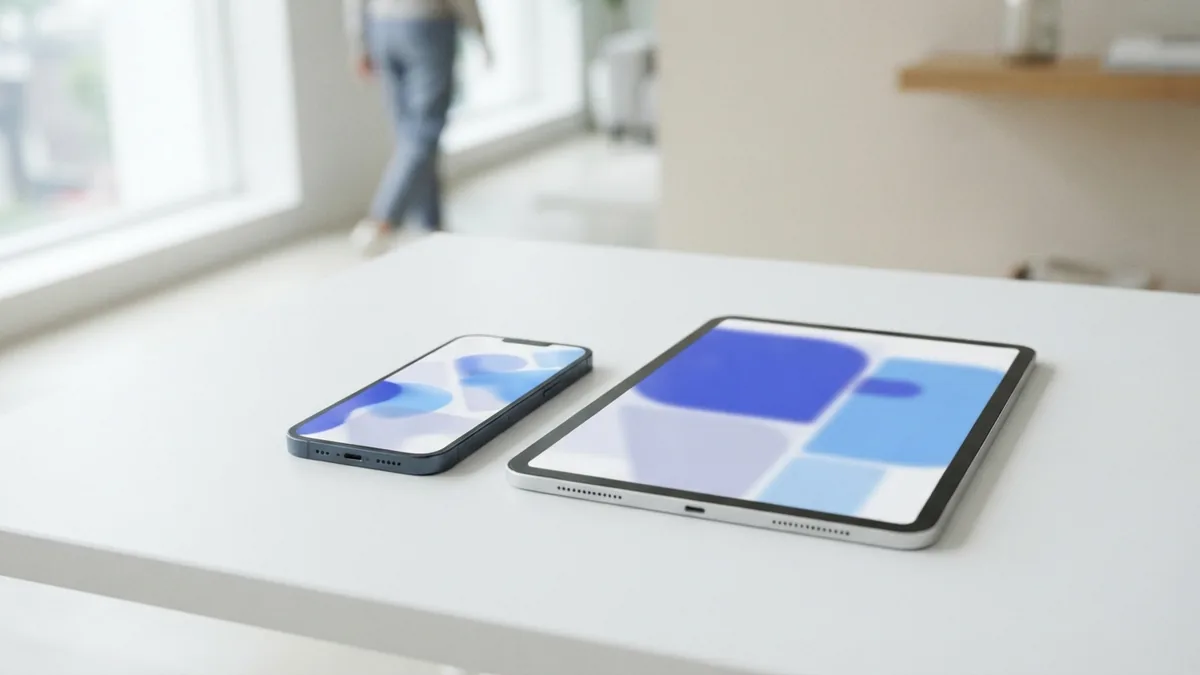
Download webpages as PDFs on a phone or tablet
Phones and tablets can save webpages as PDFs through their browser or share menu. On an iPhone or iPad, open the page in Safari and tap Share. Choose Print, then expand the preview with a pinch-out gesture. Tap Share again and save the PDF to Files.
On Android, open the page in Chrome and tap the menu. Choose Share or Print, depending on your version, then select “Save as PDF” in the print options. Pick a folder and save. Menu labels can vary between devices.
Mobile print screens have less room for layout controls. Use landscape for a wide page when the option appears, and check the preview before saving. If text looks too small, try a reading view or save the page on a computer instead.
After saving, open the file from your device’s file app. This confirms that the PDF is complete and ready for offline access or sharing. Keep the original page link too, if you may need live content later.
Related reading
HTML to PDF: Methods and Quality Tips
Save a web page as a clean PDF with a browser, code, or an online tool.
Secured PDFs: Passwords and Merging
Unlock permitted PDFs, merge them with a trusted tool, then secure the new file.
Send One Page of a PDF: Tools and Steps
Extract the page you need, save it as a new PDF, and share it with ease.