
How to Create a PDF Slideshow From Your Document
Learn how to turn a PDF into a slideshow with design tips and tool options.
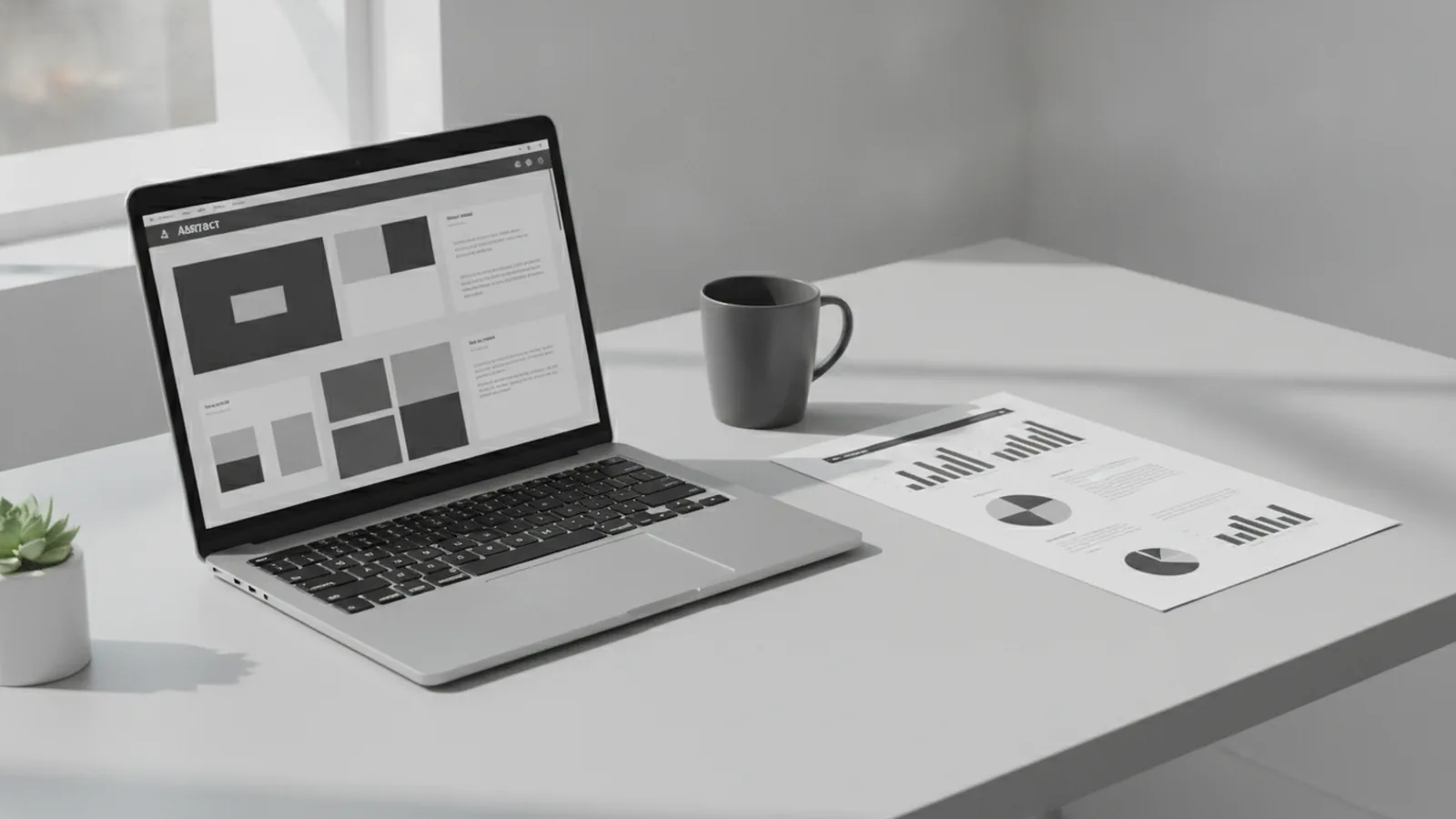
Understanding PDF slideshows
A PDF slideshow is a slide deck created from content that started in a PDF. You can use it to present text, figures, and charts in a more engaging way. Instead of one long document, your audience sees information one section at a time.
Most conversions treat each PDF page like a slide starting point. That means a 20-page PDF can become a 20-slide deck. You can then adjust the slide order, add a title slide, and refine the layout so it looks intentional.
This approach works for many goals. For example, you may turn a handbook PDF into a training deck. You may also convert a report PDF into an educational presentation with cleaner slide customization.
- PDF pages often map to slides
- Charts and images usually transfer as visual elements
- You can add slide titles and speaker notes after conversion

Benefits of converting a PDF into a slideshow
When you convert a PDF to a slideshow, you improve how people experience the information. Visual elements help viewers stay engaged during a talk. They also support visual learning by making key points easier to scan.
Slideshow format can also increase retention. People typically process slide content faster than a long PDF page. That is especially true when each slide focuses on one idea, with readable headings and a clear callout.
Another benefit is digital engagement. A slideshow can support interactive presentations features like embedded videos or short quizzes. Those elements help you move beyond passive reading and toward active learning.
Finally, many platforms offer cloud-based editing. That means you can edit slides on a laptop, continue on a tablet, and present from your phone. Your deck stays accessible wherever you can sign in.
| PDF document | Converted slideshow |
|---|---|
| One long flow | Section-by-section slides |
| Harder to scan on screen | Headings and layout guide attention |
| Limited interactivity | Videos, quizzes, and links can fit naturally |

Step-by-step guide: how to create a PDF slideshow
To learn how to create pdf slideshow decks, start with the simplest workflow. You upload the PDF, pick a slideshow format, then review the slides for layout and readability. After that, you do slide customization to match your presentation design goals.
Most tools follow the same core steps. You will upload your file, convert it to a slide format, and then adjust slides if needed. Some tools also offer templates, so you can improve visual appeal immediately.
- Upload your PDF to the conversion tool. Choose a file that has clear headings and high-quality images for best results.
- Select the output format such as PPTX or an online slideshow workspace. If you see options for page-to-slide mapping, keep the default first.
- Review slide content page by page. Check that text is not cut off and that images remain sharp.
- Edit slides as needed using the editor. Add or fix titles, adjust spacing, and ensure each slide has one main takeaway.
- Apply a template if the tool provides one. Pick a style that matches your branding and keeps colors consistent.
- Export or present when the deck reads well. Test on a projector or big screen to confirm legibility.
If your PDF includes many small bullets, expect some cleanup. You may need to shorten lines, move details to speaker notes, or split one dense page into two slides. This is normal and often improves clarity.
For those asking how to turn a pdf into slideshow, focus on the structure first. Create a logical slide outline. Then use visuals to support it, not to replace it.
Tips for enhancing your slideshow
Conversion gives you a starting point. The real quality comes from presentation design decisions you make after the deck is created. Start with readability. If a slide needs zooming to read, your audience will miss the point.
Use slide customization rules that keep content tight. Aim for a strong title, then 3 to 6 bullets or one concise diagram explanation. When text is long, break it into two slides with the same topic.
Next, improve the visual hierarchy. Make the most important part of each slide stand out. That might mean enlarging a chart, increasing contrast, or adding a colored callout for the takeaway.
Templates can help you look polished fast. Choose one consistent theme for fonts and colors. Then keep background colors subtle so your content stays readable.
To boost digital engagement, consider interactive presentations features. If the tool supports it, embed a short video that explains a concept. You can also add a quick quiz slide at the end of a section to check understanding.
- Keep headings short and specific
- Limit bullets per slide for scannability
- Use consistent colors for charts and callouts
- Add a quiz or video when it supports the lesson
Finally, test the deck. Present it on the device you will use in the room. Check that fonts scale well and that images do not pixelate when enlarged.
Common tools for PDF to slideshow conversion
Many options exist for how to turn pdf into slideshow, ranging from simple converters to full editors. Some tools are best for quick transformations. Others are better when you want to revise slide layout and design.
Look for tools that support slide customization, template selection, and cloud-based editing. Cloud-based editing is helpful when you share a deck with a team or need access across devices. It also reduces version confusion during reviews.
Here are tool types you can consider. Pick one based on how much editing you expect to do.
| Tool type | Best for | What to check |
|---|---|---|
| PDF-to-PPT converters | Fast transformation | Text fit and image clarity |
| Online slide editors | Heavy slide customization | Templates and style controls |
| Cloud slideshow builders | Interactive presentations | Video, link, and quiz support |
If your goal is educational tools, prioritize interactivity. If your goal is business reporting, prioritize clean charts and consistent formatting. Match the tool to your outcome.
Troubleshooting and FAQs
Why does my converted slideshow look messy?
PDF layouts do not always map cleanly to slides. Complex tables, multi-column text, and tightly spaced elements can shift. Fix this by adjusting font sizes and reflowing text into cleaner bullet points.
Also check margins and line spacing. A deck can look crowded when the template does not match the original PDF design. Apply a template after basic cleanup, not before.
How do I handle images that look blurry?
Blurry images usually come from low-resolution assets in the PDF. If the PDF images were small, the conversion cannot magically restore detail. Whenever possible, start from the highest quality source PDF you can get.
After conversion, resize images carefully. Avoid stretching images to fill spaces. Instead, crop to the needed area and keep the image aspect ratio.
Can I convert a PDF with interactive content?
Some PDF files include links or embedded media. Conversion tools may carry over links, but videos or animations often depend on what your target slideshow supports. If media does not transfer, re-add it during slide customization.
For example, you can add a video as a new media element on the slide. You can then add a quiz slide for digital engagement even if it was not in the original PDF.
What is the best way to turn a long PDF into fewer slides?
For a long PDF, page-by-page conversion may create too many slides. A better approach is to group pages by topic. Then create one slide per topic section and move details into speaker notes.
Also consider a summary slide. Add a “Key takeaways” slide near the start so the audience understands the path before you dive into details.
Is cloud-based editing really necessary?
It is not required, but it helps. Cloud-based editing makes it easier to collaborate and to present from different devices. It also lets you keep the latest version with less manual file swapping.
If you only need a one-off deck, a local export may be enough. If you plan to iterate with others, cloud access can save time.
FAQ: how to turn a pdf into a slideshow for presentations?
- Question: How to turn a pdf into a slideshow for school?
Answer: Convert the PDF, then simplify each slide to one idea. Use clear titles and add images only where they support the text.
- Question: How to turn a pdf into a slideshow for a business meeting?
Answer: Focus on charts and decisions. Replace long paragraphs with short bullets and add a short agenda slide.
- Question: How to create pdf slideshow with interactive elements?
Answer: Use a tool that supports embedded video or link blocks. Add quiz-style slides to test understanding after key sections.
- Question: How to create pdf slideshow that looks branded?
Answer: Pick one template theme and keep fonts and colors consistent. Then adjust slide backgrounds so text stays high-contrast.
- Question: How to create pdf slideshow if text is too small?
Answer: Increase font sizes and reflow content into fewer lines. Split dense slides into two and remove repeated phrases.
Related reading

Sibelius to PDF: Export and Check
Export Sibelius scores as PDFs and check every page before sharing.

VitalSource Bookshelf to PDF: Safe Offline Options
Check export rights first, then choose a safe way to read VitalSource books offline.

Khazar Conversion: Evidence and Debate
What medieval sources say about the Khazars, Judaism, and a debated conversion.