
BMP to PDF: Simple Conversion Methods
Convert BMP images to PDFs online or with tools already on your computer.
Understanding BMP and PDF Formats
BMP, short for Bitmap, stores image data with little or no compression. This can preserve detail, but it often creates large files. A high-resolution scan or image may take up far more space than a compressed image file.
PDF, or Portable Document Format, is built for sharing and viewing documents across devices. It can hold images, text, and several pages in one file. Page layout usually stays consistent when someone opens the PDF on another computer or phone.
When you convert BMP to PDF, the image becomes a page in a document. The conversion does not automatically improve the image, and the final PDF may still be large. Results depend on the tool and the settings you choose.
Why Change a BMP Image to PDF?
A PDF can make an image easier to send, print, or store with related documents. For example, you could place several scanned diagrams into one file rather than attach them one by one. A single file is often simpler to share and keep in order.
PDFs also offer useful sharing controls. Some tools let you add a password or limit editing and printing. These settings can help protect a document, but they do not make it impossible to copy or capture.
File size may go down if the converter compresses the image. It may stay the same or grow if the tool embeds a large bitmap without reducing it. Check the output size before sending the file.
- Combine images into a document that is easier to share
- Keep pages in a set order for printing or review
- Add password or editing controls with a suitable PDF tool
- Reduce file size when the conversion settings allow compression
Convert BMP to PDF with an Online Tool
If you are asking, “How do I convert BMP to PDF?”, an online converter is often the quickest option. The basic process is similar across tools: upload the BMP, choose PDF as the output, and start the conversion. You can then save the finished file to your device.
First, open a converter you trust and select the BMP file from your computer. Some tools let you add more than one image. Check the page order before continuing, especially when making a multi-page PDF.
Next, select PDF as the output format. If the tool offers settings, choose a page size, orientation, or image quality. Start the conversion, wait for it to finish, then download and open the PDF to check the result.
- Select or upload your BMP file.
- Choose PDF as the output format.
- Set page layout and quality, if those options are available.
- Start the conversion, then download and review the PDF.
Online tools are handy when you do not want to install software. Before uploading, consider whether the image contains private information. A desktop method may suit sensitive files better.
Use Desktop Software or a PDF Printer
You can also change a BMP to PDF with software already on a Windows computer. Open the image in Microsoft Paint, then choose the print option. Select Microsoft Print to PDF as the printer, and confirm the print settings.
Check the paper size, orientation, and image placement in the print preview. Choose whether the image should fit the page or fill more of it. Select Print, name the PDF, and choose where to save it.
A PDF printer works in other desktop programs too. Open the BMP in an image viewer, choose Print, and select an available PDF printer. The steps and printer names can differ by operating system and installed software.
If you use an image editor with a PDF export option, open the BMP and choose that option instead. Look for settings that control page size, resolution, and compression. Save a copy so the original BMP remains unchanged.
Keep the Image Clear and the Layout Neat
Start with the best BMP copy you have. A converter cannot restore detail that is missing from a small or blurry source image. Keep the original file until you have checked the PDF.
Choose a page size that fits the image. For a wide image, landscape layout may waste less space. For a tall scan, portrait layout is often a better fit. Use preview settings when available to catch unwanted borders or cropping.
Quality settings can affect both clarity and file size. High quality is useful for fine lines or small labels in a diagram. Lower quality may work for a simple image shared online, but inspect the PDF at normal viewing size before using it.
For print, avoid shrinking a large image too much. For email, a smaller PDF may be more useful, but do not compress it until important details blur. Make a test copy when the document will be printed or sent to many people.
Fix Common Conversion Problems
If an online tool rejects the BMP, check its file size limit and supported formats. Try a desktop converter for large files. You can also save a copy in a common image format, then convert that copy to PDF.
If the PDF looks blank, reopen the BMP in another image viewer and try printing again. Confirm that the correct printer is selected. Update or reinstall the PDF printer if it is missing from the printer list.
When an image is cropped, review the page size and fit options. Choose “fit to page” or a similar setting if the whole image must show. When the result looks soft, use a higher quality setting or start with a larger source image.
If the PDF is unexpectedly large, lower the image quality slightly or enable compression. Check the image closely after each change. A smaller file is not useful if key details disappear.
Choose the Method That Fits Your File
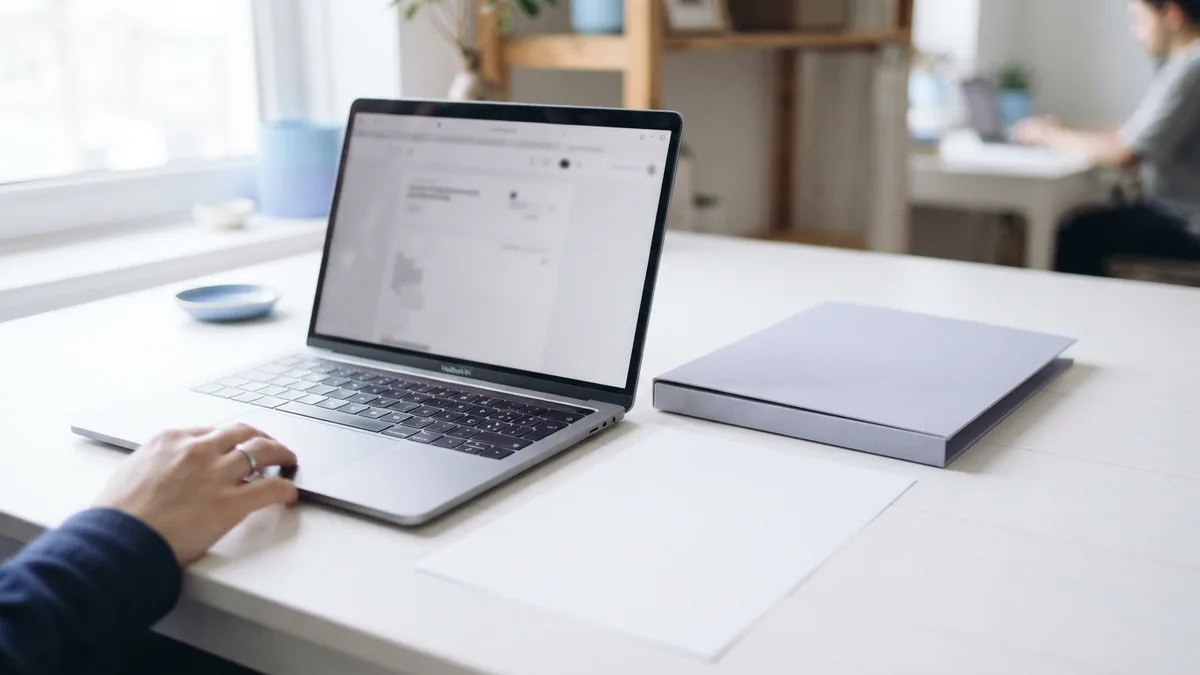
Online converters offer a quick route for everyday images: upload the BMP, select PDF, and download the result. Desktop tools and PDF printers give you more control without sending the image to a website. They can be a better choice for private files or large images.
Whichever method you choose, review the PDF before sharing it. Check that the image is clear, the full image fits the page, and the file opens as expected. Keep the BMP source until you are sure the PDF meets your needs.
Related reading
CHM to PDF: Access and Sharing
Turn CHM help files into PDFs you can open and share on more devices.
PDF to PowerPoint: Convert and Edit Slides
Turn PDF pages into slides, then check and edit the result.
PDF to PowerPoint: Editing and Sharing
Turn a PDF into editable slides with the right tool and a few quick checks.