Can iPhone Send a PDF to Android? Methods That Work
Send a PDF from iPhone to Android with email, chats, or cloud storage.
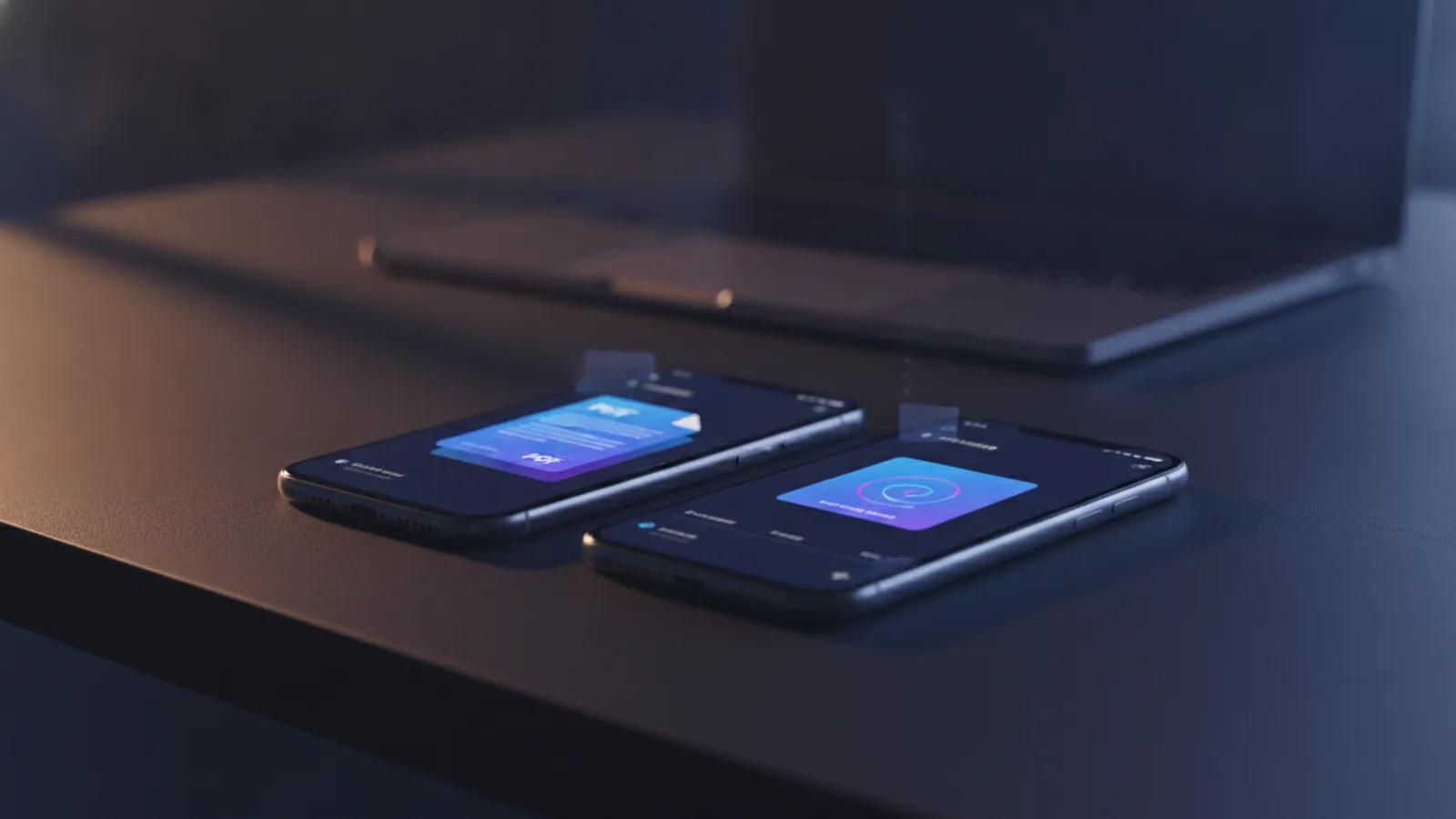
Overview of PDF sharing between iPhone and Android
Yes, you can send a PDF from an iPhone to an Android phone in a few practical ways. The best method depends on file size, how fast you need delivery, and whether you want the receiver to download or open immediately. In most cases, PDF file format support is already built in on both platforms.
If you are asking “can iPhone send pdf to android,” the answer is straightforward. iPhone can attach or share a PDF, and Android can open it with built-in apps or common readers. The only real friction is when a messaging app blocks large files or when a network is unstable.
As you choose a method, think about interoperability between platforms. Email attachments, messaging apps, and cloud storage all handle documents differently. Knowing these differences helps you avoid failed sends on the first try.
- For quick delivery: use email attachments or a messaging app
- For large PDFs: use cloud storage with a share link
- For fewer errors: match the method to the file size and connection quality
Using Apple Mail to send PDFs as email attachments
The simplest path for many people is email. Apple’s Mail app can attach PDFs directly when you compose an email. This works well for both small and medium files, and the recipient can usually download the attachment and open it right away.
To use this method, open the email compose screen on your iPhone. Tap the attachment option, then select your PDF from Files or another app that saved it. Add the Android recipient’s email address, and send.
What to expect: most email providers allow attachments up to around 25 MB, but limits vary. If your PDF is larger, the email app may refuse the send or the provider may force a link instead of an attachment. For bigger documents, cloud sharing is usually safer.
- Open Mail and start a new message
- Attach the PDF from Files
- Enter the Android email address
- Send and confirm the attachment appears
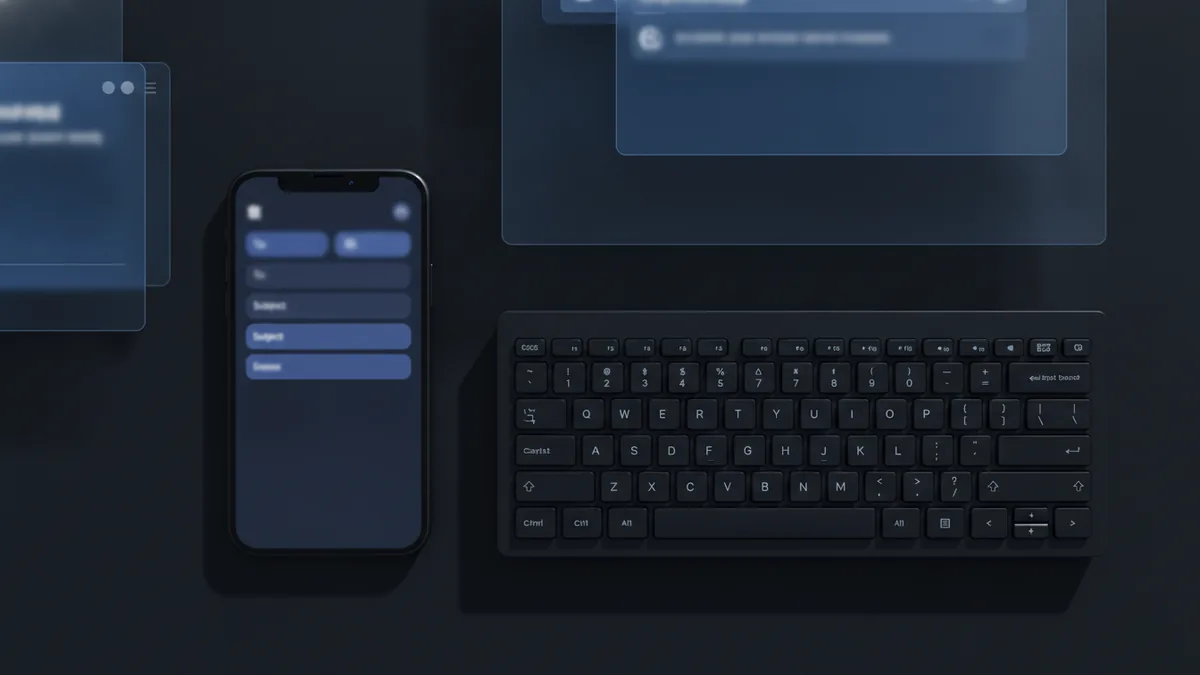
Sharing PDFs through messaging apps
Most messaging apps let you share PDFs between iPhone and Android. Apps like WhatsApp and Messenger typically support document sharing, and both devices can receive the file and open it with a viewer. This is a good choice when you want fast chat-based document sharing.
In practice, the process often looks like this. In your chat thread, tap the attachment button, choose Document or File, then pick the PDF. You may see a preview, and then you send it.
Some messaging apps are stricter about file size. If a PDF is very large, the app may refuse to send or take a long time over mobile data. Make sure both sender and receiver have stable internet connections, especially for files above 10–20 MB.
For best results, confirm the PDF is actually selected before you hit send. Also, watch the upload status. If it stalls, pause and retry on Wi‑Fi.
- Best for: small to medium PDFs and quick delivery
- Common issue: file size limits or slow uploads
- Tip: switch to Wi‑Fi for large PDFs
Using cloud storage for easy sharing without size limits
Cloud storage is the most reliable option for larger documents. Services like Google Drive and Dropbox can facilitate sharing PDFs without the same kind of attachment limits. Instead of sending the file itself, you send a share link that the Android user opens and downloads.
To share with Google Drive, upload the PDF from your iPhone using the Drive app or the iOS share sheet. Then tap Share, choose the recipient method, and set the sharing permissions as needed. The Android phone can open the link and view or download the PDF.
Dropbox works similarly. Upload the file, create a link, and send that link through email or a messaging app. This approach keeps your chat lightweight and avoids email attachment size caps.
If you want “how to send pdf to android” with fewer failures, cloud sharing is often the answer. It also improves success when the network is spotty because the file upload can complete before you share.
| Method | What you send | Typical best use |
|---|---|---|
| Email attachments | PDF file | Small to medium files |
| Messaging apps | PDF file | Quick sharing in a chat |
| Cloud storage links | Share link | Large PDFs and reliable delivery |

Troubleshooting common PDF sending issues
Even when you know how to send pdf to android from iPhone, problems can happen. The most frequent causes are size limits, permissions, and unstable connections. Start by checking the message status, then adjust the method before you keep retrying endlessly.
If you used email attachments and the send fails, reduce the file size if possible. You can also save a “print” or “downsample” version of the PDF from the source app, then resend. When the email app rejects the attachment, switching to cloud storage is usually faster than trying again.
If you used messaging apps, confirm you are sharing the file and not a screenshot. Some apps treat certain file types differently, so choosing Document or File usually helps. Also, ask the receiver to wait on the download if the connection is weak.
When using cloud storage, the most common issue is permissions. Make sure the sharing setting allows the intended recipient to view or download. If you send a link but it says access is denied, update the share settings and resend the updated link.
Here is a targeted checklist for debugging. These steps fix the majority of “it didn’t arrive” cases across platforms.
- Confirm size: If the PDF is large, prefer cloud links
- Check connection: Use Wi‑Fi for upload and download
- Verify permissions: For cloud, set view or download access
- Retry once: If a send stalls, restart the transfer
- Try a new method: Switch from chat to email or cloud
Looking ahead, cross-platform messaging protocols like RCS messaging may improve document sharing simplicity between Android devices and other ecosystems. That said, today you still have the most control by choosing email attachments, messaging apps, or cloud storage based on your PDF size and reliability needs.
When you should choose each method
Pick email if the PDF is small and you want a clean delivery with minimal steps. Pick messaging apps for fast chat delivery and shared document review. Pick cloud storage when the file is large or when you want fewer size-related failures.
This is also where “how to send a pdf on android” comes into play, because the receiver’s next step matters. Once the PDF arrives, the Android device will usually open it in a PDF viewer, or you can share it onward. If the receiver cannot open the file, downloading from a cloud link often works better than opening an attachment inside a chat.
Using the right method up front saves time. It also reduces the chance of partial uploads that look “sent” but never fully download.
Related reading
Finding Words in PDFs: Search and OCR
Search PDF text fast, or use OCR to find words in scanned files.
Unsecuring a PDF: Safe Methods and Key Risks
Remove PDF limits safely, and know when a password or owner’s consent is needed.
Redacting PDFs in Adobe Acrobat
Permanently remove private PDF content with Acrobat Pro, then check the saved file.