How to Change a Scanned Document to a PDF (Mobile & Online)
Convert scans to crisp PDFs with mobile apps or online tools, plus OCR steps.
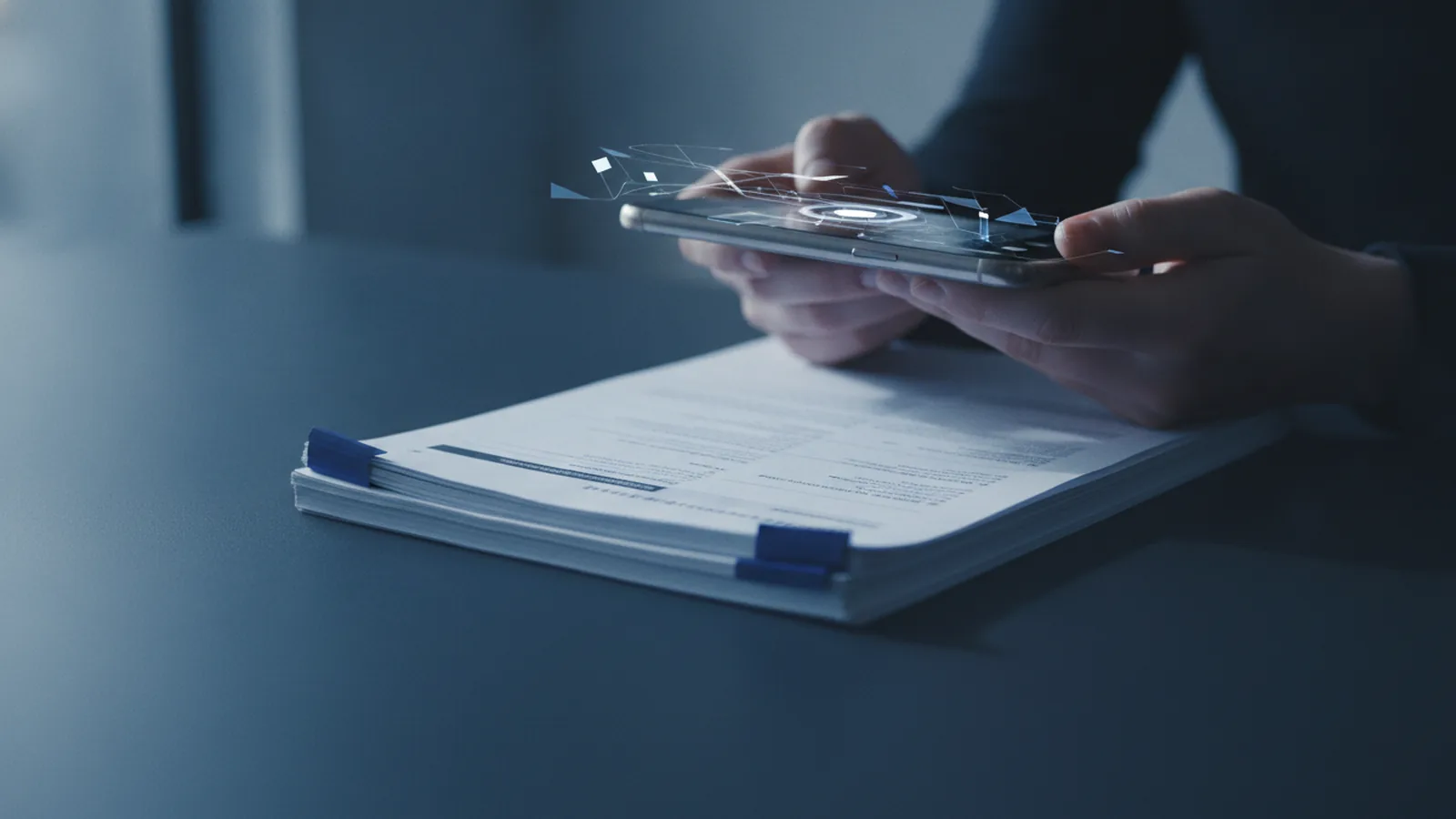
Ways to convert scanned documents to PDF
A scanned document is a paper page captured as an image. That can be from a flatbed scanner, a phone camera, or a scanning app. Many people want a PDF version because it keeps pages together and stays easy to share.
Common scenarios include receipts, school worksheets, signed forms, and invoices. You might also receive scans by email that were exported as images only. In those cases, you still can turn them into a proper PDF, and you may extract text with OCR technology too.
- Single-page scan that you want as one PDF file
- Multi-page scan that must stay in page order
- Scans sent as image files (JPG/PNG) instead of PDFs
- Scans you want searchable, not just picture pages
To answer “how to change a scanned document to a pdf,” you usually pick one of three routes. Use a mobile scanning app, use an online PDF converter, or combine OCR with an editor. The best choice depends on how many pages you have and whether you need searchable text.

Using mobile apps to scan and save as PDF
Mobile scanning apps are the fastest route when you already have the images on your phone. Many also include built-in crop, contrast, and page splitting. That helps your final PDF look clean and readable.
Google Drive is a popular option. It has a scan flow that captures pages, then saves them as a PDF in your Google Drive account. You can usually adjust the crop, choose between color and black-and-white, and group pages before saving.
Other mobile scanning apps often work similarly. They open a camera view, detect edges, and let you confirm each page. Some also support exporting the scan as PDF and compressing it for smaller file size.
- Google Drive: Scan pages, crop automatically, save as a PDF to Drive
- Apple Notes: Scan documents and export as a PDF from the Notes app
- Microsoft Lens: Scan, then export as PDF with optional cleanup
- Adobe Scan: Capture pages, improve legibility, save as PDF
If you already have the images, you can still use apps to “change a scanned image to a pdf.” Look for options like “Import,” “Add pages,” or “Convert.” Then export the combined document as PDF.
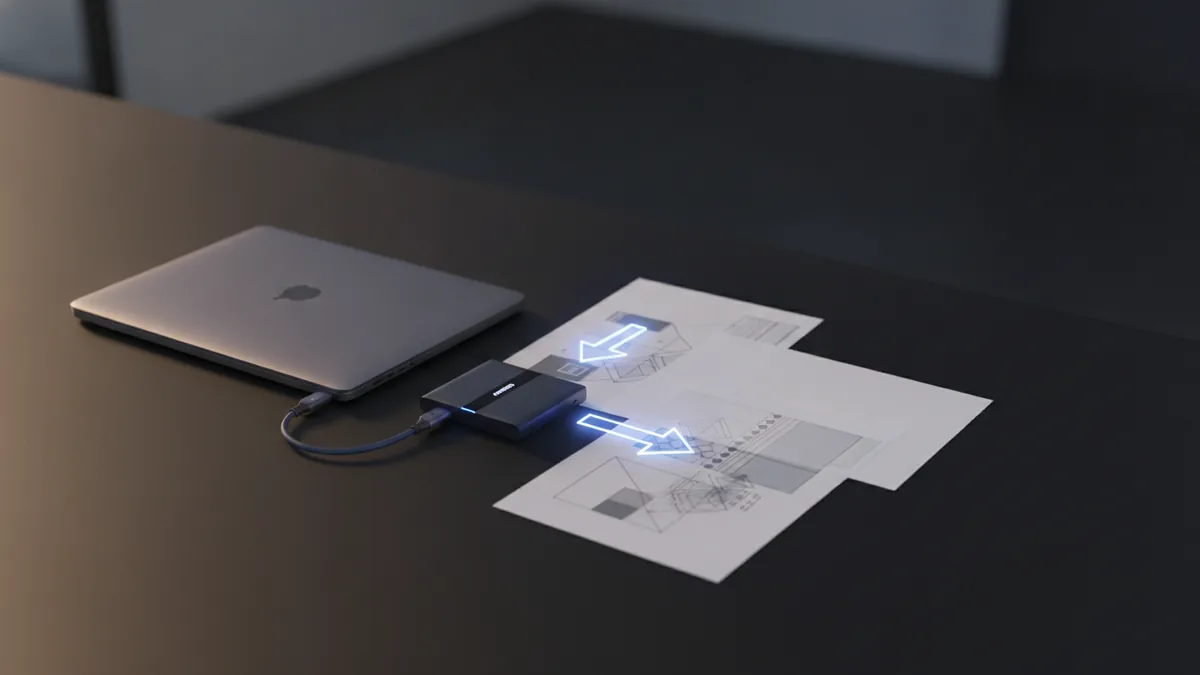
Online tools for PDF conversion from scans
Online PDF converters are useful when you want a simple workflow on any device. You load your scan images, convert them, and download the PDF. Most people choose online tools when they lack a good scanner app or need a quick result on a desktop.
The key is a user-friendly process. You typically upload JPG or PNG files, or upload a multi-page file list, then choose PDF as the output format. Some tools also let you change page order or merge files into one document.
On a site like ilovepdf.org, the steps are usually straightforward. You start the conversion tool, upload your scanned images, review the page preview, then download the final PDF. This is one way to handle “how to change scanned document to pdf” without installing extra apps.
| Goal | Best method | What to watch |
|---|---|---|
| Quick conversion of images | Online PDF conversion | Upload order and preview |
| Improve scan quality first | Mobile scanning app | Crop and contrast settings |
| Need searchable text | OCR steps | Text accuracy |
Online tools can also help with file format compatibility. If your scan is a JPG and your goal is a PDF, the converter bridges that gap. Just confirm the output quality, since some uploads can compress images during conversion.
Steps to use OCR technology to extract text
OCR technology turns image text into editable text. That matters when you need to search inside a PDF or copy text from the document. Without OCR, a PDF may still be valid, but it behaves like a picture.
Here is a practical flow you can follow. First, make sure the scan images are clear. Then run OCR, review the extracted text, and export the updated document. If OCR misreads key words, you can fix the source image and run it again.
- Prepare the scan. Ensure the page is straight and fills most of the frame. Crop out dark borders and shadows.
- Convert images to PDF if needed. If your tool expects PDF input, export an image-to-PDF first.
- Run OCR. Choose OCR mode for documents, not just handwriting. Some tools let you select language.
- Check results. Look for errors in headings, numbers, and names.
- Export and save. Download the OCR-enabled PDF so you can search or copy text.
OCR accuracy depends on scan quality more than on the tool. A higher contrast scan usually improves results. If the page has small font, try enhancing contrast in a scanning app before OCR.
People also search for “how to change a scanned pdf to a word document.” OCR is the bridge for that use case. With OCR, the text becomes extractable, and then you can export it into a Word format.
Why PDF format is a smart choice
PDF format keeps a document looking consistent across devices. That consistency helps when you share forms, reports, and scanned contracts. The layout usually stays the same on phones, laptops, and printers.
PDFs are also easy to store. Many scanners and apps produce multi-page PDFs, which saves you from sending several separate image files. That makes file format compatibility simpler when recipients use different software.
Finally, a PDF can be more than an image. With OCR, you can make it searchable. That is a big upgrade for workflows like archiving, searching past invoices, and filling forms.
- Consistent formatting across devices and viewers
- Good file bundling for multi-page documents
- Better sharing than single images in many cases
- Searchable text when OCR is applied
So if your question is “how to change a scanned document into a pdf file,” PDF format is usually the best target. It supports both viewing and sharing, and it can support search when you add OCR.
Troubleshooting common issues during conversion
Conversion problems are usually predictable. They come from image quality, page order, or output settings. If you see blurry pages or weird cropping, the fix is often before conversion, not after.
Here are practical troubleshooting tips for the most common failures. Use them to improve the result when converting scans or saving a scanned image as a PDF.
- Quality loss or blurry text: Re-scan at higher resolution or use better lighting. Avoid zooming too much before scanning.
- Wrong page order: Reorder pages in the tool preview before downloading.
- Crop cuts off edges: Adjust crop margins in the scanning app first, then convert again.
- Format errors on download: Try a smaller batch of pages. Then merge later if needed.
- OCR misses text: Increase contrast, remove shadows, and ensure correct language selection.
- File too large: Use compression options if available. Convert fewer images at once, then merge.
If you are converting an image set that includes rotated pages, rotate them before OCR. OCR works best when text lines are horizontal. Also, keep headers and footers fully visible, since they often contain the key fields you need.
For the specific path “how to change scanned document to pdf,” your best success rate comes from a clean input. Clean input plus a simple export flow usually beats repeated conversions. If you need OCR, run it once after you finalize the best-looking scan.
Tip: If you later need to switch formats, remember that “change a scanned pdf to a word document” depends on having OCR text. If the PDF is just images, you may only get a layout preview, not editable text.
Related reading
Copy Images from PDFs: Methods and Quality
Copy, save, and move PDF images while keeping their quality intact.
PDF Compression: File Size and Quality
Shrink PDF files while keeping text and images clear.
Adding Lines to PDFs: Tools and Steps
Draw, style, and manage PDF lines with tools you may already have.