
How to Add Check Boxes in PDF (Step-by-Step)
Learn how to add fillable check boxes to a PDF form and customize them.

Understanding check boxes in PDFs
To add check boxes in a PDF, you create interactive form fields. These fields let readers tap or click a box to select an option. The PDF then stores the selection as part of the document, which can be used for data collection.
Check boxes are best for multiple-choice questions where more than one answer may be valid. Each checkbox represents one option. Readers can typically select any number of boxes within a group.
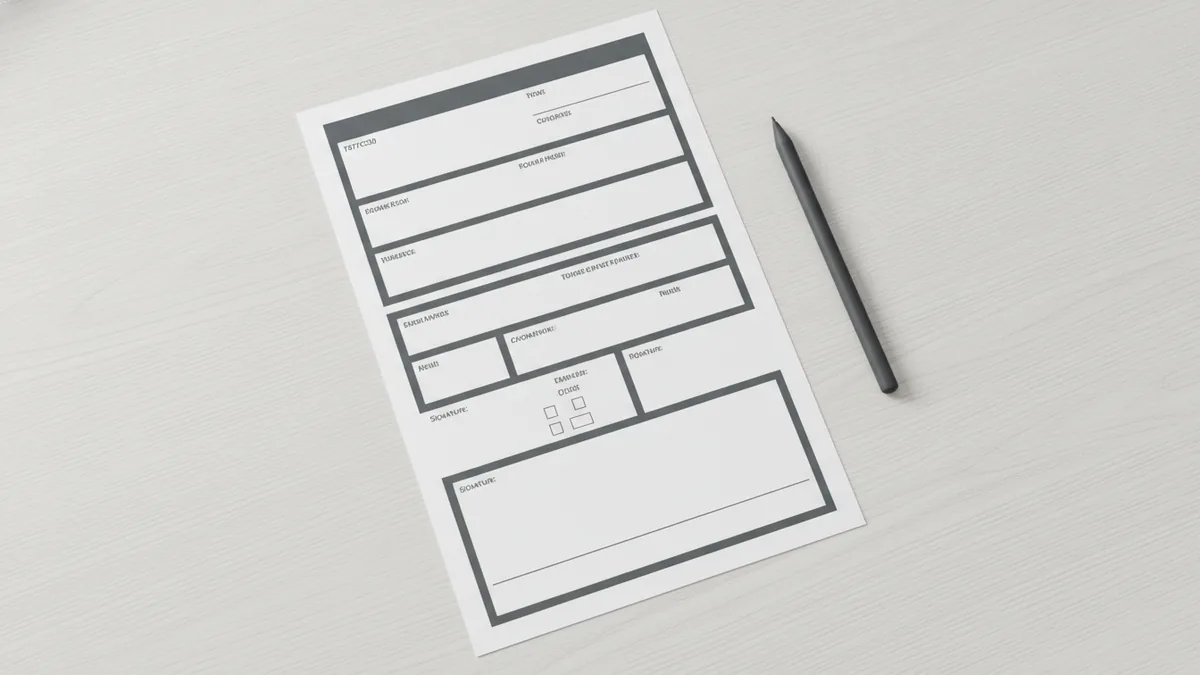
In PDF terms, you are making fillable fields and building an interactive document. A “fillable” checkbox means the PDF viewer can capture input instead of showing a static mark.
- Checkbox: one selectable option
- Group of checkboxes: multiple options for one question
- Fillable fields: form controls stored in the PDF
Why use check boxes?
Check boxes improve user flow because readers can select options quickly. They also reduce typing errors in surveys and forms. In practice, check boxes are easier than free text when answers come from a known list.
Common use cases include surveys, intake forms, event sign-ups, and equipment checklists. For example, a training form may ask which topics a learner wants. Check boxes let them pick several topics at once.
Check boxes also support better outcomes for teams that collect responses. When fields are fillable, you can export the completed PDF results or review them more consistently. This boosts user engagement and makes follow-up easier.
- Surveys with “select all that apply” questions
- Request forms with optional services
- Compliance checklists with required items
- Internal forms that need structured answers
Tools for adding check boxes
The right tool depends on how you want to build the PDF form. Desktop tools often provide deeper control over field behavior. Online platforms can be faster if you mainly need standard interactive fields.
Popular options include Adobe Acrobat, dedicated PDF editing software, and online PDF creation platforms. Many editors follow a similar flow: switch to a form-editing mode, add a checkbox field, then set labels and properties.
When you choose a tool, check if it supports true form fields. Some “PDF annotation” tools can place a symbol on the page, but that is not the same as an interactive checkbox. You want fields that remain editable in the PDF viewer.
| Tool type | What it’s good for | What to watch |
|---|---|---|
| Desktop PDF editors | Precise layout and field settings | Exports and viewer compatibility |
| PDF creation platforms | Fast form building | Whether fields can be required |
| Acrobat-style form tools | Reliable fillable field support | Consistency across versions |

Step-by-step guide: how to add check boxes to a PDF
Here is a practical workflow that works in most PDF form editors. The core steps are simple: select the checkbox tool, place it on the page, then customize its properties.
- Open your PDF. Use your PDF editor and open the file you want to update.
- Enter form edit mode. Look for a mode like “Prepare Form” or “Edit Form.”
- Select the checkbox tool. Choose the control labeled something like “Checkbox.”
- Place the checkbox. Click once where the box should appear, or drag to size the field.
- Label the option clearly. Either attach the checkbox next to a printed label or set the field name so it matches the option.
- Repeat for each option. For multiple-choice questions, add one checkbox per answer.
- Set required vs optional. If an answer must be chosen, mark the field as required.
- Test in a PDF viewer. Switch to view mode and click each checkbox to confirm it toggles.
In many editors, checkbox properties include the field name, value, appearance, and validation. If you plan to process results later, keep values consistent. For instance, use “yes,” “no,” or short codes that match your back-end workflow.
If your question is “how to make check boxes in PDF,” the key is to ensure they are fillable fields, not just drawn shapes. Always test the checkbox interactively. If clicking does nothing, you likely added a static mark.
If you are unsure about viewer support, open the PDF on a separate device. A checkbox that works in one editor should also work in common PDF readers.
Customizing your check boxes
Customization is where forms become clear and user-friendly. Start with labels. Options should be short, readable, and aligned with the checkbox. Avoid vague labels like “Option 1” that force readers to guess.
Next, set whether each checkbox is mandatory or optional. Mandatory items help enforce data collection rules. Optional items reduce friction when some questions do not apply to everyone.
Finally, tune appearance settings. You can adjust border style and checked state. In some tools, you can also set how the checkbox behaves when users click, such as toggling on and off.
- Clear labels: “Received training” instead of “A”
- Required fields: enforce “Terms accepted”
- Consistent sizing: align boxes and text for clean scans
- Logical field names: match the option wording
Make the “select all that apply” layout work
A common layout is a single question with several independent checkboxes. Here, you do not want radio buttons, because those limit selection to one option. Instead, checkboxes let users pick multiple options at once.
To keep the group clear, align all checkboxes in a vertical list. Place the question text above the group. Keep spacing consistent so the form feels tidy.
When people answer, they should instantly know what they are selecting. That is why label wording matters as much as field placement.
Ensure labels match the values
Many forms use the checkbox label for readability. But the stored field value should also be meaningful. If later you export or review responses, the value should map to the same option.
For example, if the visible label says “Yes, attending,” store a value like “attending_yes.” This makes the results easier to understand without re-reading the PDF.
This is a big part of how to create check boxes in PDF that your team can use, not just display.
Saving and sharing your fillable PDF
When you are done, save the PDF as a form-enabled file. Many editors update the document automatically, but you should confirm that fields remain interactive after saving. A good test is to close and reopen the file, then click each checkbox.
Then decide how you will share the PDF. If you plan to collect responses, send a version where checkboxes are enabled and users can save their input. Some viewers allow saving filled forms, while others only display changes temporarily.
For best results, share a short set of instructions with the file. Tell users to fill the checkboxes and save the completed PDF. This supports data collection and avoids partial submissions.
If your workflow depends on data extraction, keep your field names stable. Changing field names later can break imports. This is another reason to design your custom form design carefully before you send it out.
- Save, then reopen to confirm fields still work
- Test on another device or PDF viewer
- Share a version that supports saving filled responses
- Keep field names consistent for later processing
FAQ: check boxes and fillable PDF forms
How to add check boxes in pdf for a survey?
Open your PDF editor and switch to form editing. Add one checkbox field for each answer you want users to select. Label each checkbox clearly, then test by clicking in view mode.
How to check boxes in pdf after you add them?
Close the form editor and open the PDF in a viewer. Click each checkbox and confirm it toggles on and off. Also check that required fields block submission if your tool supports validation.
How to make check boxes in pdf mandatory?
Open the checkbox field properties in your editor. Look for an option like “Required” or “Field is required.” Enable it for the boxes that must be answered.
How to add check boxes to pdf when the file is scanned?
First ensure the PDF is editable in your chosen tool. Some editors can build form fields on top of images, but text-based label placement may be harder. Place the checkbox fields carefully and keep labels near each box.
How to make check boxes fillable in pdf across devices?
Use a tool that creates true PDF form fields. After saving, test on a phone, tablet, or another computer. If checkboxes do not toggle there, the PDF may not be saving form fields correctly.
Can I mix required and optional checkboxes in one form?
Yes. Set each checkbox field as required or optional based on the question rules. This lets you enforce only the parts that matter.
Related reading

Editing an Existing PDF: Text and Page Changes
Edit PDF text, images, and pages while keeping your original file safe.

Find Your PDF: Quick Device Checks
Check common folders and search tools to find your PDF on any device.

PDF Compression: Quality and File Size
Shrink PDF files while keeping key pages clear, useful, and safe to share.