How to Create and View 3D PDFs: CAD, Viewers, and Workflows
Learn how to make 3D PDFs and how to open 3D PDFs with CAD workflows.
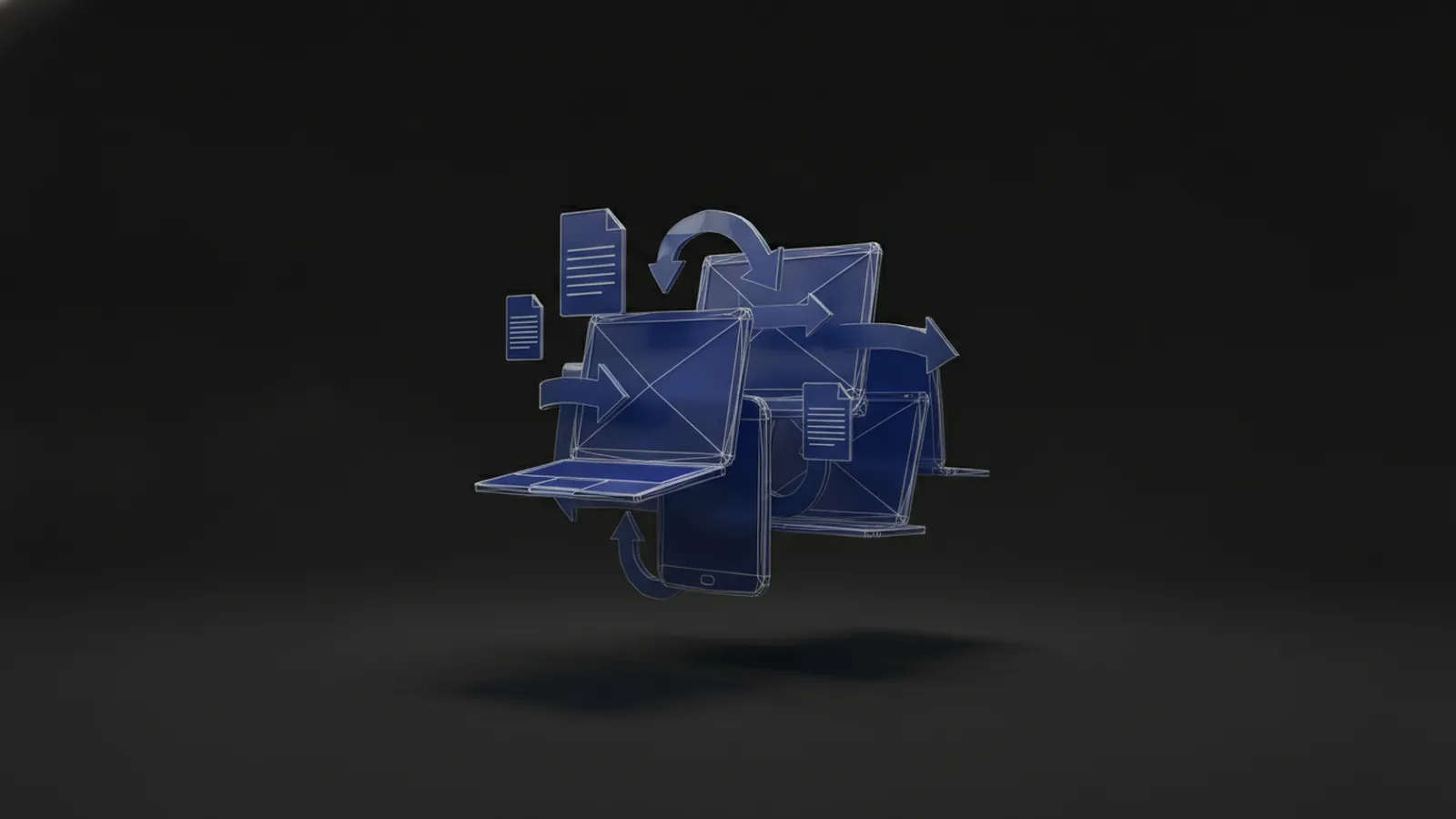
Introduction to 3D PDFs
If you search “how to make 3d pdf,” you likely want one outcome. You want a PDF that carries interactive 3D content, not just flat images. A 3D PDF is an interactive document that includes 3D geometry, so readers can inspect the model.
In practice, 3D PDFs are great for sharing design intent. You can combine standard PDF elements like text and diagrams with a 3D view. That mix helps reviewers understand context without switching apps.
Two common 3D content formats you may run into are Universal 3D (.u3d) and Industry Foundation Classes (.ifc). .u3d is often used for general 3D model data inside PDFs. .ifc is common for building and construction models, especially when you export from BIM tools.
- 3D content lives inside the PDF, not as a separate attachment.
- PDF interactive features can include navigation and object manipulation.
- Reader experience depends on the viewer’s 3D support.

How to Create a 3D PDF
The core steps are similar across tools. You start with a 3D file you already have, then import it into a PDF creation workflow. Next, you configure how the PDF will store and display that 3D content.
Most workflows follow this pattern. You open a “create 3D PDF” project, import your 3D geometry, then choose PDF settings. Those settings can affect quality, file size, and how materials show up in the viewer.
Here is a practical way to think about the process. First, plan your source model’s units and scale. Then, decide whether you need animations or just a static 3D view. Finally, export the PDF with the 3D layer embedded.
- Import your 3D file (for example, STEP, IGES, STL, or OBJ).
- Configure PDF 3D settings such as model quality and view options.
- Insert the 3D view into the PDF page layout.
- Export and test by opening the PDF in a known viewer.

Creating 3D PDFs from CAD Software
If you are doing “how to make 3d pdf from solidworks,” the workflow depends on what you start with. SolidWorks can export CAD data in many formats, and 3D PDF creation tools can consume those exports. The key is making sure your export preserves scale, orientation, and key parts structure.
Typically, you will export from CAD first. Many teams export to STEP or another neutral CAD format, then convert into a 3D PDF. This two-step approach helps when you want consistent results across different CAD versions.
Tools like Revu and SimLab Composer are popular choices for generating 3D PDFs from CAD-based models. Revu focuses on bringing 3D model data into PDF workflows for review. SimLab Composer is often used for importing CAD and arranging scene options before exporting a PDF.
- Export from your CAD system using a format your converter supports well.
- Check that parts stay grouped, not merged into one mesh.
- Decide whether you need hidden-line views, exploded views, or section cuts.
As an example, consider a mechanical assembly with dozens of parts. If you export to STEP and then convert to a 3D PDF, you can usually keep part hierarchy. That hierarchy can improve navigation for reviewers who need to select components inside the PDF.

Opening and Viewing 3D PDFs
Learning “how to open 3d pdf” starts with picking a viewer that supports 3D. A normal PDF reader often shows only a poster image or nothing interactive. For real inspection, you need a viewer that understands 3D PDF interactive content.
When you open a 3D PDF, look for UI cues like a 3D panel, model controls, or drag-to-rotate behavior. If you see only a static rendering, the viewer is likely not reading the embedded 3D layer. That’s the first sign you should switch to a dedicated 3D-capable PDF tool.
For “how to view 3d pdf,” your best next step is always a quick test with the viewer you plan to share with others. Open the PDF and try rotating, zooming, and selecting a part. If those controls work, you can be confident the recipient will have the intended experience.
| Goal | What to check |
|---|---|
| 3D rotation | Drag-to-rotate in the 3D viewport |
| Part selection | Can you click individual components? |
| Rendering quality | Are edges and materials crisp at zoom? |
| Navigation | Is there a scene tree or view list? |
Interacting with 3D PDF Content
One reason people switch to 3D PDFs is user interaction inside the document. A good 3D PDF includes features that help reviewers explore geometry without leaving the file. The most common PDF interactive features include navigation, animations, and user manipulation of 3D objects.
Navigation features help users find the view you want them to see. Animations can show assembly steps or movement over time. Manipulation lets users rotate, zoom, pan, and often isolate parts.
When you create the file, you can influence how those features behave. If your workflow supports view presets, you can include multiple camera angles. That gives reviewers jump points, instead of asking them to navigate from a default view.
- Navigation: turntable rotation, zoom, pan, and view presets.
- Animations: exploded views or step-by-step movement.
- User interaction: selection, hiding, isolating, and section tools.
It helps to think like a reviewer. If you want someone to check a fastener clearance, include a view preset that frames the area. If you need them to compare components, include a simple isolate flow using your model’s part structure.
Best Practices for 3D PDF Creation
Good 3D PDFs are not only about embedding geometry. They are about delivering a smooth viewing experience with predictable controls. Start with a clean model and then tune your PDF output settings for the way people will review it.
First, confirm your source 3D file is organized. For CAD and BIM exports, keep meaningful part names and avoid unnecessary detail where it adds file weight. Then, set expectations for recipients by testing the PDF in the viewer they will use.
Second, manage file size. Higher mesh detail can look great, but it may slow rotation and increase download time. A common workflow is to create one “review” PDF for fast interaction, then a separate “archive” PDF for high fidelity.
- Use consistent units so dimensions do not look wrong in the PDF.
- Choose the right 3D file format for your pipeline (.u3d or .ifc are common).
- Include view presets so readers land on key areas quickly.
- Test interactivity by rotating and selecting parts in your target viewer.
- Keep hierarchy so part selection works instead of one merged mesh.
Finally, support “PDF content editing” needs. If you plan to add labels, arrows, or measurement notes, combine them with the 3D layer in the same PDF. This approach keeps feedback in one place, which reduces back-and-forth during review.
If a reader cannot rotate the model, assume the viewer lacks 3D support first. Then fix settings or try a different export route.
FAQ
How do I make a 3D PDF from a CAD model?
Export your CAD model to a format your 3D PDF tool can import, then use the tool’s “create 3D PDF” workflow. Import the 3D file, configure PDF 3D settings, and export a test file. Open it in your target viewer and confirm rotation works.
How to make 3D PDF from SolidWorks?
From SolidWorks, export a neutral CAD format such as STEP, then import that file into a 3D PDF creation tool. Configure view options and export the resulting PDF with the 3D layer embedded. Test the PDF to ensure parts remain selectable.
How to open a 3D PDF?
Use a viewer that supports 3D PDF interactive content. Open the file and look for model controls like drag-to-rotate and zoom. If you only see a static preview, switch to a 3D-capable PDF viewer.
How to view a 3D PDF on a computer?
Open the PDF in a 3D-capable viewer and interact with the model using drag, scroll, and selection tools. Check whether the PDF includes navigation presets or an object tree. If controls are missing, the viewer likely cannot read embedded 3D data.
What 3D formats are commonly used inside 3D PDFs?
Two common ones are Universal 3D (.u3d) and Industry Foundation Classes (.ifc). Your toolchain may also support other formats depending on how you convert your source model.
Can I add 3D content to an existing PDF?
Yes. Many tools let you merge 3D content into an existing PDF so you can keep your text, diagrams, and drawings. You embed the 3D layer while preserving traditional page elements.
Related reading

Secured PDFs: Passwords and Merging
Unlock permitted PDFs, merge them with a trusted tool, then secure the new file.
Protected PDF Files: Access and Merging
Learn when protected PDFs can be merged and how to do it safely.
Certified PDFs: Signatures and Safe Merging
Merge PDF copies carefully, and keep each signed original intact.