
How Do I Scan a Document in PDF Format?
Scan paper pages into a clear PDF, then check and save the finished file.
Prepare your scanner and pages
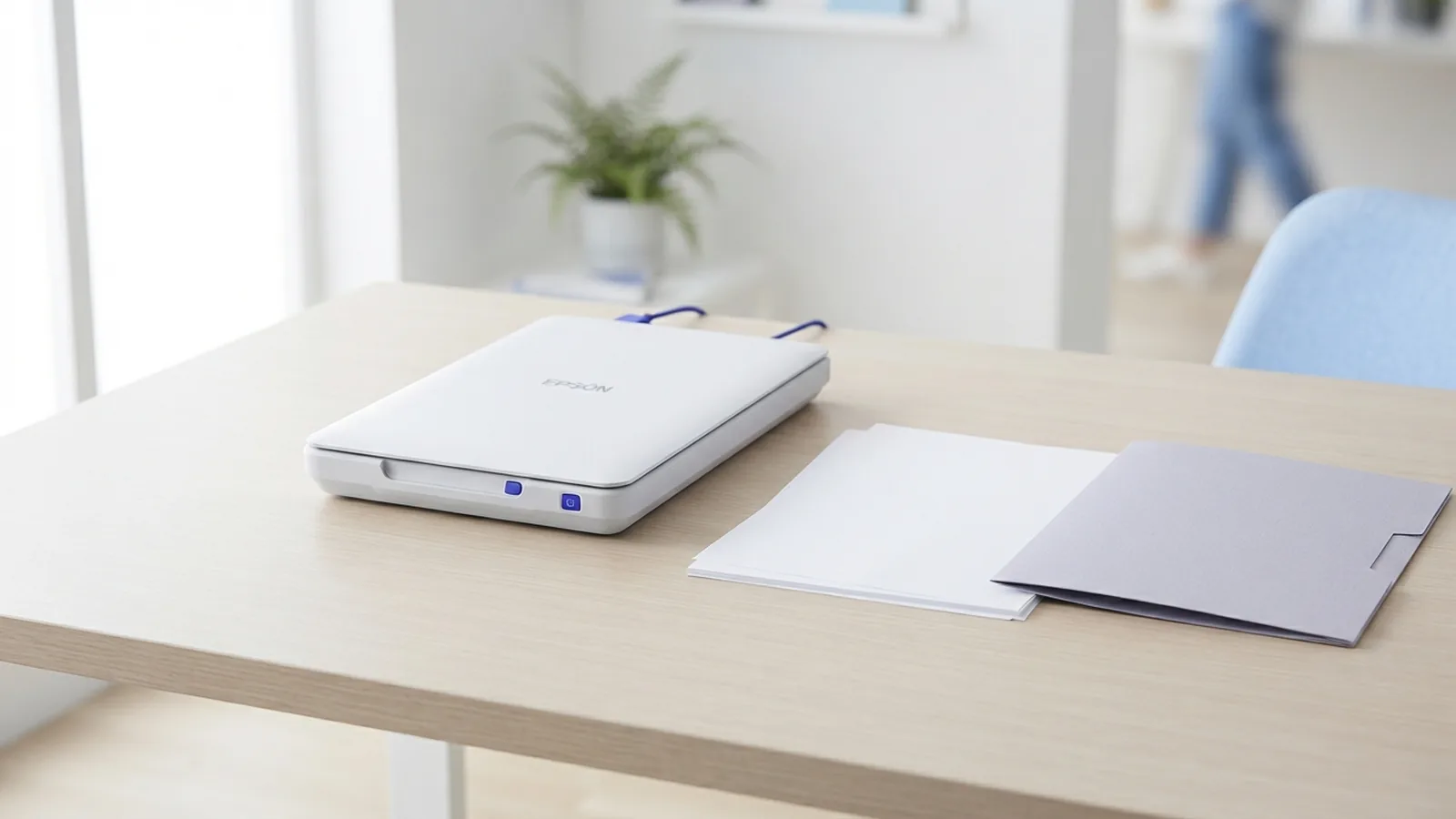
To scan a document in PDF format, connect a scanner and open software that can save PDFs. Place each page straight on the glass or load it into the feeder. Choose the PDF file format before you scan, if the app offers that choice.
Connect the scanner by USB or Wi-Fi, then turn it on. Check that your computer can find it. Update or install the driver if the device is missing or has trouble sending scans. These checks help prevent errors midway through a long job.
Remove staples and clips, and smooth any folded pages. Clean the glass with a soft, lint-free cloth. Set the page size to match the paper. For bound pages or delicate sheets, use the flatbed instead of a feeder.
- Check the power and scanner connection.
- Update the driver if the scanner is not found.
- Align each page with the marked edge.
- Run a test scan before a large job.
Printers with built-in scanners work much the same way. Epson and HP apps may use different names for their scan settings. Look for options such as file type, source, page size, and save location.
Scan pages and choose PDF settings
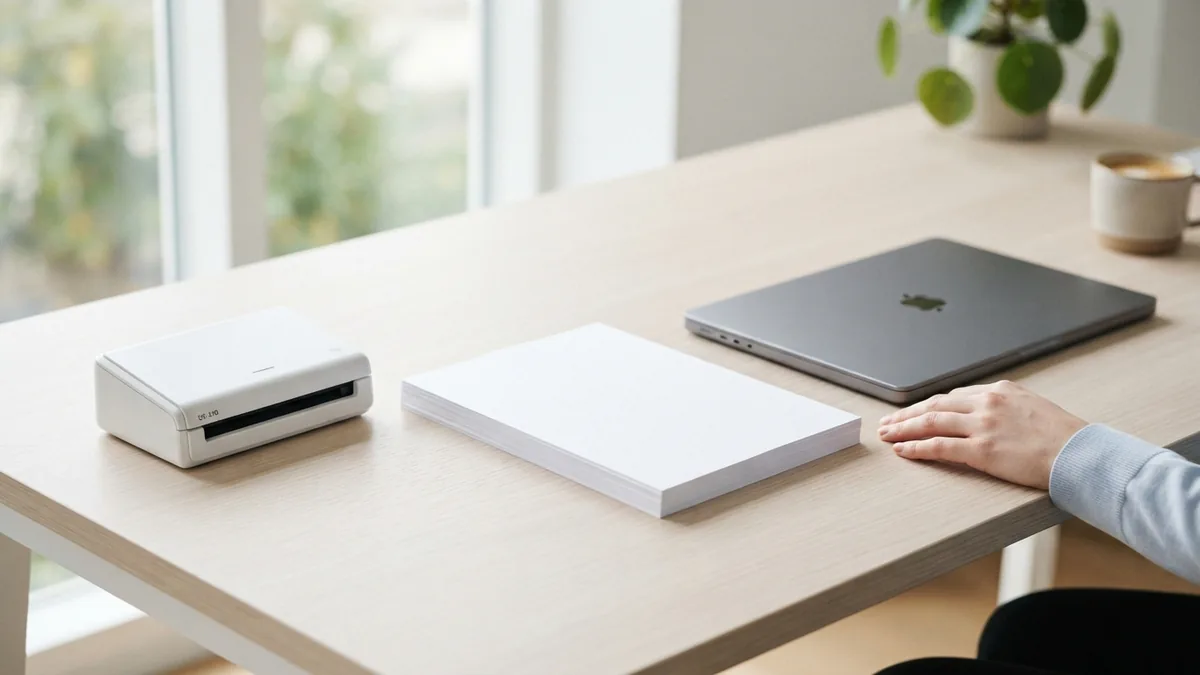
Open the scanner app on your computer. You can also use a PDF tool such as Adobe Acrobat or WPS Office. Select your scanner as the source, then choose PDF as the output. If the app only saves images, scan first and convert those files to PDF afterward.
Use 300 DPI for most printed pages. DPI means dots per inch, and it affects how much detail the scan keeps. Use a higher setting for fine print or faint marks. Larger settings create bigger files, so test one page before scanning a large document.
Choose color based on what the page contains. Grayscale suits plain text and can reduce file size. Use color for photos, colored charts, stamps, or notes. Black and white can make text files smaller, but it may lose pale marks.
Preview the first page and check its focus, edges, and angle. Scan the rest once the preview looks right. For several pages, choose the multi-page PDF option. This puts each page into one file rather than making a separate PDF for every sheet.
- Select the scanner and paper size.
- Choose PDF as the output format.
- Set resolution to 300 DPI or higher.
- Pick color, grayscale, or black and white.
- Preview the page, then scan and save.
This covers common questions such as how to scan a document as PDF, how to scan a document and convert it to PDF, and how to scan a document and save it as PDF. The names of buttons vary by app, but the key choices are much the same.
For a two-sided document, check whether the feeder can scan both sides. Some models scan both sides in one pass. Others ask you to turn the stack over, then arrange the pages in order. Check the final PDF to make sure no side is missing.
Apply OCR to make scanned text searchable
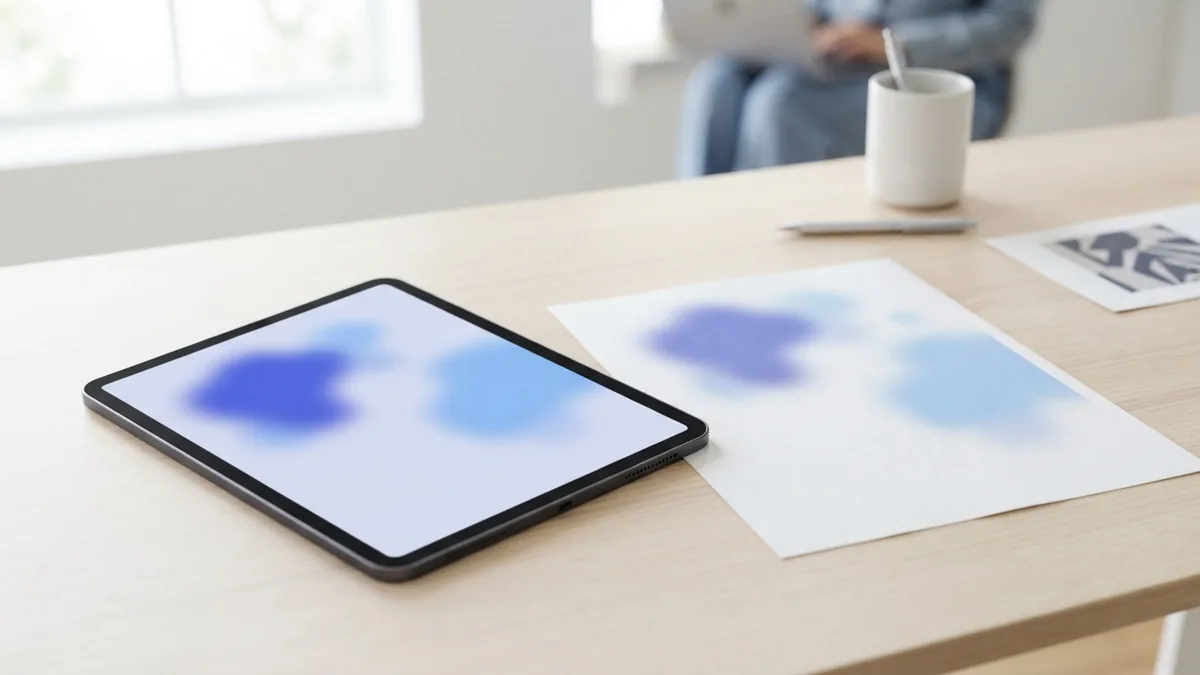
A basic scan saves each page as a picture inside a PDF. Optical Character Recognition (OCR) reads the picture and adds text data. This lets you search for words and, in many apps, select or copy them.
Run OCR after scanning if you need to find names, dates, or other details later. Look for a feature called OCR, recognize text, or make searchable. Pick the page language when asked. Save the result as a new file so the original scan stays unchanged.
OCR does not always turn a scan into a fully editable document. It may let you select text while keeping the page's original look. Some apps can change recognized text, but errors can occur with blurry scans, unusual fonts, or faint print.
Check the result before you share it. Search for a clear word on the page and compare the selected text with the source. Review names, dates, and amounts with care. Good image quality gives OCR a better chance of reading each page well.
- Use clear, well-lit scans.
- Choose the right language for OCR.
- Check key facts against the original page.
- Keep an untouched copy of the scan.
Save and find your finished PDF
Choose a file name that helps you find the scan later. A short subject and date can work well, such as “Lease-Nov-2026.pdf.” Save it in a folder for the project or record. Do not rely on a temporary scan folder as your only copy.
Open the saved PDF before closing the app. Check every page for order, missing sides, and cut-off edges. Zoom in to confirm that small print is clear. If you scanned several documents, make sure each one starts and ends where you expect.
Keep the original quality when the file matters. Some apps can shrink a PDF for email or storage. This can blur text or pictures, so compare the smaller copy with the original. Keep both files until you know the smaller version is still readable.
To combine separate scans, use a PDF app that can merge files. You can also turn JPG or PNG scans into a PDF. Put pages in order before you send the finished file, and check that the page direction looks right.
For a large document, scan in batches if your feeder holds only a few pages. Save each batch with a clear name, then merge the PDFs in page order. This makes it easier to spot a missing page than scanning a thick stack without checks.
Fix common scan and OCR problems
Blurry text can come from low resolution, a dirty glass bed, or pages that moved. Clean the glass and scan again at 300 DPI or higher. Use the flatbed for pages that do not feed smoothly. If the print is faint, try grayscale or color instead of black and white.
A missing scanner often points to a loose connection or an old driver. Restart the scanner and computer, then check the cable or Wi-Fi link. Install the latest driver from the device maker if the scanner still does not appear. Check the app's source setting as well.
If a page looks crooked or loses its edge, align it with the guide marks and check the page size. If the PDF contains only one page, look for a multi-page or add-page option. For a two-sided scan, confirm that the app is set to capture both sides.
OCR mistakes usually start with a poor source scan. Rescan pages that are blurry, tilted, or too faint. Check the language setting and inspect the words that matter most. Fix errors before sending or storing the file as a record.
Scan a document to PDF on an iPhone
You can scan without a separate scanner. On an iPhone, open the Notes app, create or open a note, and use its scan option. Hold the phone above the page and capture it. The app can detect page edges, and you can adjust the crop before saving.
Scan each page in the same session if you want one PDF. Check the page order and crop, then save or share the scan as a PDF. Other mobile scanning apps offer similar tools. Review their export settings to make sure the result is a PDF, not just a group of pictures.
Good light and a flat page help the phone capture clear text. Keep the phone steady and avoid casting a shadow over the paper. For a large document, work through smaller groups of pages and check each saved file before merging them.
Related reading
How to Make a PDF into Word: Methods and Fixes
Turn PDFs into editable Word files, then check the layout and text.
How to Copy and Paste Text from a PDF: OCR and Copy Fixes
Copy PDF text, fix common issues, and learn when OCR or conversion can help.
How to Look for a Word in a PDF: Search and OCR
Search PDF text fast, or use OCR to find words in scanned files.