Finding Words in PDFs: Search and OCR
Search PDF text fast, or use OCR to find words in scanned files.

How PDF search works
To look for a word in a PDF, open the file and press Ctrl+F on Windows or Command+F on a Mac. Type the word or phrase in the search box, then move through the matches. Most PDF readers offer this built-in tool.
Search works when the PDF contains a text layer: data that tells the reader which letters and words appear on each page. A file made from typed text usually has this layer. A scan may contain only page images, so the search tool has nothing to match.
That difference explains why the same search can work in one PDF and fail in another. Check whether you can select a sentence with your cursor. If you cannot, the file may need OCR before you can search its contents.
Search with your PDF reader
Open the PDF in a reader such as Adobe Acrobat Reader, Preview on a Mac, or a browser that supports PDF viewing. Press the matching shortcut, enter a word, and use the next and previous controls to review each result. The reader may mark each match on the page.
For a phrase, enter the words together. Search behavior varies. Some tools find exact phrases, while others may match each word separately. If the first attempt fails, try a shorter phrase or a distinctive word from the same passage.
Here is a simple way to search a document:
- Open the PDF in a reader.
- Press Ctrl+F or Command+F.
- Type a word or phrase you expect to find.
- Review each match and note its page number.
On phones and tablets, look for a magnifying glass or a search option in the reader's menu. Tap it, enter your term, and move between results. The button's location depends on the app.

What OCR does for scanned PDFs
OCR means optical character recognition. It reads letter shapes in an image and turns them into text that software can search. It is useful for scanned pages, faxed forms, and photos saved inside a PDF.
OCR can make a scan searchable, but it may not read every word correctly. A tilted page, faint print, small type, or handwritten notes can cause errors. Review important results against the page image, especially names, dates, and figures.
Some tools add a hidden text layer over the scanned page. The page still looks like a scan, but search can find the recognized words. This is why a PDF can appear unchanged after OCR while gaining useful search features.
Create a searchable PDF with OCR
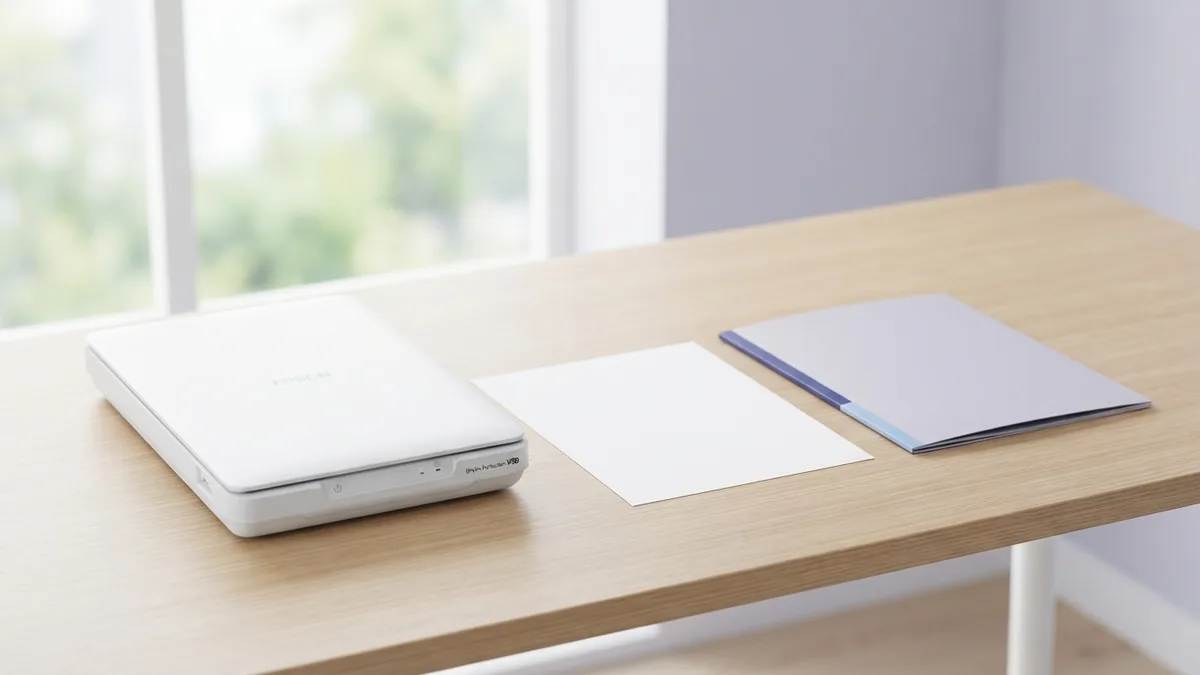
Use a PDF tool with OCR to process a scan. Open or import the scanned PDF, choose its OCR or text recognition feature, and set the language used in the document. Then run recognition and save a new copy.
Test the saved file before relying on it. Search for a clear word from a page near the start and another near the end. Try selecting a line of text as well. If selection works and the searches return sensible matches, the text layer is likely in place.
For a batch of files, name the output clearly and keep the original scans until you check the results. OCR may change file size or page quality, depending on the tool and settings. A quick test on one file can help you choose settings before processing a large set.
- Use the right language setting for better word recognition.
- Scan straight pages with even light and clear print.
- Keep an untouched copy of important source files.
- Check a few pages after OCR finishes.

Fix common PDF search problems
If search returns no matches, first check spelling and try a shorter term. The PDF may use a different spelling, hyphen, or line break. Searching for part of a word can help narrow down the cause.
If you cannot select text, the PDF may be image-based. Run OCR, save the result, and try again. If text is selectable but search still fails, test the same file in another reader. Older software may lack newer search features or handle some files poorly.
Large PDFs can take longer to open, index, or search. Give the reader time to finish loading, then search one term at a time. If performance stays slow, close other large files or work with a smaller copy when the file's owner permits it.
Some documents restrict copying or other actions. These settings may affect what you can do in a reader. Use an allowed copy or ask the file's owner for an accessible version rather than trying to bypass its limits.

Tips for faster, better searches
Choose a word that is likely to be unique. Searching for “invoice number” may return fewer results than searching for “the.” For a phrase, start with two or three key words. Add more words only if the result list is too broad.
Try likely variants when names or terms may appear in different forms. For example, search both “email” and “e-mail” if the file's style is unclear. If punctuation may split a phrase, search for its main words separately.
Use page numbers and result counts to stay on track in long files. Search one term, review its matches, then move to the next term. When you use OCR, check key passages against the scanned page before quoting or acting on the text.
- Start with a distinctive word, not a common one.
- Try a short phrase before changing readers.
- Use OCR when the document has no selectable text.
- Confirm important matches on the page itself.
These steps cover most cases. A built-in search is quickest for text-based PDFs; OCR is the key extra step for scans.
Related reading
Searchable PDFs: OCR and Easy Access
Turn scanned pages into searchable, smaller, and more useful PDF files.
How to Turn Scanned PDFs Into Searchable Documents
Turn scanned PDFs into searchable files with OCR and simple quality checks.

Unsecuring a PDF: Safe Methods and Key Risks
Remove PDF limits safely, and know when a password or owner’s consent is needed.