How to Turn Scanned PDFs Into Searchable Documents
Turn scanned PDFs into searchable files with OCR and simple quality checks.
What Makes a PDF Searchable?
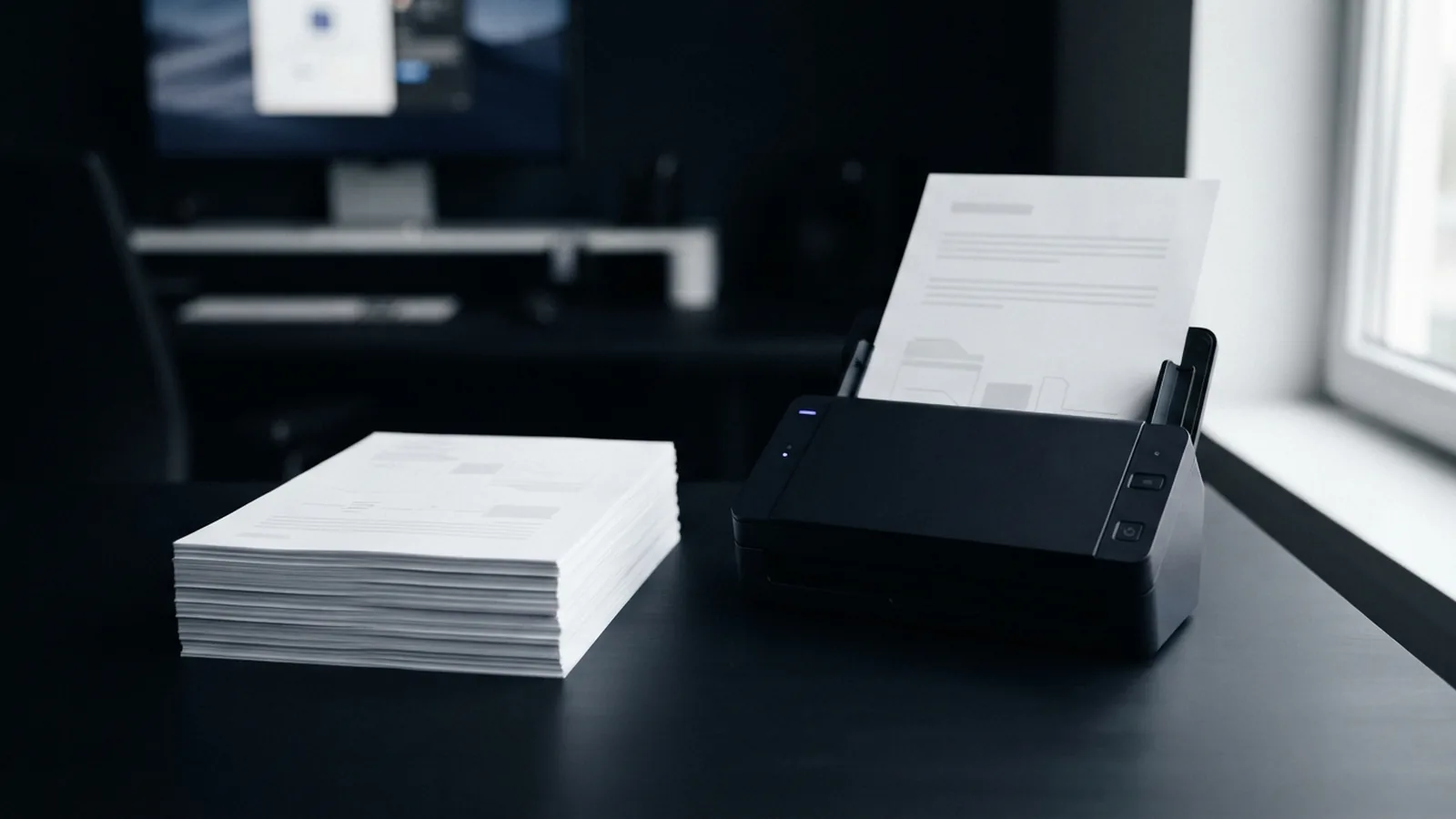
A searchable PDF contains a text layer behind its page image. That layer lets you select, copy, and find words. You can search for a name in seconds instead of reading every page.
Many scanned PDFs contain only page images. They look like normal documents, but they hold no usable text. A searchable file keeps the original page view and adds hidden text beneath it.
This format suits invoices, contracts, receipts, books, and old records. It also helps screen readers and other access tools read page content more easily.
- Search: Find names, dates, and terms across the whole file.
- Select: Copy text into an email, spreadsheet, or new document.
- Store: Find files faster with desktop or cloud search.
- Review: Check key details without scanning each page by eye.
Why Searchable PDFs Save Time
Searchable files improve information retrieval. A 40-page report may contain one useful clause. A text search can find that clause in moments.
Search also reduces manual typing. This matters when staff process forms, bills, or case files each day. A searchable PDF can turn a slow review task into a quick check.
Searchable text can also support better file names and tags. Teams can sort records by dates, account names, or reference numbers. The file stays in PDF format, so its layout remains familiar.
Still, OCR is not perfect. Poor scans can create wrong letters or missed fields. Always check important figures and names after conversion.
Three Ways to Convert a PDF
The best method depends on the source file, file size, and privacy needs. Start by opening the PDF and trying to select a word. If you can select text, the file may already be searchable.
- Use an online PDF tool. Upload the scan, run OCR, then download the new file.
- Use desktop PDF software. Open the scan and choose its OCR or text recognition feature.
- Use a cloud drive. Some drives can open an image-based PDF as an editable document.
Online tools work well for short scans and quick tasks. Desktop apps suit large batches or files that must stay on one device. Cloud tools help with simple extraction, but they may change the layout.
Choose the output based on your goal. Keep PDF when you need the same page design. Choose plain text when you only need the words. Choose an editable document when you plan to rewrite the content.
How OCR Turns Scans Into Searchable PDFs
OCR means Optical Character Recognition. It reads shapes in a page image and maps them to typed characters. The tool then builds a text layer that search tools can read.
OCR works best with sharp scans and clear print. A straight page with strong contrast gives the tool more useful detail. Handwriting, stamps, tables, and faded ink can lower accuracy.
To learn how to convert PDF to searchable PDF, follow this process:
- Scan each page at about 300 dots per inch when possible.
- Save the pages as one PDF file in the correct order.
- Open the file in an OCR-enabled PDF tool.
- Select the document language before you start recognition.
- Run OCR and choose searchable PDF as the output type.
- Download or save the new file with a clear name.
- Test search, selection, page order, and key figures.
Language choice matters. The wrong language can turn names into odd symbols. Some tools also offer settings for mixed languages or numeric documents.
OCR does not change a scan into a perfect source file. It adds a text layer based on its best guess. Treat the result as a draft until you review it.

Popular Tools for PDF Conversion
Several tools can help you make text searchable in PDF files. Each one fits a different work style. Check the privacy terms before uploading private records.
- iLovePDF OCR PDF: A simple online choice for adding a text layer to scanned files.
- Adobe Acrobat: A strong desktop choice for OCR, review, and PDF editing.
- Google Drive: Useful for basic OCR when layout does not matter much.
- Microsoft OneNote: Can copy text from some images and scans.
- ABBYY FineReader: Built for detailed OCR work and larger document sets.
For a quick job, an online converter may be enough. For sensitive files, use trusted desktop software or an approved work account. For many pages, test one sample before you process the full batch.
Compare the result, not just the upload speed. Look at table layout, page size, text accuracy, and output file size. A fast tool that breaks columns may create more work later.
Best Practices for Better OCR Results
Good input leads to better output. Remove dust from the scanner glass before scanning. Keep pages flat and align them with the scan edge.
Use a clear scan at 300 dpi for most printed records. Higher resolution can help small type, but it also creates larger files. Avoid heavy compression before OCR.
- Crop dark borders and remove blank pages.
- Deskew pages that sit at an angle.
- Pick the right language and page type.
- Keep tables as tables when the tool supports that setting.
- Save the original scan before you run OCR.
- Review names, dates, totals, and page numbers.
Use a short test first. Pick one clean page and one difficult page. Compare both results before choosing settings for the full document.
Keep the original and the searchable copy. This gives you a safe source if OCR changes a key detail. It also makes later checks much easier.
Fixing Common Search and OCR Problems
If search finds nothing, the file may still contain only page images. Run OCR again and confirm that you selected searchable PDF. Then close and reopen the saved file.
If search returns the wrong results, inspect the scan quality first. Blurred type, skewed pages, and weak contrast often cause errors. Rescan the page when possible, then run OCR again.
Tables can lose their rows and columns during conversion. Try a layout-aware OCR setting or export the table to a spreadsheet. Read the result against the original before sharing it.
- Missing pages: Check the page range and input order.
- Wrong language: Set the document language and repeat OCR.
- Large output: Reduce image size after text recognition.
- Strange symbols: Improve contrast and remove page noise.
- Private data: Delete online copies after download, if offered.
When you need to convert PDF to searchable text, export a plain text copy after OCR. This removes most page design and keeps the words. Keep the searchable PDF too if you need the original layout.
Finally, test the file on more than one device. Search should work in your usual PDF reader. Check copied text as well, since a file can search well but copy poorly.
Final Checks Before You Share the File
Open the finished PDF and search for three known terms. Choose one name, one date, and one number. Select each result and compare it with the page image.
Check the first and last pages, plus any pages with tables. Confirm that bookmarks, page order, and rotation still work. Remove extra blank pages before you send the file.
Now you know how to convert PDF into searchable PDF files with fewer mistakes. The key steps are clean scans, the right OCR language, and a careful review.
Related reading
Searchable PDFs: OCR and Easy Access
Turn scanned pages into searchable, smaller, and more useful PDF files.

Merge PDFs: Order and Sharing
Join PDFs in the right order with online tools or built-in desktop apps.
PDF Compression: Smaller Files, Better Quality
Shrink PDFs by tuning image settings and choosing the right compression level.