
Can You Upload a PDF to Mailchimp? How to Share in Campaigns
Yes, you can upload PDFs to Mailchimp for file hosting and campaign sharing.
Introduction to Uploading PDFs in Mailchimp
Yes, you can upload a PDF to Mailchimp and share it with subscribers. You can also use file hosting to let people access the document without attaching it to every email.
If your goal is content sharing, this is often a cleaner approach than adding a bulky attachment. It also helps campaign optimization because you can track clicks to the PDF link.
This guide answers common questions like can you upload pdf to mailchimp and how to upload pdf to mailchimp in a way that works for both one-time campaigns and automated emails.
It covers how to add a pdf to mailchimp, how to insert pdf into mailchimp, and what to do when uploads fail due to size or file type limits.

Step-by-Step Guide: How to Upload a PDF to Mailchimp
Mailchimp lets you upload files, including PDFs, for use in email marketing. In practice, this usually means you upload the file once, then reuse it across campaigns and templates.
Before you start, get your PDF ready. Check the file size, and make sure the content is readable at a normal screen zoom level.
Then follow this flow to add the file to your Mailchimp account. The exact menu wording can vary by plan and editor type, but the steps are consistent.
- Open your Mailchimp account and choose the audience you will send to.
- Go to your file tools or content builder and look for an option to upload a file.
- Upload the PDF from your computer, then wait for processing to finish.
- Confirm the file is available for use by checking the file list or insert options in the editor.
Once uploaded, you can reuse the hosted link when building email content. This is the core idea behind how to add a pdf to mailchimp: the file lives in your Mailchimp assets, not as a direct email attachment.
If you are unsure whether Mailchimp treated it as a hosted file or as an attachment, open the campaign preview and click the PDF link. Hosted links should open the document in a new tab.
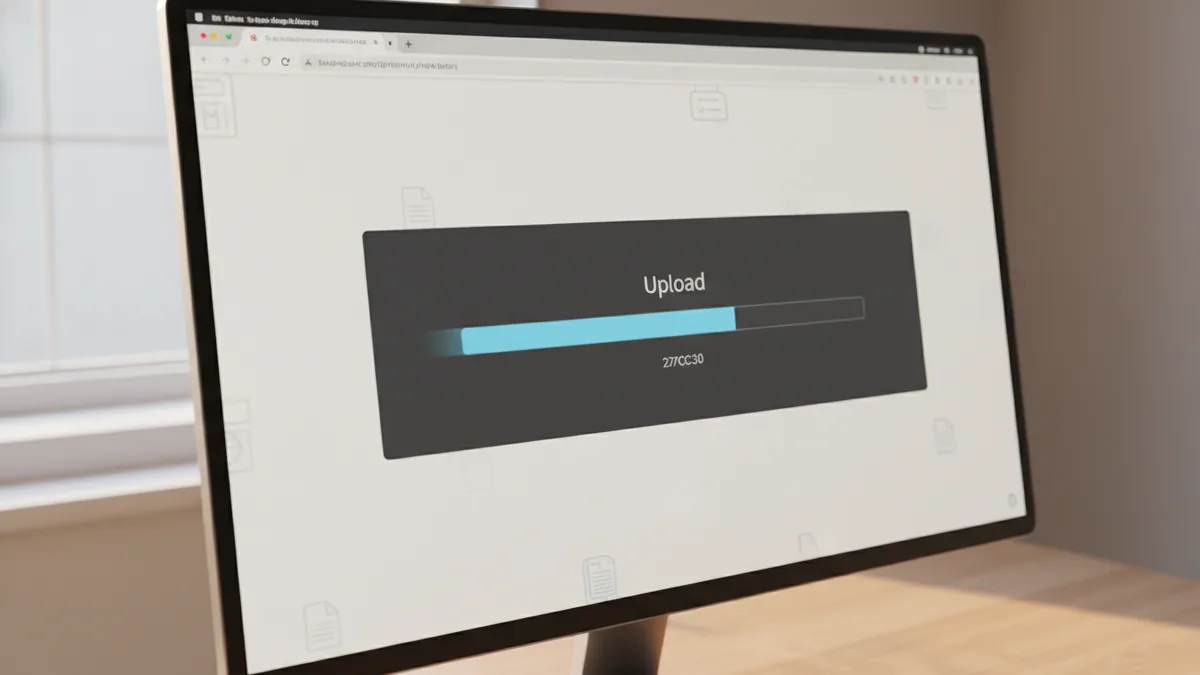
How to Insert a PDF into Mailchimp Campaigns
There are two common ways to use your PDF in email marketing. The first is to link to the file so readers open it from a button or text link. The second is to include the PDF as part of your content in the editor when that option is available.
Most senders choose the link method. It avoids oversized emails and keeps the message lightweight, which can support subscriber engagement.
To insert the PDF link, open your campaign builder and add a linkable element such as a button, a text link, or an image that links to the PDF.
- Create or open a campaign in the email builder.
- Add a button or text block where you want the PDF CTA (call to action).
- Choose the uploaded PDF as the link target if you see it in the insert or link picker.
- Save and test the link using preview and a test send.
When people click, they should land on the PDF hosted by Mailchimp. That is how to insert pdf into mailchimp in the most reliable way, and it keeps your campaign focused on the email message.
If you want to use the PDF for content sharing across multiple campaigns, store it as a reusable asset. Then swap only the button text or surrounding copy for each audience segment.

Sharing PDFs with Subscribers Using Automated Emails
Mailchimp also supports sending file links in automated emails. This is useful for welcome series, onboarding steps, or delivery of a guide after someone signs up.
The key is that you still upload the PDF once. Then you reuse the same hosted link inside automation emails so new subscribers get the document automatically.
For example, if you run a newsletter, you can upload your “Getting Started” PDF and include a button labeled “Download the guide.” Each new subscriber then receives the link at the right time.
Here is a practical setup path that usually works. Adjust it based on your automation type.
- Create an automation for signup or a specific event.
- Add an email step to that automation.
- Insert the hosted PDF link in the email editor.
- Test with your own mailbox to confirm the link opens correctly.
This approach ties directly into automated emails, file hosting, and subscriber engagement. It also supports campaign optimization because you can measure clicks per automation step.
If your automation sends to multiple segments, keep the same file link only when the PDF is appropriate for all segments. Otherwise, upload separate PDFs and link the correct one.

Best Practices for PDF Usage in Email Marketing
Uploading the PDF is only half the job. For best results, optimize the PDF for how people actually read it in the context of email marketing.
First, reduce the file size. Many teams target under 5–10 MB so downloads stay quick on mobile connections. If your PDF is large, compress images and remove unused pages.
Second, keep readability high. Use larger fonts, strong headings, and clear spacing so the document still looks good on a phone screen when users open it.
Third, make the email CTA specific. Instead of “View document,” use something like “Download the 2026 rate card” or “Get the checklist PDF.” This supports content sharing and improves click intent.
- Trim file size: compress images and export with a reasonable quality setting.
- Check mobile readability: test zoom levels after exporting your PDF.
- Set expectations: describe what readers get before they click.
- Use one main link: avoid too many competing CTAs in the same email.
Finally, if you plan to reuse the file across campaigns, standardize the file naming and versioning. That makes it easier to avoid linking to an old revision.
Troubleshooting PDF Uploads and Insert Issues
When you search for how to upload pdf to mailchimp, you may also hit errors. The most common causes are file size limits, unsupported file types, or editor settings that hide the insert options.
Mailchimp file uploads have limitations. These can include maximum file size and rules about which formats are allowed. If you try to upload a PDF that is too large, Mailchimp may reject it or fail during processing.
If you run into an upload failure, try these checks in order.
- Verify the file type: confirm it is a true PDF and not a renamed file.
- Reduce the size: compress images and re-export the PDF.
- Try a different browser: some upload flows behave differently in Safari vs Chrome.
- Check editor context: certain tools only show uploads in the content builder.
After upload, if the PDF does not appear in the link picker, publish the file asset first. Then reload the campaign editor and check again in the button or link settings.
Another issue is link behavior. If the link opens nothing, use a test email. It may be pointing to a removed asset version or a file that did not finish processing.
For teams who reuse assets often, keep a short “known good” test file. When uploads fail, compare the behavior of the test file to your current PDF.
Conclusion: Upload, Link, and Share with Confidence
So, can you upload pdf to mailchimp? Yes. Mailchimp supports uploading PDFs and then sharing them through file hosting in your email campaigns.
To get started, use the content builder or file tool to upload the PDF. Then how to add a pdf to mailchimp becomes simple: insert the hosted file link into a button or text CTA inside your campaign.
For ongoing delivery, you can also include the same PDF link in automated emails sent to new subscribers. That is a practical way to turn one piece of content into repeated value.
If something breaks, focus on size, file type, and whether processing finished. With a quick test send, you can confirm the link works before you ship.
One more thing: if you are managing campaigns, you might want to download mailchimp campaign as pdf for review or archiving. Check your campaign preview and export options in your account to see what formats are available for your plan.
Related reading

How to Add a PDF to Squarespace: Link or Embed
Learn how to add and display PDFs on Squarespace using links or embeds.

MOV to PDF on Mac: Frames and Files
Turn video frames into a neat PDF on your Mac.

XBRL to PDF: Readability and Record-Keeping
Turn XBRL reports into readable PDFs and keep the source files safe.