How to Download a PDF in Adobe Acrobat and Digital Editions
Download PDFs in Acrobat, check DRM limits, and save Digital Editions as PDF.
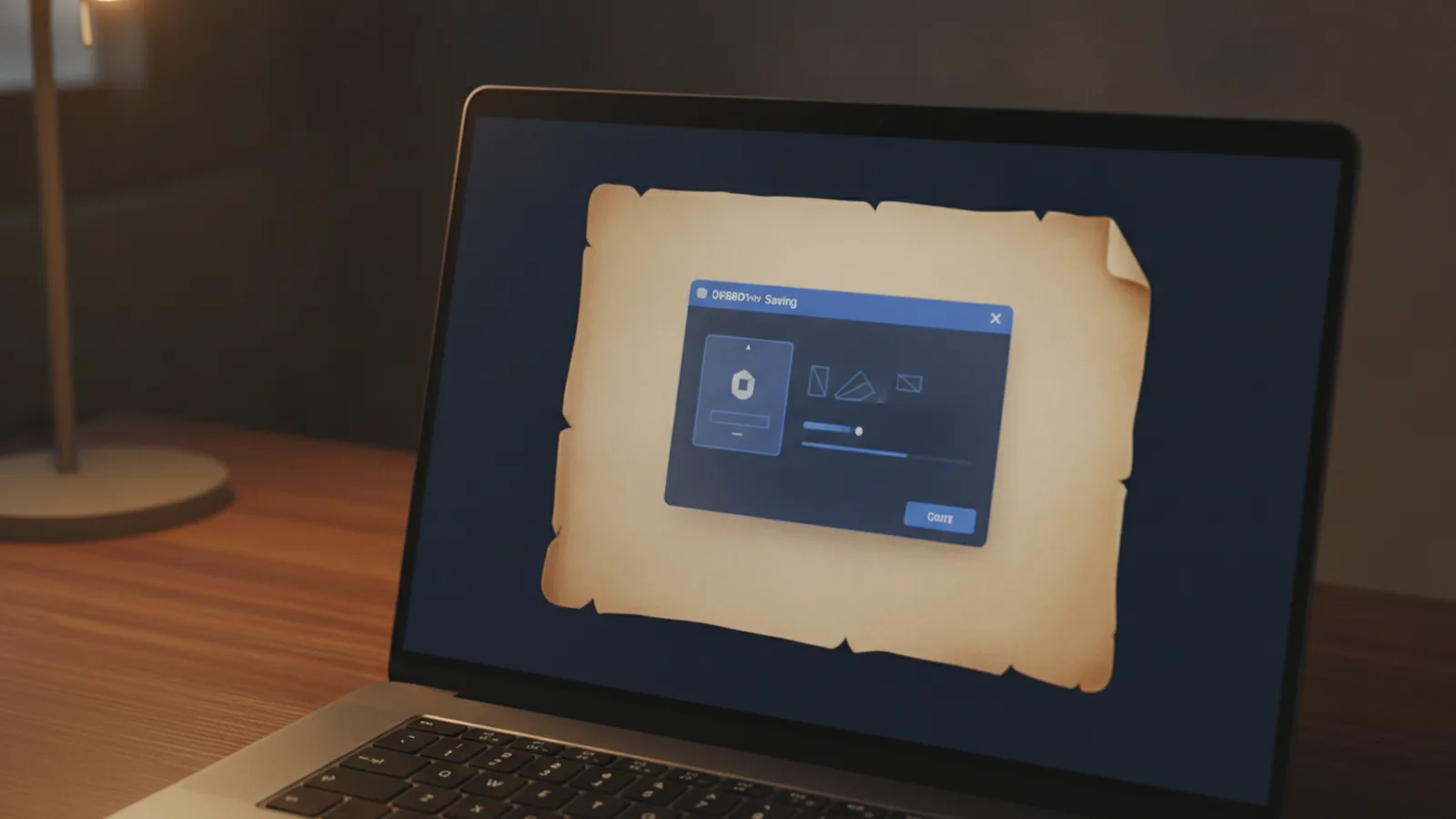
Adobe Acrobat vs. Adobe Digital Editions
If you want to download a PDF from Adobe Acrobat, you usually just open the file and use the save or export controls. If your content is inside Adobe Digital Editions, you may need an extra step to export or re-save it. The key is that these are different apps with different roles.
Adobe Acrobat is a PDF reader and editor. It handles standard PDF files and offers tools to save, export, or print them. Adobe Digital Editions is an ebook reader that supports protected ebooks. It may enforce access rules through DRM (digital rights management) features.
So, when you ask how to download a pdf from adobe acrobat, you are typically dealing with a normal PDF document. When you ask how to download pdf from adobe digital editions, you are usually dealing with protected content that needs to be handled through the Digital Editions workflow.
Steps to download a PDF from Adobe Acrobat
This section focuses on the most common path. You have a PDF open in Acrobat or you have a PDF link that loads in Acrobat. Either way, the goal is the same: save the file locally.
Start by opening the PDF in Acrobat. Then use one of the save methods below, based on what Acrobat shows on screen. If you only see a view inside a browser tab, first open the file in Acrobat.
- Use Save As: Open the PDF, then choose File > Save As.
- Pick a folder: Select a download folder such as your Desktop or a Downloads subfolder.
- Name the file: Keep the extension as .pdf.
- Confirm and finish: Click Save and wait for the file transfer to complete.
If your PDF is a web-hosted file, the exact buttons vary. But Acrobat normally offers a way to save the document, not just view it. Look for a save icon, a “Save As” option, or an export menu.
To make your PDF download process smoother, use these practical checks. First, make sure the save location is writable. Next, confirm you are signed in to any account that owns the document.
Check DRM restrictions before you try to remove anything
DRM in PDFs is about usage rules. It can control printing, copying text, or opening the file in other readers. For ebooks, DRM is often handled by Adobe Digital Editions rather than by a simple PDF security password.
Before you attempt anything that changes protections, check the document status. This helps you avoid wasted time and confusion. It also lets you see whether DRM is present at all.
- Look at the document message: Some protected files show an “protected” or “restricted” notice.
- Check permissions: In many cases you can open the PDF’s security details in Acrobat security settings.
- Try a safe action: See if you can select text or copy it. If selection fails, restrictions likely exist.
If you are working with Adobe Digital Editions, the DRM state is tied to your library item. That means you should check whether the ebook is actually downloadable to your device. If it is, the app may still require the item to stay protected.
Because rules vary by publisher, you may see different behavior. Some items allow viewing only through Digital Editions. Others may allow limited export. Always match your actions to what your permissions allow.
How to handle “how to remove drm from adobe digital editions pdf” safely
Many users search for how to remove drm from adobe digital editions pdf when they want to use the file freely. But removing DRM is often not allowed by the license terms for protected ebooks. It can also break access for the publisher’s controls.
What you can do is handle DRM within the allowed boundaries. That usually means exporting or saving content only if the publisher permits it. If export is not allowed, the safest path is to use your existing access to read and use the content in the intended way.
Here is a practical way to proceed without guessing. First, check what Digital Editions allows for the specific item. Then use only features that preserve permissions.
Note: If your goal is a full DRM removal, you should review your content license. If DRM removal is prohibited, focus on allowed export or conversion options.
If you need the content for a workflow like note-taking, first see if you can export permitted formats. Some publishers support text-to-PDF like outputs or allow printing. That is often enough for study and review.
If you are trying to share the document, check whether sharing is blocked. DRM can also restrict forwarding. In that case, exporting a protected PDF may still violate rules.
Save Adobe Digital Editions content as a PDF
If you need a PDF file for offline study, this is the typical path. The phrase how to save adobe digital editions as pdf often points to export-like workflows. The app you use, and what your publisher allows, determines whether you can do a direct export.
Before you try any conversion, confirm you can open the ebook in Adobe Digital Editions. Sign in to the same account used to authorize the item. Then proceed with the save method your item supports.
- Open the item in Digital Editions.
- Check the allowed actions in the menu for that item.
- Use an allowed export or print flow if available.
- Save to PDF using the system print dialog or an export option.
In many setups, “save as PDF” comes from the print dialog. If you can print, you may also be able to choose a “Save as PDF” printer. This is not a DRM bypass. It is an allowed way to capture content when permissions permit it.
Some publishers disable printing or limit it. When that happens, your menu options will be missing or will show an error. If you hit that wall, you may need to request a DRM-permitted format from the publisher.
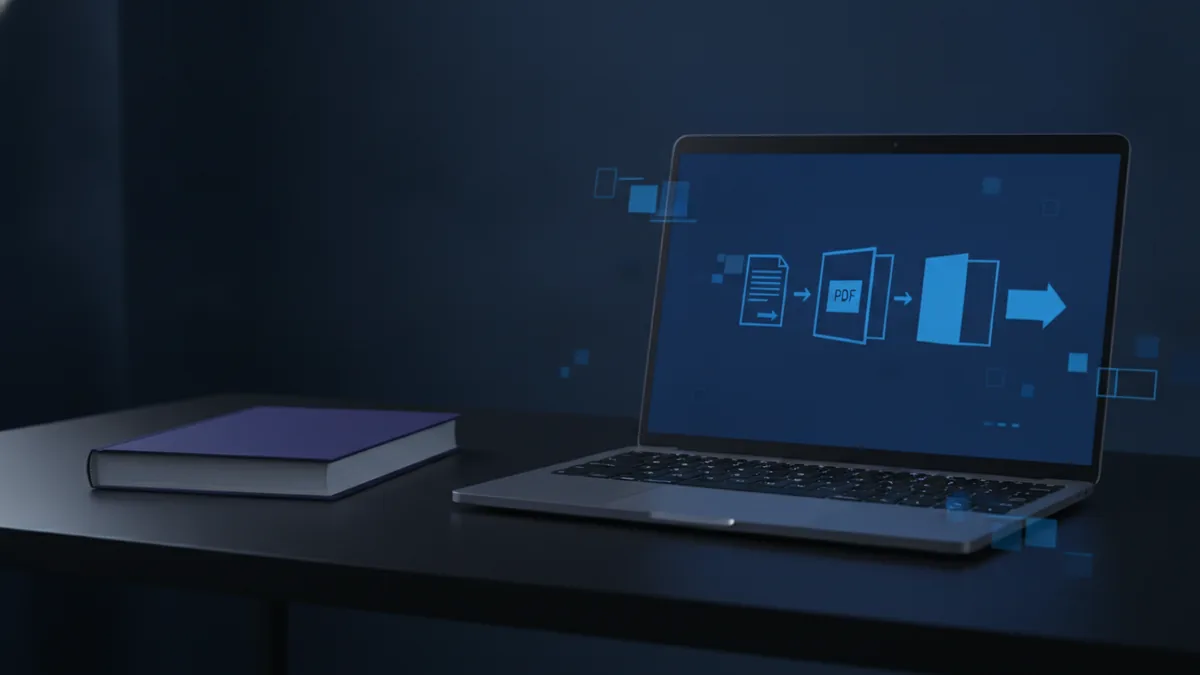
Troubleshooting common issues when downloading or saving PDFs
PDF download problems are usually one of a few patterns. A save step might fail, a file might be incomplete, or the app might block access due to permissions. Knowing which pattern you have makes fixes fast.
Problem: “Save As” fails or the PDF won’t download
Try a simpler target first. Save to a new folder with a short path like C:\Downloads on Windows. Also confirm you have write access. Then close and reopen the PDF and try again.
- Use a different folder location.
- Restart Acrobat if it is stuck on a transfer.
- Check if the file is still loading in your browser.
Problem: The file opens but access is restricted
If selection, copying, or saving is blocked, DRM or security permissions are likely active. For protected items from Digital Editions, the restriction can be publisher-driven. That means Acrobat alone may not lift the limitation.
Re-check the item in Digital Editions and ensure your login matches the licensed device. If your device authorization expired, the file may stop working.
Problem: Saving Digital Editions as PDF produces blank pages
This usually happens when printing is blocked or when the content is not fully rendered at capture time. Try capturing at a normal zoom level. Also try one page at a time if the app supports it.
If the print dialog offers page range options, set a small range first. For example, capture just 1–3 pages. Confirm the result, then expand your range.
Conclusion
To answer how to download a pdf from adobe acrobat, start with the simple save flow. Open the PDF in Acrobat, use File > Save As, and confirm the destination folder.
To answer how to download pdf from adobe digital editions, use the Digital Editions workflow and check what your item allows. Many protected ebooks require permissions handled through the app. That is also why “remove DRM” is not something you should treat as a quick setting.
If you need a PDF for study, try the allowed export or print-to-PDF approach. Then use the troubleshooting steps when saves fail or pages come out wrong. With those steps, your PDF download process stays predictable.
Image planning notes
Placeholder images are included above under the relevant sections.
Related reading
Copy Images from PDFs: Methods and Quality
Copy, save, and move PDF images while keeping their quality intact.
PDF Compression: File Size and Quality
Shrink PDF files while keeping text and images clear.
Adding Lines to PDFs: Tools and Steps
Draw, style, and manage PDF lines with tools you may already have.